
In today’s digital landscape, compelling video content is no longer optional—it’s essential. Whether you're creating social media clips, vlogs, or promotional reels, the ability to edit efficiently can make or break audience engagement. CapCut has emerged as one of the most accessible and powerful tools for creators at every level. With its intuitive interface and robust feature set, it enables users to cut, trim, and polish videos with professional finesse—without needing years of experience.
This guide dives deep into the art and technique of video editing using CapCut, focusing specifically on cutting and trimming—the foundational skills that shape pacing, narrative flow, and viewer retention. From basic timeline navigation to advanced split edits and precision adjustments, you’ll gain practical knowledge to elevate your editing game.
Navigating the CapCut Interface
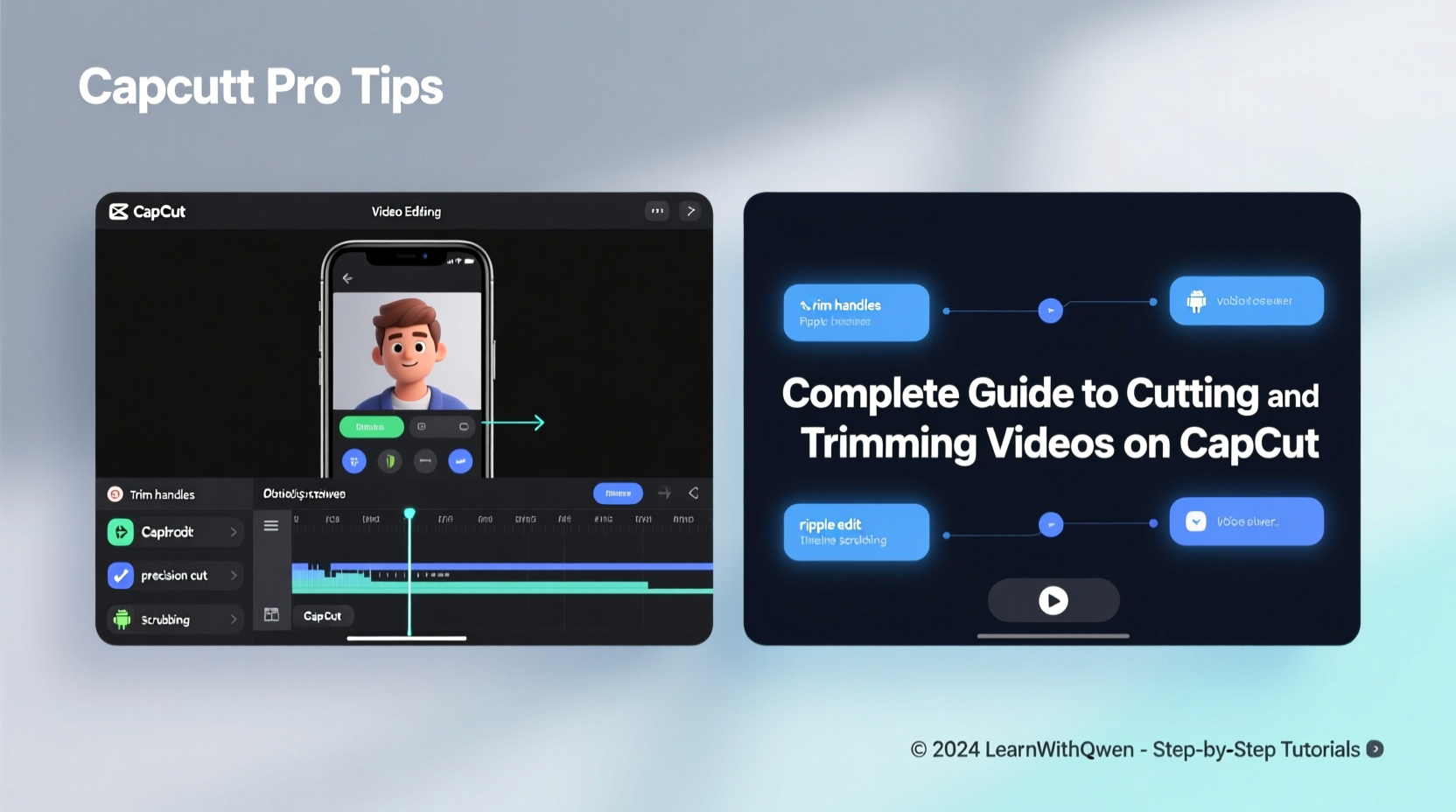
Before diving into cuts and trims, understanding CapCut’s workspace is crucial. Upon opening the app (available on both mobile and desktop), you’re greeted with a clean, user-friendly layout divided into three main areas: the preview window, the timeline, and the toolbar.
- Preview Window: Displays your current frame or playback in real time.
- Timeline: The central hub where clips are arranged, trimmed, and edited.
- Toolbar: Houses tools for cutting, splitting, adjusting speed, adding transitions, and more.
The timeline operates on a drag-and-drop principle. Import media by tapping “New Project” and selecting videos from your device. Once imported, clips appear sequentially, ready for manipulation. Each clip is represented as a rectangular block whose length corresponds to duration.
Cutting and Trimming: Core Techniques
Cutting removes unwanted sections; trimming adjusts the start or end points of a clip. Both actions refine timing and eliminate distractions.
Trimming Clips
To trim a clip, tap it on the timeline. Yellow handles will appear at both ends. Drag the left handle to adjust the in-point (start) or the right handle to set the out-point (end). As you drag, the preview window updates in real time, allowing you to fine-tune exactly what stays and what goes.
Making Cuts
For internal edits within a clip, use the \"Split\" tool. Position the playhead (the vertical line indicating current playback position) where you want to cut, then tap the scissor icon or press “Split.” This divides the clip into two separate segments. You can now delete the unwanted portion or rearrange the remaining pieces.
“Precision in trimming isn’t just about removing dead air—it’s about shaping rhythm. A well-placed cut can heighten emotion or emphasize action.” — Jordan Lee, Video Editor & Content Strategist
Advanced Editing Workflow
Once comfortable with basic cuts, layer in advanced techniques to enhance storytelling and visual flow.
Using Ripple Edit to Maintain Continuity
After deleting a segment, a gap may remain. Instead of manually shifting subsequent clips, enable ripple edit (if available in your version) or manually drag all following clips forward to close the space. This maintains seamless continuity without audio desync.
Adjusting Playback Speed for Impact
Speed adjustments complement cuts. Slow-motion can highlight key moments; fast-forwarding condenses time. Tap a clip, select “Speed,” and choose from presets or customize the rate. Be cautious: extreme speeds may reduce quality, especially on mobile recordings.
Adding Transitions Between Cuts
Sudden jumps between scenes can feel jarring. Insert subtle transitions like fade, dissolve, or slide to smooth the flow. Access transitions via the toolbar, drag them between clips, and adjust duration by tapping the transition block.
Step-by-Step Guide to Polishing a Clip
Follow this sequence to turn raw footage into a tight, engaging video:
- Import and Arrange: Add all clips to the timeline in desired order.
- Set In/Out Points: Trim beginnings and endings to remove shaky starts or trailing silence.
- Split at Key Moments: Cut at natural pauses, subject changes, or punchlines.
- Delete Unwanted Segments: Remove filler content, mistakes, or redundant takes.
- Close Gaps: Shift remaining clips to maintain continuous flow.
- Add Transitions: Insert mild transitions only where needed for clarity or emphasis.
- Preview and Refine: Watch the full sequence and re-cut any awkward pacing.
Do’s and Don’ts of Cutting and Trimming
| Do’s | Don’ts |
|---|---|
| Use headphones to identify precise audio cues for cuts | Leave long pauses between speaker lines unless intentional |
| Zoom in on the timeline for frame-level accuracy | Over-edit with excessive cuts that disrupt narrative flow |
| Save project versions before major edits | Ignore aspect ratio settings—ensure output matches platform requirements (e.g., 9:16 for TikTok) |
| Leverage auto-beat sync for music-driven cuts | Rely solely on default export settings—customize resolution and bitrate when possible |
Real-World Example: Editing a 60-Second Travel Reel
Sophia filmed a weekend trip across three locations: mountains, lakeside, and city streets. Her raw footage totaled 12 minutes. Using CapCut, she created a dynamic 60-second reel for Instagram.
She began by importing clips and arranging them geographically. She trimmed each clip to 3–5 seconds, ensuring only the most scenic shots remained. At transitions between locations, she used a simple cross-dissolve to signal change. Midway, she split a walking clip and inserted a drone shot for dramatic effect. By aligning cuts with background music beats, she achieved a rhythmic, energetic pace. The final export was set to 1080x1920 at 60fps for smooth playback.
The result? A polished, emotionally resonant mini-documentary that garnered 10x more engagement than her previous posts.
Essential Checklist Before Exporting
- ✅ All unnecessary footage has been trimmed or deleted
- ✅ Audio levels are balanced (voiceover not drowned by music)
- ✅ Transitions are consistent and purposeful
- ✅ Text overlays (if any) are legible and timed correctly
- ✅ Export settings match platform specs (vertical/horizontal, resolution, file size)
- ✅ Project saved and backed up locally or to cloud
Frequently Asked Questions
Can I undo multiple cuts in CapCut?
Yes. On mobile, tap the undo arrow (↩️) repeatedly to revert recent actions. On desktop, use Ctrl+Z (or Cmd+Z on Mac). Note: there is a limit to how far back undo goes, so save early and often.
How do I make frame-accurate cuts?
Zoom in fully on the timeline using the pinch gesture (mobile) or the zoom slider (desktop). Then move the playhead pixel by pixel using tap or arrow keys until perfectly aligned with the desired frame.
Why does my video look choppy after trimming?
This may occur if clips have mismatched frame rates or resolutions. Try enabling “Auto Reframe” or convert all clips to the same format before editing. Also, ensure your device isn’t overheating or throttling performance during playback.
Refine Your Craft, One Cut at a Time
Video editing mastery doesn’t come from knowing every tool—it comes from disciplined practice and intentionality behind every cut. CapCut lowers the barrier to entry, but the artistry lies in how you wield its features. Start small: trim one clip with precision, then another. Build sequences that breathe, flow, and captivate.
Editing is storytelling through time. Each trim sharpens focus. Each cut shapes meaning. With consistency, your instincts will grow sharper, your workflow smoother, and your content more impactful.




 浙公网安备
33010002000092号
浙公网安备
33010002000092号 浙B2-20120091-4
Comments
No comments yet. Why don't you start the discussion?