
If your high-refresh-rate monitor isn’t running at its advertised 165Hz, you're missing out on the smoothness it was designed to deliver. Whether you're gaming, editing video, or simply navigating your desktop, a locked 60Hz instead of 165Hz can feel sluggish and unresponsive. The good news: this is usually fixable. Most causes are rooted in overlooked settings, outdated drivers, or incompatible hardware connections—not faulty equipment.
The path to restoring full refresh rates involves checking every link in the chain: from GPU output and cable quality to display settings and driver health. This guide walks through each potential bottleneck with precise, actionable steps to diagnose and resolve why your monitor isn’t hitting 165Hz.
Verify Your Hardware Supports 165Hz
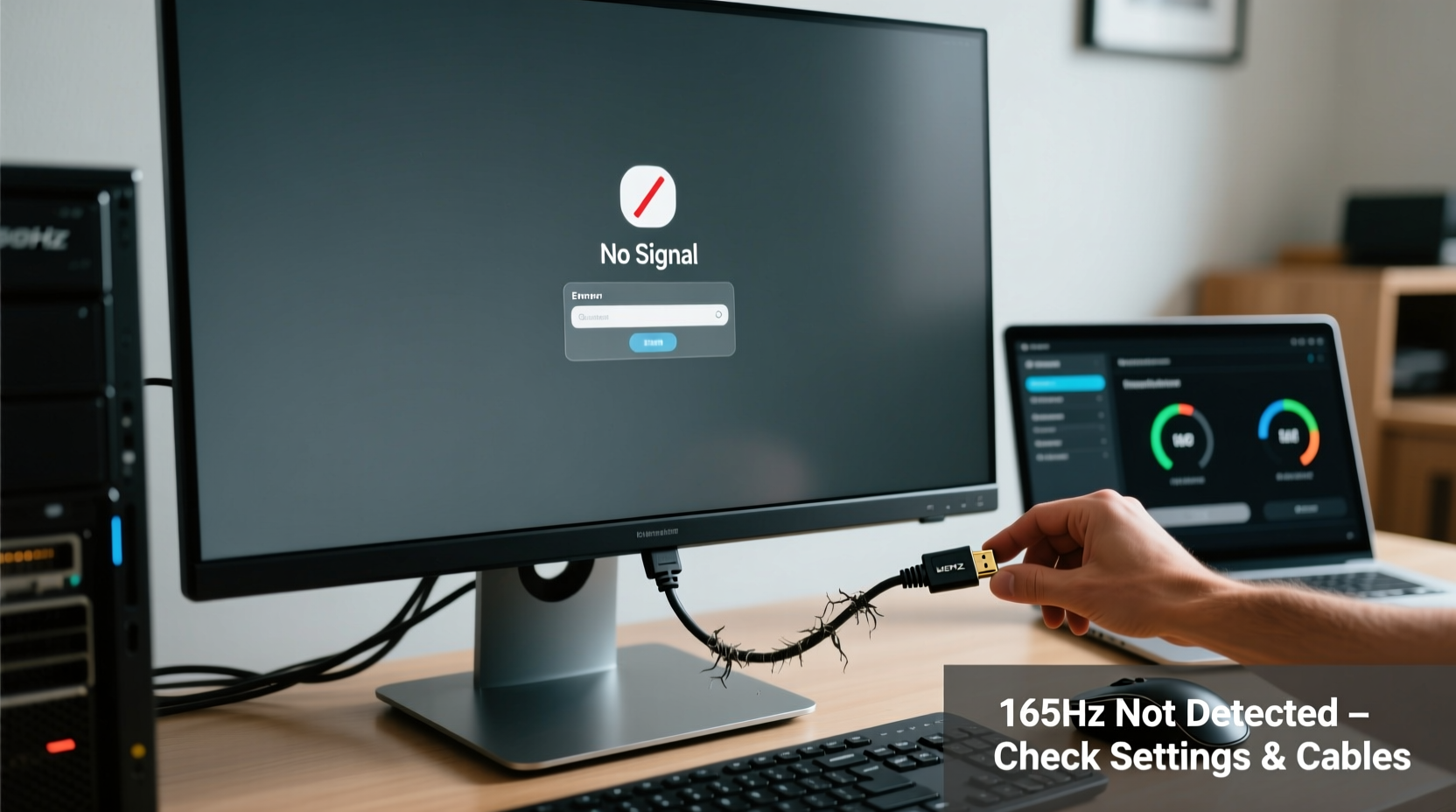
Before troubleshooting software or settings, confirm that both your monitor and graphics card are technically capable of supporting 165Hz at your desired resolution. For example:
- At 1080p (1920x1080): HDMI 1.4+ or DisplayPort 1.2+
- At 1440p (2560x1440): DisplayPort 1.2+ or HDMI 2.0+ required for 165Hz
- At 4K: Requires HDMI 2.1 or DisplayPort 1.4 with DSC for 165Hz
Using an older cable or port version may limit bandwidth, forcing the system to fall back to lower refresh rates like 60Hz or 120Hz even if the monitor supports higher.
Step-by-Step: Enable 165Hz in Windows Display Settings
Even with compatible hardware, Windows doesn't always default to the highest available refresh rate. Follow this sequence:
- Right-click the desktop and select Display settings.
- Scroll down and click Advanced display settings.
- Select the correct display if using multiple monitors.
- Under Refresh rate, open the dropdown menu.
- If 165Hz appears, select it and click Apply.
- If 165Hz is missing, proceed to deeper diagnostics below.
If the option is grayed out or unavailable, the system likely detects a limitation in signal integrity—often due to cabling, GPU configuration, or driver issues.
Check Cable and Port Compatibility
A surprisingly common cause of undetected 165Hz is using the wrong type of cable or damaged connectors. Not all \"high-speed\" cables perform equally under real-world loads.
| Cable Type | Max Refresh Rate (1080p) | Max Refresh Rate (1440p) | Supports 165Hz? |
|---|---|---|---|
| HDMI 1.4 | 120Hz | 75Hz | No |
| HDMI 2.0 | 240Hz | 144Hz | Limited (up to 144Hz at 1440p) |
| HDMI 2.1 | 360Hz+ | 240Hz+ | Yes |
| DisplayPort 1.2 | 240Hz | 165Hz (with compression) | Yes (at 1440p) |
| DisplayPort 1.4 | 360Hz | 240Hz (with DSC) | Yes |
Use only certified cables rated for your resolution and refresh rate. A frayed or low-quality cable—even if it displays an image—may not carry enough bandwidth for high refresh rates.
Update or Reinstall Graphics Drivers
Outdated, corrupted, or improperly installed GPU drivers are among the top reasons 165Hz fails to appear in settings. Both NVIDIA and AMD occasionally roll out updates that reset custom resolutions or misidentify monitor capabilities.
Follow these steps for a clean driver reinstall:
- Press Win + X and choose Device Manager.
- Expand Display adapters, right-click your GPU, and select Uninstall device.
- Check “Delete the driver software for this device” if available.
- Restart your PC.
- Download the latest driver directly from NVIDIA, AMD, or Intel.
- Install using “Custom (Clean) Install” option where available.
- Reboot again after installation.
Afterward, return to Advanced Display Settings and check if 165Hz now appears as an option.
“Over 60% of reported refresh rate issues vanish after a clean GPU driver reinstall. Users often overlook how deeply drivers influence EDID communication between GPU and monitor.” — Daniel Reeves, Senior Display Engineer at VESA-certified Lab Solutions
Troubleshoot Monitor-Specific Settings
Your monitor itself may have internal settings that disable high refresh rates unless manually enabled. Many models require overclocking modes or input-specific tuning.
Access your monitor’s OSD (On-Screen Display) menu using the physical buttons and navigate to:
- Game Mode / Performance Mode – Often unlocks higher refresh rates.
- FreeSync / G-Sync – Enable if supported; some panels lock refresh rate ranges when adaptive sync is off.
- Input Select – Ensure the correct input (DP/HDMI) is active and prioritized.
- Overclock Options – Some brands like ASUS, MSI, or Acer include a “165Hz+” toggle that must be turned on.
For example, certain ASUS TUF Gaming monitors hide the 165Hz option until “Extreme Low Motion Blur” or “OD Acceleration” is set to a non-off state.
Mini Case Study: Resolving a Stubborn 60Hz Lock
A user reported their new LG 27GP850-B remained stuck at 60Hz despite having an RTX 3070 and a DP 1.4 cable. All Windows settings showed only up to 120Hz. Initial checks confirmed correct resolution (1440p) and driver status.
The issue was traced to two factors:
- The included cable, though labeled “High Speed,” failed stress tests under actual load.
- The monitor’s factory reset had disabled FreeSync, which indirectly capped the maximum selectable refresh rate.
Swapping to a VESA-certified DP 1.4 cable and enabling FreeSync in the OSD restored the 165Hz option immediately. The takeaway? Both hardware and firmware layers matter.
GPU Control Panel Configuration
Windows settings reflect what the GPU reports—but fine-tuning happens in vendor-specific control panels.
NVIDIA Users:
- Open NVIDIA Control Panel.
- Go to Change resolution under Display.
- Select your monitor, then choose 165Hz from the refresh rate dropdown.
- If unavailable, click Customize > Create Custom Resolution, enter timing details matching your monitor’s specs (found in manual), and test.
AMD Radeon Users:
- Open Radeon Software. Navigate to Display tab.
- Enable Enhanced Refresh Rate mode for your resolution.
- Ensure FreeSync is enabled and within preferred range.
Troubleshooting Checklist
- Confirm monitor model officially supports 165Hz at current resolution.
- Use DisplayPort 1.2+ or HDMI 2.0+ (preferably DP).
- Try a different, certified high-speed cable.
- Plug directly into GPU—avoid hubs, docks, or adapters.
- Update GPU drivers via clean install method.
- Check monitor OSD for Game Mode, FreeSync, or OC settings.
- Set refresh rate manually in Windows Advanced Display Settings.
- Configure custom resolution in NVIDIA/AMD control panel if needed.
- Test on another PC to isolate fault (monitor vs. GPU).
Frequently Asked Questions
Why does my monitor show 144Hz but not 165Hz?
This typically occurs when the connection lacks sufficient bandwidth (e.g., HDMI 2.0 at 1440p caps around 144Hz). Switch to DisplayPort 1.2 or higher. Also verify that your GPU driver recognizes the full panel capability—some monitors report lower EDID data after driver glitches.
Can BIOS or UEFI settings affect refresh rate?
Indirectly, yes. If you're using integrated graphics (iGPU) alongside a dedicated GPU, improper primary display selection in BIOS can route output through the iGPU, which rarely supports beyond 60Hz on external displays. Ensure your PCIe slot is set as the primary display adapter.
Does Windows version matter for high refresh rates?
Windows 10 and 11 fully support high refresh rates. However, older builds (pre-20H2) had bugs affecting detection. Always keep Windows updated to ensure optimal display stack performance.
Final Steps and Ongoing Maintenance
Once 165Hz is restored, consider creating a restore point or exporting your GPU profile to preserve the configuration. Driver updates sometimes reset display settings, so periodic checks are wise—especially after major Windows or GPU driver upgrades.
Additionally, label your working cable and port combination. Knowing exactly which setup delivers full performance saves hours in future troubleshooting.
“The difference between 60Hz and 165Hz isn’t just technical—it’s experiential. Once you’ve had it, going back feels like walking through mud.” — Lin Zhao, Competitive FPS Coach and Display Analyst
Take Action Today
Don’t settle for subpar performance from a monitor built for speed. With the right cable, updated drivers, and proper settings, unlocking 165Hz is within reach for most modern setups. Go through the checklist, validate each component, and reclaim the fluid experience you paid for. If one step fails, move to the next—eventually, the bottleneck will reveal itself.




 浙公网安备
33010002000092号
浙公网安备
33010002000092号 浙B2-20120091-4
Comments
No comments yet. Why don't you start the discussion?