
Nothing disrupts your day like a frozen phone. Whether you're in the middle of an important call, trying to capture a moment, or navigating through traffic, a device that refuses to respond can be more than just inconvenient—it can feel like a technological betrayal. But before you consider replacing your phone, understand that freezing is often a solvable issue. It affects both Android and iPhone users across all price ranges and model years. The causes range from software glitches and memory overload to overheating and outdated operating systems. The good news is that most freezes can be resolved quickly with the right approach.
Why Phones Freeze: Common Causes
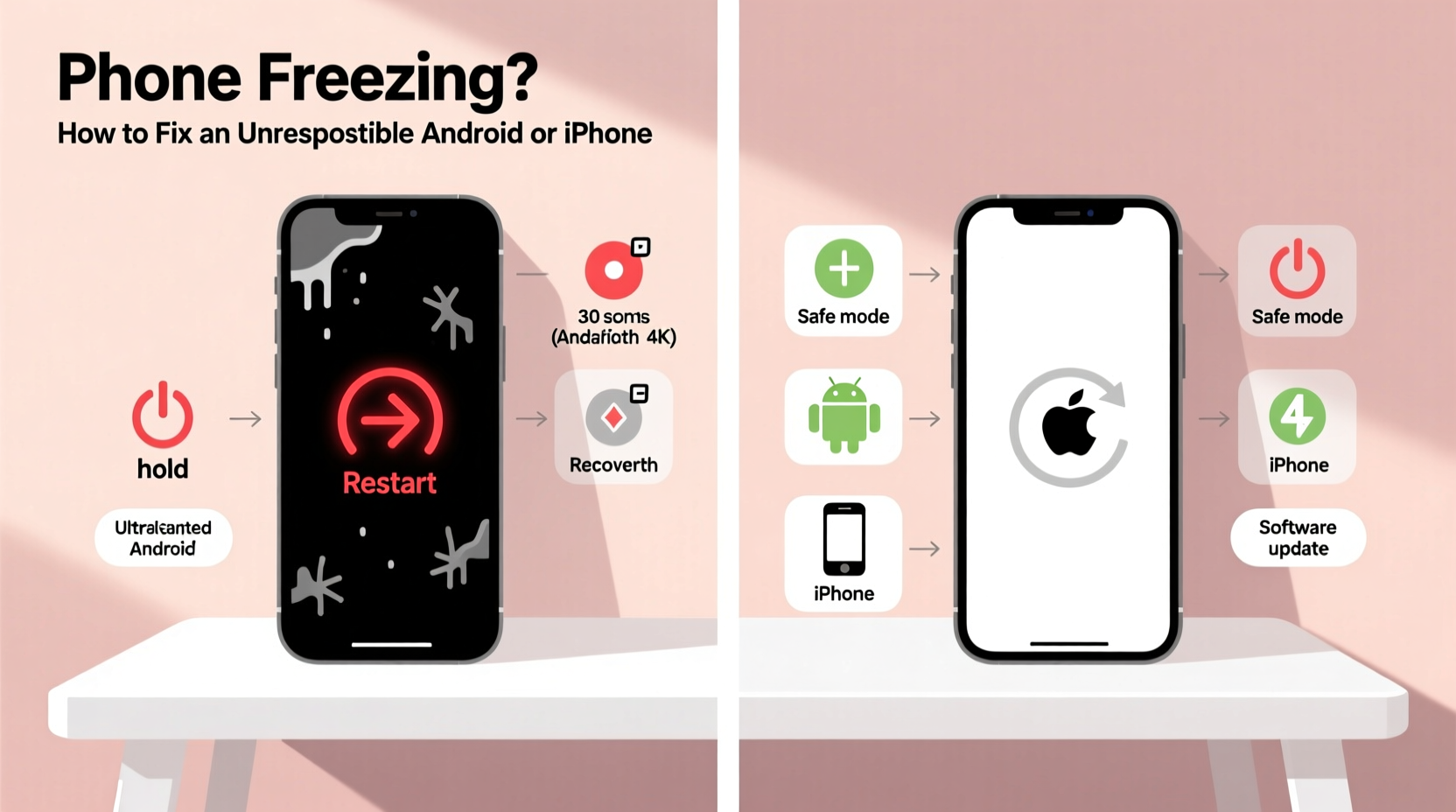
A frozen screen doesn’t always mean hardware failure. In fact, most cases stem from software-related stressors. Understanding the root cause helps determine the best solution.
- App Overload: Running too many apps simultaneously can exhaust RAM, especially on older devices.
- Buggy Software: Poorly coded or outdated apps may conflict with system processes.
- OS Issues: An incomplete update or corrupted system files can lead to instability.
- Overheating: Excessive heat forces the phone to throttle performance or shut down non-critical functions.
- Storage Full: When internal storage is nearly full, the OS struggles to manage temporary files and background operations.
- Firmware Glitches: Rare but possible firmware bugs can cause lockups after updates.
Immediate Fixes for a Frozen Phone
When your screen stops responding, start with these immediate actions. They require no technical skill and work in most cases.
For iPhones: Force Restart by Model
iPhones don’t have removable batteries, so a force restart is the primary way to regain control.
- iPhone 8 and later: Press and release Volume Up, then Volume Down. Hold the Side button until the Apple logo appears (about 10 seconds).
- iPhone 7/7 Plus: Press and hold Volume Down + Power buttons until the Apple logo shows.
- iPhone 6s and earlier: Hold Home + Power buttons together until the screen reboots.
For Android Devices: Universal Recovery Steps
Android varies by manufacturer, but most follow similar patterns.
- Press and hold the Power button for 15–30 seconds to force shutdown.
- If that fails, try Power + Volume Down for 10+ seconds (common on Samsung, Google, and OnePlus).
- Some models support Power + Volume Up + Volume Down simultaneously to trigger recovery mode.
After the restart, observe if normal function returns. If the phone boots successfully, avoid opening heavy apps immediately to let the system stabilize.
Long-Term Solutions to Prevent Future Freezing
Occasional freezing might be normal under extreme use, but recurring issues demand deeper intervention. These strategies address underlying problems.
Clear Cache and Manage Storage
Accumulated cache data and low storage space are silent performance killers.
- Android: Go to Settings > Storage > Clear Cache. For individual apps, visit Settings > Apps > [App Name] > Storage > Clear Cache.
- iOS: Offload unused apps via Settings > General > iPhone Storage. This keeps data while removing the app binary.
Update Your Operating System and Apps
Manufacturers and developers regularly patch stability bugs. Delaying updates increases vulnerability to crashes.
| Device Type | How to Check OS Update | Recommended Frequency |
|---|---|---|
| iPhone | Settings > General > Software Update | As soon as available |
| Android (Samsung) | Settings > Software Update > Download and Install | Monthly, when notified |
| Android (Google Pixel) | Settings > System > System Update | Monthly security patches |
Limit Background Activity
Too many apps running in the background consume memory and CPU.
- Disable auto-sync for non-essential apps.
- Restrict background data usage (Android: Settings > Apps > [App] > Mobile Data).
- On iPhone, reduce motion effects and turn off Background App Refresh for rarely used apps.
“Over 60% of Android freezes we see in diagnostics are linked to third-party apps misbehaving in the background.” — Raj Mehta, Senior Mobile Technician at TechCare Labs
Troubleshooting Checklist
Use this step-by-step checklist whenever your phone freezes or becomes sluggish. Follow each item in order for best results.
- Force restart the device using model-specific button combo.
- Check for pending OS updates and install them.
- Update all apps through Google Play or App Store.
- Clear cache partition (Android) or offload unused apps (iOS).
- Close all background apps manually.
- Reboot and monitor performance.
- If freezing persists, boot into Safe Mode (Android) or restore via iTunes/Finder (iOS).
Real-World Example: Recovering a Stuck Samsung Galaxy S20
Sarah, a freelance photographer, relied on her Galaxy S20 for client previews. One afternoon, the screen froze while transferring large image files. Touch inputs did nothing. She tried tapping repeatedly—no response. Remembering a tech article, she held the Power and Volume Down buttons for 12 seconds. The phone vibrated and rebooted. After restarting, she noticed a system update notification. She installed it, cleared the cache of her photo editing app, and disabled several fitness apps running in the background. Since then, her phone has remained responsive—even during heavy multitasking.
This case illustrates how combining a force restart with post-recovery maintenance resolves most issues without data loss.
When to Consider Factory Reset or Professional Help
If basic fixes fail, more drastic measures may be necessary—but only after backing up your data.
A factory reset erases everything and reinstalls the OS, often eliminating deep-seated software conflicts. However, it should be a last resort.
- Android: Settings > System > Reset > Erase All Data (Factory Reset).
- iOS: Settings > General > Transfer or Reset iPhone > Erase All Content and Settings.
If the phone continues to freeze after a clean reset, suspect hardware issues such as failing memory chips, battery swelling, or logic board damage. In such cases, consult an authorized service center. Attempting DIY repairs on modern phones risks further damage due to sealed designs and proprietary components.
Frequently Asked Questions
Can a virus make my phone freeze?
True viruses are rare on mobile devices due to sandboxed app environments. However, malicious apps or adware can overload your system, causing lag and freezes. Only download apps from official stores and review permissions carefully.
Does cold weather cause phone freezing?
Yes. Extremely low temperatures can temporarily disrupt battery chemistry and touchscreen responsiveness, especially on iPhones. Apple warns that operation below -20°C (-4°F) may lead to shutdowns. Warm the device gradually—do not expose it to sudden heat.
Will rooting or jailbreaking increase freezing risk?
Absolutely. Modifying the operating system bypasses built-in safeguards. While it offers customization, it also exposes the device to instability, unapproved code conflicts, and failed updates. Most manufacturers void warranties if tampering is detected.
Stay Calm, Stay in Control
A frozen phone is frustrating, but rarely catastrophic. With methodical troubleshooting, most issues resolve in minutes. The key is acting calmly—avoid rapid button mashing or physical shaking, which can worsen the situation. Apply the steps outlined here: restart, update, clean up, and monitor. By maintaining your device proactively, you’ll reduce freezing incidents and extend its usable life significantly.




 浙公网安备
33010002000092号
浙公网安备
33010002000092号 浙B2-20120091-4
Comments
No comments yet. Why don't you start the discussion?