
Project64 remains one of the most popular Nintendo 64 emulators for PC users, offering high compatibility and performance. However, a common frustration among both new and experienced users is when the ROM list fails to appear—either showing no games at all or only partially loading titles. This issue can stem from misconfigured settings, incorrect file placement, unsupported formats, or deeper system-level problems. Understanding the root causes and applying targeted fixes can restore full functionality quickly.
Why Your ROM List Might Not Be Showing
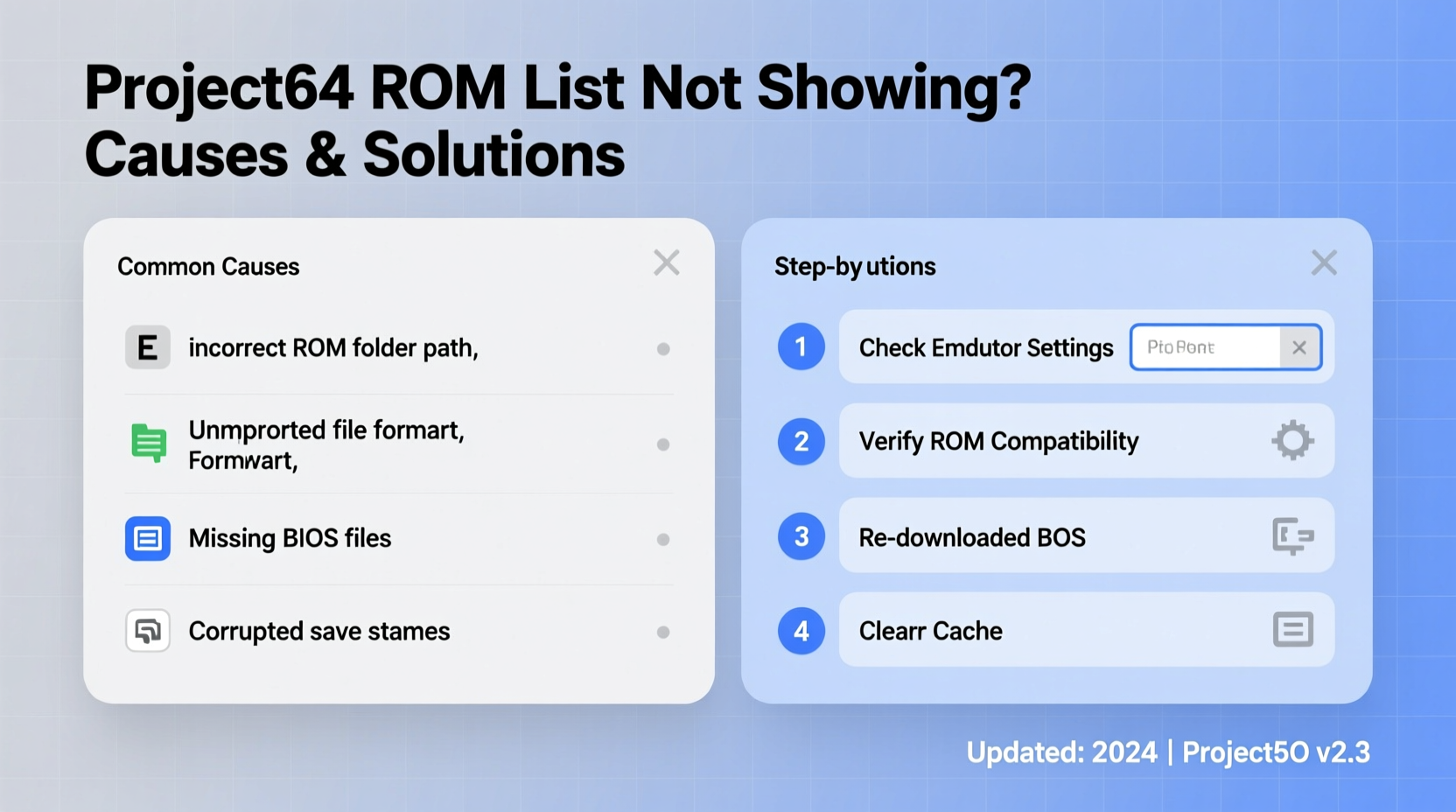
The absence of ROMs in Project64 typically indicates that the emulator cannot locate, read, or recognize the game files. Unlike plug-and-play systems, emulators require precise folder structures, correct BIOS setup, and compatible ROM formats. When any part of this chain breaks, the result is an empty or incomplete game list.
Common symptoms include:
- An entirely blank ROM browser window
- Only built-in demos or test ROMs appearing
- Recent additions not showing up despite being placed in the correct folder
- Error messages like “No valid ROMs found” on startup
These issues are rarely due to corrupted software but rather configuration oversights or file management errors. The good news is that most can be resolved without reinstalling the entire program.
Step-by-Step Guide to Restore Your ROM List
Follow this structured approach to identify and fix the underlying cause preventing your ROMs from displaying.
- Verify ROM Folder Location
Open Project64, go to Options > Settings > ROM Browser, and check the “Default ROM Path.” Ensure it points to the actual directory where your N64 ROMs are stored. If unsure, manually navigate to the folder using Windows Explorer and copy the exact path (e.g.,C:\\Project64\\ROMs). - Check File Extensions and Format
Project64 supports several ROM formats, but improper extensions prevent detection. Valid extensions include:- .z64 (big-endian, most common)
- .v64 (byte-swapped, used by some flash carts)
- .n64 (little-endian)
- Enable Hidden Files and Folders (if needed)
Sometimes, ROMs may be present but invisible due to OS-level visibility settings. In Windows, open File Explorer, go to View > Options > Change folder and search options, then select “Show hidden files, folders, and drives” under the View tab. - Rescan the ROM Directory
After confirming location and format, return to the ROM Browser in Project64 and click “Refresh” or press F5. The emulator should now scan the designated folder and populate the list with recognized titles. - Test with a Known-Good ROM
Download a single verified working ROM (such as Super Mario 64 .z64) and place it directly into the ROM folder. Restart Project64. If it appears, the issue was likely file corruption or format mismatch in your original collection.
Common Causes and Their Solutions
| Cause | Symptoms | Solution |
|---|---|---|
| Incorrect ROM path set in emulator | No games appear regardless of folder contents | Update default ROM path in Settings > ROM Browser |
| Unsupported or misnamed file extensions | Files exist but aren’t detected | Rename to .z64/.v64/.n64; avoid .zip unless extraction is enabled |
| Corrupted or incomplete ROM downloads | Inconsistent behavior across different games | Re-download from trusted source; use checksum tools |
| Missing or improperly configured BIOS | Emulator runs but won’t load any games | Ensure correct 4MB or 8MB IPL ROM is placed in BIOS folder |
| User permissions or antivirus interference | Folder access denied; files blocked silently | Add exception in security software; run Project64 as administrator |
Mini Case Study: Recovering a Missing Game Library
Mark, a retro gaming enthusiast, installed Project64 after upgrading his PC. Despite copying over hundreds of ROMs, none appeared in the browser. He confirmed the folder path was correct but still saw nothing. After checking file extensions, he discovered all his ROMs were compressed inside individual ZIP archives—a leftover habit from mobile emulation. Once he extracted them into the main ROMs folder and refreshed the browser, every game loaded instantly. The fix took less than ten minutes once the real issue was identified.
“Most ROM visibility issues come down to path accuracy and file formatting—not complex technical failures.” — Daniel Reyes, Emulation Support Technician
Prevention Checklist
To avoid future disruptions, follow this proactive checklist whenever setting up or modifying your Project64 environment:
- ✅ Organize all ROMs in a dedicated folder clearly named (e.g., “N64_ROMs”)
- ✅ Use consistent, supported file extensions (.z64 preferred)
- ✅ Keep the BIOS folder populated with legitimate IPL files
- ✅ Disable compression unless using built-in archive support
- ✅ Regularly back up your ROM collection externally
- ✅ Run Project64 as administrator if experiencing permission errors
- ✅ Whitelist the Project64 directory in antivirus software
Frequently Asked Questions
Why does Project64 not detect my ROMs even though they’re in the right folder?
This usually happens because the emulator’s ROM path setting doesn’t match the actual folder location. Double-check the path under Settings > ROM Browser. Also ensure files aren’t inside nested ZIPs or have incorrect extensions like .zip.z64 or .rar.
Can I use ROMs compressed in ZIP files?
Yes, but only if you’ve enabled “Scan ZIP Archives” in Project64’s ROM Browser settings. Otherwise, extract the ROMs first. Note that multi-ROM ZIPs or password-protected archives will not work.
Does Project64 require specific BIOS files to display ROMs?
While the BIOS isn’t required just to *list* ROMs, attempting to launch any game without the correct IPL (Internal Program Loader) file will fail. Place a valid 4MB or 8MB U[PR]G*.bin file in the BIOS folder to ensure full functionality beyond listing.
Final Thoughts and Next Steps
A missing ROM list in Project64 is a solvable problem rooted in organization, configuration, and compatibility—not hardware limitations or software defects. By methodically verifying paths, file types, and system permissions, most users regain full access within minutes. The key is understanding how the emulator locates and interprets game data, then aligning your setup accordingly.
Once resolved, take time to standardize your library: rename files uniformly, maintain clean folder hierarchies, and document your setup. These habits prevent recurrence and make future upgrades smoother. Emulation thrives on precision—small adjustments yield big improvements in reliability and enjoyment.




 浙公网安备
33010002000092号
浙公网安备
33010002000092号 浙B2-20120091-4
Comments
No comments yet. Why don't you start the discussion?