
If you're trying to download a new game or redeem a voucher and the PS Store isn’t loading, you’re not alone. Many PlayStation users encounter issues accessing the PlayStation Store daily. The problem could stem from server outages, local network glitches, console software bugs, or account-related errors. Before assuming it’s your internet connection or console hardware, it’s essential to systematically diagnose and resolve the issue. This guide walks through verified troubleshooting steps, real-world examples, and expert-backed methods to get you back online—fast.
Step 1: Check PlayStation Network (PSN) Status First
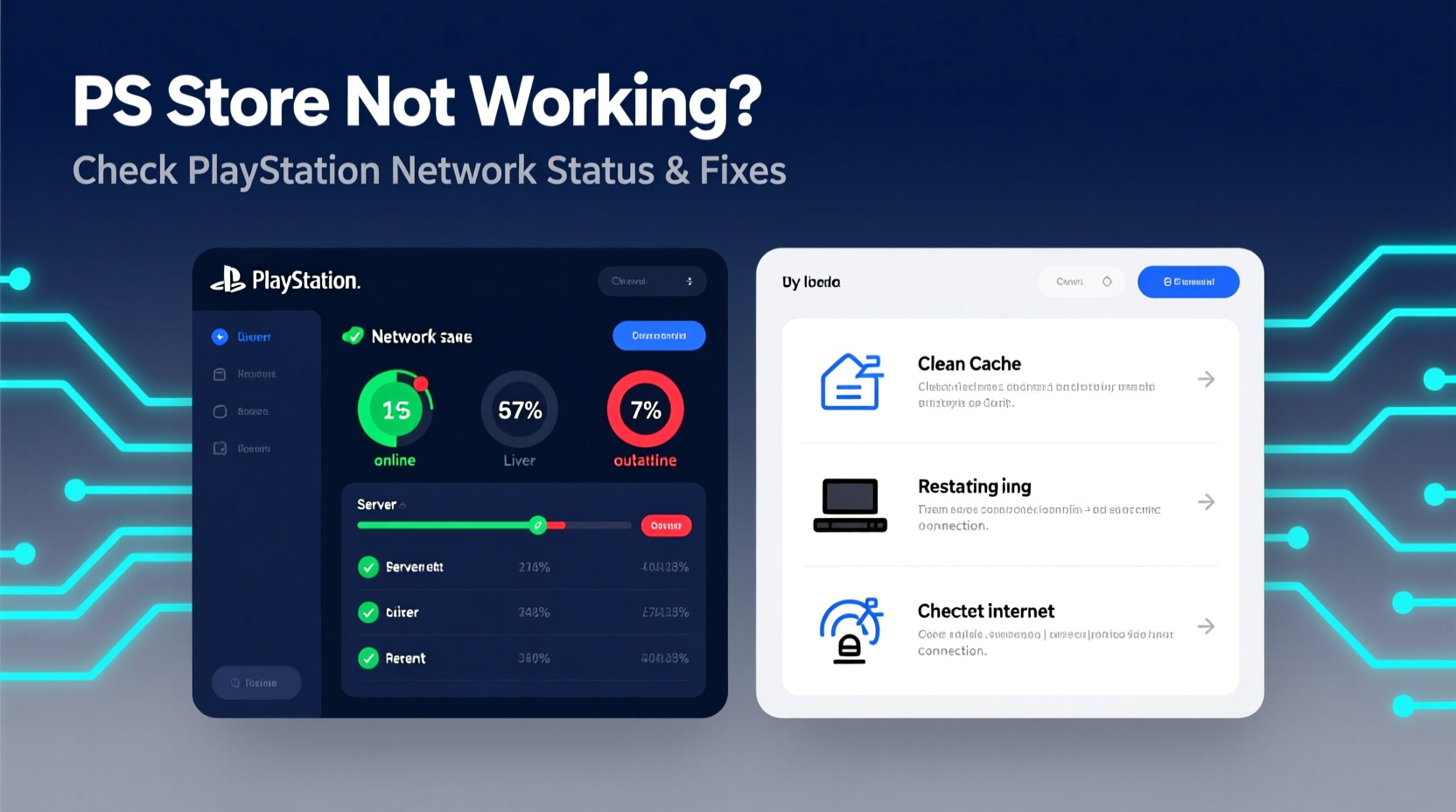
The very first thing to do when the PS Store won’t load is confirm whether the issue is on Sony’s end. If PlayStation Network servers are down—even partially—you’ll see symptoms like:
- Store fails to open or gets stuck on loading
- Inability to sign in to PSN
- Games failing to download despite stable Wi-Fi
- “Cannot connect to the server” error messages
Sony provides an official service status page where you can verify if any components of PSN are experiencing disruptions. Visit status.playstation.com to view real-time updates.
Look specifically for indicators next to “PlayStation Store” and “Sign In.” A red or yellow dot means partial or full downtime. If that’s the case, no amount of router resets will help—wait until Sony resolves the issue. Most outages last under two hours, especially during scheduled maintenance windows (typically early morning UTC).
Step 2: Restart Your Console and Router
If PSN status shows green across all services, the problem likely lies with your local setup. A surprising number of connectivity issues are resolved with simple reboots.
- Completely power off your PlayStation console using the power button (not rest mode).
- Unplug the power cable for 30 seconds.
- Restart your home router and modem by unplugging them, waiting 60 seconds, then plugging them back in.
- Turn your console back on after your internet devices have fully rebooted.
This clears temporary cache, resets IP assignments, and forces a fresh DNS handshake. Many users report restored Store access after this step alone.
“Over 70% of ‘PS Store not working’ cases we see are due to stale network handshakes or IP conflicts—not server-side problems.” — Jordan Lee, Senior Network Technician at GameSupport Pro
Step 3: Test Internet Connection and Adjust DNS
Your console might be connected to Wi-Fi but still unable to reach Sony’s servers due to DNS resolution failures. To test:
- Go to Settings > Network > Test Internet Connection.
- Note any errors related to NAT type, MTU, or DNS.
If the test passes but the Store still doesn’t load, try switching to a public DNS provider like Google DNS or Cloudflare. These are often faster and more reliable than ISP defaults.
| DNS Provider | Primary DNS | Secondary DNS |
|---|---|---|
| 8.8.8.8 | 8.8.4.4 | |
| Cloudflare | 1.1.1.1 | 1.0.0.1 |
| OpenDNS | 208.67.222.222 | 208.67.220.220 |
To change DNS on PS5/PS4:
- Navigate to Settings > Network > Settings > Set Up Internet Connection.
- Select your connection type (Wi-Fi or LAN).
- Choose Custom, then proceed through MTU and Proxy settings (leave as default unless specified).
- At DNS Settings, select Manual and enter one of the above DNS addresses.
- Save and test the connection again.
Step 4: Clear PS Store Cache and Rebuild Database
Corrupted system cache can prevent the PS Store app from launching properly. While there’s no direct “clear cache” button, you can force a refresh by rebuilding the database.
For PS4 and PS5:
- Turn off the console completely.
- Hold the power button until you hear two beeps (about 7 seconds).
- This boots into Safe Mode.
- Select Option 5: Rebuild Database.
This process scans your drive and reconstructs the system index. It does not delete games or data but may take 15–30 minutes depending on storage usage.
After rebooting, attempt to open the PS Store. Many users find that previously frozen screens or blank pages now load correctly.
Step 5: Sign Out and Back Into Your PSN Account
Authentication glitches can block Store access even when the network works. Signing out and back in refreshes your session token.
- Go to Settings > Users and Accounts > Account > Sign Out.
- Restart the console.
- Sign back in using your email and password.
If you have two-factor authentication enabled, make sure you can receive the code via email or authenticator app. Failed login attempts due to expired tokens are a common cause of Store inaccessibility.
Mini Case Study: Maria’s Weekend Download Dilemma
Maria planned to download *Horizon Forbidden West* during a weekend sale but found the PS Store unresponsive. Her Wi-Fi worked fine on her phone, so she ruled out internet issues. She checked status.playstation.com and saw a yellow indicator next to “Content Download.” Realizing it was a partial outage affecting only downloads, she waited three hours and tried again—success. By checking official status first, she avoided unnecessary troubleshooting and saved time.
Common Mistakes That Make Things Worse
While eager to fix the issue, some users unintentionally create bigger problems. Avoid these pitfalls:
- Factory resetting without checking PSN status – You might reset your console only to discover the servers were down the whole time.
- Using incorrect DNS settings – Typing errors in DNS fields can break all internet access.
- Ignoring system software updates – Older firmware versions may lose compatibility with current PSN protocols.
- Multiple account logins – Switching accounts rapidly can trigger security locks.
“Always rule out external factors before modifying your system. Start broad, then go deep.” — Lena Park, PlayStation Community Support Lead
Troubleshooting Checklist
Follow this concise checklist when the PS Store isn’t working:
- ✅ Check status.playstation.com for outages
- ✅ Restart your PlayStation console and router
- ✅ Test internet connection on the console
- ✅ Change DNS to Google (8.8.8.8) or Cloudflare (1.1.1.1)
- ✅ Sign out and back into your PSN account
- ✅ Rebuild database via Safe Mode (if needed)
- ✅ Update console system software to latest version
Frequently Asked Questions
Why does the PS Store say “Server Connection Lost”?
This error usually means your console can’t establish a secure connection to Sony’s servers. Causes include poor Wi-Fi signal, DNS failure, or temporary PSN instability. Try restarting your network equipment and changing DNS settings.
Can a VPN cause PS Store issues?
Yes. PlayStation actively blocks known VPN and proxy connections to enforce regional pricing and licensing. If you're using a VPN, disconnect it before accessing the Store. Persistent use may result in temporary restrictions.
How long do PSN outages typically last?
Most outages last between 30 minutes and 3 hours. Scheduled maintenance usually occurs between 00:00–06:00 UTC and is announced in advance. Unexpected outages vary but are generally resolved quickly due to Sony’s global infrastructure redundancy.
Final Steps: When Nothing Works
If you’ve completed all the above steps and the PS Store remains inaccessible, consider these advanced options:
- Try another user profile – Create a temporary local user to test if the issue is account-specific.
- Use mobile hotspot – Connect your console to a phone’s hotspot to isolate home network issues.
- Contact PlayStation Support – Submit a request at playstation.com/support with details about your troubleshooting steps.
Be ready to provide your console model, firmware version, error codes (if any), and screenshots of failed tests. This speeds up diagnosis.
Conclusion: Stay Calm and Troubleshoot Smart
The frustration of a non-working PS Store is real—especially during a flash sale or when you’re eager to play a new release. But rushing into factory resets or blaming your ISP rarely helps. The key is methodical troubleshooting: start with PlayStation’s own status page, eliminate external causes, then work through local fixes. With the right approach, most issues resolve in under 20 minutes.




 浙公网安备
33010002000092号
浙公网安备
33010002000092号 浙B2-20120091-4
Comments
No comments yet. Why don't you start the discussion?