
In today’s hybrid work environment, a high-quality video conferencing camera is no longer a luxury—it’s a necessity. Whether you're leading team meetings from a home office or presenting in a boardroom, your camera shapes first impressions, influences communication clarity, and affects collaboration efficiency. A poor image can distract, undermine credibility, or even hinder understanding. Choosing the right camera means balancing resolution, field of view, low-light performance, ease of setup, and compatibility with your existing software.
This guide explores top-performing video conferencing cameras across different environments, from compact personal setups to large conference spaces. You’ll learn what technical features matter most, how to match hardware to room size and usage, and how to avoid common pitfalls that degrade video quality—even with expensive gear.
Key Features That Define a Reliable Video Camera
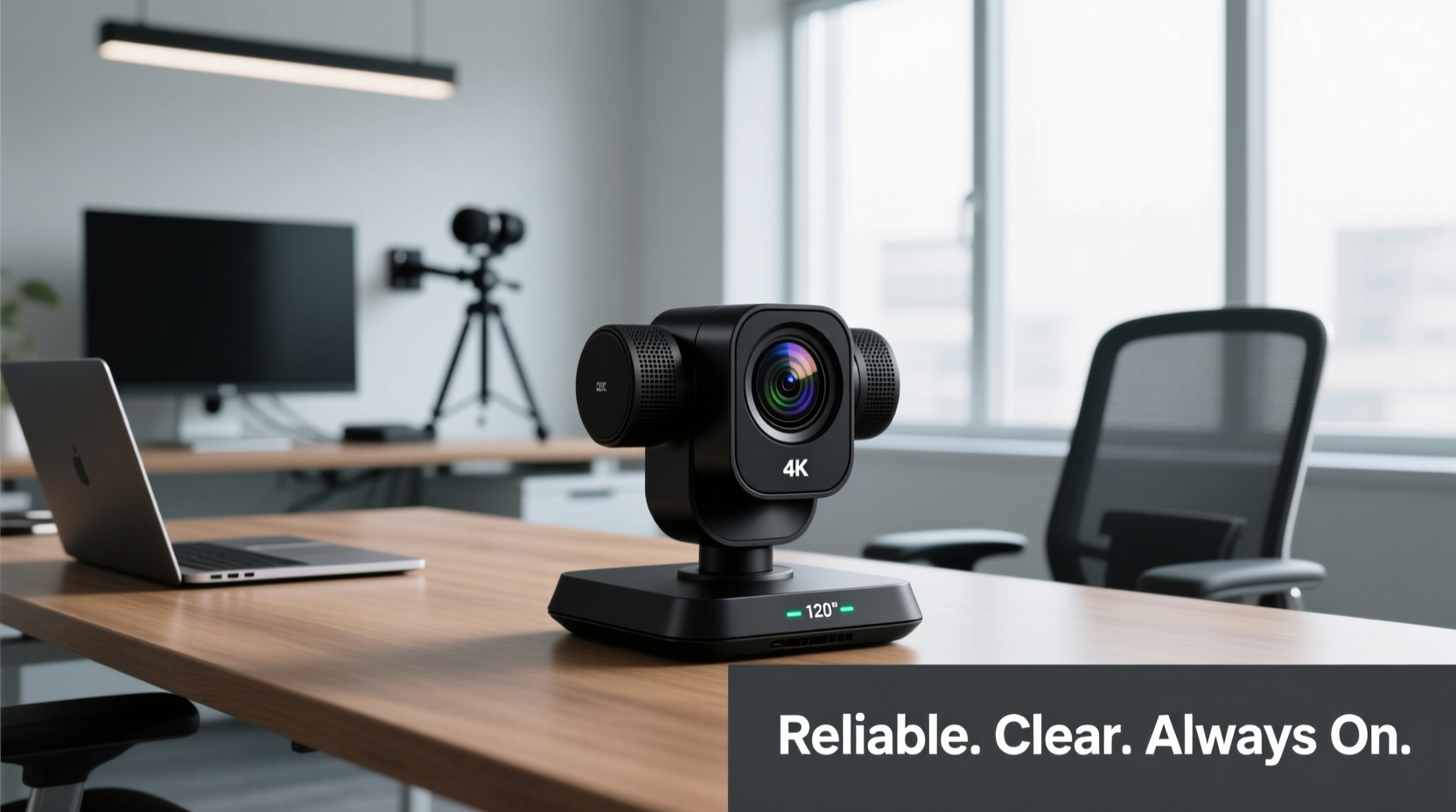
Not all webcams are created equal. While many plug-and-play devices offer 1080p resolution, true reliability comes from a combination of hardware precision, intelligent software enhancements, and consistent performance under real-world conditions.
- Resolution: Full HD (1080p) is the baseline. For larger rooms or presentations involving detailed visuals, consider 4K models.
- Frame Rate: 30fps is standard; 60fps provides smoother motion, especially useful during dynamic discussions or screen sharing.
- Field of View (FOV): Ranges from 78° (narrow, ideal for solo use) to 120°+ (wide-angle, suitable for groups).
- Low-Light Performance: Sensors with backside illumination (BSI) or automatic exposure adjustment maintain clarity in dimly lit rooms.
- Auto-Framing & Tracking: AI-powered features keep speakers centered, even when moving, enhancing engagement without manual adjustments.
- Audio Integration: Built-in noise-canceling microphones reduce background distractions, minimizing the need for separate audio hardware.
Choosing the Right Camera by Setup Type
Your environment determines which camera will deliver optimal results. A device perfect for a quiet home office may fall short in a bustling conference room.
Home Office / Personal Desk Use
For individual users working remotely, compact USB webcams dominate the market. These should prioritize sharp image quality, ease of setup, and minimal desk footprint.
Top pick: Logitech Brio 4K Pro Webcam. It delivers 4K resolution, HDR, Windows Hello facial recognition, and excellent low-light correction. Its 90° FOV fits most single-user scenarios, and it integrates seamlessly with Zoom, Teams, and Google Meet.
Small Meeting Rooms (2–6 People)
In shared spaces, wider coverage and better audio pickup become critical. Here, all-in-one units with built-in mics and speakers excel.
Recommended: Poly Studio P15. With a 120° horizontal FOV, omnidirectional microphone array, and AI-based speaker tracking, it ensures everyone is seen and heard. USB-C connectivity makes it easy to connect to laptops or dedicated conferencing systems.
Large Conference Rooms (6+ Participants)
Larger rooms demand professional-grade PTZ (pan-tilt-zoom) cameras that can actively follow conversations and capture distant participants clearly.
Best performer: Huddly IQ. Mounted overhead or on walls, it uses machine learning to detect room occupancy and automatically adjust framing. Its 150° ultra-wide lens covers full tables, and it integrates with Zoom Rooms, Microsoft Teams Rooms, and Google Meet Hardware.
Hybrid Teaching & Presentation Spaces
Educators and trainers benefit from dual-camera setups—one focused on the speaker, another on materials or whiteboards.
Solution: Combine a front-facing webcam like the Razer Kiyo Pro (with adjustable brightness ring light) with a document camera such as the IPEVO VZ-R. This allows seamless switching between face-to-face instruction and visual demonstrations.
Comparison Table: Top Cameras by Use Case
| Camera Model | Resolution | Field of View | Best For | Price Range |
|---|---|---|---|---|
| Logitech Brio 4K | 4K Ultra HD | 90° | Home Office, Content Creators | $150–$200 |
| Poly Studio P15 | 1080p at 60fps | 120° | Small Meeting Rooms | $300–$350 |
| Huddly IQ | 4K with digital zoom | 150° | Large Conference Rooms | $600–$700 |
| Razer Kiyo Pro | 1080p at 60fps | 80° | Streaming, Low-Light Environments | $100–$130 |
| Microsoft LifeCam Studio | 1080p | 75° | Budget-Conscious Users | $50–$70 |
Expert Insight: What Professionals Prioritize
“Image consistency matters more than peak specs. A camera that maintains color accuracy and exposure across changing light conditions builds trust in virtual interactions.” — Dr. Lena Torres, AV Systems Engineer at NexaEdge Solutions
Torres emphasizes that while marketing often highlights megapixels and frame rates, professionals focus on stability. “A camera that flickers or adjusts brightness mid-sentence distracts viewers. Look for models with WDR (Wide Dynamic Range) and consistent auto-focus,” she adds.
Step-by-Step Guide to Optimizing Your Video Setup
- Assess Room Dimensions: Measure seating distance from the camera. For every meter of distance, ensure at least 1080p resolution and adequate lens coverage.
- Position the Camera at Eye Level: Mount it on a monitor or tripod so the lens aligns with your eyes. Avoid looking down into the camera, which distorts facial angles.
- Control Lighting: Place a soft light source in front of you, ideally slightly above eye level. Avoid backlighting from windows behind you.
- Test Audio-Video Sync: Record a short test clip and play it back to confirm lip-sync accuracy, especially when using external monitors or long HDMI runs.
- Update Firmware Regularly: Manufacturers release updates to improve autofocus, noise reduction, and compatibility with platforms like Zoom or Teams.
- Minimize Clutter in Frame: Keep backgrounds simple and neutral. A clean backdrop reduces visual noise and keeps attention on you.
Common Pitfalls and How to Avoid Them
- Over-relying on built-in laptop cameras: Most have limited FOV, poor low-light response, and unflattering upward angles. Invest in an external camera for regular calls.
- Ignoring microphone placement: Even with a great camera, unclear audio ruins meetings. If your camera lacks good mics, pair it with a USB microphone or headset.
- Using compressed video settings: Some conferencing apps default to lower bitrates to save bandwidth. In high-motion or presentation-heavy calls, manually increase video quality settings if your connection allows.
- Skipping driver updates: Outdated drivers can cause lag, dropped frames, or compatibility errors. Check manufacturer websites quarterly.
Mini Case Study: Upgrading a Remote Team’s Communication
A mid-sized marketing firm in Portland transitioned to remote work in 2020 using employees’ personal laptops and internal webcams. Feedback revealed frequent complaints: “I can’t see Sarah’s slides clearly,” or “It looks like James is in a cave.” After surveying team needs, IT deployed Logitech Brio 4K cameras with ring lights and standardized desk lamps.
Within six weeks, meeting engagement scores rose by 38%, and recorded training sessions showed improved viewer retention. One employee noted, “Now I actually feel present. Before, I felt like a floating head in a dark box.” The investment paid off not just in productivity but in team morale.
Frequently Asked Questions
Do I need a 4K camera for daily Zoom meetings?
Not necessarily. 1080p is sufficient for most one-on-one or small group calls. However, 4K offers benefits when digitally zooming, sharing detailed visuals, or recording content for later distribution.
Can I use my smartphone as a video conferencing camera?
Yes—with apps like DroidCam (Android) or EpocCam (iOS), smartphones can function as high-quality external cameras. They offer excellent sensors and stabilization but require careful mounting and consistent power supply.
Are there privacy concerns with smart cameras?
Some AI-enabled cameras process data locally, but others may transmit metadata to cloud services. Review the manufacturer’s privacy policy. For sensitive environments, choose models with physical lens covers or local-only processing modes.
Final Checklist Before Buying
- ✅ Compatibility:
- Works with your OS (Windows, macOS, ChromeOS) and conferencing platform (Zoom, Teams, etc.).
- ✅ Mounting Options:
- Includes tripod, clamp, or wall-mount support for flexible placement.
- ✅ Cable Length:
- USB cable long enough to reach your computer without extension.
- ✅ Driver Support:
- Regular firmware updates and responsive customer service.
- ✅ Privacy Features:
- Physical shutter or LED indicator for camera status.
Conclusion
The right video conferencing camera transforms how you connect, present, and collaborate. From home desks to executive boardrooms, clarity and reliability should never be compromised. By matching camera capabilities to your specific environment—and supporting it with proper lighting, positioning, and maintenance—you ensure every interaction projects professionalism and presence.




 浙公网安备
33010002000092号
浙公网安备
33010002000092号 浙B2-20120091-4
Comments
No comments yet. Why don't you start the discussion?