
In today’s digital-first world, having a robust internet connection isn’t just convenient—it’s essential. Whether you're streaming 4K content, working remotely, gaming competitively, or managing smart home devices, your modem is the gateway to performance. As internet service providers roll out multi-gigabit speeds, selecting a modem that can handle ultra-fast connections without bottlenecks becomes critical. Not all modems are built to deliver on speed, reliability, or long-term efficiency. Choosing the right one requires understanding key technical specifications, compatibility with your ISP, and real-world performance under load.
Understanding What Makes a Modem Reliable and Efficient
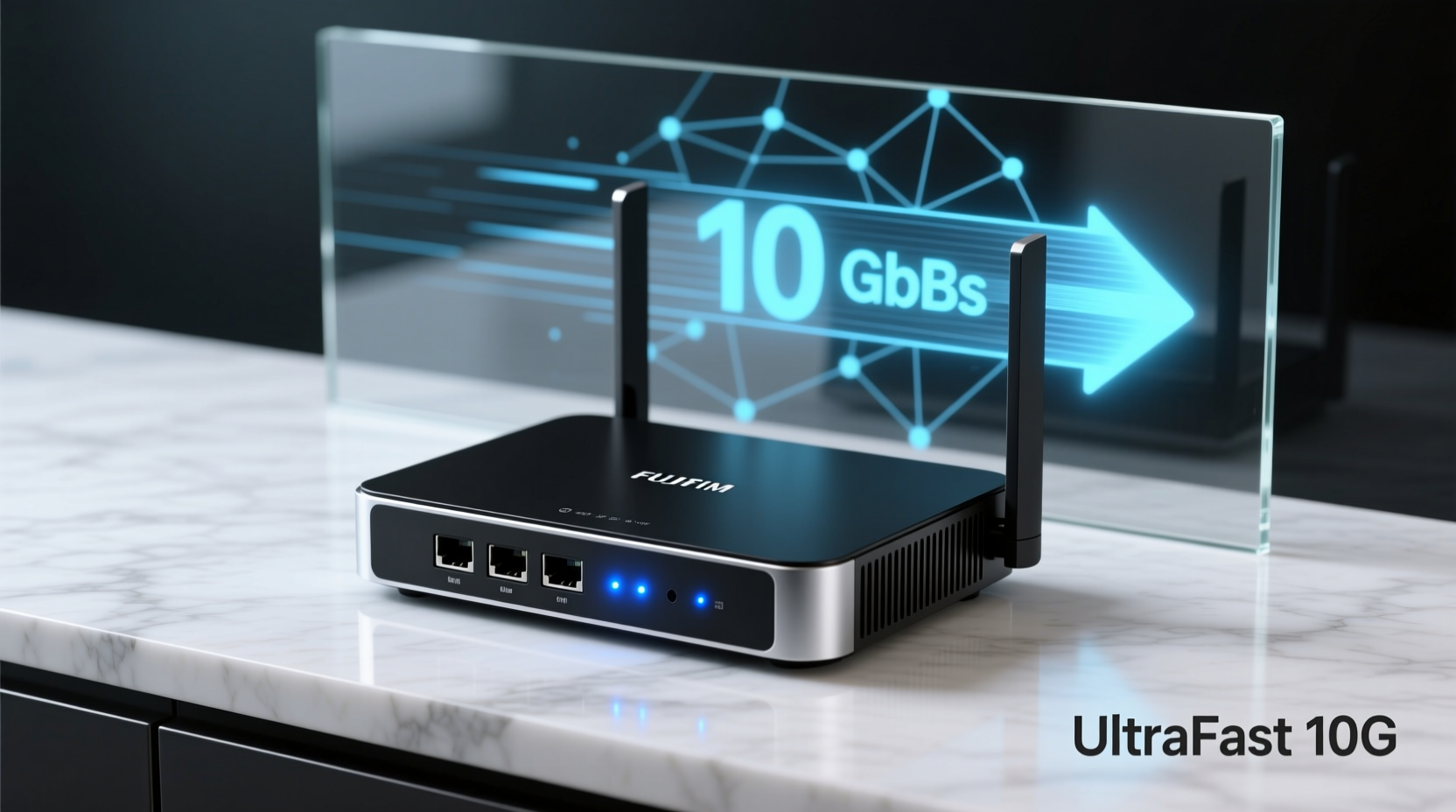
A modem translates data signals from your Internet Service Provider (ISP) into a usable format for your network. For ultra-fast internet—defined as speeds of 500 Mbps and above—the modem must support modern DOCSIS standards, maintain stable connections during peak usage, and efficiently manage bandwidth across multiple devices.
Reliability stems from consistent uptime, minimal latency, and resistance to overheating. Efficiency involves optimal power consumption, advanced traffic management, and seamless integration with high-performance routers. The best modems for gigabit+ speeds typically support DOCSIS 3.1, offer Gigabit Ethernet ports, and are certified by major ISPs such as Xfinity, Cox, Spectrum, and Verizon Fios.
“Choosing a DOCSIS 3.1 modem isn’t just about speed—it’s about future-proofing your network for evolving broadband demands.” — Jordan Lee, Network Infrastructure Analyst at Broadband Insights Group
Top Modems for Ultra-Fast Internet: Comparison & Recommendations
The market offers several high-performing modems, but only a few truly excel in both speed handling and day-to-day dependability. Below is a comparison of leading models suitable for 1 Gbps and higher connections.
| Model | Max Speed Support | DOCSIS Version | ISP Compatibility | Energy Efficiency |
|---|---|---|---|---|
| NETGEAR CM2000 | 2 Gbps | DOCSIS 3.1 | Xfinity, Cox, Spectrum | High (Energy Star Certified) |
| ARRIS SURFboard SB8200 | 2 Gbps | DOCSIS 3.1 | Xfinity, Cox, Spectrum | Moderate |
| Motorola MB8600 | 1 Gbps | DOCSIS 3.1 | Xfinity, Spectrum, Cox | High |
| TP-Link TC7620 | 1.4 Gbps | DOCSIS 3.1 | Xfinity, Cox, Spectrum | High |
| Netgear CM1200 | 960 Mbps | DOCSIS 3.1 | Xfinity, Spectrum | Moderate |
The NETGEAR CM2000 stands out for users with multi-gigabit plans, offering superior throughput and advanced QoS features. The ARRIS SB8200 is a favorite among professionals due to its proven track record in maintaining low latency during high-bandwidth tasks like video conferencing and cloud backups.
Key Features to Look for in High-Speed Modems
When shopping for a modem capable of handling ultra-fast internet, focus on these core technical aspects:
- DOCSIS 3.1 Support: This standard enables symmetrical upload/download speeds up to 10 Gbps downstream and 1–2 Gbps upstream, far surpassing DOCSIS 3.0 limitations.
- Gigabit Ethernet Ports: At least two Gigabit LAN ports ensure wired devices like PCs, NAS drives, and consoles can operate at full speed.
- Channel Bonding (32x8 or higher): Higher channel bonding allows more data streams simultaneously, improving overall throughput.
- Low Latency Performance: Essential for online gaming and VoIP services; look for firmware optimized for real-time applications.
- Thermal Design: Efficient heat dissipation prevents throttling during sustained downloads or uploads.
- Firmware Updates: Regular security and performance patches from the manufacturer extend lifespan and protect against vulnerabilities.
Step-by-Step Guide to Optimizing Your Modem Setup
Even the best modem won't perform optimally if not configured correctly. Follow this sequence to maximize efficiency:
- Verify ISP Compatibility: Check your provider’s approved device list before purchase.
- Position Strategically: Place the modem in a central location, elevated and away from obstructions like metal cabinets or microwaves.
- Use Quality Coaxial Cable: Replace old or damaged RG-6 cables with shielded versions to reduce signal loss.
- Connect via Ethernet First: During setup, use a wired connection to configure settings and test speeds accurately.
- Update Firmware: Access the modem’s admin interface (usually http://192.168.100.1) and install any available updates.
- Enable QoS (if applicable): Prioritize bandwidth for critical applications like video calls or remote desktop sessions.
- Monitor Performance Weekly: Use tools like PingPlotter or your ISP’s speed test portal to detect degradation early.
Real-World Example: A Remote Worker’s Experience
Sarah Thompson, a software developer based in Austin, upgraded her internet plan to 1 Gbps to support daily Zoom meetings, large code repository syncs, and simultaneous streaming for her family. Her old DOCSIS 3.0 modem struggled, frequently dropping packets during evening hours.
After switching to the NETGEAR CM2000 paired with a Wi-Fi 6 router, she noticed immediate improvements. Upload speeds stabilized at 400 Mbps, ping dropped from an average of 45 ms to 18 ms, and video conferences no longer froze. “It wasn’t just faster—it was consistently reliable,” she said. “I didn’t realize how much time I’d wasted restarting calls until it stopped happening.”
Checklist: Selecting and Setting Up Your High-Speed Modem
Before buying or installing a new modem, go through this checklist to ensure peak performance:
- ✅ Confirm DOCSIS 3.1 support for gigabit+ speeds
- ✅ Verify compatibility with your ISP (e.g., Xfinity xFi Advanced Compatible)
- ✅ Ensure at least two Gigabit Ethernet ports
- ✅ Check for Energy Star certification or low power draw
- ✅ Read recent user reviews focusing on long-term stability
- ✅ Plan placement near a power outlet and coaxial wall jack
- ✅ Schedule firmware update within first week of use
- ✅ Test speeds before and after installation using multiple devices
Frequently Asked Questions
Can I use my own modem with a 1 Gbps internet plan?
Yes, most ISPs allow customer-owned modems as long as they’re on the provider’s approved list. Using your own modem can save $10–$15 per month in rental fees and often delivers better performance than ISP-provided equipment.
Do I need a separate router with these modems?
Most high-speed modems are standalone devices and do not include routing capabilities. You’ll need a separate Wi-Fi 6 or Wi-Fi 6E router to create a wireless network. Some models, like the NETGEAR Nighthawk M6, combine both functions in a single unit.
Why does my modem slow down during peak hours?
This may indicate network congestion on your ISP’s end, outdated firmware, or insufficient channel bonding. Try rebooting the modem, updating firmware, or contacting your ISP to check for local node overuse.
Final Thoughts and Action Steps
Investing in a reliable and efficient modem is one of the most impactful upgrades you can make to your home network. With ultra-fast internet becoming standard in urban and suburban areas, legacy hardware simply can’t keep pace. The right modem ensures you fully utilize your paid bandwidth, reduces lag, and supports growing numbers of connected devices without hiccups.
Start by identifying your current internet speed tier and confirming which DOCSIS 3.1 modems are approved by your provider. Compare energy efficiency, port availability, and user feedback on long-term durability. Once installed, monitor performance and schedule regular maintenance checks.




 浙公网安备
33010002000092号
浙公网安备
33010002000092号 浙B2-20120091-4
Comments
No comments yet. Why don't you start the discussion?