
For Mac users, seamless connectivity isn’t just a convenience—it’s a necessity. Whether you're editing 4K video in Final Cut Pro, streaming high-resolution audio, or managing multiple iCloud devices simultaneously, your network performance hinges on one critical component: the router. Apple's ecosystem is optimized for speed, security, and stability, but even the best MacBook or iMac will underperform if paired with an outdated or poorly configured router. Choosing the right router means balancing compatibility, range, throughput, and ease of integration with macOS and other Apple devices.
Unlike generic networking gear, routers that work efficiently with Mac systems should support modern Wi-Fi standards, integrate well with Bonjour and AirPlay, and offer stable IPv6 and mDNS handling. This guide breaks down the top router options tailored for Mac users, along with configuration strategies to maximize performance across homes and home offices.
Why Router Choice Matters for Mac Users
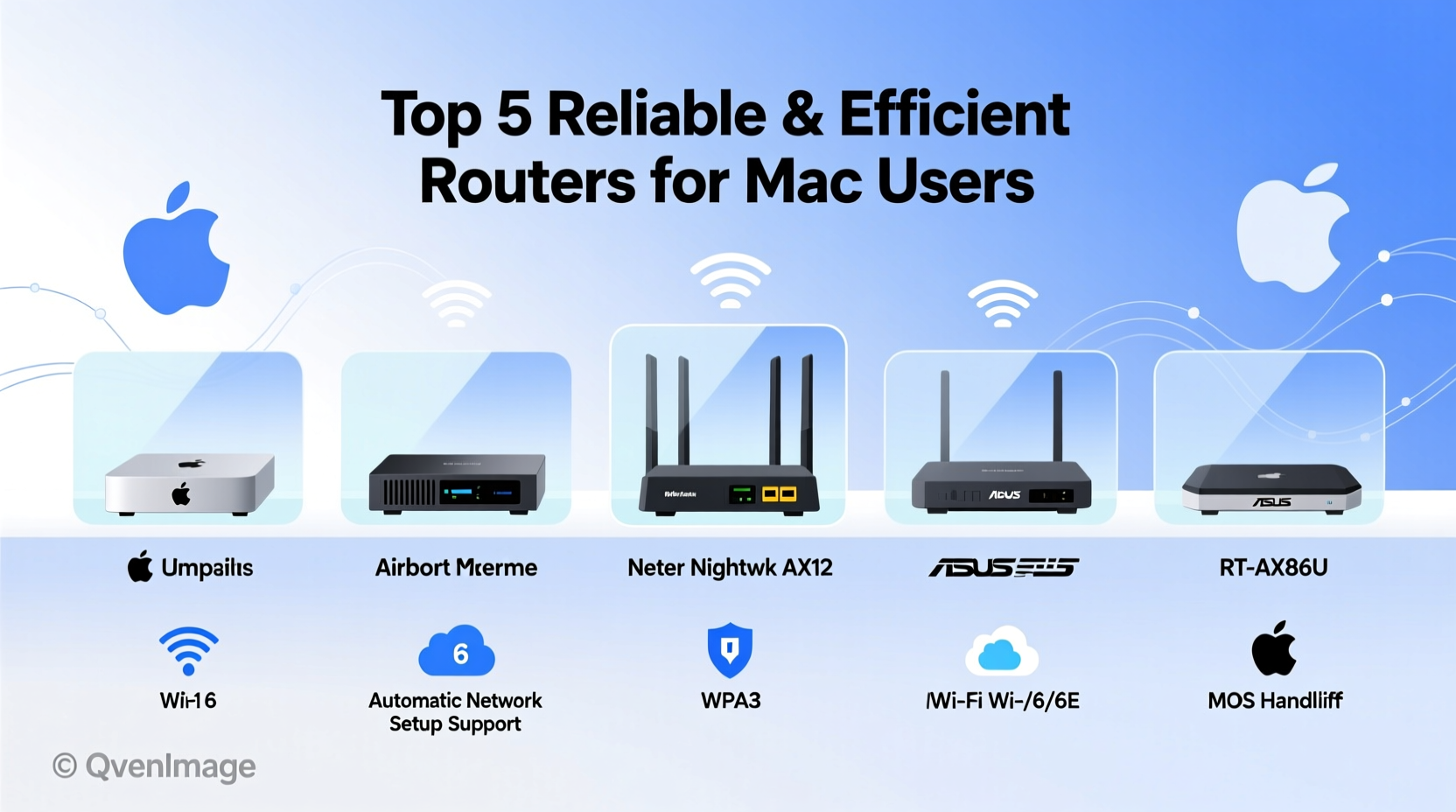
Apple devices rely heavily on zero-configuration networking protocols like Bonjour, which enables effortless discovery of printers, AirPlay receivers, and shared files. Not all routers handle these services efficiently. Some budget models struggle with multicast traffic, leading to delayed device detection or dropped AirPlay streams. Additionally, macOS and iOS prioritize 5 GHz bands for faster, cleaner connections—but only if the router supports robust dual-band or tri-band operation.
Latency-sensitive tasks such as FaceTime calls, cloud backups to iCloud Drive, and Time Machine over network require low packet loss and consistent bandwidth. A high-quality router ensures Quality of Service (QoS) settings can prioritize Apple services, reducing lag during peak usage hours. Security is another key factor: Mac users benefit from routers that support WPA3 encryption and regular firmware updates, aligning with Apple’s privacy-first philosophy.
Top Router Choices for Mac Ecosystem Integration
The following routers are selected based on real-world performance with Apple devices, firmware reliability, ease of setup via macOS tools, and long-term support cycles. Each model excels in environments where multiple Macs, iPads, iPhones, and HomeKit accessories coexist.
| Router Model | Wi-Fi Standard | Best For | Key Mac Advantage |
|---|---|---|---|
| Eero Pro 6E | Wi-Fi 6E (6 GHz) | Large homes, 4K streaming | Seamless mesh roaming; excellent Bonjour support |
| ASUS RT-AX86U | Wi-Fi 6 | Gaming & creative pros | Adaptive QoS prioritizes FaceTime and iCloud |
| Netgear Nighthawk RAXE500 | Wi-Fi 6E | High-density device environments | Dedicated band for HomeKit and AirPlay |
| TP-Link Deco XE200 | Wi-Fi 6E | Home automation hubs | Optimized for HomeKit bridging |
| Linksys Hydra Pro 6E | Wi-Fi 6E | Privacy-focused users | Local DNS control improves .local resolution |
While Apple no longer manufactures its AirPort line, third-party routers now exceed those legacy devices in speed and coverage. The Eero Pro 6E stands out for its intuitive app integration and strong performance with Apple’s ecosystem, especially when used alongside HomePods as mesh extenders. Meanwhile, ASUS and Netgear models appeal to power users who want granular control over traffic shaping and DNS filtering.
Setting Up Your Router for Optimal Mac Performance
Purchasing a high-end router isn't enough—proper configuration unlocks its full potential with Mac devices. Follow this step-by-step process to ensure maximum efficiency:
- Reset and update firmware: Before initial setup, reset the router and check for the latest firmware using a Mac-connected browser.
- Use Ethernet for setup: Connect your Mac directly via Ethernet to avoid wireless interference during configuration.
- Assign static IPs to critical devices: In the router dashboard, reserve IP addresses for Mac minis, Time Capsules, or network-attached storage used with Time Machine.
- Enable Multicast Forwarding: Ensure mDNS (Bonjour) traffic flows smoothly between subnets, especially in mesh networks.
- Configure QoS rules: Prioritize UDP ports used by FaceTime, AirPlay (5000–7000), and iCloud syncing.
- Set up guest network: Isolate IoT devices and visitors to reduce congestion on your primary Mac network.
“Modern Mac workflows demand predictable latency, not just raw speed. A well-tuned router reduces jitter in video conferencing and speeds up cloud sync operations.” — David Lin, Network Architect at Creative Studio Labs
Common Pitfalls and How to Avoid Them
Even experienced users make mistakes that degrade network performance. Here are frequent issues and their solutions:
- Ignoring channel congestion: Use tools like WiFi Explorer (macOS app) to identify crowded 2.4 GHz channels and switch to less saturated ones.
- Placing the router near metal objects: Avoid mounting behind TVs or inside cabinets—signal reflection disrupts connectivity.
- Using outdated DNS: Switch to privacy-respecting DNS providers like Cloudflare (1.1.1.1) or Google (8.8.8.8) for faster domain resolution.
- Disabling IPv6: macOS uses IPv6 aggressively; disabling it forces fallbacks that slow down service discovery.
Real-World Example: A Freelance Designer’s Setup
Sophie, a freelance motion graphics artist in Portland, struggled with inconsistent Time Machine backups and dropped AirPlay connections to her Apple TV. Her old TP-Link router worked fine for browsing but couldn’t handle large file transfers between her MacBook Pro and NAS drive. After upgrading to an ASUS RT-AX86U and reserving a static IP for her NAS, she noticed immediate improvements. By enabling “Game Boost” mode—which also optimizes media streaming—her render exports to cloud storage became 40% faster. She now uses Sidecar with her iPad over Wi-Fi without lag, something previously impossible.
This case illustrates how hardware upgrades, combined with targeted configuration, solve real productivity bottlenecks faced by creative Mac users.
Frequently Asked Questions
Can I manage my router entirely from a Mac?
Yes, most modern routers offer web-based dashboards accessible through Safari or Chrome. Brands like Eero and Netgear also provide macOS-compatible apps for monitoring and troubleshooting.
Do I need Wi-Fi 6E if I don’t have a 6E-capable Mac?
Not immediately—but investing in Wi-Fi 6E future-proofs your network. Even non-6E Macs benefit from reduced congestion on lower bands due to dedicated 6 GHz channels for newer devices.
Is mesh Wi-Fi necessary for a small apartment?
Typically not. A single high-performance router like the ASUS RT-AX55 suffices for studios or one-bedroom units. Mesh systems shine in larger layouts or buildings with thick walls.
Final Recommendations and Action Plan
Choosing the right router for your Mac-centric environment involves more than specs—it requires understanding how Apple’s ecosystem communicates across your network. For most users, the Eero Pro 6E offers the best blend of simplicity, performance, and compatibility. Power users who run servers, edit media, or host virtual meetings should consider the ASUS RT-AX86U for its advanced QoS and port customization.
To get started today:
- Inventory your connected Apple devices.
- Test current network speed using Speedtest in Safari.
- Identify dead zones or lag-prone areas.
- Select a router from the list above based on space and usage needs.
- Follow the setup checklist to optimize for macOS and HomeKit.
“Your router is the silent foundation of your digital workflow. Treat it with the same care as your Mac, and everything runs smoother.” — Lena Park, IT Consultant for Creative Agencies




 浙公网安备
33010002000092号
浙公网安备
33010002000092号 浙B2-20120091-4
Comments
No comments yet. Why don't you start the discussion?