
Managing screen time and controlling internet access is increasingly important in a world saturated with digital distractions. For parents, educators, or individuals seeking greater focus, restricting internet connectivity on devices like the Huawei Y6 can be a practical step toward improved productivity and digital wellness. The Huawei Y6, while an entry-level smartphone, offers several built-in and third-party options to limit or completely block internet access. This guide outlines straightforward, effective, and dependable techniques—no technical expertise required.
Why Block Internet Access on a Huawei Y6?
There are multiple valid reasons to restrict internet usage on a device. Parents may want to prevent children from accessing inappropriate content or spending excessive time online. Students might benefit from temporary disconnection during study sessions. Adults aiming to reduce digital dependency can use these tools to create intentional offline periods.
The Huawei Y6 runs on EMUI (Emotion UI), Huawei’s customized Android interface, which includes useful parental controls and data management features. While it lacks some of the advanced capabilities found in higher-end models, it still supports several reliable ways to limit connectivity.
“Digital boundaries aren’t about restriction—they’re about intentionality. Controlling internet access helps users reclaim attention and time.” — Dr. Lena Patel, Digital Wellness Researcher, Stanford University
Step-by-Step: Built-In Methods to Block Internet Access
Huawei’s EMUI provides native tools that allow users to manage internet connectivity without installing external apps. These solutions are secure, stable, and integrated directly into the operating system.
1. Use Screen Time Management (Digital Wellbeing)
Huawei’s Screen Time Management feature enables users to set app limits and schedule downtime. While it doesn’t block internet at the network level, it effectively restricts access to browsers, social media, and other online apps.
- Open Settings.
- Navigate to Digital Balance or Screen Time Management.
- Select App Usage Limits.
- Add key internet-based apps such as Chrome, Facebook, YouTube, or TikTok.
- Set a daily time limit (e.g., 30 minutes).
- Enable Restrict Background Activity to prevent silent data use.
Once the time limit is reached, the apps will lock and require a password to reopen—ideal for enforcing discipline.
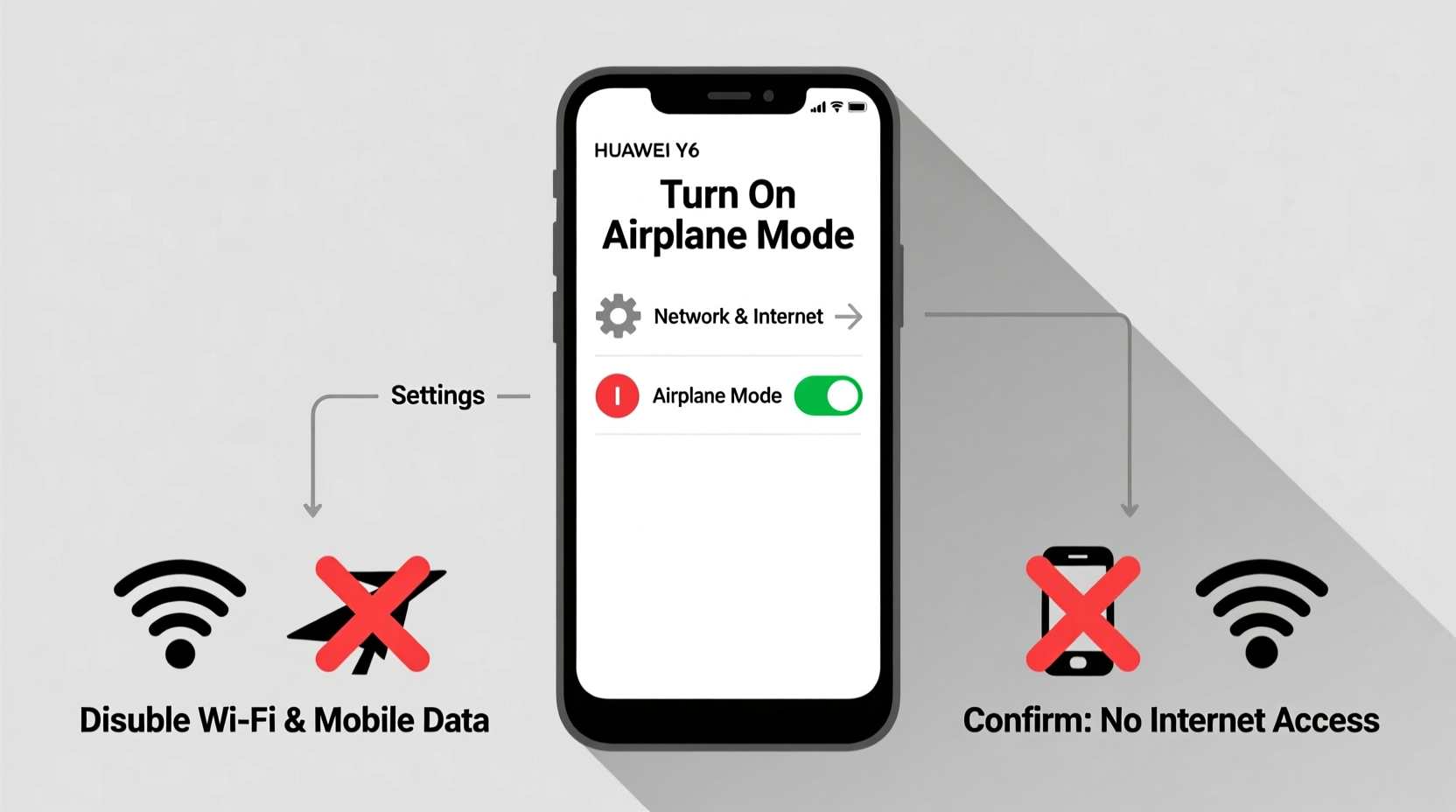
2. Disable Mobile Data and Wi-Fi Manually
The most direct method is turning off internet sources manually:
- Swipe down the notification panel and tap the Wi-Fi icon to disable wireless connections.
- Tap the Data icon (or \"Mobile Data\") to disconnect from cellular networks.
This approach is immediate and foolproof but requires manual enforcement. It works best when combined with habit-building routines or supervision.
3. Activate Restricted Mode in Parental Controls
If the Huawei Y6 is used by a child, enabling Parental Controls adds another layer of protection.
- Go to Settings > Digital Balance > Parental Controls.
- Set up a PIN known only to the supervising adult.
- Toggle on Restricted Mode.
- Block specific apps or categories (e.g., social media, games).
- Disable internet access during scheduled times (e.g., school hours).
This method ensures that even if a user tries to re-enable Wi-Fi or data, they’ll need authorization to proceed.
Third-Party Apps for Advanced Control
While Huawei’s native tools are sufficient for basic needs, third-party applications offer enhanced functionality such as scheduling, remote control, and real-time monitoring.
| App Name | Key Feature | Internet Blocking Method | Best For |
|---|---|---|---|
| Stay Focused | App blocking with timers | Disables internet for selected apps | Students, professionals |
| Net Nanny | Content filtering + scheduling | Blocks all network access on schedule | Families with young users |
| Freedom | Cross-device syncing | Locks internet across platforms | Digital detox enthusiasts |
| Kaspersky Safe Kids | Remote monitoring | Turns off mobile data via dashboard | Parents needing oversight |
To install any of these:
- Open the AppGallery or download the APK from the official website (if not available on AppGallery).
- Grant necessary permissions including Device Admin access (required for enforcement).
- Configure blocking rules based on time, app, or network type.
Note: Always download apps from trusted sources to avoid malware. Avoid granting unnecessary permissions like SMS access or call logs unless absolutely needed.
Real-World Example: Helping a Teen Focus on Exams
Maria, a high school teacher in Bogotá, noticed her 15-year-old son spending over five hours nightly on TikTok and Instagram, often late into the night. His grades began slipping, and he complained of fatigue. Concerned, Maria decided to take action using her son’s Huawei Y6.
She enabled Screen Time Management, setting a 45-minute daily limit on social media apps. She also scheduled “Study Mode” from 7 PM to 9 PM, during which all internet-dependent apps were locked. Additionally, she turned off Wi-Fi automatically after 10 PM using a third-party automation tool.
Within two weeks, her son reported feeling less distracted and more in control of his time. His focus improved, and his math test scores rose by 20%. Maria credits the change not just to the technology, but to the clear boundaries it helped enforce.
Checklist: How to Fully Block Internet Access on Huawei Y6
Follow this checklist to ensure comprehensive internet control:
- ✅ Disable Wi-Fi in Settings or Quick Panel
- ✅ Turn off Mobile Data in Network Settings
- ✅ Set up Screen Time Management with app limits
- ✅ Enable Parental Controls with a secure PIN
- ✅ Install a trusted third-party blocker (optional)
- ✅ Schedule downtime during sleep or study hours
- ✅ Test the setup by attempting to load a webpage
- ✅ Educate the user on the purpose of the restrictions
Completing all steps ensures both technical enforcement and psychological understanding, increasing long-term effectiveness.
Common Mistakes to Avoid
Even with the right tools, mistakes can undermine your efforts:
- Using weak PINs: Simple codes like 1234 are easy to guess. Use at least six digits.
- Forgetting to lock settings: Ensure only authorized users can modify restrictions.
- Relying solely on Wi-Fi toggle: Users can reconnect easily unless further safeguards are in place.
- Not explaining the reason: Transparency builds cooperation, especially with children or teens.
FAQ
Can I block internet access remotely on a Huawei Y6?
Direct remote blocking isn't supported natively, but apps like Kaspersky Safe Kids or Google Family Link allow you to send commands from another device to disable internet access, provided the app is installed and active on the Y6.
Will airplane mode block all internet access?
Yes. Enabling Airplane Mode disables Wi-Fi, mobile data, and Bluetooth. However, users can manually re-enable Wi-Fi while keeping Airplane Mode on, so it's not fully secure unless combined with additional restrictions.
Do these methods work when the phone is restarted?
Most built-in settings (like app limits and parental controls) persist after reboot. Third-party apps with Device Admin rights also retain their configurations. Always test after a restart to confirm.
Final Thoughts: Taking Control of Your Digital Environment
Blocking internet access on a Huawei Y6 doesn’t require complex hacks or root access. With thoughtful use of built-in features and trusted apps, anyone can create a focused, distraction-free environment. Whether you're helping a child stay safe, improving your own concentration, or supporting someone with digital addiction, these methods provide practical, sustainable solutions.




 浙公网安备
33010002000092号
浙公网安备
33010002000092号 浙B2-20120091-4
Comments
No comments yet. Why don't you start the discussion?