
Converting audio files to MP3 is a common need—whether you're preparing music for an older device, reducing file size for email, or standardizing your digital library. But too often, the process introduces compression artifacts or reduces audio fidelity. The good news: it’s entirely possible to convert audio to MP3 without noticeable quality loss, provided you use the right tools and settings. This guide walks through the technical essentials, practical steps, and expert-backed methods to preserve clarity and richness in every conversion.
Understanding Audio Formats and Quality Preservation
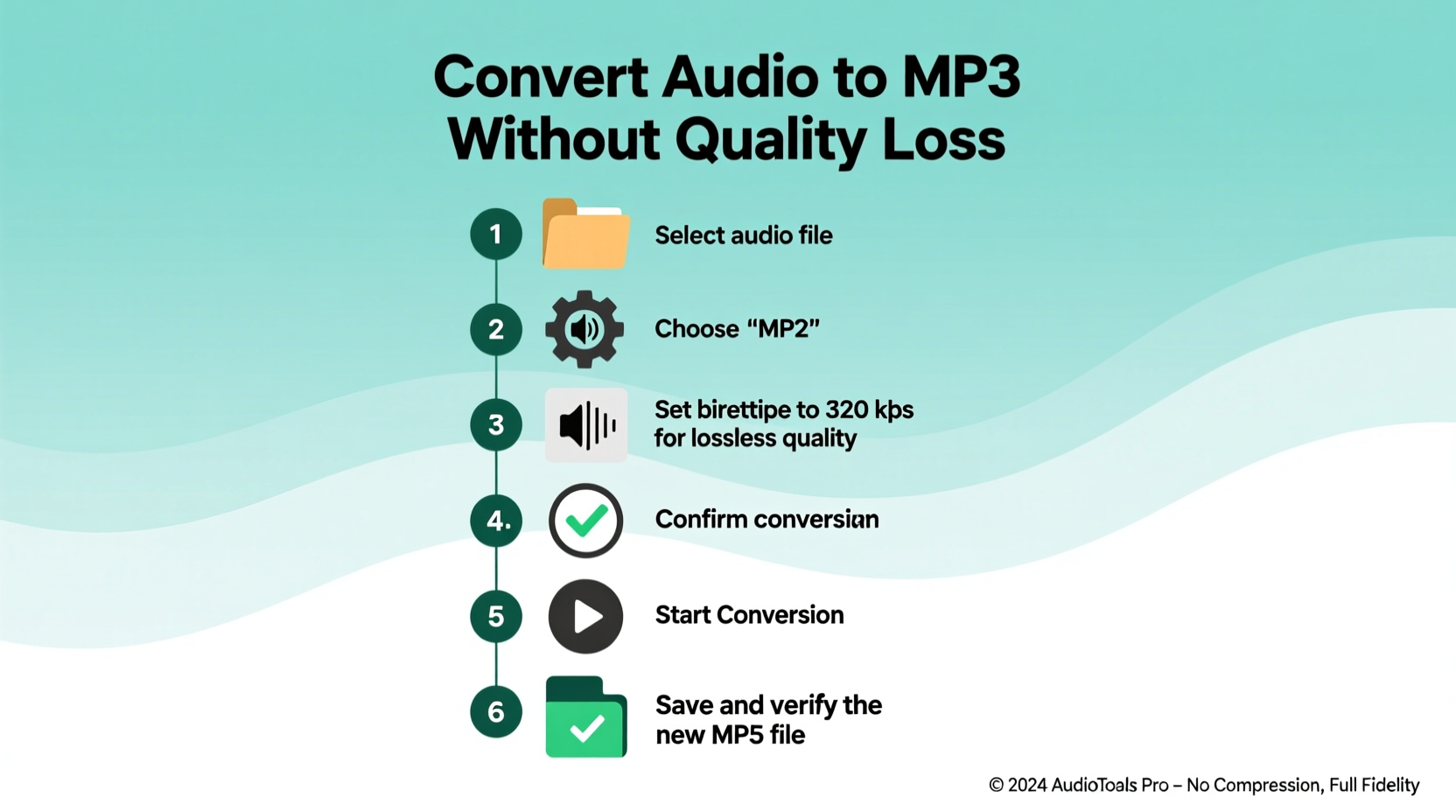
Before diving into conversion, it's important to understand what happens when you change an audio format. Audio files fall into two broad categories: lossless and lossy. Lossless formats like WAV, FLAC, or AIFF retain all original data from recording. Lossy formats like MP3, AAC, or OGG discard some data to reduce file size.
The key to avoiding quality loss during MP3 conversion lies in using high bitrates and proper encoding techniques. While MP3 is inherently lossy, modern encoders can produce files at 320 kbps (kilobits per second) that are nearly indistinguishable from the original to most listeners—even on high-end equipment.
“With today’s encoding algorithms, a well-configured 320 kbps MP3 can deliver transparency—meaning no audible difference from the source.” — Dr. Alan Wang, Audio Engineering Researcher, MIT Media Lab
The goal isn’t to make MP3 lossless (it can’t be), but to make the loss imperceptible. That starts with choosing the right source and encoder.
Choosing the Right Tools for High-Fidelity Conversion
Not all audio converters are created equal. Many online tools use outdated encoders or default to low bitrates, sacrificing quality for speed. To maintain fidelity, select software known for precision and control over encoding parameters.
Here are three trusted tools:
- Audacity (Free, Open Source) – A powerful audio editor with LAME MP3 encoder integration.
- Freemake Audio Converter (Windows) – User-friendly interface with support for batch conversion and custom bitrate settings.
- dBpoweramp (Windows/macOS, Paid) – Industry-standard tool with advanced metadata handling and secure ripping/conversion.
Step-by-Step Guide to Convert Audio to MP3 Without Quality Loss
Follow this detailed process to ensure optimal results regardless of your source format (WAV, FLAC, M4A, etc.). We'll use Audacity as our primary example, but principles apply across platforms.
- Install Audacity and LAME Encoder
Download Audacity fromaudacityteam.org. During first export to MP3, you’ll be prompted to download the LAME encoder. Follow the instructions to install it in the correct directory. - Import Your Audio File
Launch Audacity and drag your audio file into the workspace. Supported formats include WAV, FLAC, AIFF, M4A, and more. Audacity will decode them into editable waveforms. - Verify Original Quality
Check the track’s sample rate and bit depth via the bottom toolbar. Ideally, work with sources at 44.1 kHz / 16-bit (CD quality) or higher. Avoid upsampling low-quality files—it won’t restore lost detail. - Select Export Range (Optional)
If converting only part of the file, highlight the desired section. Otherwise, leave the entire track selected. - Export as MP3 with Optimal Settings
Go to File → Export → Export as MP3. In the dialog box:- Set Bit Rate Mode to Constant (CBR).
- Choose Quality: 320 kbps.
- Select Sample Rate: Same as original (usually 44100 Hz).
- Enable ID3 Tags to preserve title, artist, album info.
- Analyze Output
Play back the original and converted files side by side using headphones. Use A/B switching if possible. Listen especially for subtle details—reverb tails, soft vocals, high-frequency cymbals.
Do’s and Don’ts of High-Quality MP3 Conversion
| Do’s | Don’ts |
|---|---|
| Use 320 kbps CBR for maximum clarity | Use variable bitrate (VBR) unless space is critical |
| Keep original files archived after conversion | Convert MP3 to MP3 again (this degrades quality) |
| Use reputable encoders like LAME | Rely on unknown online converters with no encoder info |
| Preserve metadata (artist, album, cover art) | Delete tags—makes organization harder later |
| Store originals in lossless format | Discard FLAC/WAV files after MP3 creation |
Real Example: Converting a Live FLAC Recording for Portable Use
Sophie, a concert photographer, regularly records live sets in high-resolution FLAC for personal archives. She wanted to transfer a 24-bit/96kHz jazz session to her vintage MP3 player, which doesn’t support FLAC.
Instead of using a quick online converter, she opened the file in Audacity, resampled it to 44.1 kHz (standard for MP3 compatibility), and exported using LAME at 320 kbps CBR. She preserved the ID3 tags with performance details and embedded a small cover image.
When comparing the two versions on her studio monitors, even her producer friend couldn’t reliably distinguish the MP3 from the original during blind testing. The conversion achieved its purpose: portability without compromise.
Frequently Asked Questions
Can MP3 ever be truly lossless?
No. MP3 is a lossy format by design, meaning some audio data is permanently discarded during compression. However, at 320 kbps with modern encoders like LAME, the loss is typically inaudible to human ears, making it \"perceptually transparent.\"
Is there a difference between VBR and CBR MP3?
Yes. Constant Bit Rate (CBR) uses the same bitrate throughout (e.g., 320 kbps). Variable Bit Rate (VBR) adjusts dynamically—using higher rates for complex passages and lower for simple ones. VBR can offer slightly better efficiency, but CBR at 320 kbps remains the gold standard for consistent high quality.
Why shouldn’t I convert an existing MP3 to another MP3?
Re-encoding an MP3 discards more data each time. Even at high bitrates, repeated compression amplifies artifacts like pre-echo, muffled highs, and phase distortion. Always convert from the highest-quality source available—preferably lossless.
Essential Checklist Before Converting
- ✅ Confirm the source is lossless (FLAC, WAV, AIFF) or high-bitrate (>256 kbps).
- ✅ Install a high-quality encoder (LAME recommended).
- ✅ Set bitrate to 320 kbps (CBR) for best fidelity.
- ✅ Preserve metadata and album art.
- ✅ Keep original files stored safely after conversion.
- ✅ Test playback on multiple devices (headphones, car stereo, phone).
Maintaining Long-Term Audio Integrity
The true mark of a successful conversion isn’t just immediate sound quality—it’s sustainability. As your collection grows, consistent naming, folder structure, and backup systems prevent degradation through misuse. Treat your MP3s as access copies, not masters.
Consider organizing your library with tools like MusicBrainz Picard or Mp3tag to standardize metadata. These help maintain consistency across devices and future-proof your files against disorganization.
Conclusion
Converting audio to MP3 without quality loss is not about magic—it’s about method. By starting with high-quality sources, using proven tools like Audacity with LAME, and applying intelligent settings, you preserve the essence of your music while gaining compatibility and convenience. Whether you're digitizing old recordings, sharing tracks with friends, or building a travel playlist, these steps ensure your audio stays vibrant and true.




 浙公网安备
33010002000092号
浙公网安备
33010002000092号 浙B2-20120091-4
Comments
No comments yet. Why don't you start the discussion?