
Getting a new smartphone is exciting—but only if you set it up right. A poorly configured device can lead to slow performance, security risks, or lost data. Whether you’re upgrading from an older model or switching platforms entirely, following a structured setup process ensures your phone works efficiently, securely, and in sync with your digital life.
Most people power on their new phone and dive straight into apps, skipping essential steps that affect long-term usability. This guide walks you through every phase of the setup, from unboxing to final optimization, so you start strong and stay ahead.
1. Prepare Before You Turn It On
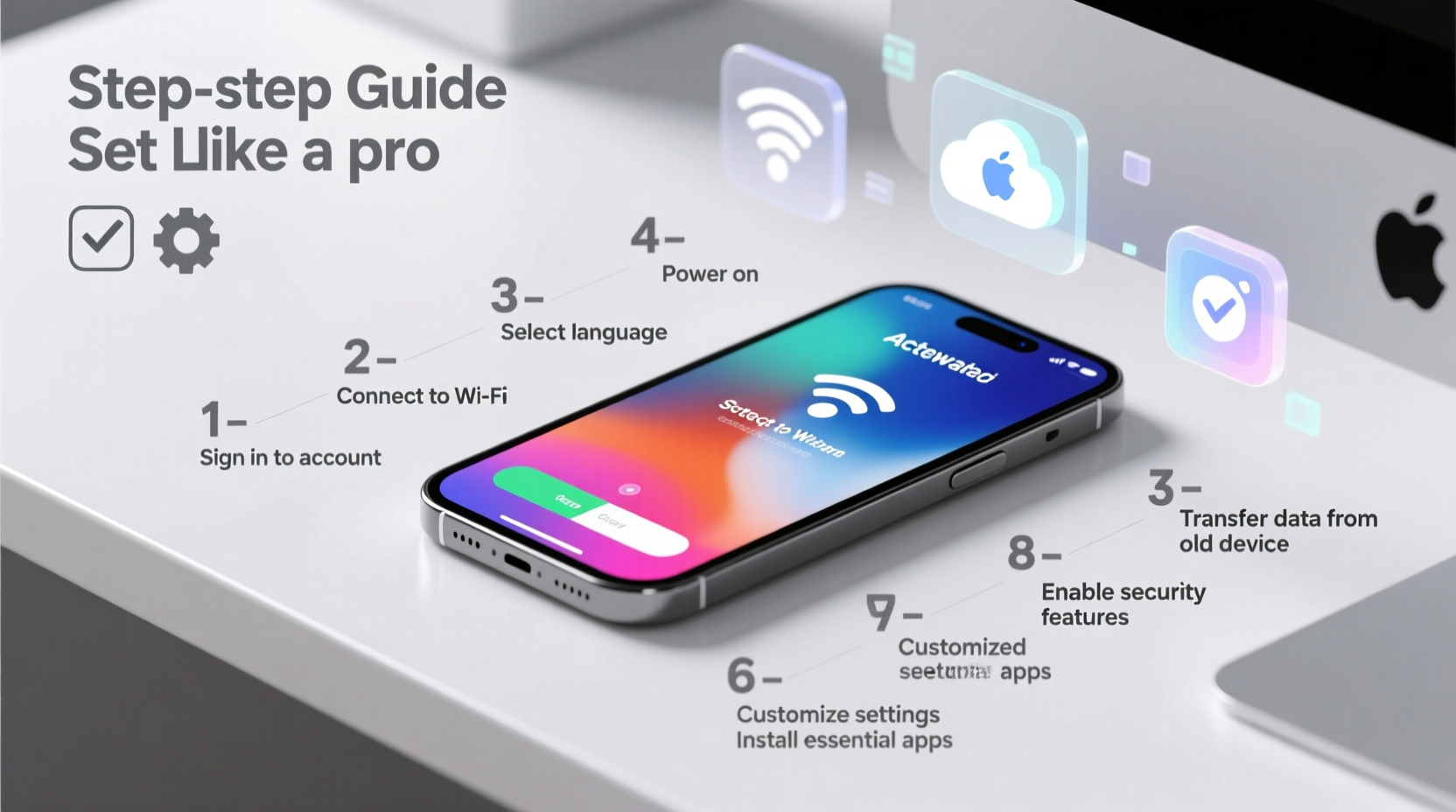
Before pressing the power button, take time to plan your transition. If you're replacing an old phone, now is the moment to back up critical data. This prevents loss during migration and gives you peace of mind.
For iPhone users, use iCloud or iTunes to create a full backup. Android users should rely on Google Drive backups via Settings > System > Backup. Ensure contacts, messages, app data, photos, and call logs are included. Enable “Backup to iCloud” (iOS) or “Back up to Google One” (Android) and verify completion before proceeding.
If you’re switching between operating systems—say, from iOS to Android or vice versa—use official tools like Apple’s Move to iOS app (for Android-to-iPhone transfers) or Samsung Smart Switch (for cross-platform moves). These streamline contact, photo, message, and calendar migrations without relying solely on cloud services.
2. Power On and Follow Initial Setup Steps
Once preparations are complete, power on your new device. The first-time setup wizard will guide you through language selection, SIM card detection, and Wi-Fi connection. Choose a stable network—preferably your home Wi-Fi—to avoid data overages during large downloads.
- Select preferred language and region.
- Connect to a secure Wi-Fi network.
- Enable location services when prompted (helps with maps, weather, and emergency services).
- Scan or manually enter your Google or Apple ID credentials.
- Restore from a previous backup when prompted.
During account sign-in, be cautious about granting permissions. Review app access requests carefully, especially for microphone, camera, and location usage. You can adjust these later, but starting with minimal permissions enhances privacy.
| Action | iOS Equivalent | Android Equivalent |
|---|---|---|
| Data Backup Source | iCloud / iTunes | Google Drive / Samsung Cloud |
| Transfer Tool | Moves to iOS (from Android) | Smart Switch / Google Sync |
| Default Browser | Safari | Chrome (usually) |
| App Store | App Store | Google Play Store |
3. Secure Your Device Immediately
Security is often overlooked during initial excitement. Yet, your smartphone holds personal emails, banking apps, photos, and sensitive information. Protecting it from day one is non-negotiable.
- Set a strong passcode: Use at least six digits or enable biometric authentication (Face ID, Touch ID, fingerprint).
- Enable Find My iPhone (iOS) or Find My Device (Android): This helps locate, lock, or erase your phone remotely if lost or stolen.
- Turn on two-factor authentication (2FA) for your primary accounts (Apple ID, Google Account).
- Install system updates immediately: Manufacturers patch vulnerabilities early; don’t delay updates.
“Over 70% of mobile breaches occur because users skip basic security settings during setup.” — Lena Patel, Cybersecurity Analyst at MobileShield Labs
Avoid using easily guessable patterns or PINs like ‘1234’ or birthdays. Opt for alphanumeric passwords if allowed, particularly for payment apps and email clients.
4. Optimize Performance and Personalization
After securing your phone, tailor it to your lifestyle. Customize display settings, notification preferences, and accessibility features to improve daily usability.
Adjust screen brightness automatically under ambient light. Set text size for comfortable reading—especially important for older users or those with visual strain. Organize home screens thoughtfully: group similar apps into folders (e.g., Social, Finance, Travel), and keep frequently used tools within thumb reach.
Disable unnecessary startup apps. Many pre-installed bloatware apps run in the background, draining battery and slowing performance. Uninstall or disable them via Settings > Apps (Android) or offload unused apps on iOS.
Essential Optimization Checklist
- Update operating system
- Enable remote find/wipe feature
- Review app permission settings
- Sync calendar and email accounts
- Set default apps (browser, messaging, navigation)
- Remove unwanted widgets or shortcuts
- Test camera, speaker, and microphone function
5. Real-World Example: Sarah’s Seamless Upgrade
Sarah had used her old Android phone for five years. When she upgraded to a new iPhone 15, she worried about losing her photos and chat history. Instead of winging it, she followed a clear plan.
First, she backed up everything to Google Drive and ensured WhatsApp chats were saved to the cloud. She downloaded Apple’s “Move to iOS” app on her Android and started the transfer process while both devices charged side-by-side. Within 20 minutes, her contacts, messages, photos, and browser bookmarks migrated smoothly.
On the iPhone, she paused after each setup screen to review privacy options. She declined location tracking for most apps initially, then enabled it selectively. By the end of setup, her new phone felt familiar—yet faster and more secure than before.
Sarah avoided common pitfalls: no data loss, no forgotten passwords, and no surprise charges from misconfigured data settings. Her preparation made all the difference.
Frequently Asked Questions
Should I use my old phone as a backup after setting up the new one?
Yes, keep your old phone powered off but stored safely for at least 30 days. It serves as a physical backup in case something fails during migration. After confirming all data is intact, recycle it responsibly or sell it.
Why isn’t my app data restoring even though the backup completed?
Some apps require separate logins or don’t support automatic restore. Banking, messaging, and productivity apps often need manual re-authentication. Also, ensure the same app version exists on the new device—older backups may not be compatible with newer OS versions.
Can I change my mind after choosing a setup method?
You can reset and restart setup, but doing so erases current progress. To switch from “set up as new” to “restore from backup,” go to Settings > General > Transfer or Reset iPhone (iOS), or Settings > System > Reset options (Android), then erase all data and begin again.
Final Steps: Make It Yours—and Maintain It
Your new phone isn’t truly ready until it reflects your habits and needs. Install essential apps like password managers, note-taking tools, and cloud storage clients. Sync smartwatch or wireless earbuds if applicable. Test notifications across devices to ensure seamless integration.
Going forward, maintain your phone’s health by reviewing storage monthly, clearing cache files, and uninstalling unused apps. Schedule quarterly checkups: audit permissions, update software, and verify backups.
“A well-set-up phone saves hours of frustration down the line. The first 60 minutes shape the next two years.” — Marcus Lin, Senior Mobile Experience Designer at Nova UX
Ready to Take Control?
You’ve just transformed a shiny new device into a powerful, personalized tool. Don’t stop here—share this guide with someone upgrading soon, leave a comment with your own pro tip, or bookmark it for your next phone swap. Mastering setup today means smoother tech living tomorrow.




 浙公网安备
33010002000092号
浙公网安备
33010002000092号 浙B2-20120091-4
Comments
No comments yet. Why don't you start the discussion?