
Wireless call glasses represent a leap forward in wearable communication technology—blending discreet design with advanced audio capabilities. Whether used for professional calls, hands-free navigation, or staying connected during active routines, these devices perform best when tailored to individual preferences. Factory defaults rarely account for personal hearing profiles, environmental noise, or usage habits. Customizing your device’s settings enhances clarity, extends battery life, and improves overall user experience. This guide walks through the essential steps to fine-tune your wireless call glasses for peak performance.
Understanding Your Wireless Call Glasses
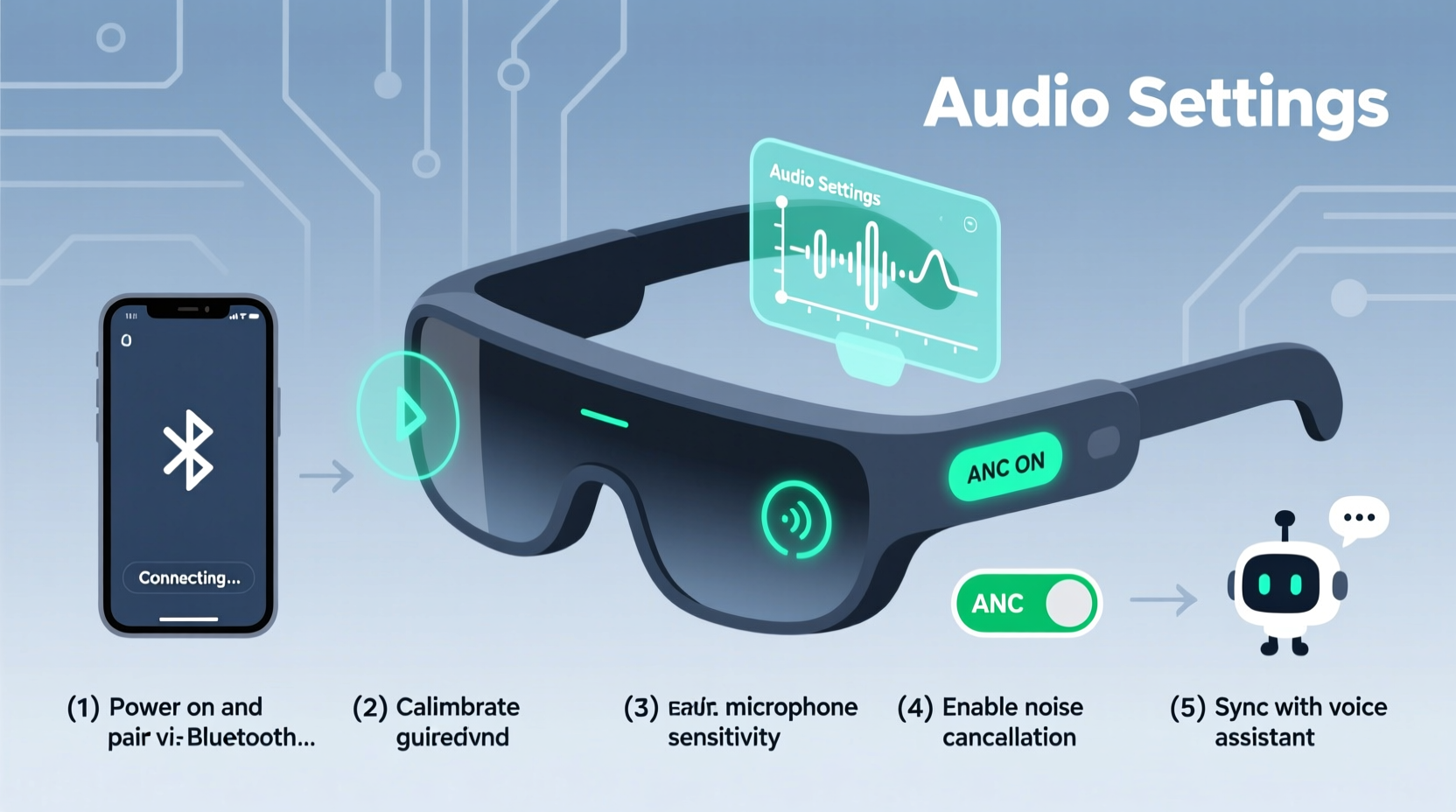
Modern wireless call glasses integrate microphones, speakers, Bluetooth connectivity, and sometimes AI-powered noise filtering—all embedded into lightweight frames. Unlike standard earbuds, they transmit sound via bone conduction or open-ear acoustic waveguides, reducing ear fatigue while maintaining situational awareness. However, this unique delivery method requires specific calibration to match ambient conditions and user physiology.
Before adjusting settings, confirm your model supports firmware updates and companion apps. Most high-performance models pair with iOS and Android applications that unlock advanced customization options beyond basic Bluetooth pairing.
Step-by-Step Setup and Calibration Process
- Pair with the Companion App: Download the manufacturer’s app (e.g., “AudioFrame Connect” or “ClearCall Lens”) from the App Store or Google Play. Enable Bluetooth on your phone, power on the glasses, and follow in-app prompts to establish a secure connection.
- Update Firmware: Navigate to the device settings within the app. If a firmware update is available, install it immediately. Updates often include improved microphone sensitivity, better wind noise reduction, and enhanced battery management.
- Run Audio Calibration: Use the built-in hearing test feature if available. The app will play tones at different frequencies; respond when you hear them. This creates a personalized audio profile that adjusts volume and frequency response based on your hearing sensitivity.
- Set Default Connection Priority: In multi-device environments, assign priority to your primary device (e.g., work laptop). This prevents automatic switching to less relevant devices during critical calls.
- Enable Auto-Pause on Removal: Activate sensors that pause audio when the glasses are taken off. This conserves battery and maintains privacy.
Environmental Optimization
Performance varies significantly depending on surroundings. Urban commutes introduce traffic noise, while office spaces may generate HVAC interference. Customize noise suppression levels accordingly.
- In noisy areas: Increase external microphone gain and activate “Focus Mode” to suppress background chatter.
- In quiet environments: Lower microphone sensitivity to prevent over-amplification of subtle sounds.
- During physical activity: Enable “SteadyVoice” mode (if supported) to stabilize voice input despite movement-induced vibrations.
Advanced Audio and Microphone Tuning
Precise audio control separates average from exceptional performance. Most companion apps offer granular sliders for treble, midrange, and bass—even for open-ear systems where bass response is limited.
| Setting | Recommended For | Adjustment Tip |
|---|---|---|
| Bone Conduction Intensity | Noisy outdoor use | Increase slightly for clearer speech transmission |
| Microphone Directionality | Conference calls | Select “Front-Focused” to reduce side noise |
| Auto-Gain Control | Varying volume speakers | Enable for consistent loudness across callers |
| Wind Noise Reduction | Cycling, walking outdoors | Set to “High” in breezy conditions |
“Properly tuned call glasses can improve speech intelligibility by up to 40% in moderate noise.” — Dr. Lena Torres, Acoustic Engineer at Wearable Sound Labs
User Experience Enhancements
Comfort and usability directly impact long-term adoption. Even the most advanced settings fail if the device feels unstable or causes discomfort.
Physical Fit Adjustments
Ensure the glasses sit flush behind the ears and rest evenly on the nose bridge. Misalignment reduces audio efficiency and microphone pickup accuracy. Many frames include adjustable temple tips and silicone nose pads—customize these for secure, pressure-free wear.
Gesture Customization
Most models support touch-sensitive temples for controls like play/pause, volume, and call answering. Re-map gestures via the app to suit dominant-hand preferences. For example, set a double-tap on the right arm for initiating voice assistants and a swipe backward for lowering volume.
Do’s and Don’ts of Daily Use
| Do’s | Don’ts |
|---|---|
| Wipe down arms daily with a dry microfiber cloth | Use alcohol-based cleaners on speaker grilles |
| Store in a ventilated case when not in use | Leave in direct sunlight or hot cars |
| Reboot weekly to clear cached connections | Ignore low-battery warnings repeatedly |
Real-World Application: A Day in the Life of a Remote Consultant
Sophia, a global business consultant based in Barcelona, relies on her wireless call glasses for back-to-back client meetings across time zones. Her morning begins with syncing her glasses to her tablet via the companion app. She activates “Meeting Mode,” which disables notifications from non-essential apps and boosts microphone clarity. During her commute, she uses gesture controls to accept a call from Tokyo without removing her phone from her bag. Wind noise filters kick in automatically as she cycles along the waterfront. Later, during a noisy café session, she switches to “Private Audio Focus” mode, narrowing sound projection to minimize leakage. By tailoring her settings to each context, Sophia maintains professionalism and auditory comfort throughout her day.
Essential Maintenance Checklist
To sustain optimal performance, follow this monthly checklist:
- ✅ Clean speaker mesh and microphones with a soft brush
- ✅ Check for firmware updates in the app
- ✅ Recalibrate audio profile if experiencing muffled sound
- ✅ Test both microphones for balanced input
- ✅ Reset Bluetooth cache if connection drops occur frequently
- ✅ Inspect frame alignment and tighten screws if loose
Frequently Asked Questions
Can I use wireless call glasses with prescription lenses?
Yes, many manufacturers offer prescription-compatible frames or allow integration with third-party optical labs. Confirm compatibility with your model before ordering. Some brands provide retrofit kits for adding call functionality to existing prescription frames.
Why does my voice sound muffled to callers?
Muffled voice transmission is often caused by blocked microphones or incorrect positioning. Ensure the mic ports (usually near the hinges) are free of debris. Also, verify that the glasses are worn correctly—tilting too far forward or backward affects voice capture. Re-run the microphone calibration in the app to correct audio levels.
How long should the battery last after optimization?
With default settings, most models last 4–6 hours of continuous talk time. After optimizing settings—such as disabling unused features, lowering audio intensity, and enabling auto-sleep—users typically gain 1.5 to 2 extra hours. Charging cases can extend total usage to 20+ hours.
Final Thoughts and Action Plan
Customizing your wireless call glasses isn’t a one-time task—it’s an ongoing process of refinement. Start with the foundational setup: pairing, updating, and calibrating. Then, layer in environment-specific modes and ergonomic tweaks. Over time, small adjustments compound into dramatically improved call quality, comfort, and reliability.
Technology should adapt to you, not the other way around. Take 15 minutes today to review your current settings, run diagnostics, and personalize your audio profile. The difference in clarity and confidence during your next conversation will be unmistakable.




 浙公网安备
33010002000092号
浙公网安备
33010002000092号 浙B2-20120091-4
Comments
No comments yet. Why don't you start the discussion?