
Expanding your gaming field of view with a dual monitor setup doesn’t require a high-end budget or top-tier hardware. With smart planning, careful component selection, and a few insider tips, you can create an immersive, productive, and visually expansive gaming environment for under $500. This guide walks you through every stage—from assessing your current system to fine-tuning in-game settings—so you can stretch your screen real estate without stretching your wallet.
Assess Your Current Hardware Compatibility
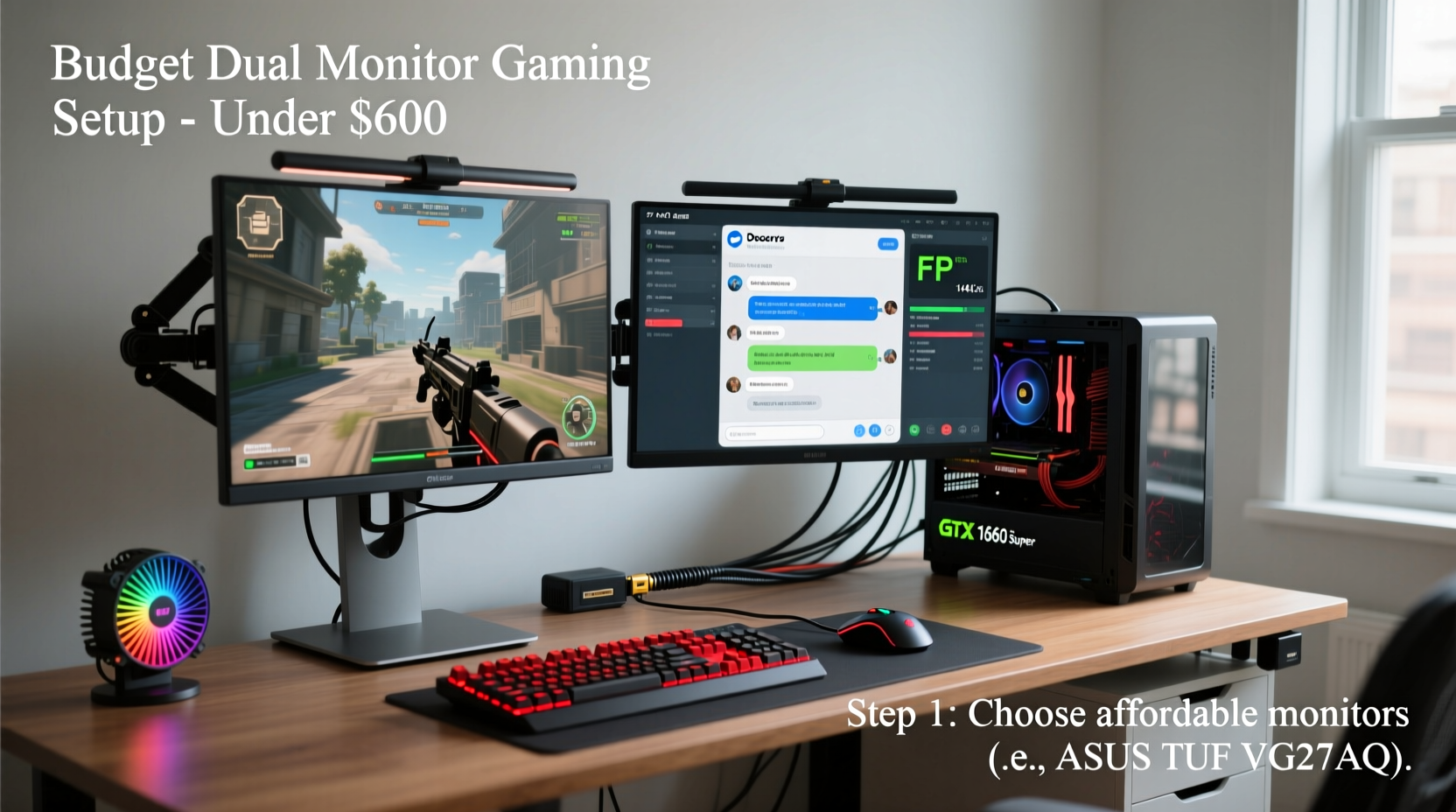
Before purchasing new monitors or accessories, verify that your existing PC can support a dual display configuration. Many modern graphics cards, even entry-level models, support multiple outputs. Check your GPU’s specifications for available video ports such as HDMI, DisplayPort, DVI, or VGA.
Most dedicated GPUs from the last decade support at least two simultaneous displays. Integrated graphics on newer CPUs (like Intel UHD 630 or AMD Radeon Vega) also typically support dual monitors, though performance may be limited during intensive gaming.
Additionally, ensure your power supply unit (PSU) can handle added load if you’re upgrading your GPU. A 400W PSU is generally sufficient for light-to-moderate gaming setups with dual monitors.
Select Affordable Yet Reliable Monitors
Choosing the right monitors is the most critical—and potentially costly—part of the build. However, prioritizing value over premium specs keeps costs low without sacrificing usability.
For gaming, look for displays with at least 75Hz refresh rate, 1ms response time, and Full HD (1920x1080) resolution. While 144Hz panels are ideal for competitive gaming, they’re not essential for casual play and can double the price.
Consider buying one new monitor and pairing it with a used or repurposed secondary screen. Office surplus sites, eBay, or local Facebook Marketplace often list 24-inch 1080p monitors for $50–$80. Brands like Dell, HP, and Lenovo offer durable business-grade displays that work well as secondary screens.
“Many people overlook used commercial monitors, but units from corporate upgrades are often barely used and come with full warranties.” — Mark Tran, IT Equipment Reseller
| Monitor Type | Avg. Price | Best For | Notes |
|---|---|---|---|
| New 24\" 1080p 75Hz | $100–$140 | Main gaming display | Look for FreeSync/G-Sync compatibility |
| Used Dell/HP Business Display | $50–$80 | Secondary screen | Often includes HDMI + DisplayPort |
| Refurbished 27\" IPS Panel | $120–$160 | Primary display (if budget allows) | Better color accuracy and viewing angles |
| Old Laptop Screen (via adapter) | $0–$30 | Budget second screen | Requires HDMI-to-eDP converter; complex setup |
Stick to matching resolutions between both monitors to avoid scaling issues. Mixing 1080p and 1440p can cause window management headaches and inconsistent UI scaling in games and apps.
Connect and Configure Your Displays
Once you have your monitors, connect them using the appropriate cables. Most modern GPUs have at least two output types—common combinations include HDMI + DisplayPort or dual HDMI.
- Power off your PC and connect each monitor to a video output on your GPU (not motherboard).
- Use high-speed HDMI cables (Category 2) or DisplayPort 1.2+ for stable 1080p@75Hz signals.
- Boot your system and allow Windows to detect both displays.
- Navigate to Settings > System > Display.
- Click “Identify” to confirm which number corresponds to each physical monitor.
- Drag the display icons to match your physical desk layout.
- Set the primary monitor (where games will run) and adjust orientation or scaling if needed.
If one monitor isn’t detected, check cable connections, try a different port, or update your GPU drivers via the manufacturer’s website (NVIDIA GeForce Experience, AMD Software, or Intel Driver Support).
Optimize Performance for Dual Monitor Gaming
Gaming across two monitors increases GPU workload, especially if both screens are active during gameplay. To maintain smooth frame rates without expensive upgrades:
- Run games on one monitor only: Extend your desktop rather than duplicating it. Keep chat, Discord, or guides open on the second screen while playing fullscreen on the main display.
- Lower in-game settings: Adjust textures, shadows, and anti-aliasing to medium or high instead of ultra to preserve FPS.
- Enable V-Sync selectively: Turn it on only if you experience screen tearing, but disable it if input lag becomes noticeable.
- Close background apps: Web browsers, streaming software, and overlay tools consume memory and CPU resources.
- Update GPU drivers monthly: New updates often include optimizations for popular games and multi-monitor stability.
Some games support ultrawide or panoramic modes across dual monitors, like Microsoft Flight Simulator or Euro Truck Simulator 2. These provide true immersion but demand significantly more GPU power. For budget systems, stick to single-screen gaming with extended desktop functionality.
Real Example: Jason’s Budget-Friendly Setup
Jason, a college student and casual gamer, wanted to enhance his Battlefield 2042 experience without spending over $200. He already had a mid-range PC with an NVIDIA GTX 1650 and a 22-inch 1080p monitor. After researching local listings, he found a slightly used Dell P2419H—a 23.8-inch IPS panel—for $65 on Craigslist. It featured HDMI and DisplayPort inputs and minimal screen wear.
He connected the second monitor via HDMI, arranged his desktop to extend left-to-right, and set his original screen as primary. During gameplay, he ran the game in fullscreen borderless mode on the main display while keeping Discord and live maps open on the secondary. The total upgrade cost? Just $65. His FPS remained stable at 60+ in high settings, and he reported a dramatic improvement in situational awareness and multitasking efficiency.
Dual Monitor Setup Checklist
Your Budget Dual Monitor Action Plan
- ✅ Verify GPU supports dual outputs (HDMI, DisplayPort, etc.)
- ✅ Choose one affordable new monitor and one used/refurbished display
- ✅ Purchase necessary cables (HDMI or DisplayPort)
- ✅ Connect both monitors to GPU (not motherboard)
- ✅ Configure display arrangement in Windows Settings
- ✅ Set primary monitor for gaming
- ✅ Update graphics drivers
- ✅ Test with a game and secondary app (e.g., browser or Discord)
- ✅ Adjust in-game settings to balance performance and visuals
- ✅ Optimize desk space and viewing angles for comfort
Frequently Asked Questions
Can I use my laptop screen as a second monitor?
Yes, but only as an extended display—not while using a dedicated GPU. You can connect an external monitor to your laptop and use both screens simultaneously. However, gaming performance will depend on your laptop’s GPU capabilities, which are often limited compared to desktop systems.
Do I need special software for dual monitor gaming?
No. Modern operating systems and games natively support multi-monitor setups. Tools like DisplayFusion or UltraMon offer advanced window management features (snap zones, taskbar extensions), but they’re optional and not required for basic functionality.
Will running two monitors slow down my games?
Only if the game renders across both screens (rare). In standard extended desktop mode, your GPU only renders the game on the primary monitor. The second screen displays desktop apps, which have minimal impact on gaming performance. However, resource-heavy overlays (e.g., streaming software) can reduce FPS.
Final Tips for Long-Term Success
A dual monitor gaming setup should enhance—not hinder—your experience. Position both screens at eye level, ideally with a slight inward angle to reduce neck strain. Use cable ties or sleeves to manage cords neatly and prevent accidental disconnections.
Periodically clean monitor surfaces with a microfiber cloth and screen-safe cleaner. Dust buildup on vents can lead to overheating, especially on older reused units. Also, rotate usage occasionally if one monitor shows signs of burn-in or backlight degradation.
Conclusion: Upgrade Smarter, Not Harder
Building a capable dual monitor gaming setup doesn’t demand cutting-edge gear or deep pockets. By leveraging used hardware, understanding your system’s limits, and configuring settings wisely, you can unlock a broader digital workspace and richer gaming immersion for less than the price of a single AAA game bundle. Whether you're coordinating raids in MMOs, managing builds in strategy games, or simply keeping comms open during intense firefights, the productivity and engagement benefits are immediate and lasting.




 浙公网安备
33010002000092号
浙公网安备
33010002000092号 浙B2-20120091-4
Comments
No comments yet. Why don't you start the discussion?