
Working from home has become the norm for millions, and one of the most impactful upgrades you can make to your setup is adding a second monitor. A dual monitor workstation enhances multitasking, reduces eye strain, and improves workflow efficiency. Whether you're coding, editing video, managing spreadsheets, or simply organizing emails across windows, two screens offer tangible benefits. But setting it up correctly requires more than just plugging in an extra display. This guide walks through every essential step—from assessing hardware compatibility to optimizing screen placement—for a seamless, ergonomic, and high-performing dual monitor environment.
Assess Your Hardware Compatibility
Before purchasing a second monitor, confirm that your current computer supports multiple displays. Most modern laptops and desktops do, but the type of ports and graphics capabilities vary significantly.
Check your available video output ports: HDMI, DisplayPort, DVI, or VGA. Many computers have at least one HDMI port, but some ultrabooks may only include USB-C with DisplayPort Alt Mode. If your system lacks sufficient ports, consider a USB-to-HDMI adapter or a docking station. However, for graphic-intensive tasks like video editing or gaming, native ports are preferable for optimal performance and resolution support.
Your graphics card (integrated or dedicated) must also support dual outputs. Integrated Intel UHD or AMD Radeon graphics typically handle two 1080p monitors without issue. For higher resolutions (1440p or 4K), ensure your GPU has enough bandwidth and memory.
Matching Monitor Specifications
While not mandatory, using two monitors with similar size, resolution, and refresh rate simplifies window management and reduces visual fatigue. Mismatched resolutions can cause cursor speed inconsistencies when moving between screens, and differing panel types (e.g., IPS vs. TN) affect color accuracy and viewing angles.
“Consistency across both displays ensures a smoother cognitive transition as your eyes move between screens.” — Dr. Lena Patel, Ergonomics Researcher at Human Factors Lab
Choose the Right Monitors for Your Needs
Selecting the second monitor involves balancing budget, use case, and desk space. Here's how to make an informed decision:
- Size: 24-inch monitors are ideal for general productivity; 27-inch suits creative professionals needing more canvas space.
- Resolution: Full HD (1920x1080) is standard, but QHD (2560x1440) offers sharper text and image detail.
- Panel Type: IPS panels deliver better color reproduction and wider viewing angles—ideal for design work. VA offers deeper blacks, while TN is faster but has poor off-axis clarity.
- Connectivity: Ensure the monitor includes a port compatible with your PC (HDMI 1.4+ recommended for 1080p@60Hz).
- Ergonomics: Look for height-adjustable stands, swivel, tilt, and pivot (portrait mode) features.
| Use Case | Recommended Specs | Budget Range |
|---|---|---|
| General Office Work | 24\", 1080p, IPS, HDMI | $120–$180 |
| Graphic Design / Photo Editing | 27\", 1440p, IPS, sRGB ≥99% | $250–$400 |
| Programming / Data Analysis | 27\", 1440p, High PPI, Matte Finish | $200–$300 |
| Gaming + Productivity | 27\", 1440p, 144Hz, Adaptive Sync | $300–$500 |
Consider Mounting Options
Freeing up desk space improves airflow and allows for better cable management. Wall mounts, desk clamps, or articulating arms let you position both monitors precisely. VESA-compatible monitors (standardized mounting pattern on the back) open up flexible positioning options. Dual-monitor arms are especially effective—they allow synchronized height, angle, and depth adjustments, promoting symmetry and comfort.
Step-by-Step Setup Process
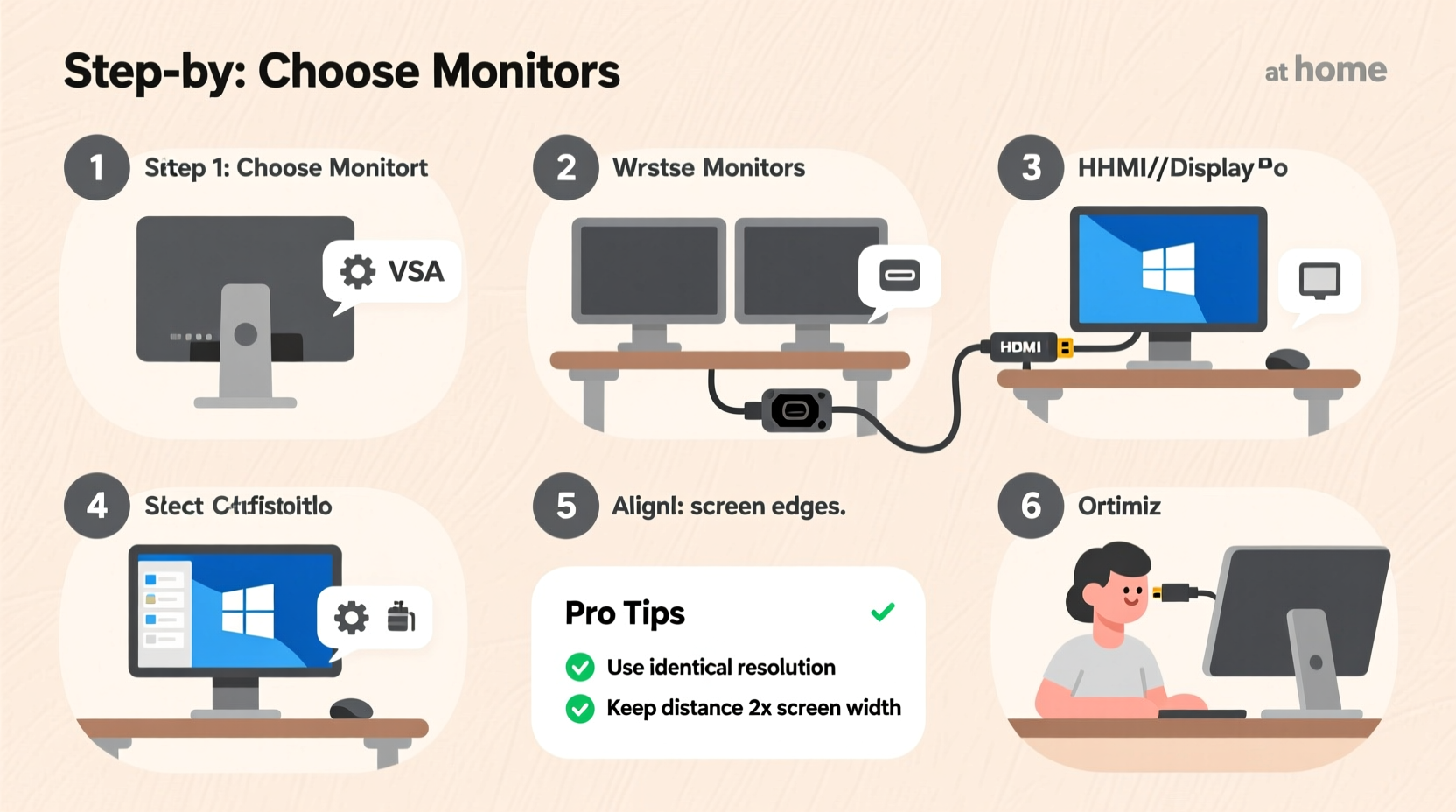
Follow this sequence to physically and digitally configure your dual monitor setup.
- Power down your computer to prevent short circuits during connection.
- Connect both monitors using appropriate cables (e.g., HDMI to HDMI). Plug each into a different video output if possible.
- Turn on the monitors first, then power up your computer.
- Access display settings:
- Windows: Right-click desktop → “Display settings”
- macOS: System Settings → Displays → Arrangement
- Identify and arrange displays by dragging on-screen representations to match physical layout (e.g., left/right alignment).
- Select primary display—usually the one where taskbar/dock appears by default. Choose based on central usage (e.g., main browser window).
- Set correct resolution and scaling for each monitor. Avoid stretching or blurry text by selecting native resolution.
- Adjust orientation if needed (e.g., portrait mode for coding or reading long documents).
- Test extended vs. mirrored mode:
- Extended: Spreads desktop across both screens (recommended).
- Mirrored: Duplicates content (useful for presentations).
- Save changes and begin organizing applications across screens.
Calibrate for Visual Harmony
If monitors differ in brightness or color temperature, manually adjust settings via on-screen menus (OSD). Aim for consistent white balance (6500K recommended) and luminance levels. On Windows, use the ClearType Text Tuner (search “Adjust ClearType text”) to optimize font rendering per display.
Optimize Workspace Ergonomics
A powerful dual monitor setup is only effective if it supports healthy posture. Poor positioning leads to neck pain, shoulder tension, and reduced concentration.
The ideal configuration places the center of both screens at or slightly below eye level. The top of the monitor should be no more than 5–10 cm above seated eye height. Sit about an arm’s length (50–70 cm) away. Angle the outer edges inward so they form a gentle curve facing you, minimizing head turning.
For symmetrical setups, align the bezels so there’s no vertical gap when moving the mouse between screens. If one monitor is larger or taller, prioritize aligning the bottom edges to maintain a smooth cursor transition.
“The human neck isn’t designed for constant lateral rotation. Angling monitors inward reduces cervical strain by up to 30%.” — Dr. Arun Mehta, Occupational Therapist
Cable Management and Power Efficiency
Multiple devices mean more cords. Use adhesive clips, braided sleeves, or under-desk trays to bundle cables neatly. Label each cable near connectors for easy troubleshooting. Consider a surge protector with USB charging ports to consolidate power delivery.
To reduce energy consumption, enable automatic sleep modes on both monitors. Most operating systems allow independent power plans per display. Set them to turn off after 10–15 minutes of inactivity.
Real-World Example: Remote Developer Workflow
Sophie, a freelance software developer based in Portland, upgraded her home office from a single 22-inch monitor to a dual 27-inch QHD setup. Her old configuration forced constant tab switching between code editors, terminals, and documentation—a major distraction.
She connected a new Dell UltraSharp U2723QE via DisplayPort alongside her existing LG 27QN880-B using HDMI. Both run at 2560x1440 resolution. After arranging them side-by-side in Windows Display Settings, she assigned the left screen to her IDE (VS Code), terminal, and version control tools, reserving the right for browser tabs, API docs, and communication apps (Slack, Zoom).
With proper calibration and matching brightness levels, she reported a noticeable drop in eye fatigue. Using a VESA arm, she raised both monitors to optimal height and eliminated clutter beneath the desk. Within a week, her average task completion time improved by 18%, and she experienced fewer instances of mid-day headaches.
This transformation wasn’t just about hardware—it was about intentional configuration tailored to her workflow.
Troubleshooting Common Issues
Even well-planned setups encounter hiccups. Here are frequent problems and their solutions:
- Second monitor not detected: Reboot, reseat cables, update GPU drivers, or try a different port/cable.
- Flickering or blackouts: Check cable quality—faulty HDMI cables are common culprits. Replace with certified versions.
- Incorrect resolution: Confirm monitor is set to native resolution in OS settings and OSD menu.
- Cursor disappears between screens: Adjust display arrangement in settings to reflect exact physical placement.
- Lag or stuttering on secondary display: Disable unnecessary animations, lower refresh rate temporarily, or check GPU load.
Software Enhancements for Dual Monitors
Leverage tools to maximize utility:
- Windows Snap Layouts: Hold Win + Z to access grid layouts for quick window organization.
- Dual Monitor Tools (Windows): Free utility to remove taskbars from secondary screens and synchronize wallpapers.
- DisplayLink (for USB adapters): Official driver suite for reliable external display performance.
- Mission Control (macOS): Customize Spaces and Hot Corners for faster navigation.
FAQ
Can I use two different monitor brands or models together?
Yes, you can mix brands and models. However, differences in color reproduction, response time, and input lag may affect user experience. Calibrate both displays manually for consistency.
Do I need a powerful PC for dual monitors?
For basic office tasks and web browsing, even integrated graphics suffice. For 4K content, gaming, or video editing across both screens, a dedicated GPU with multiple outputs is recommended.
Is it better to have horizontal or vertical monitor orientation?
Horizontal is standard for most uses. Vertical (portrait) orientation excels for reading long documents, coding, or social media monitoring. Some users adopt an L-shaped configuration combining both.
Conclusion: Build a Smarter, More Efficient Workspace
A dual monitor workstation isn't just a luxury—it's a strategic investment in productivity, comfort, and long-term health. By carefully selecting compatible hardware, configuring displays accurately, and aligning them ergonomically, you create a workspace that works for you, not against you. Small details like cable routing, brightness matching, and application zoning compound into significant daily improvements.
Start with what you have, upgrade thoughtfully, and refine over time. Whether you’re analyzing data, designing visuals, or managing projects, a well-executed dual monitor setup gives you the digital real estate to think bigger and work smarter.




 浙公网安备
33010002000092号
浙公网安备
33010002000092号 浙B2-20120091-4
Comments
No comments yet. Why don't you start the discussion?