
In an era where digital data is both invaluable and vulnerable, losing personal or professional files due to hardware failure, malware, or accidental deletion can be devastating. Windows 11 offers several built-in and third-party-compatible methods to back up your data, but knowing which approach to take—and how to implement it reliably—is essential. This guide walks through practical, proven strategies to create consistent, secure, and recoverable backups tailored to modern usage patterns.
Why Regular Backups Are Non-Negotiable
Data loss isn’t a matter of “if” but “when.” Hard drives fail. Laptops get stolen. Ransomware attacks are increasingly common. According to the National Institute of Standards and Technology (NIST), organizations that lack regular backup procedures suffer significantly longer downtime and higher recovery costs after incidents.
For individuals, the stakes are just as real. Family photos, tax records, creative projects, and work documents often exist in only one place: your computer. A single system crash could erase years of irreplaceable content. Reliable backups ensure continuity, peace of mind, and rapid recovery when disaster strikes.
Understanding Windows 11 Backup Options
Windows 11 provides multiple tools for backing up data, each suited to different needs and technical comfort levels. Knowing what’s available helps you choose the right method—or combination of methods—for your situation.
File History
This feature automatically backs up changes to files in libraries, desktop, contacts, and favorites. It works best with external drives or network locations and allows versioning—restoring previous versions of files easily.
System Image Backup
A full system image captures everything: operating system, applications, settings, and files. While storage-intensive, it enables complete system restoration after major failures. Accessible via Control Panel under \"Backup and Restore (Windows 7)\"—yes, still functional in Windows 11.
OneDrive Integration
Microsoft’s cloud service syncs selected folders to the cloud by default. With Files On-Demand, users save local space while maintaining access. OneDrive also includes version history and ransomware detection, adding layers of protection beyond basic syncing.
Third-Party Tools
Applications like Macrium Reflect, Acronis True Image, and EaseUS Todo Backup offer advanced scheduling, encryption, disk imaging, and incremental backup capabilities not fully matched by native tools.
| Method | Best For | Limits |
|---|---|---|
| File History | Daily file versioning | Only user files; no OS backup |
| System Image | Full disaster recovery | Bulky; slow restore process |
| OneDrive | Cloud sync & mobility | Requires subscription; internet needed |
| Third-Party Software | Customization & automation | Cost; learning curve |
Step-by-Step: Setting Up Automated File History Backup
For most home users, combining File History with an external drive offers the ideal balance of simplicity and reliability.
- Connect an external USB drive (256GB minimum recommended).
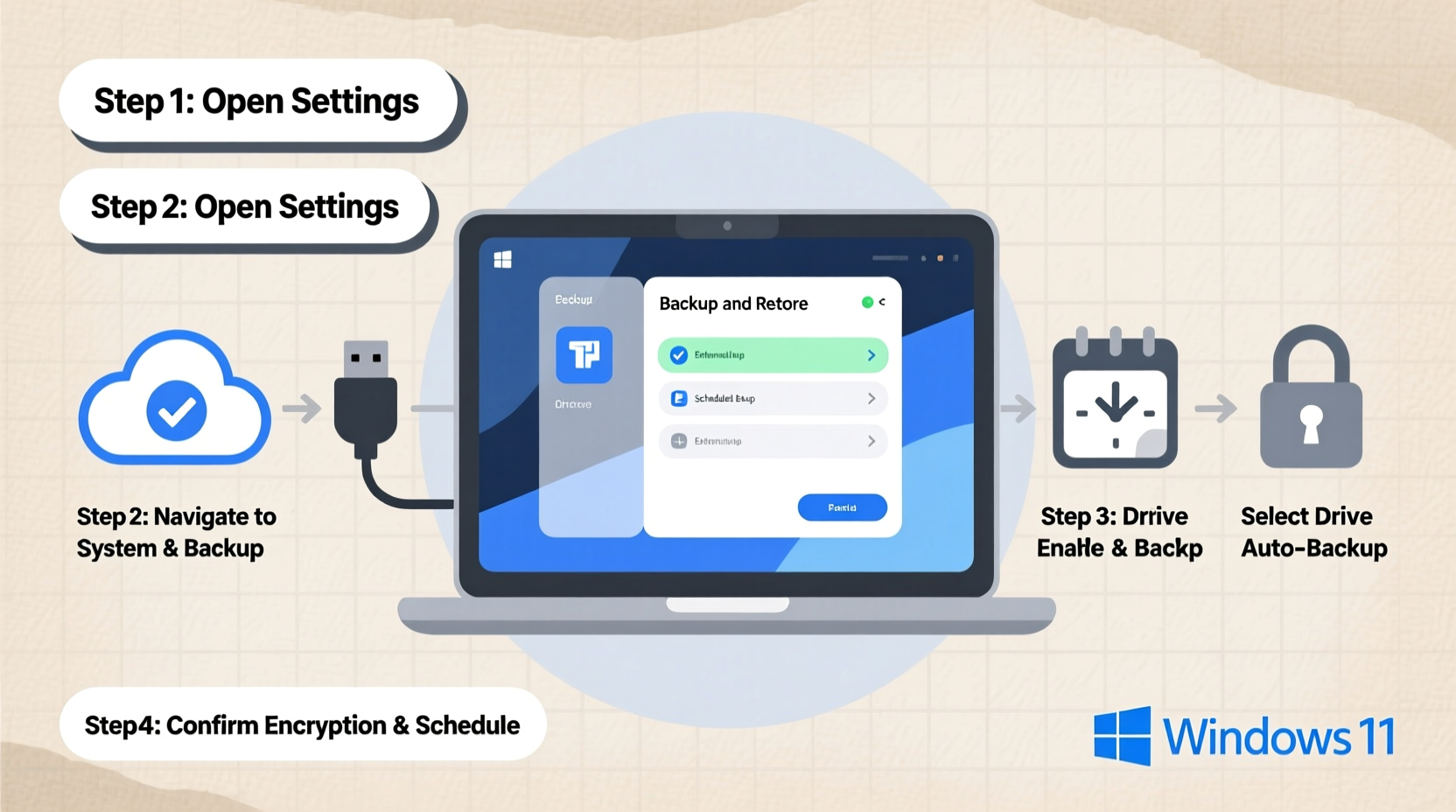
- Open Settings > System > Storage > Advanced storage settings > Backup options.
- Under “Back up using File History,” click “Add a drive.”
- Select your external drive from the list.
- Toggle “Automatically back up my files” to On.
- Click “More options” to customize:
- Frequency: Set to every hour for active work.
- Retention: Choose “Until space is needed” or set a time limit.
- Folders: Add custom folders outside default locations (e.g., project directories).
Once configured, File History runs silently in the background. You’ll receive notifications if the drive disconnects or runs out of space.
Real Example: Recovering After a Blue Screen Crash
Sophia, a freelance graphic designer, experienced a sudden BSOD followed by boot failure. Her SSD wouldn’t mount in BIOS. Fortunately, she had been using File History to an external drive every evening. She booted from a Windows 11 USB installer, selected “Repair your computer,” then used “Restore your files with File History” to retrieve her latest project versions. Within two hours, she was back at work—only missing a day’s worth of unsaved edits. Without the backup, she would have lost over 80 client projects stored locally.
Expert Insight: Planning for Resilience
“Backups aren’t about preventing problems—they’re about ensuring survival when things go wrong. The most secure systems combine automated local snapshots with encrypted offsite storage.” — Dr. Marcus Lin, Cybersecurity Researcher at the Center for Digital Trust
Checklist: Building a Reliable Backup Routine
- ✅ Identify critical data (documents, photos, emails, databases).
- ✅ Choose at least two backup methods (e.g., File History + OneDrive).
- ✅ Use an external drive formatted as NTFS for File History.
- ✅ Enable versioning to recover older file states.
- ✅ Test restores quarterly to verify integrity.
- ✅ Store one backup copy away from your primary location (cloud or physical).
- ✅ Encrypt sensitive backups using BitLocker or third-party tools.
- ✅ Schedule monthly checks for drive health and connection stability.
Avoiding Common Backup Pitfalls
Even with the best intentions, mistakes happen. Here are frequent missteps and how to avoid them:
- Assuming syncing equals backup: OneDrive syncs files but doesn’t always protect against deletion or corruption unless version history is enabled.
- Using the same drive for daily use and backup: If the drive fails, both original and backup are lost.
- Neglecting to test recovery: A backup is only useful if it can be restored. Practice recovery annually.
- Ignoring encryption: Unencrypted external drives left in cars or bags pose serious privacy risks.
Frequently Asked Questions
Can I back up to a NAS device?
Yes. Windows 11 supports backing up File History to a Network Attached Storage (NAS) device. Ensure the NAS is accessible over your local network and has sufficient permissions configured. This adds redundancy without relying solely on portable drives.
How do I know if my backup is working?
Go to Settings > Accounts > Windows Backup (or Control Panel > Backup and Restore). Review the last successful backup time. Additionally, manually browse the backup drive to confirm recent files appear in the corresponding folders. Run a test restore of a non-critical document to validate functionality.
Is cloud backup enough?
Cloud services like OneDrive or Google Drive offer convenience and offsite protection but depend on internet availability and ongoing subscriptions. They should complement—not replace—local backups. Internet upload speeds often make full recovery impractical during emergencies. A hybrid model delivers optimal resilience.
Conclusion: Secure Your Digital Life Today
Data security begins with a simple truth: if it’s not backed up, it doesn’t truly exist. Windows 11 equips you with powerful tools to protect your information, but their effectiveness depends on consistent, thoughtful implementation. Whether you're a student, professional, or casual user, investing an hour now to configure reliable backups can prevent irreversible loss later.




 浙公网安备
33010002000092号
浙公网安备
33010002000092号 浙B2-20120091-4
Comments
No comments yet. Why don't you start the discussion?