
Whether you're gaming on mobile, taking calls, or enjoying immersive audio, connecting your Turtle Beach headset to a phone should be seamless. Yet many users face confusion when dealing with different models, connection types, and compatibility quirks. This guide cuts through the noise with clear, practical steps tailored to both Android and iOS devices. You’ll learn how to pair wired and wireless headsets, troubleshoot common issues, and optimize audio performance—all without technical jargon.
Understanding Your Turtle Beach Headset Type
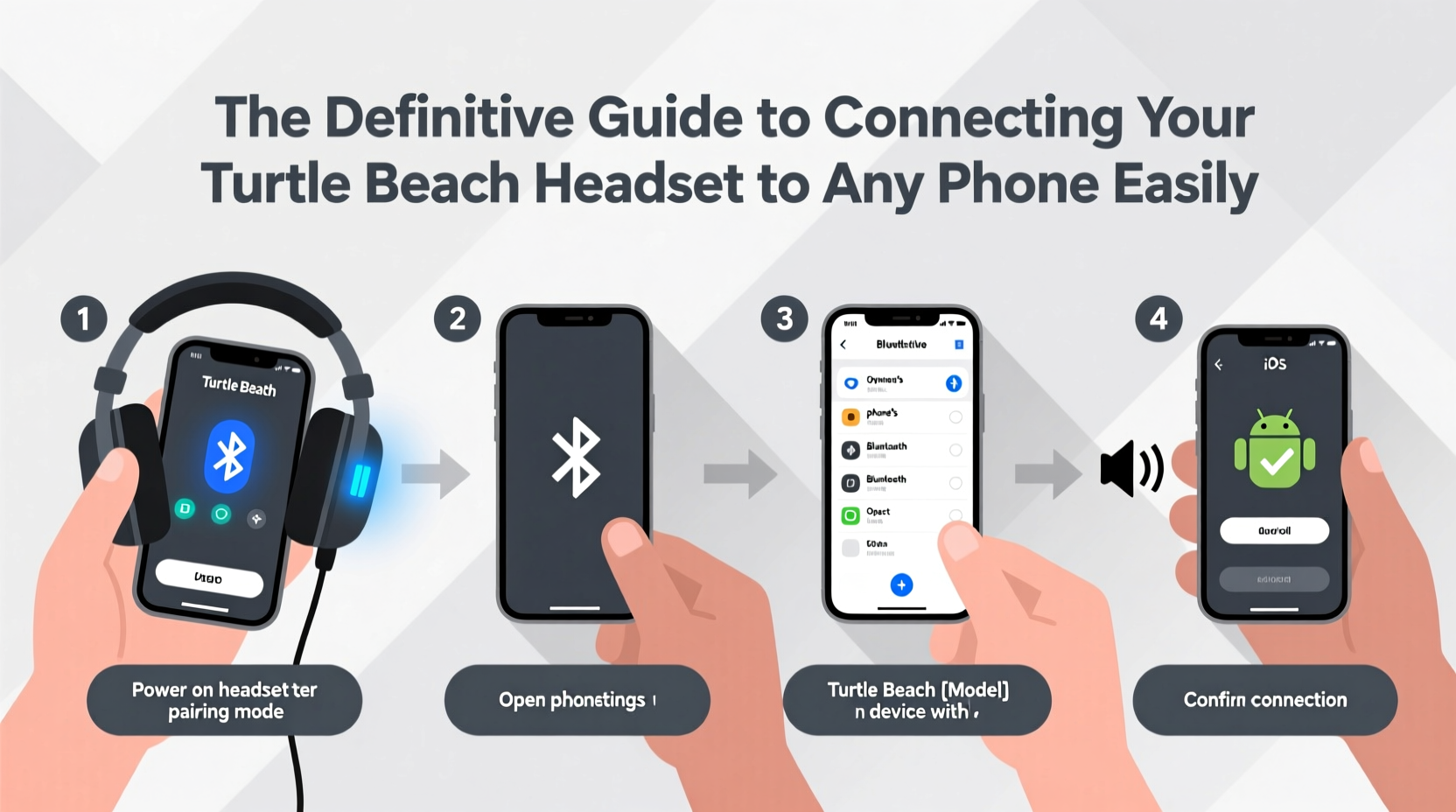
Turtle Beach produces a wide range of headsets, from budget-friendly analog models to high-end wireless systems designed primarily for consoles. Before attempting to connect to a phone, identify your headset’s type:
- Analog (3.5mm): Uses a standard headphone jack. Most compatible with phones that still have a 3.5mm port.
- USB-C Digital: Designed for newer smartphones with USB-C ports; offers enhanced audio processing.
- Bluetooth Wireless: Connects wirelessly via Bluetooth—ideal for modern smartphones.
- Dongle-Based Wireless: Requires a USB transmitter (common in console-focused models); not directly compatible with most phones.
Not all Turtle Beach headsets are built for mobile use. Models like the Recon 500 or Battle Buds are designed with mobile compatibility in mind, while others such as the Elite Pro series rely on proprietary dongles meant for Xbox or PlayStation.
Connecting via 3.5mm Jack: The Simplest Method
For phones with a headphone jack—or using a quality USB-C to 3.5mm adapter—wired Turtle Beach headsets are plug-and-play. Follow this process:
- Ensure your phone has an available 3.5mm port or a compatible adapter.
- Plug the headset’s 3.5mm connector firmly into the port.
- Check if both audio and microphone are working by making a test call or using a voice memo app.
- If only audio works but no mic, verify the headset uses a CTIA-standard plug (most do), which is compatible with modern smartphones.
Some older Android devices used OMTP wiring standards, which can cause microphone issues. In such cases, a passive adapter may resolve the problem, though these are increasingly rare.
| Connection Type | Compatible With | Mic Support? |
|---|---|---|
| 3.5mm Analog | Phones with headphone jack or adapter | Yes, if CTIA standard |
| USB-C Analog | Android phones with USB-C audio support | Yes, device-dependent |
| Bluetooth | All modern smartphones | Yes, when paired correctly |
| Wireless Dongle | Limited (OTG + compatible OS) | Rarely supported |
Pairing Bluetooth Turtle Beach Headsets with Smartphones
If you own a Bluetooth-enabled model like the *Turtle Beach Stealth 700 Gen 2* (mobile version) or *Battle Buds*, pairing is straightforward:
- Power on your headset and place it in pairing mode (usually indicated by blinking LED lights).
- On your phone, go to Settings > Bluetooth.
- Wait for the headset name to appear (e.g., “BattleBuds” or “Turtle Beach Stealth 700”).
- Select the device. Some models may require a PIN—typically
0000or1234. - Once connected, audio will route automatically during calls, videos, or games.
For dual-device setups (like splitting chat and game audio), note that most phones don’t support concurrent audio streams natively. Use one app at a time for best results.
“Bluetooth latency under 100ms is critical for real-time gaming. Look for headsets supporting aptX Low Latency or similar codecs.” — Rajiv Mehta, Audio Engineer & Mobile Gaming Consultant
Using USB-C and OTG Adapters for Digital Headsets
Newer Turtle Beach models like the *Recon 70X* or *Recon 50X* use USB-C for digital audio transmission. While designed for Xbox and PC, they can work with Android phones that support USB audio peripherals.
To connect:
- Use a direct USB-C to USB-C cable if your headset has a detachable cable.
- Or, use a USB-C OTG (On-The-Go) adapter to plug in a USB-A equipped headset.
- Upon connection, your phone should prompt you to switch audio output to the headset.
- Test microphone input in a recording app or video call.
Note: iPhones do not support USB-C audio peripherals without additional software layers (e.g., camera adapters for file transfer only). Apple’s ecosystem relies heavily on Lightning or Bluetooth for external audio.
Real Example: Connecting a Recon 70X to a Samsung Galaxy S23
Sophia, a mobile gamer, wanted to use her Turtle Beach Recon 70X (designed for Xbox) with her Galaxy S23. She used a USB-C to USB-C cable and plugged it in. Her phone immediately recognized the headset, switching audio output. However, the microphone wasn’t enabled by default. After going to Settings > Apps > Game Launcher, she granted microphone permissions, and voice chat worked flawlessly in Call of Duty Mobile. A small tweak made all the difference.
Troubleshooting Common Connection Issues
Even with correct setup, problems arise. Here’s how to fix them:
- No Sound After Plugging In: Check if another audio output (like Bluetooth speakers) is active. Disable them manually.
- Microphone Not Working: Ensure app permissions are granted. On Android, go to App Settings > Permissions. On iPhone, check Microphone access under Settings.
- Intermittent Bluetooth Disconnects: Move away from Wi-Fi routers or crowded 2.4GHz zones. Re-pair the device if needed.
- Audio Delay (Lag): Common with Bluetooth. Enable Developer Options on Android and set “Bluetooth Audio Codec” to aptX LL if supported.
- Dongle Not Recognized: Most Turtle Beach wireless dongles are not compatible with phones due to driver and power limitations.
Do’s and Don’ts When Connecting to Phones
| Do | Don't |
|---|---|
| Use certified adapters for analog connections | Assume all USB-C headsets work with every phone |
| Update your headset firmware via official apps | Force-insert damaged cables or plugs |
| Test mic and audio before important calls | Ignore OS-level permission settings |
| Keep Bluetooth firmware updated | Use outdated OTG adapters with poor power delivery |
Frequently Asked Questions
Can I use my Turtle Beach headset with an iPhone?
Yes—if it’s a 3.5mm or Bluetooth model. iPhones lack native USB audio support, so USB-C headsets won’t function unless adapted via special hardware (not recommended). For Lightning-to-3.5mm adapters, ensure the headset uses CTIA wiring.
Why does my phone only play sound but not pick up my voice?
This usually indicates a mismatch between the headset’s TRRS configuration and the phone’s expectations. Most modern phones use CTIA (Left/Right/Mic/Ground). If your headset follows OMTP, a passive TRRS adapter can convert the signal.
Are Turtle Beach gaming headsets good for phone calls?
Absolutely. Many models feature noise-isolating mics and clear audio drivers. Once properly connected, they outperform stock earbuds in clarity and comfort during long calls.
Final Checklist Before You Connect
- Identify your Turtle Beach model and its connection type.
- Confirm your phone’s supported audio inputs (3.5mm, USB-C, Bluetooth).
- Gather necessary cables or adapters (e.g., USB-C OTG, 3.5mm extension).
- Enable Bluetooth or plug in the headset securely.
- Test both audio output and microphone input.
- Adjust app permissions and system settings as needed.
- Optimize audio settings for low latency in gaming apps.
Get the Most Out of Your Gaming Gear
Your Turtle Beach headset isn’t limited to consoles. With the right approach, it becomes a powerful audio tool for mobile gaming, remote work, and entertainment. Compatibility hinges not on brand loyalty but on understanding connection standards and device capabilities. Now that you know exactly how to connect your headset—whether wired, wireless, or digital—it’s time to put it into practice.




 浙公网安备
33010002000092号
浙公网安备
33010002000092号 浙B2-20120091-4
Comments
No comments yet. Why don't you start the discussion?