
The DualShock 4, Sony’s acclaimed PS4 controller, offers a refined ergonomic design, precise analog sticks, responsive triggers, and built-in motion sensing—features that many PC gamers find superior to standard gamepads. While it was designed for the PlayStation 4, the DualShock 4 is fully compatible with Windows PCs, allowing users to elevate their gaming experience across Steam, Epic, and standalone titles. Beyond gaming, its versatility extends into media navigation, emulation, and even productivity applications. This guide walks through every step of connecting, configuring, and maximizing your PS4 controller on PC.
Why Use a PS4 Controller on PC?
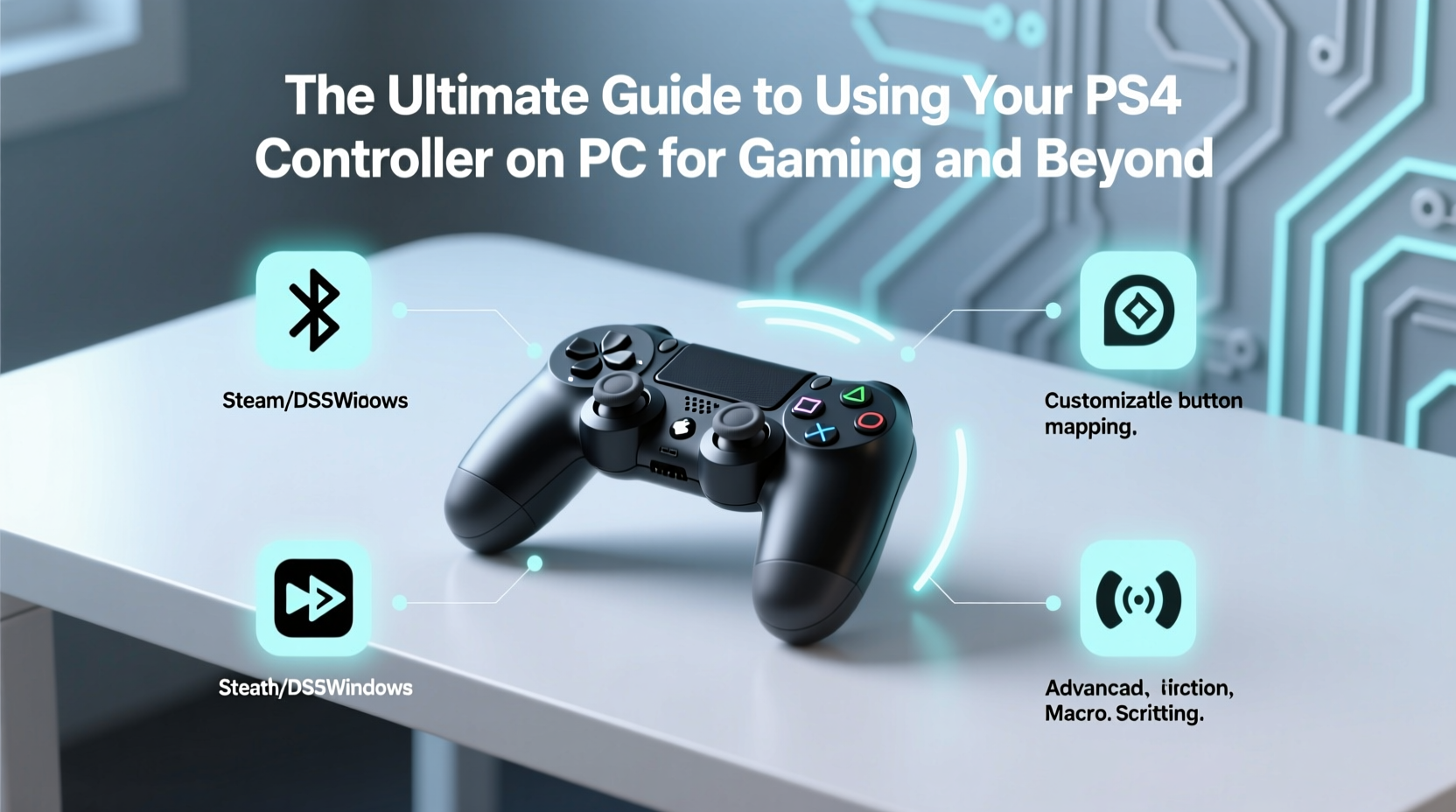
Many PC gamers overlook console controllers, assuming they’re locked into keyboard-and-mouse setups. However, games like *Elden Ring*, *Cyberpunk 2077*, and *Hades* benefit significantly from gamepad input. The DualShock 4 stands out due to its balanced weight, textured grip, and adaptive trigger feedback (in supported games via third-party tools). Additionally, its built-in touchpad and motion sensors open up unique functionality not found on most Xbox-style controllers.
Using a familiar controller can also reduce input fatigue during long sessions. For those transitioning from console to PC or playing cross-platform titles, maintaining muscle memory is crucial. With proper setup, the PS4 controller becomes a seamless extension of your PC workflow.
Step-by-Step: Connecting Your PS4 Controller to PC
There are two primary methods to connect your PS4 controller: wired (USB) and wireless (Bluetooth). Both work reliably, but each has trade-offs in latency, convenience, and compatibility.
- Wired Connection (Recommended for Beginners): Plug the Micro-USB cable into your controller and a USB port on your PC. Windows will automatically install basic drivers, enabling immediate use in most games.
- Enable Bluetooth (if available): Go to Settings > Devices > Bluetooth & other devices, then turn on Bluetooth.
- Enter Pairing Mode: Press and hold both the PS button and Share button until the light bar flashes rapidly.
- Add Device: Click “Add Bluetooth or other device,” select Bluetooth, and wait for “Wireless Controller” to appear. Select it to pair.
- Test Input: Open a game or use the Game Controllers panel (accessible via Control Panel > Hardware and Sound) to verify all buttons respond.
Note: Some older PCs lack native Bluetooth support. In such cases, a low-cost USB Bluetooth adapter (version 4.0 or higher) resolves the issue.
Enhancing Functionality with Software Tools
While basic input works out-of-the-box, unlocking the full potential of your DualShock 4 requires additional software. These tools translate controller inputs into formats recognized by PC games, especially those without native gamepad support.
| Tool | Primary Use | Pros | Cons |
|---|---|---|---|
| DS4Windows | Emulates an Xbox 360 controller | Free, highly customizable, supports touchpad and gyro | Requires .NET Framework; may trigger false positives in anti-cheat systems |
| Steam Input | Built into Steam client | No extra installation; works with any controller; cloud saves profiles | Limited outside Steam games |
| InputMapper | Advanced remapping and macros | Supports multiple output types, scripting | Paid version needed for full features |
For most users, DS4Windows strikes the ideal balance between performance and customization. It allows you to map the touchpad as a mouse, assign macros to buttons, and fine-tune stick sensitivity and dead zones.
“DS4Windows has become the de facto standard for PS4 controller support on PC. Its ability to emulate trusted Xbox inputs ensures compatibility across 95% of modern titles.” — Mark Tran, Input Device Developer at OpenGamePad Alliance
Practical Applications Beyond Gaming
The DualShock 4 isn’t limited to gameplay. With creative configuration, it becomes a multifunctional tool:
- Media Navigation: Use the PS button to launch media apps and the analog sticks to scroll through menus in Kodi or Plex.
- Emulation: Configure the controller in RetroArch or Dolphin Emulator for authentic console experiences.
- Productivity Shortcuts: Assign touchpad swipes to system actions (e.g., volume control, desktop switching) using AutoHotkey scripts.
- VR Experiences: Motion controls can be repurposed for head tracking or gesture input in experimental VR setups.
A user in Berlin, for example, configured their DualShock 4 to control home automation dashboards during presentations. By mapping the triangle button to “next slide” and the touchpad to dim lights via API calls, they created a sleek, tactile remote for smart environments.
Troubleshooting Common Issues
Even with proper setup, issues may arise. Here’s how to resolve them quickly:
Controller Disconnects Frequently (Bluetooth)
This often stems from interference or weak signal. Keep the controller within 3 feet of the PC and avoid placing metal objects between them. Updating Bluetooth drivers via Device Manager can also stabilize connections.
Vibration or Audio Not Working
These features require HID-compliant driver support. In DS4Windows, ensure “Use DInput only” mode is disabled. Also, check that exclusive mode access is enabled to prevent conflicts with other input services.
Games Don’t Recognize the Controller
Some titles, particularly older ones, only detect Xbox controllers. DS4Windows solves this by defaulting to Xbox 360 emulation. If still unrecognized, run the application as administrator and restart the game.
📋 **Quick Fix Checklist**- ✅ Ensure Bluetooth is active and updated
- ✅ Use a high-quality USB cable for wired mode
- ✅ Run DS4Windows as administrator
- ✅ Disable conflicting input software (e.g., old joystick drivers)
- ✅ Re-pair the controller if connection drops persist
Frequently Asked Questions
Can I use my PS4 controller on PC without installing any software?
Yes, for basic functions in games that support generic or PlayStation input natively (e.g., *Rocket League*, *Borderlands 3*). However, for broader compatibility and advanced features like touchpad use, third-party tools like DS4Windows are essential.
Does using a PS4 controller affect PC game performance?
No. Input latency is negligible when using a wired connection or modern Bluetooth. Any perceived lag is typically due to outdated drivers or background processes, not the controller itself.
Can I charge the controller while using it on PC?
Absolutely. When connected via USB, the controller charges while functioning as an input device. For wireless use, consider using a charging dock between sessions to maintain battery health.
Maximize Your Controller’s Potential
The PS4 controller is more than a gaming peripheral—it's a precision instrument adaptable to various digital tasks. Whether you're navigating complex RPGs, reliving retro classics, or controlling smart home interfaces, its thoughtful design and expandable functionality make it a valuable addition to any PC setup. With the right tools and configurations, you eliminate friction between intention and action, turning simple button presses into powerful commands.




 浙公网安备
33010002000092号
浙公网安备
33010002000092号 浙B2-20120091-4
Comments
No comments yet. Why don't you start the discussion?