
Streaming live television has evolved from bulky cable boxes to sleek, internet-based platforms—and YouTube TV stands at the forefront of this shift. With access to over 100 channels, unlimited cloud DVR, and support across multiple devices, YouTube TV offers a modern alternative to traditional cable. But getting the most out of it requires more than just signing up. A well-optimized setup ensures smooth playback, personalized viewing, and uninterrupted access across all your screens.
This comprehensive guide walks you through every stage of setting up YouTube TV—from choosing compatible hardware to customizing preferences and avoiding common pitfalls. Whether you're cutting the cord or enhancing your current entertainment system, these steps will help you achieve a truly seamless streaming experience.
Step 1: Check Your Internet and Device Compatibility
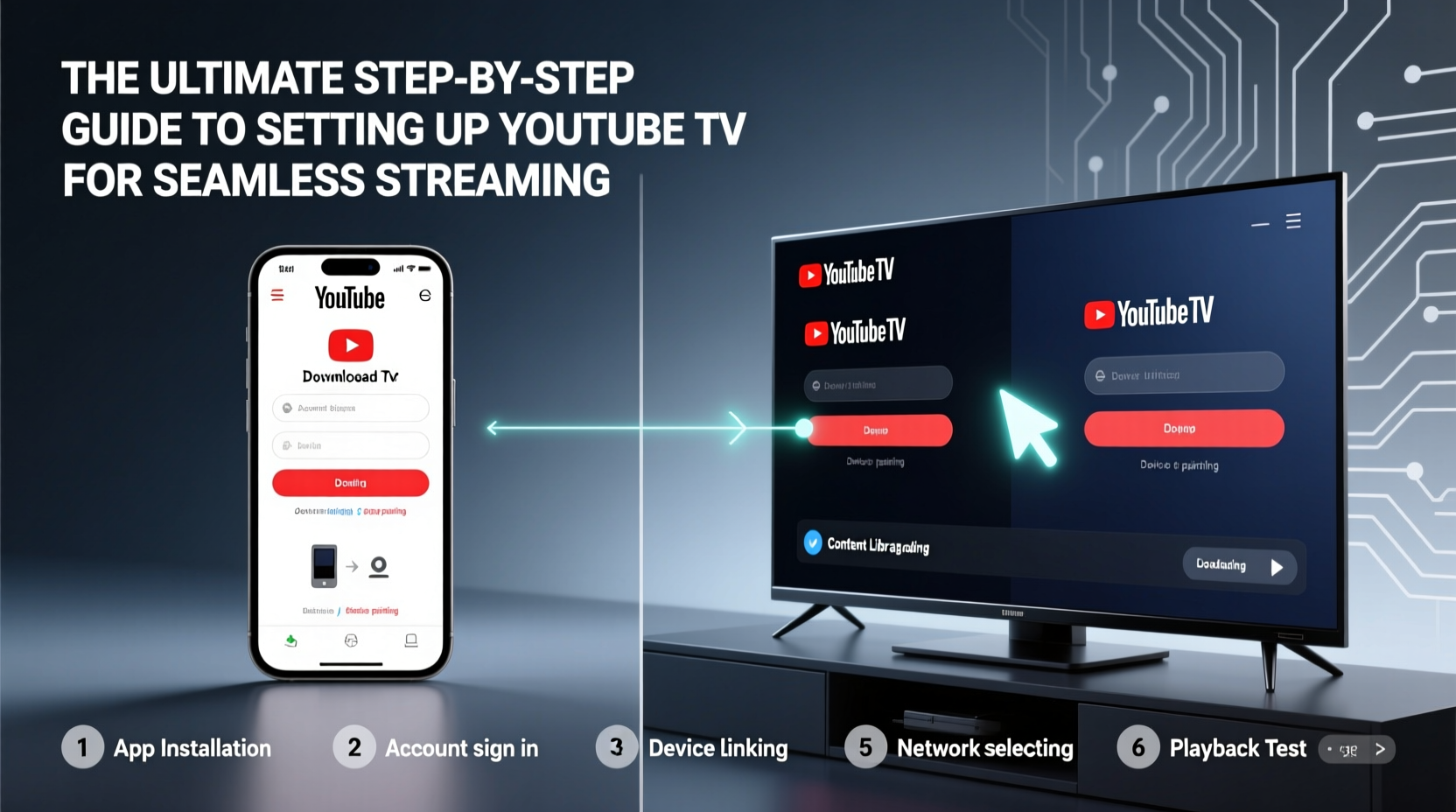
Before installing YouTube TV, confirm that your home network and devices meet the platform’s requirements. Streaming quality depends heavily on stable internet speeds and supported hardware.
YouTube TV recommends:
- Minimum 3 Mbps for standard definition (SD)
- Recommended 7+ Mbps for high definition (HD)
- 15+ Mbps for optimal performance with simultaneous streams
To test your speed, use free tools like Speedtest.net. Run the test near your primary viewing device to gauge real-world performance.
Next, verify that your devices support the YouTube TV app. Compatible platforms include:
| Device Type | Supported? | Notes |
|---|---|---|
| Smart TVs (Samsung, LG, Vizio, etc.) | Yes | Check model year; 2018 and newer typically supported |
| Streaming Devices (Roku, Fire TV, Apple TV, Chromecast) | Yes | All major platforms have dedicated apps |
| Game Consoles (Xbox, PlayStation) | Limited | Xbox Series X/S supports app; PS4/PS5 do not |
| Mobile (iOS & Android) | Yes | App available for phones/tablets |
| Web Browser | Yes | Accessible via tv.youtube.com |
Step 2: Create or Link a Google Account
YouTube TV operates under your Google account. If you already use Gmail, Google Drive, or YouTube, you can sign in directly. Otherwise, create a new account at accounts.google.com.
Using an existing Google profile streamlines setup because your preferences, subscriptions, and family settings carry over. This is especially useful when enabling features like parental controls or shared memberships.
Once logged in:
- Navigate to tv.youtube.com or open the YouTube TV app.
- Select “Try it free” or “Sign in.”
- Follow prompts to enter payment details. The free trial lasts one week unless canceled.
Step 3: Install and Launch the App Across Devices
After signing up, install the YouTube TV app on each device you plan to use. Here’s how to get started on common platforms:
- Chromecast or Google TV: Open the Google Play Store, search “YouTube TV,” install, and launch.
- Roku: Go to the channel store, find YouTube TV, add it, then log in.
- Amazon Fire Stick: Search for the app in the Amazon Appstore and download.
- Smart TV: Use the built-in app store (e.g., Samsung Smart Hub) to locate and install.
Launch the app and sign in with your Google credentials. The interface will load automatically, displaying your home screen with recommended content, live broadcasts, and DVR recordings.
“Setting up YouTube TV on multiple devices takes less than 15 minutes if you have your login ready. The real advantage is consistency—your watchlist and DVR follow you everywhere.” — Marcus Tran, Home Theater Consultant
Step 4: Customize Your Viewing Experience
Personalization enhances usability and satisfaction. Take time to adjust key settings:
Add Family Members with Profiles
You can share your subscription with up to five additional people through a single household group. Each member gets their own profile, watch history, and recommendations.
- Go to Settings > Account > Households & Family Sharing.
- Invite members via email.
- Each person creates a unique profile upon first login.
Set Up Parental Controls
Restrict mature content using PIN-protected controls:
- Enable Restricted Mode in General Settings.
- Block specific channels or set maturity levels.
- Create child profiles with curated channel lineups.
Optimize Video Quality
While YouTube TV defaults to adaptive streaming, you can prioritize quality:
- In mobile apps, go to Settings > Playback > Video Quality and select “Higher” if bandwidth allows.
- On smart TVs and streaming boxes, video adjusts automatically based on connection strength.
- ✅ Confirm internet speed meets minimum requirements
- ✅ Sign in with a Google account
- ✅ Install YouTube TV app on all intended devices
- ✅ Activate household sharing and create profiles
- ✅ Configure parental controls and video preferences
- ✅ Test live TV and DVR functionality
Step 5: Troubleshoot Common Issues Proactively
Even with careful setup, minor hiccups may occur. Address them early to maintain seamless streaming.
Buffering or Low-Quality Playback
Cause: Weak Wi-Fi signal or network congestion.
Solution: Move closer to the router, switch to 5 GHz band, or use Ethernet for stationary devices like TVs.
App Crashes or Freezes
Cause: Outdated software or memory overload.
Solution: Update the app, restart the device, or clear cache (in Android settings).
DVR Recordings Missing
Cause: Incorrect schedule or channel changes.
Solution: Verify recording status in Library > Upcoming Recordings. Note that some events (like sports overruns) may extend beyond scheduled times.
💡 **Mini Case Study: The Johnson Family Setup**The Johnsons recently switched from cable to YouTube TV. They own a Roku TV in the living room, an iPad for the kids, and use Chromecast in the bedroom. Initially, they experienced buffering during evening hours when everyone streamed simultaneously. After testing their internet speed, they discovered their old router couldn’t handle multiple HD streams. They upgraded to a dual-band mesh system and set Quality to “Higher” only during peak usage. Within a week, playback stabilized, and DVR recordings became reliable. By creating individual profiles, each family member now enjoys personalized recommendations without interference.
FAQ
Can I watch YouTube TV without an internet connection?
No, YouTube TV requires a constant internet connection for live streaming. However, you can download select programs from your DVR library for offline viewing on mobile devices using the app’s download feature (available on Android and iOS).
How many devices can stream at once?
YouTube TV allows up to three simultaneous streams per household. Additional viewers will see a prompt to wait until one stream ends. This limit applies regardless of how many devices have the app installed.
Is local news and sports available in my area?
Yes, YouTube TV includes local ABC, CBS, FOX, NBC, and PBS affiliates in most U.S. markets. Sports fans get access to ESPN, NFL Network, regional sports networks (where available), and live game coverage. Use the channel lineup tool on YouTube TV’s website to check availability by ZIP code.
Conclusion: Stream Smarter, Not Harder
Setting up YouTube TV isn’t just about installation—it’s about optimization. From verifying your internet stability to tailoring profiles and preventing technical issues, each step contributes to a smoother, more enjoyable viewing experience. With unlimited DVR, cross-device sync, and flexible sharing options, YouTube TV delivers a modern alternative to cable that adapts to your lifestyle.




 浙公网安备
33010002000092号
浙公网安备
33010002000092号 浙B2-20120091-4
Comments
No comments yet. Why don't you start the discussion?