
In an age where we capture thousands of moments annually, managing digital photos has become less about storage and more about smart organization. For Mac users, Apple’s Photos app offers powerful tools—but only when used intentionally. Left unchecked, photo libraries grow into chaotic archives, making retrieval difficult and backups unreliable. This guide provides a comprehensive approach to transforming your photo collection into a streamlined, searchable, and securely backed-up system.
Assess Your Current Photo Library
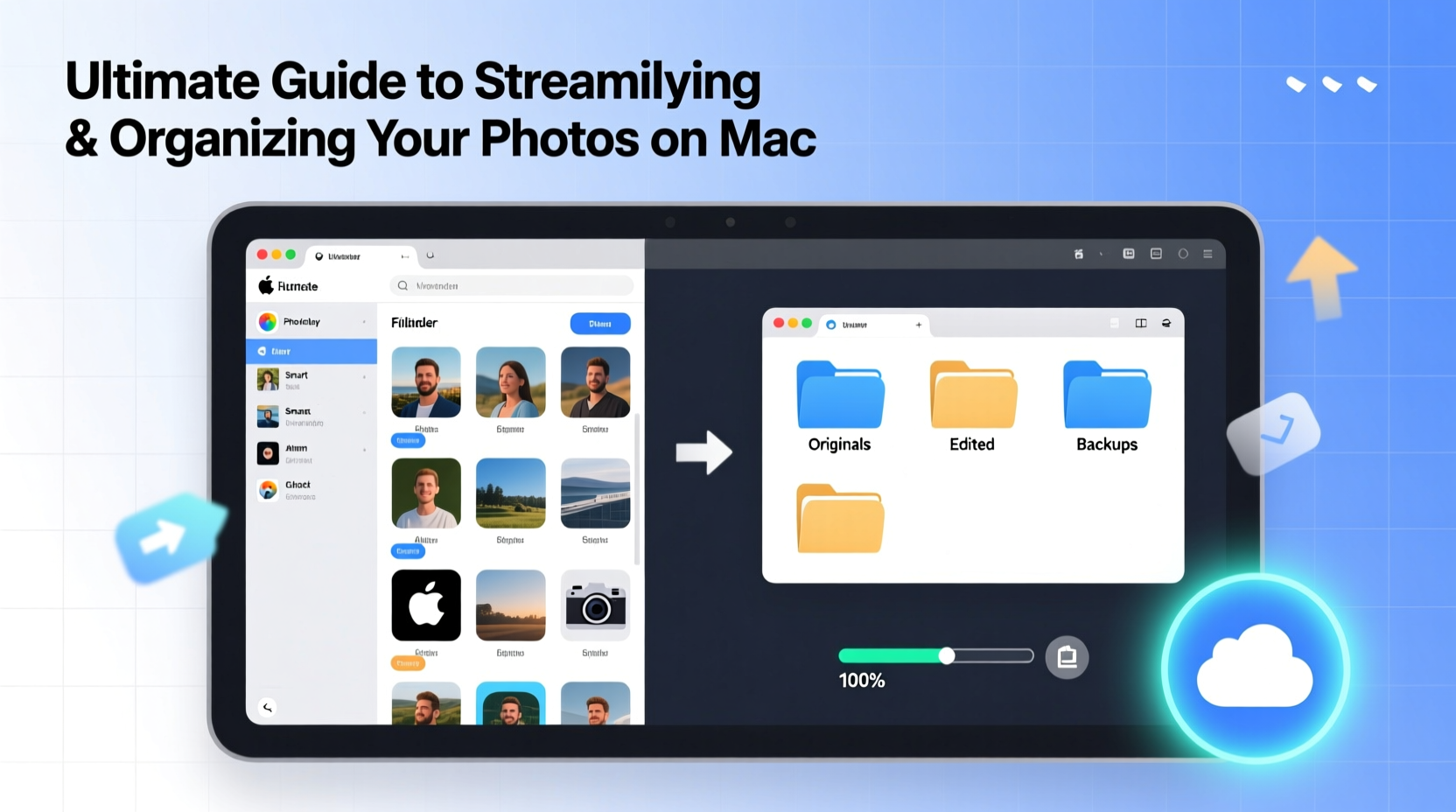
Before diving into reorganization, evaluate what you're working with. Many Mac users have photos scattered across multiple locations: iCloud, external drives, desktop folders, and even old iPhone backups. Begin by consolidating all media into one central location—ideally, the Photos app.
To locate hidden files:
- Navigate to
~/Pictures/and check for folders like “Photos Library.photoslibrary” or older iPhoto/Aperture libraries. - Use Spotlight (Cmd + Space) and search for file types:
kind:imageorfiletype:mov. - Review cloud services: Google Photos, Dropbox, or OneDrive may contain duplicates or exclusives.
Structure Your Photos Using Smart Albums and Keywords
The Photos app excels at facial recognition and location tagging, but manual organization enhances precision. Relying solely on automatic features risks missed connections, especially with pets, children under five, or low-light images.
Create a consistent naming convention for albums using dates and themes:
2024 - Family Reunion - Lake Tahoe2023 - Italy Trip - Rome to VeniceImportant Events - Weddings & Milestones
Use Smart Albums to automate filtering based on criteria such as:
- Date ranges (e.g., “Last 30 Days”)
- Keywords (e.g., “Kids,” “Beach,” “Workshop”)
- Favorites only
- Unedited photos needing attention
Apply keywords manually via the Info panel (Cmd + I). These tags make future searches far more effective than relying on memory alone.
Optimize Storage with iCloud and External Backup
iCloud Photos is a powerful synchronization tool, but it requires careful configuration. When enabled, it keeps your entire library up to date across devices—but only if you have enough iCloud storage. The default 5GB fills quickly with high-resolution photos and videos.
| Storage Tier | Cost (Monthly) | Suitable For |
|---|---|---|
| 5 GB | Free | Email and light photo users |
| 50 GB | $0.99 | One user with moderate photo volume |
| 200 GB | $2.99 | Families or frequent photographers |
| 2 TB | $9.99 | Professionals or extensive media collectors |
Enable “Optimize Mac Storage” in System Settings > Apple ID > iCloud > Photos. This keeps full-resolution originals in the cloud while storing space-efficient versions locally. However, ensure you’re connected to Wi-Fi regularly so edits sync properly.
For true redundancy, pair iCloud with a physical backup:
- Use Time Machine with an external drive (formatted as APFS or Mac OS Extended).
- Manually export your entire library yearly to a second drive stored offsite.
- Consider RAID-based enclosures for critical data protection.
“Digital memories are fragile. A three-tier system—primary device, cloud sync, and offline backup—is the minimum standard for preserving family history.” — Dr. Lena Torres, Digital Archivist at Stanford University Libraries
Step-by-Step: Spring Clean Your Photo Library
Follow this timeline over a weekend to reset your photo management system:
- Day 1 – Audit & Consolidate (2–3 hours)
Import all stray photos into the Photos app. Delete obvious duplicates, screenshots, or failed shots. Use third-party tools like Gemini Photos if needed. - Day 2 – Organize & Tag (1–2 hours)
Create themed albums, apply keywords, and set favorites. Convert any remaining iPhoto or Aperture libraries using Photos’ built-in migration tool. - Day 3 – Configure Sync & Backup (30 minutes)
Turn on iCloud Photos, enable Optimize Storage, and connect your Time Machine drive. Run the first full backup. - Ongoing – Monthly Maintenance (15 minutes/month)
Review recent additions, archive trips, tag faces, and verify backup health.
Real Example: How Sarah Reclaimed Her Digital Memories
Sarah, a freelance designer and mother of two, had over 40,000 photos spread across her MacBook, an old iMac, and a failing external drive. She couldn’t find birthday pictures from the previous year and feared losing irreplaceable baby photos.
She followed the steps above: consolidated everything into a single Photos library, spent a Sunday tagging major events, and upgraded to 200GB iCloud storage. She also began labeling her kids’ faces consistently in the People album. Within a month, she could instantly pull up “Maya’s first steps” with a simple search.
“It felt overwhelming at first,” she said, “but now I actually enjoy browsing our memories instead of dreading the scroll.”
Essential Checklist for Photo Organization Success
Use this checklist to ensure no step is missed:
- ✅ Locate and import all existing photo libraries
- ✅ Delete blurry, duplicate, or irrelevant images
- ✅ Enable iCloud Photos with sufficient storage
- ✅ Turn on facial recognition and confirm name accuracy
- ✅ Create master albums by year and event
- ✅ Apply descriptive keywords to key photos
- ✅ Connect and configure Time Machine backup
- ✅ Test restore process with one album
- ✅ Schedule quarterly review reminders
FAQ: Common Questions About Photo Management on Mac
Can I use Photos without iCloud?
Yes. You can disable iCloud Photos and manage your library locally. Just ensure you back up the library file (.photoslibrary) regularly to an external drive.
What happens if my Mac dies? Will I lose all my photos?
If iCloud Photos is enabled and synced, your library will be safe and accessible from any Apple device. Without iCloud, your photos exist only on your hard drive unless backed up externally.
How do I free up space without deleting photos?
Enable “Optimize Mac Storage” in iCloud settings. This keeps thumbnails locally and stores full-resolution versions in the cloud, reducing local usage by up to 70%.
Final Thoughts: Make Your Memories Work for You
Your photo library isn’t just data—it’s a living archive of your life. With thoughtful organization, it becomes effortless to revisit milestones, share stories, and preserve legacy. The time invested today pays dividends every time you search for “Christmas 2022” and find exactly what you need in seconds.
Don’t wait for a crash or lost device to act. Implement these strategies now, protect your digital heritage, and turn photo chaos into clarity.




 浙公网安备
33010002000092号
浙公网安备
33010002000092号 浙B2-20120091-4
Comments
No comments yet. Why don't you start the discussion?