
In today’s digital workspace, screen real estate is no longer a luxury—it’s a necessity. Whether you're analyzing spreadsheets, coding complex applications, editing video timelines, or managing multiple communication platforms simultaneously, your display setup can significantly influence how efficiently you work. Two of the most popular configurations among professionals are the ultrawide monitor and the dual-screen setup. Both promise enhanced productivity, but they deliver it in fundamentally different ways. Choosing between them isn’t just about preference; it’s about workflow compatibility, physical space, software demands, and long-term comfort.
This article dives deep into the practical realities of both setups, comparing their strengths and limitations through real-world usage patterns, ergonomic considerations, and expert insights. By the end, you’ll have a clear understanding of which configuration aligns best with your professional needs—and why one might offer a more sustainable productivity edge than the other.
Understanding the Core Differences
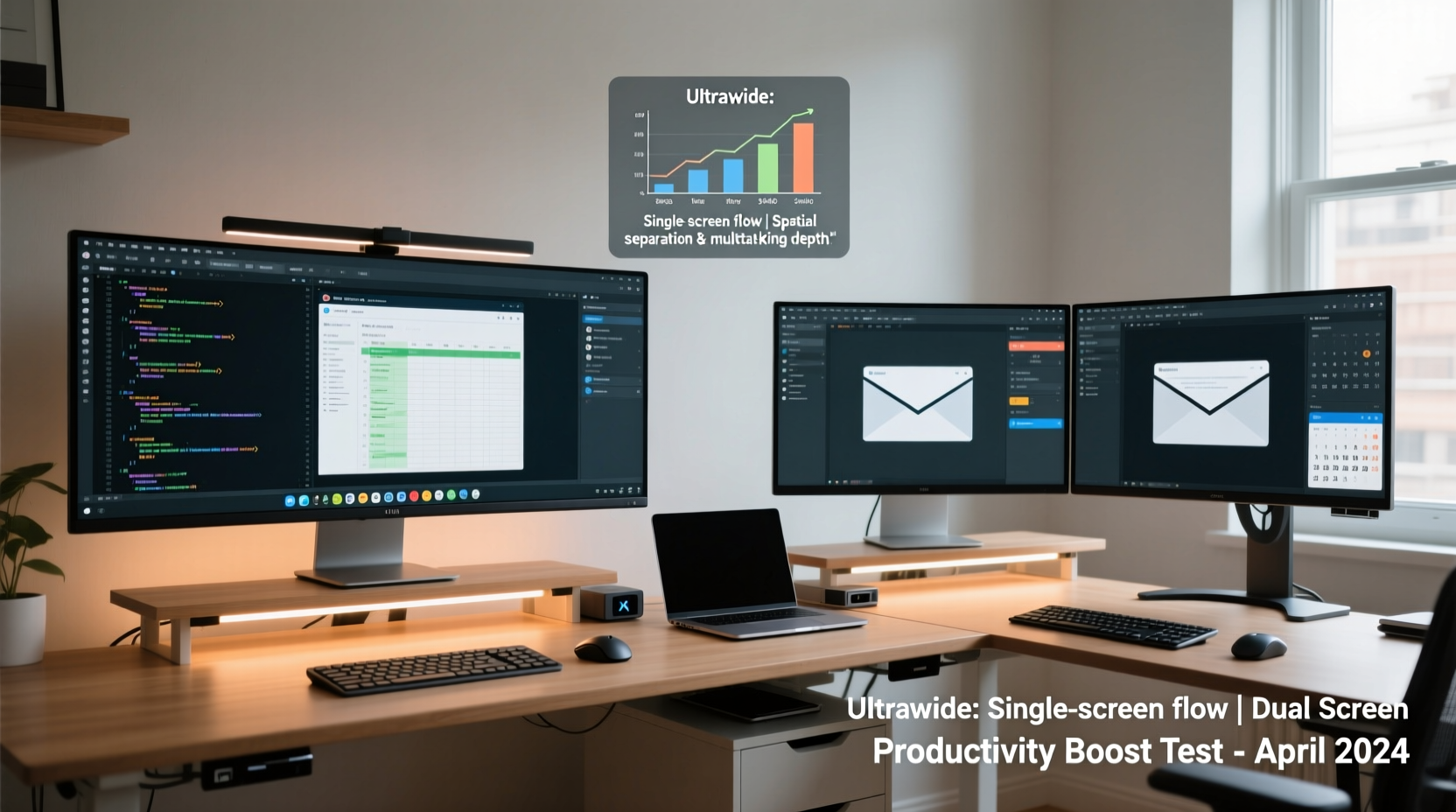
An ultrawide monitor typically features an aspect ratio of 21:9 or even 32:9, offering a single, continuous display surface that spans far wider than standard 16:9 screens. Common sizes range from 34 to 49 inches, with resolutions like 3440x1440 (QHD) or 5120x1440 (super ultrawide). These monitors eliminate the bezel gap found in multi-monitor arrangements, creating a seamless visual field ideal for multitasking across adjacent windows.
A dual-screen setup, on the other hand, involves two separate monitors—usually 24 to 27 inches each—placed side by side. This configuration doubles your visible workspace using familiar 16:9 displays. It's highly customizable: you can mix sizes, resolutions, and even orientations (e.g., one landscape, one portrait). Many users appreciate the flexibility of assigning specific tasks to dedicated screens—email on one, design tools on another, for example.
The fundamental contrast lies in continuity versus modularity. Ultrawides provide a unified experience, while dual setups prioritize adaptability. But which translates better into actual productivity gains?
Productivity Benefits: A Side-by-Side Analysis
| Feature | Ultrawide Monitor | Dual Screen Setup |
|---|---|---|
| Multitasking Efficiency | Excellent for split-screen workflows; drag windows smoothly across a single plane | Good, but limited by central bezel interrupting content flow |
| Ease of Window Management | Snapping tools work well; fewer accidental drags off-screen | Requires precise positioning; risk of windows getting lost behind bezels |
| Software Compatibility | Ideal for video editing, financial trading, coding IDEs | Better for isolated apps (CRM + email), especially legacy software |
| Space Requirements | Single stand, minimal cable clutter, compact footprint | Takes up more desk width; requires additional power and video cables |
| Cost | Higher upfront cost ($600–$1,200+) | Can start affordably using existing monitors |
| Scalability | Limited to one large display; hard to expand further | Easily scalable—add a third screen later if needed |
The data suggests that ultrawide monitors excel in environments where lateral space and uninterrupted visuals matter most. Video editors benefit from extended timelines, coders gain more lines of code per glance, and traders rely on wide data arrays. Dual setups shine when compartmentalization improves focus—such as keeping communications on one screen and creative work on another.
Ergonomics and Long-Term Comfort
Prolonged screen time demands attention to ergonomics. Poor posture or excessive head turning leads to neck strain, eye fatigue, and reduced concentration. Here, ultrawide monitors present both advantages and risks.
On one hand, having all content within a single curved or flat panel means less lateral head movement. High-end ultrawides often come with curvature (e.g., 1500R), which wraps the display slightly around your field of view, reducing distortion at the edges and improving immersion. However, very wide models—especially 49-inch 32:9 variants—can force users to scan across the entire breadth of the screen, leading to what some call “monitor tennis,” where eyes constantly flick from left to right.
Dual monitors, when properly aligned, allow each screen to face directly toward the user at a slight inward angle (about 20 degrees), minimizing neck rotation. The key is alignment: mismatched heights, tilts, or gaps create visual discontinuities that disrupt focus. Using a VESA mount or monitor arms ensures precision placement and frees up desk space.
“An improperly set up dual-monitor system can do more harm than good. Misaligned screens lead to chronic postural issues over time.” — Dr. Lena Torres, Occupational Ergonomist
For optimal ergonomics, consider this checklist before finalizing either setup:
Monitor Setup Checklist
- Top of the screen should be at or slightly below eye level
- Distance from eyes: 24–30 inches (60–75 cm)
- No glare or reflections from windows or lights
- Bezel gap minimized or positioned away from critical content
- Use monitor arms for adjustable positioning and cable management
- Enable blue light filters during evening hours
Real-World Use Case: Financial Analyst Workflow
Meet James, a senior financial analyst at a mid-sized investment firm. His daily routine involves monitoring live market data feeds, analyzing stock trends in Excel, reviewing news sources, and communicating via Slack and email. Previously, he used two 24-inch 1080p monitors. While functional, he struggled with cramped spreadsheet views and constant window shuffling.
Last quarter, James upgraded to a 34-inch 21:9 ultrawide monitor. He now runs his Bloomberg terminal full-width across the top half, splits Excel side-by-side beneath it, keeps Slack pinned to the far right, and uses picture-in-picture mode for occasional video calls. The absence of a central bezel means charts span cleanly without interruption. He reports a 20% reduction in task-switching time and fewer instances of missing critical alerts due to obscured windows.
However, challenges remain. Some older internal web tools don’t scale well to ultrawide resolutions, leaving awkward blank spaces. And occasionally, he misses the ability to fully dedicate one screen to reading research PDFs while working elsewhere. Still, James says the net gain in efficiency outweighs these quirks.
Contrast this with Maria, a UX designer who uses a dual 27-inch 4K setup. She keeps Figma on her primary screen and reference materials, color palettes, and client feedback on the secondary. She rotates one monitor vertically to preview mobile layouts in full height. This modularity supports her iterative process better than a single ultrawide could.
Their experiences underscore a crucial point: the best setup depends not on technology alone, but on how it integrates with your specific tasks.
Step-by-Step: Choosing the Right Setup for Your Work
Follow this decision framework to determine which configuration will serve you best:
- Map Your Daily Tasks: List the core applications you use and how you interact with them. Do you need to see two full documents at once? Are you tracking real-time data streams?
- Assess Physical Constraints: Measure your desk depth and width. Can it accommodate two monitors side by side without crowding? Is there enough clearance behind for cabling?
- Evaluate Software Needs: Test whether your critical tools support ultrawide resolutions. Some enterprise applications render poorly on non-standard aspect ratios.
- Consider Future Scalability: Will you want to add more screens later? Dual setups are easier to expand. Ultrawides may require daisy-chaining additional monitors, complicating layout.
- Test Before Committing: If possible, borrow or trial both configurations for at least three workdays. Pay attention to eye strain, navigation ease, and distraction levels.
- Budget Realistically: Factor in potential costs for mounts, adapters, and GPU upgrades. Driving a 3440x1440 ultrawide or dual 4K screens demands a capable graphics card.
Frequently Asked Questions
Can I use an ultrawide monitor with Mac computers?
Yes, modern Macs—including MacBook Pro and Mac Studio models—fully support ultrawide resolutions via Thunderbolt or HDMI. However, ensure your chosen model uses a compatible refresh rate and scaling option. macOS handles high-DPI scaling well, but some third-party apps may appear pixelated unless updated.
Do dual monitors slow down my computer?
Not inherently. Modern GPUs handle multiple displays efficiently. Performance impact only becomes noticeable if you’re running GPU-intensive applications (e.g., 4K video editing, 3D rendering) across both screens. For office work, browsing, and development, the difference is negligible.
Is a 49-inch super ultrawide too big for productivity?
It depends on usage. A 49-inch 5120x1440 display offers immense space but can feel overwhelming for general tasks. It excels in specialized fields like video editing or financial trading. For most knowledge workers, a 34-inch 21:9 monitor strikes a better balance between width and usability.
Expert Insight: What Industry Leaders Recommend
According to a 2023 report by the Association for Computing Machinery (ACM), knowledge workers using ultrawide monitors completed document comparison tasks 17% faster than those using dual 16:9 screens. However, the same study found no significant difference in email-heavy workflows, where dual screens allowed cleaner separation of communication channels.
“For focused, linear workflows—coding, writing, data analysis—the ultrawide provides a cognitive advantage. But when context switching is frequent, physical separation helps maintain mental boundaries.” — Dr. Alan Pierce, HCI Researcher at MIT Media Lab
This insight highlights a subtle but powerful truth: screen layout influences not just visibility, but cognition. A single expansive canvas encourages deep work, while segmented screens support task compartmentalization.
Final Recommendation: Match the Tool to the Task
If your work revolves around horizontal content—codebases, timelines, spreadsheets, dashboards—an ultrawide monitor likely offers superior productivity. Its seamless interface reduces distractions, minimizes navigation friction, and enhances immersion. It’s particularly effective for solo contributors engaged in deep, sustained focus.
If your role requires juggling multiple independent applications—customer service, project management, design reviews with references—a dual-screen setup provides greater flexibility. The ability to isolate functions spatially improves mental organization and reduces cross-application interference.
Hybrid solutions also exist. Some professionals pair a vertical secondary monitor with a primary ultrawide, combining the best of both worlds. Others use docking stations to switch between setups depending on the day’s priorities.
Conclusion
The debate between ultrawide monitors and dual-screen setups isn’t about declaring a universal winner—it’s about alignment with your unique workflow. Technology should serve productivity, not complicate it. Take the time to assess how you actually work, not how you wish you worked. Experiment. Measure results. Adjust.
Whether you choose the immersive sweep of an ultrawide or the modular versatility of dual screens, the goal remains the same: to create a workspace that enhances clarity, reduces friction, and sustains focus over the long term. Make your next upgrade intentional. Your future self—more productive, less fatigued—will thank you.




 浙公网安备
33010002000092号
浙公网安备
33010002000092号 浙B2-20120091-4
Comments
No comments yet. Why don't you start the discussion?