
In today’s digital workspace, screen real estate isn’t just a luxury—it’s a productivity multiplier. Whether you're managing spreadsheets while attending video calls, editing videos across timelines, or coding with multiple reference tabs open, how you configure your display setup can significantly influence efficiency, focus, and even long-term comfort. The debate between using an ultrawide monitor versus dual standard screens has intensified as both options offer compelling advantages. But when it comes to multitasking—where seamless transitions, visual continuity, and reduced distractions matter most—is one truly better?
The answer depends on your work style, software demands, and physical environment. This article breaks down the core differences, evaluates real-world performance, and provides actionable guidance so you can make an informed decision based on more than just specs.
Understanding the Core Differences
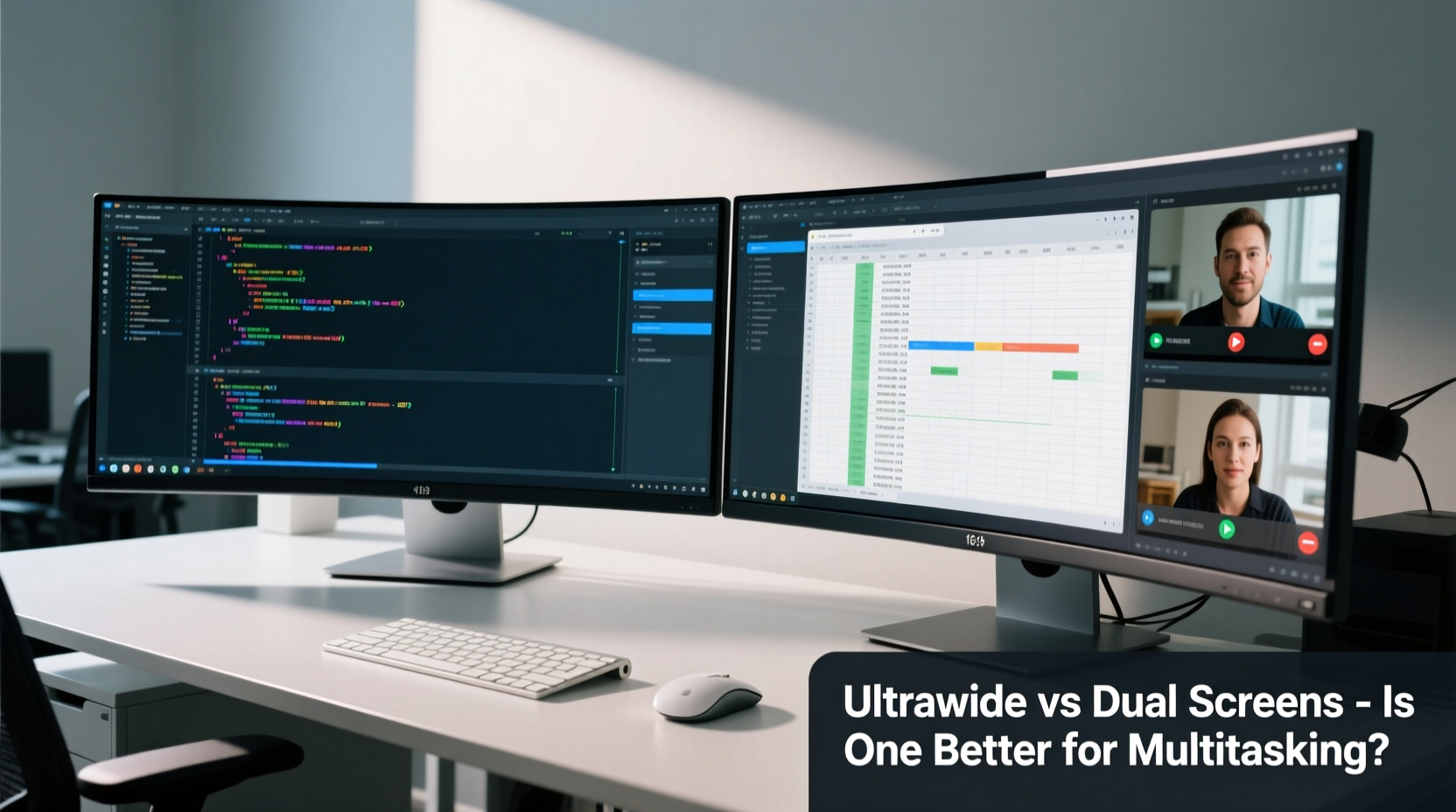
An ultrawide monitor typically features an aspect ratio of 21:9 or even 32:9, offering a single continuous display surface that spans what would traditionally require two monitors. In contrast, dual-screen setups involve two separate displays placed side by side, usually in 16:9 format, creating a combined workspace through extended desktop functionality.
The fundamental distinction lies not just in width but in continuity. With an ultrawide, there's no bezel interrupting the middle of your screen. This makes tasks like video editing, financial modeling, or panoramic design much smoother. Dual monitors, however, allow greater flexibility—you can mix sizes, resolutions, and even orientations (portrait and landscape), tailoring each screen to specific functions.
From a hardware standpoint, ultrawides often demand higher-end graphics output due to their resolution (commonly 3440x1440 or 5120x1440), whereas dual monitors may run efficiently on mid-tier GPUs if using standard 1080p or 1440p panels. Setup complexity also varies: ultrawides need only one video cable and minimal calibration, while dual monitors require alignment, potential scaling adjustments, and more desk space.
Multitasking Performance: Where Each Excels
Multitasking isn’t just about having more screen space—it’s about how effectively you can manage multiple applications without cognitive overload. Let’s examine where each setup shines.
Ultrawide Monitors: Seamless Workflow Integration
The uninterrupted expanse of an ultrawide monitor reduces eye strain caused by constant lateral movement between two separate screens. Designers, editors, and data analysts benefit from being able to view full timelines, large spreadsheets, or multi-track audio sessions in one glance. Dragging windows across the screen feels natural, almost like moving them across a table.
Modern operating systems handle window snapping well on ultrawides, allowing users to divide the screen into thirds or halves with precision. For example, keeping a research document on the left, a writing app in the center, and a browser or communication tool on the right creates a cohesive workspace that mimics a physical desk layout.
“With a 21:9 display, I can have my script, timeline, and preview all visible at once. It cuts my editing time nearly in half.” — Daniel Reeves, Freelance Video Editor
Dual Screens: Functional Specialization
Dual monitors excel when different tasks demand distinct environments. A developer might keep code on the primary screen and documentation, terminal, or testing tools on the secondary. Traders use one screen for live charts and another for order books and news feeds. The ability to dedicate each screen to a role enhances mental compartmentalization.
Additionally, dual monitors are easier to upgrade incrementally. If one fails, you don’t lose your entire setup. You can also repurpose older monitors instead of investing in a new ultrawide, making this option more budget-friendly over time.
However, the central bezel—the gap between the two screens—can disrupt visual flow. When dragging a window across monitors, it momentarily disappears into the crack, which some users find jarring. This is especially noticeable during gaming or immersive media work.
Comparative Analysis: Ultrawide vs Dual Screens
| Feature | Ultrawide Monitor | Dual Screens |
|---|---|---|
| Visual Continuity | ✅ Excellent – no central bezel | ❌ Interrupted by gap between screens |
| Setup Simplicity | ✅ One cable, one display setting | ❌ Requires alignment and possible scaling fixes |
| Flexibility in Use | ❌ Fixed orientation and size | ✅ Mix and match screens; rotate one vertically |
| Cost Efficiency | ❌ Higher upfront cost ($500–$1,200) | ✅ Can reuse existing monitors |
| Ergonomics | ✅ Natural eye movement across single plane | ❌ Neck rotation needed; risk of posture issues |
| Software Compatibility | ⚠️ Some apps don’t optimize for wide formats | ✅ Universally supported |
| Failure Risk | ❌ Single point of failure | ✅ Redundancy—if one fails, other still works |
Real-World Scenarios: Who Benefits From What?
Case Study: Remote Project Manager
Sarah Lin manages remote teams across three time zones. Her typical day involves Slack, Zoom, Trello, Google Sheets, and email—all running simultaneously. She initially used dual 24-inch monitors: one dedicated to communication apps, the other to project tracking and documents.
After switching to a 34-inch ultrawide, she noticed fewer context switches. Instead of looking left and right constantly, she could keep her gaze centered while glancing peripherally. She set up her workspace with chat apps pinned to the far left, main tasks in the center, and analytics dashboards on the right. The reduction in head movement led to less end-of-day fatigue.
Still, she missed the ability to fully maximize a video call on its own screen. To compensate, she began using picture-in-picture mode and adjusted her window management habits. Overall, she rated the ultrawide a net positive—but acknowledged it required adaptation.
Case Study: Financial Analyst
James Carter analyzes stock trends for a mid-sized investment firm. He uses Bloomberg Terminal, Excel, and real-time news feeds daily. His dual-monitor setup includes a vertical 27-inch screen for deep-dive data analysis and a horizontal 24-inch for monitoring live markets.
He tested an ultrawide but found it inefficient for viewing tall datasets. Scrolling through hundreds of rows in Excel felt slower because he couldn’t see enough columns and rows at once without excessive horizontal panning. The vertical orientation of his secondary monitor was irreplaceable for reading lengthy reports and code snippets.
For James, dual screens remained superior—not because of total area, but because of configurability. “I need height as much as width,” he said. “One flat ultrawide doesn’t give me that control.”
Action Plan: Choosing the Right Setup for You
Selecting between an ultrawide and dual screens shouldn’t be based on trends or aesthetics alone. Follow this step-by-step guide to determine the best fit for your needs.
- Assess Your Primary Tasks: List the top three applications you use daily. Are they wide-format friendly (e.g., video editors, web browsers, CAD tools)? Or do they benefit from vertical space (e.g., code editors, spreadsheets, PDFs)?
- Measure Your Desk Space: Ultrawides are deep and wide. Ensure you have at least 38 inches of clear desk depth. Dual monitors may fit better in narrower spaces, especially if angled inward.
- Test Window Management Habits: Do you frequently drag windows between screens? Do you prefer tiling or maximizing? Ultrawides favor tiling; dual screens support compartmentalized workflows.
- Consider Long-Term Costs: While ultrawides have higher initial costs, dual setups may accumulate expenses over time if replacing mismatched units or upgrading cables and mounts.
- Try Before You Buy: Visit a tech retailer or borrow a setup temporarily. Spend a full work session on each configuration. Note any discomfort, inefficiency, or unexpected benefits.
Checklist: Final Decision Factors
- ☐ Do I work with long timelines, wide canvases, or panoramic views?
- ☐ Do I frequently switch focus between unrelated tasks (e.g., coding + documentation)?
- ☐ Is bezel interruption likely to distract me during drag-and-drop actions?
- ☐ Do I already own a compatible monitor I could pair?
- ☐ Am I willing to adapt my workflow to new spatial logic?
- ☐ Does my GPU support high-resolution ultrawide output (e.g., DisplayPort 1.4 or HDMI 2.0+)?
Frequently Asked Questions
Can I use an ultrawide and still have dual-monitor functionality?
Yes—many users treat an ultrawide as two virtual monitors. Using built-in OS snapping tools or third-party apps like DisplayFusion or Magnet (Mac), you can split the screen into independent zones that behave like separate displays. This gives you the continuity of an ultrawide with the organizational benefits of duality.
Do ultrawide monitors cause eye strain?
Not inherently. However, poor placement—such as placing the monitor too far back or off-center—can force excessive eye scanning. Curved ultrawides help mitigate this by matching the natural arc of human vision. Position the monitor so the center is at eye level and within 24–30 inches of your face.
Are dual monitors outdated now that ultrawides exist?
No. While ultrawides offer elegance and integration, dual monitors provide unmatched flexibility. They remain popular among developers, traders, and anyone who values modular setups. Technology evolves, but utility determines longevity.
Expert Insight: Ergonomics and Cognitive Load
Dr. Lena Patel, a human-computer interaction researcher at MIT Media Lab, emphasizes that screen choice impacts more than just productivity—it affects cognitive load and physical health.
“The brain processes visual fields holistically. A split display forces segmentation, increasing mental effort to reassemble context. An ultrawide reduces fragmentation, but only if properly configured. Poor posture or glare can negate any advantage.” — Dr. Lena Patel, HCI Researcher
She recommends pairing either setup with proper ergonomics: monitor arms for adjustability, anti-glare settings, and regular breaks following the 20-20-20 rule (every 20 minutes, look at something 20 feet away for 20 seconds).
Conclusion: One Display Isn’t Universally Better—But Clarity Helps
The question isn’t whether ultrawide monitors are objectively superior to dual screens, but whether a particular setup aligns with your workflow, environment, and goals. Ultrawides deliver fluidity, immersion, and simplicity—ideal for creative professionals and those who thrive in integrated digital spaces. Dual screens offer modularity, redundancy, and specialization, appealing to technical roles and adaptive multitaskers.
Technology should serve the user, not the reverse. Rather than chasing specs or trends, evaluate how each setup supports your actual daily activities. Measure your desk, test configurations, and listen to your body. Fatigue, distraction, and friction are clearer indicators than marketing claims.
If you're upgrading soon, consider starting with an ultrawide if you value clean aesthetics and continuous space. But if you need versatility, already own a good monitor, or rely on vertical content, sticking with dual screens may be smarter.




 浙公网安备
33010002000092号
浙公网安备
33010002000092号 浙B2-20120091-4
Comments
No comments yet. Why don't you start the discussion?