
For professionals juggling multiple displays, video editors managing 4K timelines, or developers running complex IDEs across dual screens, a reliable external docking solution is non-negotiable. As laptops slim down, the need to expand connectivity grows—especially when it comes to driving two or more high-resolution monitors. Two common solutions dominate the market: USB-C hubs and Thunderbolt docks. But when it comes to consistent, high-performance multi-monitor setups, one clearly outpaces the other.
The difference isn’t just about price tags or brand names—it’s rooted in bandwidth, protocol capabilities, and real-world reliability under load. While both devices plug into a USB-C port, their underlying technologies create vastly different experiences for users who depend on stable, high-fidelity display output.
Understanding the Core Differences
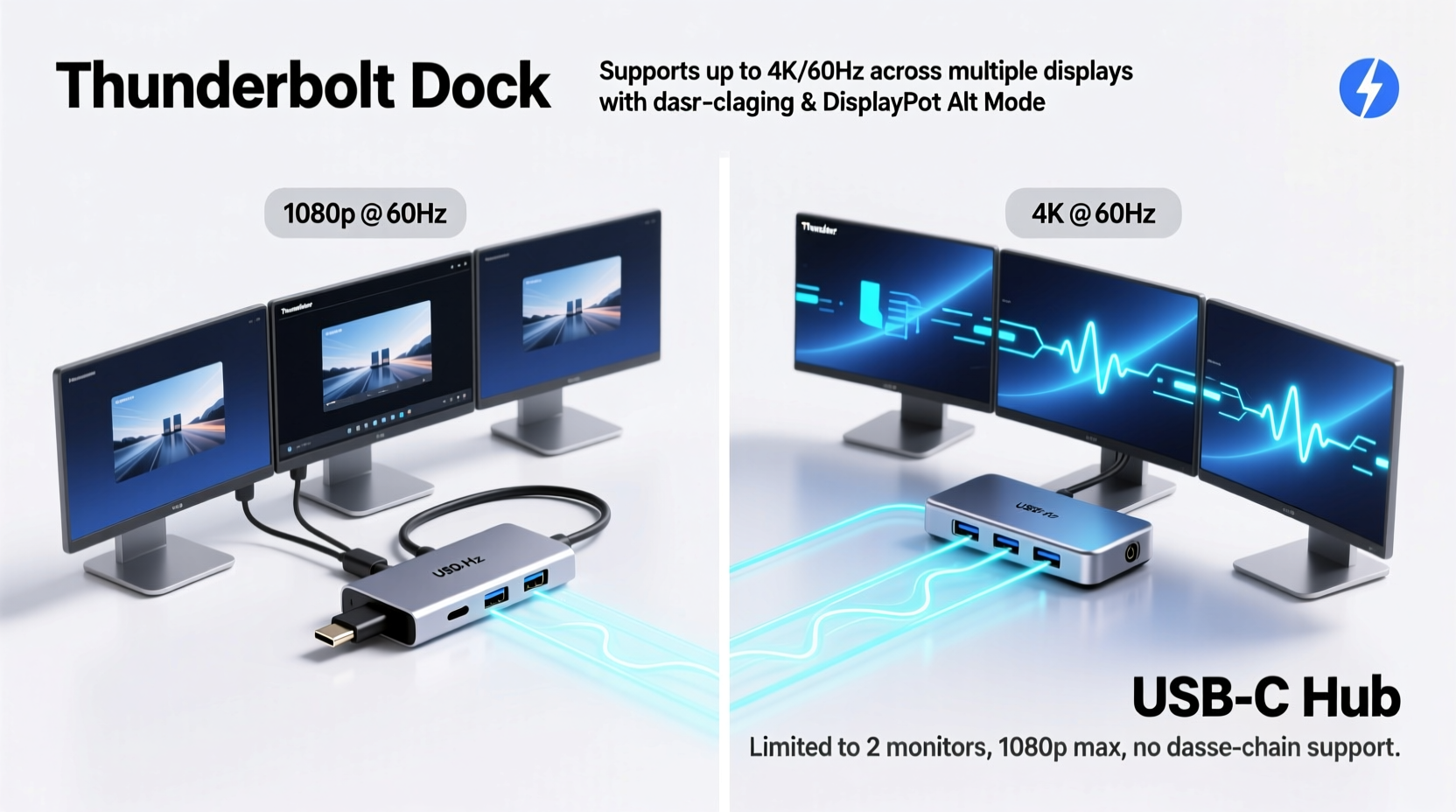
At first glance, a USB-C hub and a Thunderbolt dock may appear identical. Both offer additional ports—HDMI, DisplayPort, Ethernet, USB-A—and connect via a single USB-C cable. However, their internal architecture diverges significantly.
USB-C is a connector standard, not a data or video protocol. It can carry various signals—including USB 3.2, DisplayPort Alternate Mode (DP Alt Mode), or even Power Delivery—but its capabilities depend entirely on what the host device and hub support. Most USB-C hubs rely on DP Alt Mode to transmit video signals, splitting bandwidth between data and display outputs.
In contrast, Thunderbolt (specifically Thunderbolt 3 and 4) is a full-featured interface developed by Intel in collaboration with Apple. It combines PCIe, DisplayPort, and USB protocols into a single, high-speed connection using the USB-C form factor. Thunderbolt supports up to 40 Gbps of bidirectional bandwidth—four times that of USB 3.2 Gen 2 (10 Gbps).
This fundamental disparity in throughput directly affects how each device handles multi-monitor configurations. A USB-C hub might work fine for a single 4K display at 30Hz, but struggle with dual 4K@60Hz outputs. A Thunderbolt dock, however, can natively support two 4K displays at 60Hz or even a single 8K display, thanks to dedicated DisplayPort lanes and daisy-chaining capabilities.
Bandwidth and Multi-Monitor Performance
Driving multiple monitors demands substantial bandwidth. Each display consumes a portion of available data transfer capacity based on resolution, refresh rate, color depth, and compression. For example:
- A single 1080p monitor at 60Hz with 8-bit color requires roughly 4.5 Gbps.
- A 4K monitor at 60Hz with HDR and 10-bit color can exceed 12 Gbps.
- Dual 4K monitors push requirements beyond 24 Gbps—well above what standard USB-C hubs can deliver.
Most USB-C hubs use a chipset like the VL100 or RTS5412, which shares the total USB 3.2 bandwidth (typically 10 Gbps) among all functions—data, charging, and video. When you add a second monitor, the system must compress or reduce signal quality to fit within limits. This often results in lower refresh rates, flickering, or dropped connections during intensive tasks like scrolling through spreadsheets or playing video.
Thunderbolt docks avoid this bottleneck by dedicating separate lanes for video output. Thunderbolt 3 and 4 include two DisplayPort 1.4 streams, allowing independent 4K@60Hz outputs without sharing bandwidth with data transfers. Additionally, Thunderbolt supports daisy-chaining compatible monitors via DisplayPort MST (Multi-Stream Transport), enabling clean, cable-efficient setups.
“Thunderbolt was designed from the ground up to handle professional workflows. If you're running dual 4K displays, there's no substitute.” — Dr. Lin Zhao, Senior Systems Engineer at Intel
Comparison Table: Key Features Side-by-Side
| Feature | USB-C Hub | Thunderbolt Dock |
|---|---|---|
| Max Bandwidth | 10 Gbps (USB 3.2 Gen 2) | 40 Gbps (Thunderbolt 3/4) |
| Video Output Capability | Limited to DP Alt Mode; typically one 4K@30Hz or two 1080p@60Hz | Two 4K@60Hz or one 8K@60Hz; supports daisy-chaining |
| Monitor Support (Dual 4K) | Rarely supported; unstable if achieved | Fully supported with native bandwidth |
| Data Transfer Speed | Up to 10 Gbps shared across all ports | Up to 40 Gbps, with dedicated PCIe lanes |
| Power Delivery | Typically 60W–100W pass-through | Up to 100W charging + peripheral power |
| Daisy-Chaining Monitors | No (unless specific MST hub) | Yes, via DisplayPort MST |
| Reliability Under Load | Prone to lag, flicker, or disconnects | Stable even during heavy GPU/CPU usage |
| Average Price Range | $30–$80 | $150–$350 |
The table underscores a critical point: while USB-C hubs are cost-effective for light expansion needs, they lack the architectural foundation to reliably sustain high-demand multi-monitor environments.
Real-World Example: The Video Editor’s Dilemma
Jessica, a freelance video editor working remotely, upgraded her workflow to include dual 27-inch 4K monitors for timeline and preview windows. She initially used a $50 USB-C hub connected to her Windows laptop, which claimed “supports dual 4K displays.” In practice, only one monitor ran at 4K@60Hz; the second defaulted to 1080p@30Hz. During playback, both screens would flicker or lose sync entirely.
Frustrated, she invested in a Thunderbolt 4 dock. Upon setup, both monitors immediately recognized full 4K@60Hz resolution. Scrolling through timelines, scrubbing footage, and rendering previews became seamless. More importantly, the connection remained stable over weeks of continuous use—even when transferring large media files simultaneously.
Her experience reflects a broader trend: users pushing visual boundaries quickly hit the limitations of USB-C hubs. Thunderbolt’s deterministic performance makes it the preferred choice for mission-critical display setups.
Choosing the Right Solution: A Practical Checklist
Before purchasing, evaluate your actual needs. Use this checklist to determine whether a USB-C hub or Thunderbolt dock better suits your multi-monitor goals:
- Check Your Laptop’s Port Specs: Does your USB-C port support Thunderbolt? Look for the lightning bolt icon next to the port.
- Count Your Displays: Are you connecting two or more 4K monitors? If yes, Thunderbolt is strongly recommended.
- Evaluate Refresh Rate Needs: Is 60Hz essential, or will 30Hz suffice? USB-C hubs often limit high-res displays to 30Hz.
- Assess Simultaneous Workloads: Will you be transferring files, charging, and displaying video at once? Thunderbolt handles concurrency better.
- Budget Consideration: Can you justify the higher upfront cost of a Thunderbolt dock for long-term reliability?
- Future-Proofing: Do you plan to upgrade monitors or adopt higher resolutions (e.g., 5K or 8K)? Thunderbolt offers scalability.
Common Pitfalls and Misconceptions
Many users assume that any USB-C port can drive multiple high-resolution displays. This misconception stems from vague marketing language like “supports 4K” without specifying conditions. In reality, such claims often apply only when no other peripherals are in use and may require ideal cabling.
Another frequent error is assuming all USB-C hubs support DP Alt Mode. Some budget models lack video output entirely, functioning only as data and charging hubs. Always confirm video compatibility before purchase.
Additionally, some believe Thunderbolt is exclusive to MacBooks. While Apple helped popularize it, Thunderbolt is now widely supported on Windows laptops—from Dell XPS to Lenovo ThinkPad and HP ZBook models—provided the hardware includes a certified controller.
Step-by-Step Setup for Reliable Dual Monitor Operation
To maximize stability with either device, follow this configuration process:
- Verify Hardware Compatibility: Confirm your laptop supports Thunderbolt or DP Alt Mode via manufacturer documentation.
- Update Firmware and Drivers: Install the latest BIOS, graphics drivers, and Thunderbolt software (if applicable).
- Use Certified Cables: For Thunderbolt, use certified 40Gbps cables. For USB-C, ensure cables support DP Alt Mode and sufficient power delivery.
- Connect Monitors First: Plug in both displays before powering on the laptop to ensure proper EDID detection.
- Configure Display Settings: In macOS or Windows, set appropriate resolution, orientation, and scaling. Avoid mixed DPI settings when possible.
- Test Under Load: Play a 4K video, scroll through large documents, and run background transfers to stress-test stability.
- Monitor Temperature: Ensure the dock isn’t overheating, especially in enclosed spaces. Overheating can cause throttling or disconnections.
Following these steps minimizes compatibility issues and ensures optimal performance regardless of the chosen solution.
Frequently Asked Questions
Can a USB-C hub support two 4K monitors?
Possible in rare cases, but not reliably. Most USB-C hubs lack sufficient bandwidth for dual 4K@60Hz. Even if detected, performance often degrades during active use. For stable dual 4K, a Thunderbolt dock is required.
Is Thunderbolt backward compatible with USB-C devices?
Yes. Thunderbolt ports are fully compatible with USB-C devices, including hubs, phones, and drives. However, those devices will operate at their native speeds—not Thunderbolt speeds—unless explicitly supported.
Do I need special monitors for Thunderbolt daisy-chaining?
Yes. Monitors must support DisplayPort MST (Multi-Stream Transport) and include both DisplayPort input and output ports. Not all 4K monitors have this feature, so check specifications carefully before attempting daisy chains.
Conclusion: Reliability Wins Over Cost
When it comes to multi-monitor support, reliability isn’t a luxury—it’s a necessity. A flickering screen or dropped resolution mid-presentation can undermine productivity and professionalism. While USB-C hubs serve well for occasional use, travel setups, or single-display extensions, they fall short in sustained, high-bandwidth scenarios.
Thunderbolt docks, though more expensive, deliver predictable, high-performance connectivity. Their superior bandwidth management, native dual-display support, and resilience under load make them the clear choice for designers, developers, editors, and anyone whose work depends on visual precision.
Investing in the right dock today prevents frustration tomorrow. Whether you're building a home office, upgrading your workstation, or preparing for hybrid work, prioritize stability over savings when your workflow spans multiple screens.




 浙公网安备
33010002000092号
浙公网安备
33010002000092号 浙B2-20120091-4
Comments
No comments yet. Why don't you start the discussion?