
A mysterious white dot appearing on your iPad screen can be unsettling—especially if it wasn’t there before and doesn’t go away. It might flicker, stay fixed in one spot, or only appear under certain conditions. While it’s natural to worry about permanent damage, not every white dot signals a broken device. In many cases, the issue stems from software settings, display artifacts, or temporary glitches that are easy to resolve. However, persistent dots could indicate deeper hardware problems requiring professional attention.
Understanding what’s causing the dot is the first step toward fixing it. This guide breaks down the most common reasons behind a white dot on your iPad screen and provides actionable steps to diagnose and eliminate it—whether through simple settings adjustments or knowing when to seek repair services.
Common Causes of a White Dot on iPad Screen
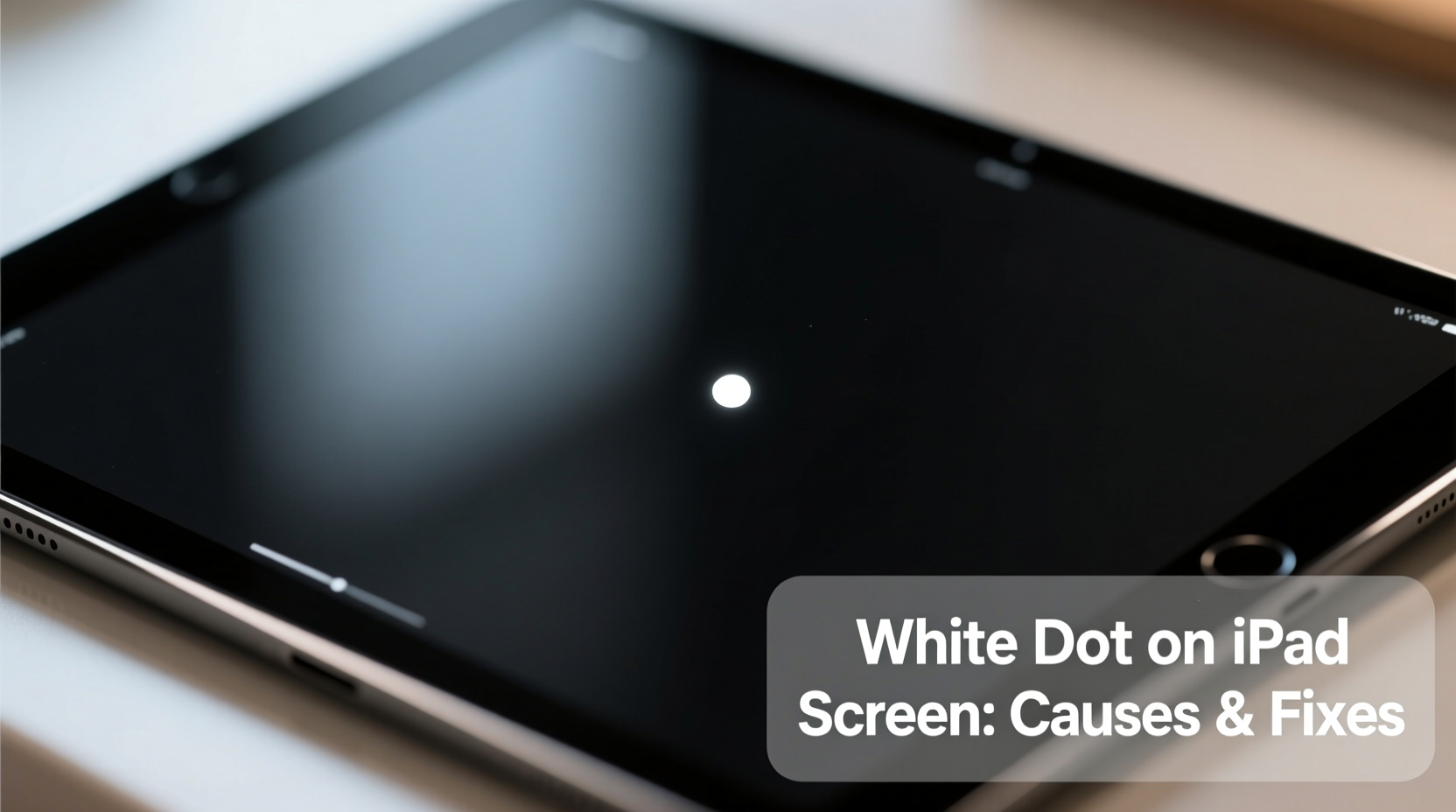
The appearance of a white dot can vary in behavior and location, which often gives clues about its origin. Below are the primary causes, ranging from harmless visual effects to potential hardware defects:
- Accessibility Features: The white dot may be the AssistiveTouch button, a feature designed to help users navigate without touching physical buttons.
- Display Artifacts: Temporary pixel anomalies caused by software bugs or graphics rendering issues during app usage.
- Stuck or Dead Pixels: A malfunctioning sub-pixel that remains lit (stuck) or unresponsive (dead), though true dead pixels are usually black, not white.
- Software Glitches: iOS bugs, especially after updates, can cause graphical glitches including phantom dots or flickering elements.
- Hardware Damage: Physical impact, moisture exposure, or internal display failure can lead to permanent spots or discoloration.
- Screen Protectors or Cases: Reflections, debris, or pressure from poorly fitted accessories can create the illusion of a dot.
Before assuming the worst, rule out the simplest explanations first. Many users panic over what turns out to be a setting they accidentally enabled.
How to Remove a White Dot: Step-by-Step Troubleshooting
Follow this logical sequence to identify and resolve the issue efficiently. Start with non-invasive checks and progress to more involved solutions.
- Check for AssistiveTouch: Swipe down from the top-right corner (or up from bottom on older models) to open Control Center. Look for a small white or gray circular icon floating on the screen. If present, go to Settings > Accessibility > Touch > AssistiveTouch and toggle it off.
- Restart Your iPad: Hold the power button (and home button on older models) until the slider appears. Power off completely, wait 30 seconds, then turn it back on. This clears temporary glitches.
- Inspect Under Different Lighting: View the screen in various lighting conditions. If the dot disappears or changes under certain angles, it might be a reflection from a screen protector or case.
- Test in Different Apps: Open multiple apps, videos, and photos. Does the dot move? Stay in place? Only appear on dark backgrounds? A static dot across all screens suggests hardware; one that appears intermittently may be software-related.
- Update iOS: Go to Settings > General > Software Update. Install any available updates, as Apple frequently patches display bugs.
- Reset All Settings: If the issue persists, go to Settings > General > Transfer or Reset iPad > Reset > Reset All Settings. This won’t erase data but will clear display and accessibility configurations.
When It’s a Hardware Issue: Signs and Solutions
If the white dot remains after troubleshooting, it may be a hardware defect. True hardware-related dots typically exhibit these characteristics:
- Always visible, regardless of app or background color
- Appears brighter than surrounding pixels and doesn’t dim with screen brightness
- Located in the same spot even after restart or reset
- Accompanied by other screen irregularities like lines, discoloration, or touch unresponsiveness
In such cases, the issue likely involves the OLED or LCD panel itself. Sub-pixels can become stuck due to manufacturing defects or aging components. While rare, internal pressure from a warped frame or poor screen adhesion can also cause localized backlight bleed, manifesting as a bright spot.
“Persistent bright spots on modern displays are often tied to pixel degradation or micro-damage within the panel layers. Early detection and service can prevent further spread.” — David Lin, Senior Technician at iFix Electronics Lab
If your iPad is under warranty or covered by AppleCare+, contact Apple Support or visit an authorized service provider. Attempting DIY repairs on the display can void coverage and risk further damage.
Do’s and Don’ts: Managing Screen Issues
| Action | Do | Don’t |
|---|---|---|
| Spotting a new dot | Restart the device and check settings immediately | Panic or assume immediate hardware failure |
| Testing the screen | Use solid-color backgrounds (black, white, red) to isolate the dot | Rub or press on the screen to “fix” it |
| Seeking repair | Visit Apple or an authorized technician with warranty info | Use third-party repair shops that replace non-OEM parts |
| Prevention | Use a quality case and avoid extreme temperatures | Expose iPad to direct sunlight for long periods |
Real-World Example: Sarah’s Unexpected White Dot
Sarah, a freelance designer, noticed a small white dot near the top-left corner of her iPad Pro while working on a dark-themed project. At first, she assumed it was a dead pixel and considered costly repair options. Instead of rushing to a technician, she followed basic diagnostics: she restarted the iPad, checked for updates, and tested the screen using different wallpapers.
She discovered the dot vanished on light-colored backgrounds but appeared prominently on dark ones. Curious, she accessed Control Center and saw the AssistiveTouch icon active. She had enabled it weeks earlier during a presentation but forgot to disable it. Turning it off instantly removed the dot. What seemed like a hardware flaw was simply a forgotten accessibility tool.
This case highlights how easily software features can be mistaken for display defects—especially when users rely heavily on their devices and overlook subtle interface changes.
Frequently Asked Questions
Is a white dot on my iPad screen fixable?
Yes, in many cases. If it's caused by software or settings like AssistiveTouch, it can be resolved immediately. Hardware-related dots may require professional repair, especially if under warranty. Stuck pixels can sometimes be cleared using pixel-refreshing videos or apps, though success varies.
Can a stuck pixel fix itself?
Rarely, but possible. Some stuck pixels reactivate after prolonged use or thermal cycling (warming and cooling the screen gently). However, true hardware failures generally don’t resolve on their own. Avoid tapping or pressing the screen, as this can worsen the issue.
How do I know if it’s a dead pixel or just a glitch?
A dead pixel is usually black or dark and remains unlit. A white or brightly colored dot is more likely a stuck pixel (one sub-pixel permanently on) or a software artifact. Test with pure black and white backgrounds. If the dot stands out clearly on black but blends on white, it’s likely stuck—not dead.
Final Steps and Recommendations
Dealing with a white dot on your iPad screen doesn’t have to be stressful. Most cases stem from simple, reversible causes like enabled accessibility tools or minor software hiccups. By methodically ruling out each possibility—from AssistiveTouch to system updates—you can often restore your screen to perfect condition without cost or downtime.
For persistent issues, trust professional evaluation over DIY fixes. Modern iPad displays are精密 (precision-engineered), and improper handling can lead to more extensive damage. Keep your device updated, handle it with care, and document any changes in display behavior for faster support resolution.




 浙公网安备
33010002000092号
浙公网安备
33010002000092号 浙B2-20120091-4
Comments
No comments yet. Why don't you start the discussion?