
AirPods are designed for seamless, wireless audio experiences across Apple devices. Yet many users—both on iOS and Android—report frequent disconnections that disrupt calls, music, and productivity. While frustrating, these issues are rarely due to hardware failure. More often, they stem from software glitches, connectivity conflicts, or environmental interference. Understanding the root causes and applying targeted fixes can restore stability and extend the usability of your AirPods regardless of your device ecosystem.
Understanding the Common Causes of AirPod Disconnections
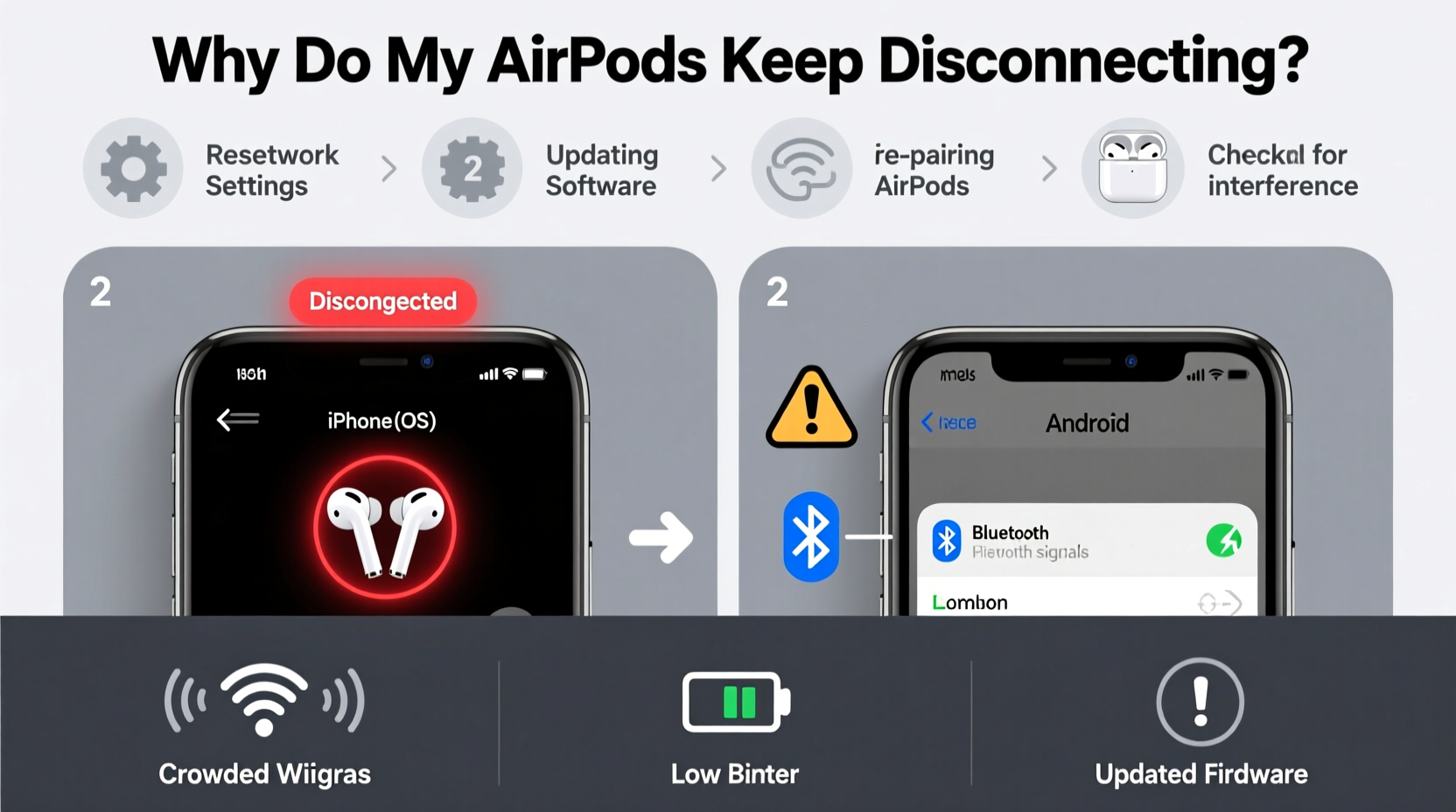
Before diving into solutions, it’s important to identify what might be causing your AirPods to drop connection. Unlike wired headphones, Bluetooth relies on a stable radio signal between your device and earbuds. Any disruption in this signal or mismatch in pairing data can lead to intermittent audio cutouts or complete disconnections.
Common culprits include:
- Bluetooth interference: Other wireless devices (Wi-Fi routers, microwaves, cordless phones) operating on the 2.4 GHz band can interfere with Bluetooth signals.
- Outdated firmware: AirPods receive firmware updates through connected iOS devices. If not updated regularly, bugs may persist.
- Software bugs: iOS, iPadOS, or Android OS updates sometimes introduce Bluetooth stack issues.
- Poor Bluetooth range: Moving too far from your device or placing obstacles between them weakens the signal.
- Damaged hardware: Physical damage to the charging case, stems, or internal sensors can cause erratic behavior.
- Misconfigured settings: Auto-switching features or incorrect device priority can trigger unwanted disconnections.
Step-by-Step Fixes for iOS Users
iOS users typically enjoy the smoothest integration with AirPods thanks to Apple's ecosystem optimization. However, even iPhone and iPad owners encounter disconnection problems—especially after OS updates or when using multiple Apple devices.
1. Toggle Bluetooth and Restart Your Device
The simplest yet most effective first step is toggling Bluetooth off and on. This forces your device to re-establish the connection.
- Open Control Center or go to Settings > Bluetooth.
- Turn Bluetooth off for 10 seconds, then back on.
- Place your AirPods back in the case, wait 5 seconds, then remove them.
- If prompted, reconnect by tapping “Connect” on your screen.
If the issue persists, restart your iPhone or iPad. A full reboot clears cached network data that may be interfering with Bluetooth stability.
2. Forget and Re-Pair Your AirPods
Sometimes, corrupted pairing information causes repeated drops. Removing and re-adding your AirPods resets this data.
- Go to Settings > Bluetooth.
- Tap the \"i\" icon next to your AirPods.
- Select “Forget This Device.”
- Press and hold the setup button on the back of the AirPods case for 15 seconds until the status light flashes amber, then white.
- Open the case near your iPhone and follow the on-screen setup prompt to reconnect.
3. Disable Automatic Ear Detection
This feature uses sensors to pause playback when an AirPod is removed. Faulty sensor readings can cause false pauses or disconnections.
Navigate to Settings > Bluetooth > [Your AirPods] > Disable “Automatic Ear Detection.” Test audio playback afterward to see if stability improves.
4. Turn Off Dual Device Auto-Switching
If you use multiple Apple devices (e.g., iPhone and MacBook), auto-switching may cause unintended handoffs. While convenient, it can lead to dropped audio during transitions.
To disable: Go to Settings > Bluetooth > Tap the \"i\" next to your AirPods > Turn off “Allow Audio Sharing Between Devices.”
5. Update AirPods Firmware
Firmware updates are delivered automatically when your AirPods are connected to an iOS device and charging. To ensure you're up to date:
- Keep your AirPods in the case, connected to power.
- Leave the case near your iPhone (preferably locked screen).
- Wait several hours—Apple pushes updates silently in the background.
You can’t manually check firmware version without third-party tools, but keeping your iOS updated increases the chance of receiving the latest AirPod firmware.
Troubleshooting Tips for Android Users
While AirPods work with Android via standard Bluetooth, they lack native integration like H1/W1 chip optimizations found on Apple devices. This makes Android users more prone to disconnections, latency, and unstable pairing.
1. Use a Dedicated Bluetooth Audio App
Third-party apps like “AirBattery” or “Assistant Trigger” enhance AirPod functionality on Android by providing battery level readouts and smoother connection management. These apps often stabilize Bluetooth handshakes and reduce dropout frequency.
2. Clear Bluetooth Cache
Android stores connection history and pairing data in cache. Corrupted entries can prevent stable links.
- Go to Settings > Apps > Show System Apps.
- Find “Bluetooth” and tap it.
- Select Storage > Clear Cache (do not clear data unless necessary).
- Re-pair your AirPods.
3. Avoid Using Both Earbuds Simultaneously on Older Phones
Some older Android models struggle with dual-channel stereo streaming. Try using only one AirPod at a time to test if disconnections stop. If so, your device may have limited Bluetooth bandwidth support.
4. Disable Battery Optimization for Bluetooth Services
Aggressive battery-saving modes can throttle background Bluetooth processes.
Go to Settings > Apps > Advanced > Special Access > Battery Optimization > Select “Bluetooth” and set to “Don’t Optimize.”
5. Keep Your Phone Updated
Manufacturers release patches that improve Bluetooth stack performance. Check for system updates monthly under Settings > System > Software Update.
Universal Fixes That Work Across Platforms
Whether you’re using an iPhone, Samsung Galaxy, or Google Pixel, certain troubleshooting steps apply universally.
Checklist: Universal AirPod Stability Routine
- ✅ Clean the stems and charging contacts with a dry, soft cloth.
- ✅ Ensure no physical obstructions between your device and AirPods.
- ✅ Move away from Wi-Fi routers, microwaves, or crowded USB 3.0 hubs.
- ✅ Reset Network Settings (note: this erases saved Wi-Fi passwords).
- ✅ Test with another Bluetooth device to isolate the problem.
- ✅ Keep AirPods charged above 20% to avoid low-power disconnects.
Reset Network Settings (iOS and Android)
This nuclear option clears all network configurations—including Bluetooth pairings—but often resolves deep-seated issues.
iOS: Settings > General > Transfer or Reset iPhone > Reset > Reset Network Settings.
Android: Settings > System > Reset Options > Reset Wi-Fi, Mobile & Bluetooth.
After resetting, re-pair all devices, including your AirPods.
Minimize Environmental Interference
Bluetooth signals degrade in high-interference environments. Concrete walls, metal objects, and large electronic appliances absorb or reflect signals.
| Environment | Impact on AirPods | Recommended Action |
|---|---|---|
| Office with dense Wi-Fi networks | High interference, frequent drops | Switch to wired mode or move to quieter zone |
| Gym or crowded subway | Signal congestion from multiple devices | Use one AirPod; reduce distance to phone |
| Home near microwave/router | Occasional stutters | Relocate router or delay usage during appliance use |
| Outdoor open space | Best performance | No action needed |
“Bluetooth stability isn't just about the headset—it's a three-way relationship between the source device, environment, and firmware health.” — Dr. Lena Torres, Wireless Connectivity Researcher at MIT Media Lab
Real-World Example: Sarah’s Commute Fix
Sarah, a digital marketer in Chicago, relied on her AirPods Pro for daily podcast listening during her train commute. Every morning, her AirPods would disconnect within 10 minutes of boarding. Initially assuming a defect, she considered returning them. Instead, she tested different scenarios.
She discovered the disconnections occurred only on the train—specifically during peak hours. After reading about Bluetooth congestion in public transit, she tried using just the right AirPod. The connection stabilized instantly. She later downloaded an Android audio app that prioritized low-latency codecs, further improving reliability. Her issue wasn’t faulty hardware—it was environmental strain compounded by suboptimal software handling.
Sarah now uses a single AirPod during commutes and keeps both in for home or office use. Her experience highlights how user behavior and context influence wireless performance.
Frequently Asked Questions
Why do my AirPods disconnect when I answer a call?
This often happens due to codec switching between media and voice profiles. On Android, some phones default to lower-quality SCO codecs during calls, which are less stable. Updating your phone’s OS or using a VoIP app like WhatsApp (which supports better codecs) can help.
Can I use AirPods with two phones at once?
No, AirPods cannot maintain active connections with two devices simultaneously. They can be paired to multiple devices, but only one can stream audio at a time. Switching requires manual selection in Bluetooth settings or automatic handoff if both devices are signed into the same iCloud account.
Do fake AirPods cause more disconnections?
Yes. Counterfeit AirPods often use inferior Bluetooth chips and lack proper firmware. They may connect initially but suffer from frequent dropouts, latency, and poor battery management. Always purchase from authorized retailers to ensure authenticity.
Conclusion: Regain Reliable Listening Today
Intermittent AirPod disconnections are a common but solvable issue. Whether you're on iOS or Android, the solution usually lies in resetting connections, minimizing interference, or updating software. Most problems aren’t permanent—they’re temporary mismatches in a complex wireless ecosystem.
Start with simple steps like toggling Bluetooth or cleaning your earbuds. Progress to deeper fixes like resetting network settings or re-pairing if needed. Pay attention to your environment and usage patterns. Often, small adjustments yield dramatic improvements.




 浙公网安备
33010002000092号
浙公网安备
33010002000092号 浙B2-20120091-4
Comments
No comments yet. Why don't you start the discussion?