
Bluetooth technology has become an essential part of daily life—connecting wireless earbuds, keyboards, speakers, fitness trackers, and more. Yet few things are as frustrating as a device that pairs successfully one moment and drops the connection the next. Random disconnections can disrupt calls, interrupt music, or render peripherals useless at critical moments. While the problem may seem unpredictable, it’s rarely random in cause. Most Bluetooth instability stems from identifiable technical, environmental, or configuration issues. Understanding these root causes—and how to resolve them—is key to maintaining seamless connectivity across all your devices.
Understanding Common Causes of Bluetooth Disconnection
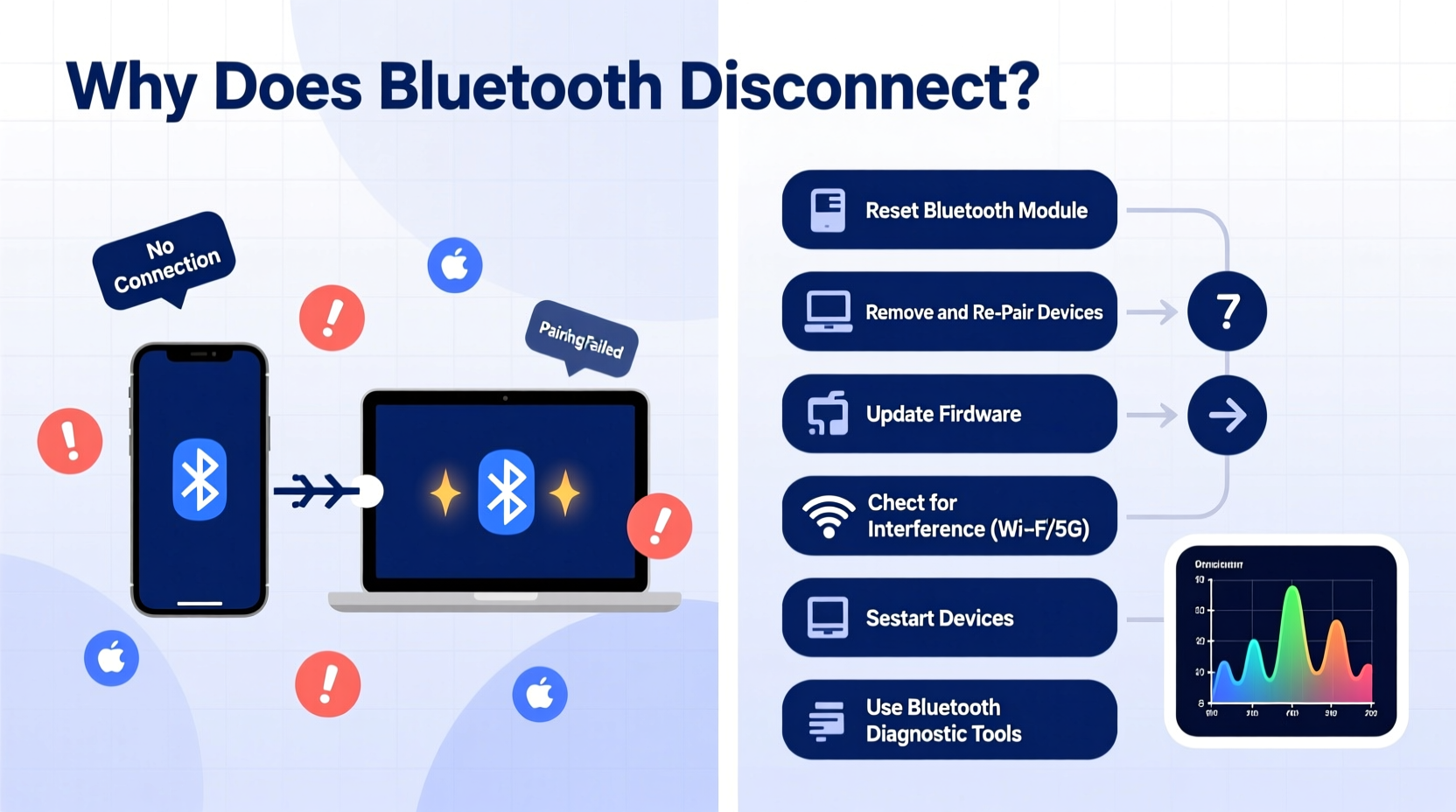
Before attempting fixes, it's important to recognize what might be behind the instability. Bluetooth operates on the 2.4 GHz frequency band, which is shared with Wi-Fi routers, microwaves, cordless phones, and other wireless technologies. This makes interference a common culprit. However, disconnections can also stem from software bugs, outdated firmware, hardware limitations, or improper power management settings.
- Signal Interference: Walls, metal objects, and competing wireless signals can degrade Bluetooth performance.
- Outdated Software: Both your connected device and host (phone, laptop) require up-to-date operating systems and drivers.
- Low Battery: Some devices automatically reduce transmission strength or disconnect when battery levels drop.
- Distance and Obstructions: Bluetooth has a limited range (typically 30 feet for Class 2 devices), and physical barriers weaken the signal.
- Power-Saving Modes: Many devices disable Bluetooth to conserve energy during inactivity.
- Poor Pairing History: Accumulated pairing data can cause conflicts if multiple devices attempt to reconnect simultaneously.
Step-by-Step Guide to Diagnose and Fix Bluetooth Issues
When faced with persistent disconnections, follow this structured troubleshooting process. Begin with simple checks and escalate only if needed.
- Check Battery Levels: Ensure both your Bluetooth peripheral and host device have sufficient charge. Low power can trigger automatic disconnection.
- Restart Bluetooth: Turn Bluetooth off and back on via system settings. On some platforms, toggling Airplane mode briefly resets all wireless modules.
- Re-pair the Device: Remove the device from your paired list and re-initiate pairing. This clears corrupted connection profiles.
- Test Proximity: Move closer to the host device, minimizing obstacles like walls or furniture between them.
- Eliminate Interference: Turn off nearby electronics using the 2.4 GHz band—especially Wi-Fi routers, microwaves, or USB 3.0 devices near Bluetooth adapters.
- Update Firmware and OS: Check for updates on both the peripheral (via its companion app) and the host device (phone, tablet, PC).
- Reset Network Settings: As a last resort on mobile devices, reset network settings to clear all saved Wi-Fi, Bluetooth, and cellular configurations.
This methodical approach often resolves over 80% of reported disconnection issues without requiring advanced tools or replacements.
Device-Specific Fixes Across Platforms
Different operating systems manage Bluetooth differently. What works on Android may not apply directly to Windows or macOS. Below are targeted solutions by platform.
Android Phones & Tablets
- Go to Settings > Connected Devices > Previously Paired Devices, and forget the problematic device.
- Clear cache for the Bluetooth Share app (Settings > Apps > Show System Apps > Bluetooth Share > Storage > Clear Cache).
- Disable “Adaptive Bluetooth” in Developer Options if enabled—it can reduce audio quality and stability.
- Use manufacturer-specific apps (e.g., Galaxy Wearable for Samsung earbuds) to update firmware.
iOS Devices (iPhone/iPad)
- Restart the device—iOS sometimes fails to reload Bluetooth stack properly after sleep.
- Ensure Background App Refresh is enabled for Bluetooth-dependent apps.
- Update AirPods or Beats firmware by keeping them near the iPhone while charging; iOS handles updates automatically.
- Reset network settings via Settings > General > Transfer or Reset [Device] > Reset > Reset Network Settings.
Windows PCs
- Open Device Manager, expand \"Bluetooth,\" right-click your adapter, and select \"Update driver.\"
- Disable power-saving for the Bluetooth adapter: Right-click the device in Device Manager > Properties > Power Management > Uncheck \"Allow the computer to turn off this device.\"
- Run the built-in Bluetooth troubleshooter (Settings > System > Troubleshoot > Other troubleshooters).
- Reinstall the Bluetooth driver if issues persist—especially common after major Windows updates.
macOS Computers
- Hold Option + Shift and click the Bluetooth icon in the menu bar. Select \"Debug > Remove all devices,\" then restart and re-pair.
- Delete preference files: Navigate to
~/Library/Preferencesand removecom.apple.Bluetooth.plist. Restart before re-pairing. - Reset the SMC (System Management Controller) on Intel Macs or the T2 chip on newer models if Bluetooth drops frequently after wake-from-sleep.
Do’s and Don’ts of Bluetooth Maintenance
| Do’s | Don’ts |
|---|---|
| Keep devices within line of sight when possible | Place Bluetooth devices near microwaves or cordless phones |
| Update firmware regularly through official apps | Ignore update notifications for wireless peripherals |
| Limit the number of active paired devices | Pair more than 5–7 devices simultaneously on one host |
| Store accessories fully charged when not in use | Leave earbuds in the case at 0% for weeks |
| Use Bluetooth codecs appropriate for your use (e.g., aptX for audio) | Assume all Bluetooth headphones perform equally on every phone |
Real-World Example: Office Worker Struggles with Wireless Keyboard
Sarah, a remote marketing consultant, relied on a Bluetooth keyboard with her iPad for note-taking during video meetings. Every 10–15 minutes, the keyboard would freeze, forcing her to reconnect manually—a disruption that undermined her professionalism. Initially, she assumed the keyboard was faulty and considered replacement. Instead, she followed a diagnostic checklist: she moved her Wi-Fi router (located behind the monitor) farther away, disabled Bluetooth on unused devices nearby, and updated her iPadOS. She also discovered that her keyboard had a firmware update pending through the manufacturer’s app. After applying the update and adjusting placement, the disconnections ceased entirely. The issue wasn’t hardware failure but environmental interference combined with outdated software.
“Many Bluetooth problems aren’t about the connection itself, but about how devices negotiate signals in congested environments.” — Dr. Rajiv Mehta, Senior Wireless Systems Engineer at IEEE
Expert Checklist for Stable Bluetooth Performance
Use this concise checklist whenever you experience instability. Tick each item as you complete it.
- ✅ Confirm both devices are charged above 30%
- ✅ Move closer—stay within 10 feet with minimal obstructions
- ✅ Forget and re-pair the device
- ✅ Update OS and firmware on both ends
- ✅ Disable power-saving modes affecting Bluetooth
- ✅ Test in a different room to rule out interference
- ✅ Limit number of connected Bluetooth devices
- ✅ Restart the host device after changes
Frequently Asked Questions
Why does my Bluetooth disconnect when I lock my phone?
Many smartphones aggressively manage background processes to save battery. When the screen locks, Bluetooth activity may be throttled or paused. To fix this, go to battery settings and set your Bluetooth app or service to “Unrestricted” or “Don’t optimize.” On iOS, ensure Background App Refresh is enabled.
Can a Wi-Fi router affect my Bluetooth connection?
Yes. Since both Wi-Fi and Bluetooth operate in the 2.4 GHz spectrum, overlapping channels can cause interference. Modern routers allow you to switch to the 5 GHz band for Wi-Fi, freeing up space for Bluetooth. Alternatively, relocating your router or Bluetooth device by a few feet can significantly improve stability.
Does Bluetooth version matter for connection stability?
Absolutely. Newer versions like Bluetooth 5.0 and 5.2 offer longer range, higher speed, and better coexistence with other wireless signals. Older devices (e.g., Bluetooth 4.0 or earlier) are more prone to dropouts, especially in dense wireless environments. Always check compatibility and consider upgrading peripherals if consistent issues persist.
Final Thoughts: Take Control of Your Wireless Experience
Random Bluetooth disconnections are rarely truly random—they’re symptoms of deeper mismatches in environment, configuration, or maintenance. By systematically addressing power settings, interference sources, firmware health, and proper pairing hygiene, most users can restore reliable performance without replacing hardware. The convenience of wireless technology shouldn’t come at the cost of constant frustration. With regular care and informed troubleshooting, your Bluetooth ecosystem can function smoothly across all your devices.




 浙公网安备
33010002000092号
浙公网安备
33010002000092号 浙B2-20120091-4
Comments
No comments yet. Why don't you start the discussion?