
Experiencing smooth connection metrics but still seeing your character freeze, rubberband, or move erratically in a multiplayer game? You're not alone. Many players assume that low ping guarantees flawless gameplay, but the reality is more complex. Network performance involves multiple layers—some visible, others hidden beneath the surface. Even with a ping under 30ms, you might still suffer from unresponsive controls, delayed actions, or visual stuttering. The issue isn't always your internet speed; it's often how data flows between your device, the game server, and other players.
This article breaks down the technical and practical reasons behind character lag in online games when ping appears optimal. More importantly, it provides actionable solutions—from router tweaks to in-game settings—that can restore responsiveness and give you the competitive edge you deserve.
Understanding Ping vs. Latency: What’s Really Being Measured?
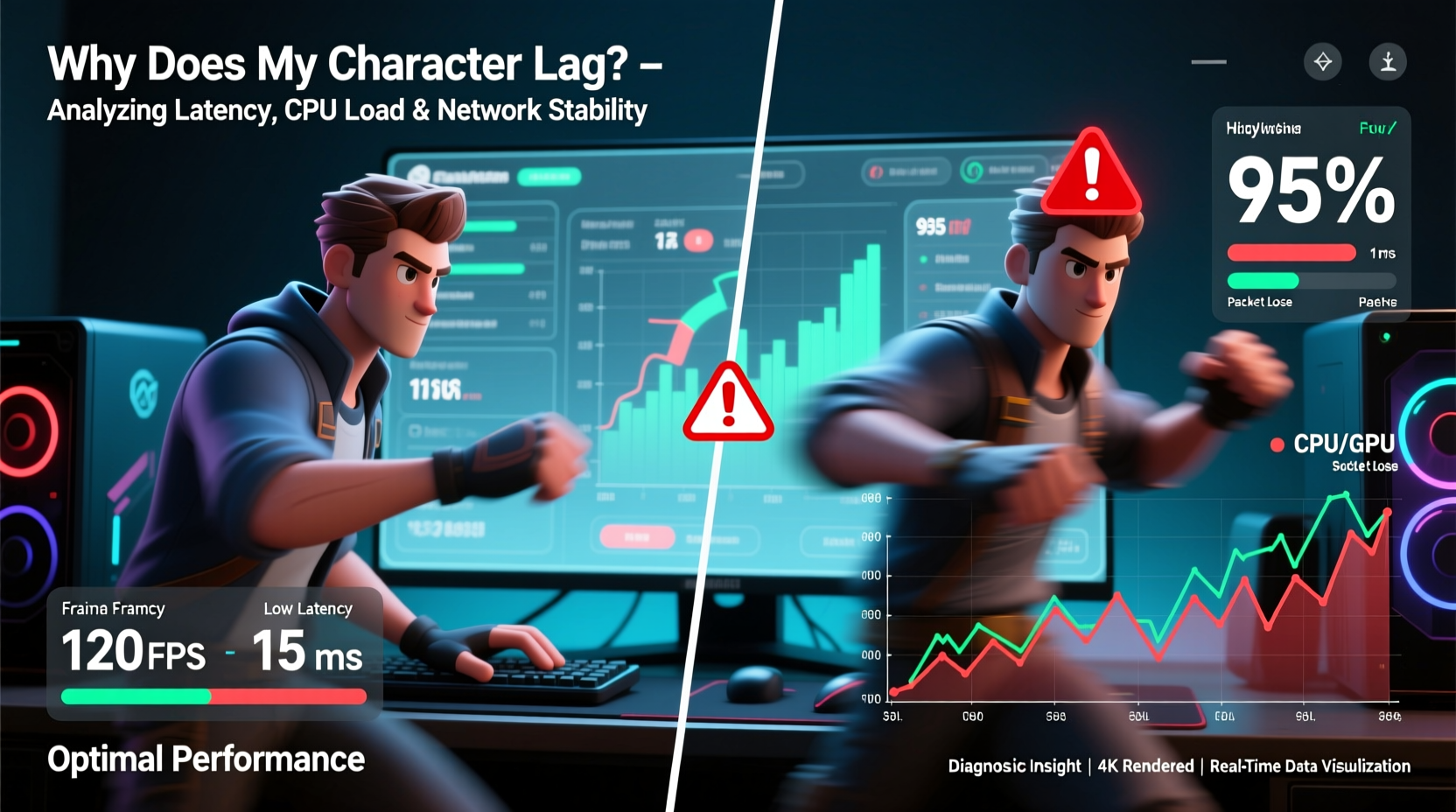
Ping measures the round-trip time for a data packet to travel from your device to a server and back. A low ping (e.g., 20–50ms) suggests fast communication. However, ping alone doesn’t reflect real-time gameplay fluidity. What matters more is latency consistency, also known as jitter, and how the game client processes incoming data.
Think of it like a phone call: just because you hear the other person quickly (low ping), it doesn’t mean the conversation is smooth. If voices cut in and out or arrive at uneven intervals (high jitter), communication breaks down. Similarly, inconsistent packet delivery—even with good average ping—can cause your character to appear frozen or teleport across the map.
“Ping is only one piece of the puzzle. Jitter, packet loss, and client-side prediction are equally critical for responsive gameplay.” — Dr. Lena Torres, Network Engineer at GameStream Labs
Common Causes of Character Lag Despite Good Ping
The illusion of a stable connection can be misleading. Here are the primary culprits behind in-game lag when ping looks fine:
1. Packet Loss and Jitter
Even if your ping is consistently low, losing packets or receiving them irregularly disrupts motion prediction algorithms. Most games use interpolation to estimate where characters should be between updates. When packets go missing or arrive late, the game must correct positions abruptly—resulting in rubberbanding or sudden jumps.
2. Server Tick Rate Limitations
Multiplayer servers update player positions at fixed intervals called the tick rate (e.g., 64Hz or 128Hz). A 64-tick server refreshes game state 64 times per second (~15.6ms between ticks). If your actions fall between ticks, they’re queued, creating a micro-delay. This isn’t reflected in ping but feels like input lag.
3. Client-Side Performance Bottlenecks
Your PC or console might struggle to render frames fast enough, causing frame drops. When the game engine can’t keep up, it delays processing network updates. Even with perfect network conditions, a GPU bottleneck or high CPU usage leads to choppy movement.
4. Background Network Activity
Applications like cloud sync tools, streaming services, or automatic updates consume bandwidth unpredictably. While total bandwidth may seem sufficient, bursty traffic can delay game packets momentarily—enough to cause noticeable lag spikes.
5. Suboptimal Routing Paths
Your data may take a longer or less efficient route to the game server due to ISP routing decisions. Tools like traceroute often reveal unexpected hops through distant cities or congested nodes, increasing effective latency despite favorable ping readings.
Diagnosing the Real Problem: A Step-by-Step Guide
To identify what’s actually causing lag, follow this diagnostic workflow:
- Monitor real-time network stats: Use built-in developer consoles (e.g., in CS2 or Valorant) or third-party tools like NetLimiter or GlassWire to track packet loss, jitter, and bandwidth usage during gameplay.
- Run a continuous ping test: Open Command Prompt and type
ping -t [server IP]. Play for 10 minutes, then check for timeouts or large variations in response time. - Check frame pacing: Enable FPS counters in-game. Look for stutters below 60 FPS even if average is higher. Pair this with input delay testing using tools like InputLag Tester.
- Inspect background processes: Open Task Manager (Windows) or Activity Monitor (macOS) to identify apps consuming CPU, disk, or network resources.
- Analyze routing paths: Run
tracert [game server IP]to see how many hops your traffic takes. Compare results during peak vs. off-peak hours.
Do’s and Don’ts: Optimizing Your Setup for Smooth Gameplay
| Action | Do | Don’t |
|---|---|---|
| Internet Connection | Use a wired Ethernet connection with QoS enabled on your router | Rely solely on Wi-Fi, especially on crowded 2.4GHz bands |
| System Resources | Close unnecessary background apps before launching the game | Run video encoders, torrents, or cloud backups while gaming |
| Network Settings | Set your PC as a DMZ host or assign static IP with port forwarding | Leave UPnP enabled without monitoring device access |
| In-Game Options | Enable “Low Latency Mode” if available; cap FPS slightly below refresh rate | Max out graphics settings beyond your hardware’s capability |
| Server Selection | Choose servers closest geographically, even if ping difference is small | Play on high-ping servers “for fun” without adjusting expectations |
Mini Case Study: Competitive Player Resolves Hidden Lag Issue
Jamal, a ranked Apex Legends player, consistently recorded 35–45ms ping on his fiber connection but noticed his character would frequently freeze during fights. He assumed the problem was server-side until he ran a packet capture using Wireshark during a match. The logs revealed intermittent packet loss (2–3%) occurring every 90 seconds—coinciding with his smart home hub syncing weather data.
After isolating IoT devices on a separate VLAN and enabling Quality of Service (QoS) on his router to prioritize gaming traffic, Jamal eliminated the dropouts. His gameplay became noticeably smoother, and his kill/death ratio improved by 27% over the next month. The lesson: sometimes, the enemy isn’t another player—it’s an unnoticed background process.
Expert Tips to Reduce Perceived Lag
Beyond fixing technical issues, you can minimize the impact of residual delays through smart configuration:
- Cap your frame rate: Set FPS limit 3–5 below your monitor’s refresh rate to reduce screen tearing and improve input consistency.
- Enable triple buffering (if supported): This reduces input lag compared to traditional V-Sync while preventing tearing.
- Adjust network prediction settings: Some games allow tweaking client-side prediction (e.g.,
cl_interpin Source engine games). Lower values reduce perceived lag but increase risk of misprediction. - Upgrade DNS: Switch to low-latency DNS providers like Cloudflare (1.1.1.1) or Google (8.8.8.8) to speed up domain resolution, especially during matchmaking.
Comprehensive Optimization Checklist
Follow this checklist to systematically eliminate sources of character lag:
- ✅ Test connection with
ping -tandtracertto detect instability - ✅ Switch to Ethernet; disable Wi-Fi and Bluetooth adapters
- ✅ Update network drivers and firmware on router
- ✅ Close bandwidth-heavy background apps (Zoom, OneDrive, Steam downloads)
- ✅ Enable QoS on your router, prioritizing your gaming device
- ✅ Assign static IP and forward relevant ports (e.g., UDP 3074 for Xbox Live)
- ✅ Lower in-game graphics settings to maintain stable FPS
- ✅ Choose servers based on hop count and regional proximity, not just ping
- ✅ Disable fullscreen optimizations in Windows for the game executable
- ✅ Monitor CPU/GPU temperatures; thermal throttling can cause frame drops
Frequently Asked Questions
Can high FPS cause lag even with good ping?
No—high FPS typically improves responsiveness. However, if your monitor’s refresh rate and FPS aren’t synchronized (e.g., no G-Sync/FreeSync), you may experience screen tearing or perceived inconsistency. Capping FPS slightly below refresh rate often yields smoother results.
Why does my character lag only during combat?
Combat scenes increase network load due to more entities, effects, and position updates. If your connection has marginal stability, these bursts can trigger packet queuing or frame drops. Additionally, your system may struggle with simultaneous rendering and networking demands.
Does using a VPN reduce lag?
Generally, no. A VPN adds extra hops, increasing latency. However, some premium gaming VPNs (like ExitLag or WTFast) optimize routing to game servers, potentially bypassing congested paths. Use only if standard routes are suboptimal and after testing performance impact.
Conclusion: Take Control of Your Gaming Experience
Good ping is necessary but not sufficient for lag-free gameplay. True responsiveness depends on a chain of factors—from network consistency and server architecture to hardware performance and configuration choices. By diagnosing beyond surface-level metrics and applying targeted fixes, you reclaim control over your in-game experience.
Don’t accept lag as inevitable. Use the tools and strategies outlined here to audit your setup, eliminate bottlenecks, and play at your full potential. The difference between victory and frustration often comes down to milliseconds—and now, you know where to look.




 浙公网安备
33010002000092号
浙公网安备
33010002000092号 浙B2-20120091-4
Comments
No comments yet. Why don't you start the discussion?