
There’s nothing more frustrating than settling into the holiday spirit with a cozy fire, festive lights, and a perfectly curated Christmas playlist—only to have your favorite carol cut out mid-chorus. If your Bluetooth speaker keeps skipping tracks or stuttering during playback, you’re not alone. This common issue affects countless users every holiday season, often due to overlooked technical factors rather than faulty equipment.
The root causes range from signal interference and outdated firmware to device limitations and audio compression settings. The good news? Most of these problems are fixable with simple adjustments and smarter usage habits. Whether you're hosting a family gathering or just enjoying some seasonal tunes solo, uninterrupted audio should be part of the experience.
Understanding Bluetooth Audio Behavior During Playlist Playback
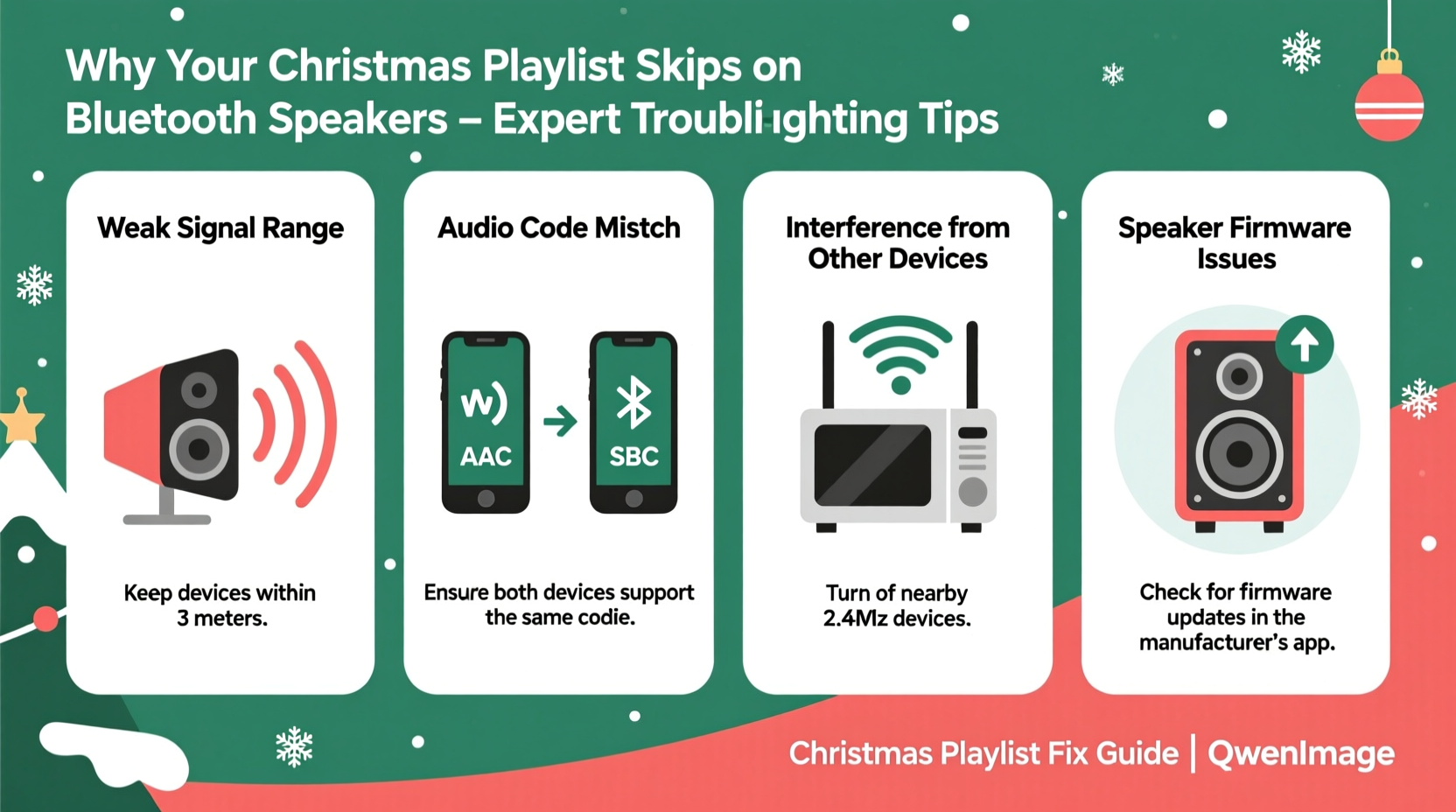
Bluetooth technology has evolved significantly over the past decade, but it still operates within physical and technical constraints. When streaming a Christmas playlist from your phone, tablet, or laptop to a Bluetooth speaker, data is transmitted wirelessly using radio waves in the 2.4 GHz frequency band—the same range used by Wi-Fi routers, microwaves, and many smart home devices.
This shared spectrum means congestion can occur, especially in modern homes filled with connected gadgets. Additionally, Bluetooth relies on consistent signal strength between the source device (your phone) and the receiver (the speaker). Any disruption—distance, walls, metal objects—can degrade performance and lead to audio dropouts or track skipping.
Another factor is how media apps handle playlist transitions. Some music players pre-load the next song in a queue, while others initiate a new connection request each time a track ends. This delay can manifest as a “skip” if the Bluetooth link isn’t stable enough to re-establish quickly.
“Bluetooth stability isn't just about pairing—it's about maintaining a clean, low-latency channel for continuous data flow.” — Dr. Alan Reyes, Wireless Communication Engineer at MIT Media Lab
Common Causes of Skipping and How to Diagnose Them
Before attempting fixes, identify what’s actually causing the skips. Not all skips are created equal. Here’s how to distinguish between different types:
- Sudden audio cuts: Brief silences or stutters during a single track—usually caused by signal interference or weak connection.
- Track jumping: The playlist advances unexpectedly to the next song—often due to app glitches or accidental touch inputs.
- Repeated restarts: A song starts over immediately after beginning—common when buffering fails or power fluctuates.
- Delayed transitions: Gaps between songs that feel longer than normal—typically related to device processing speed or codec compatibility.
Signal Interference and Environmental Factors
The 2.4 GHz band is notoriously crowded. In urban apartments or homes with multiple wireless systems, Bluetooth signals can become scrambled. Microwaves, cordless phones, baby monitors, and even LED lighting may emit electromagnetic noise that disrupts transmission.
Physical barriers also matter. Walls, furniture, and large appliances absorb or reflect Bluetooth signals. Even the human body—especially when moving between the phone and speaker—can temporarily block the path.
Device Limitations and Battery Issues
Older smartphones or budget Bluetooth speakers may lack advanced signal processing capabilities. They struggle with error correction and latency management, leading to inconsistent playback. Similarly, low battery levels on either device can force power-saving modes that throttle Bluetooth output.
One often-overlooked culprit is thermal throttling. After prolonged use, especially in cold environments (like an unheated porch or garage), internal components slow down to prevent overheating, affecting wireless performance.
Step-by-Step Guide to Stabilize Your Bluetooth Connection
Follow this systematic approach to eliminate skips and ensure smooth holiday music playback:
- Re-pair the devices: Go to your phone’s Bluetooth settings, forget the speaker, then pair it again. This clears any corrupted connection data.
- Update firmware: Check the manufacturer’s app or website for speaker updates. Many brands release patches that improve audio stability.
- Minimize distance: Keep the source device within 10 feet (3 meters) of the speaker, with no major obstructions.
- Reduce wireless clutter: Temporarily turn off nearby devices using the 2.4 GHz band—especially Wi-Fi extenders or microwave ovens.
- Use airplane mode + Bluetooth: Enable airplane mode on your phone, then manually turn Bluetooth back on. This disables competing signals like cellular and Wi-Fi.
- Pre-download your playlist: Streamed playlists require constant internet access. Download them locally via Spotify, Apple Music, or YouTube Music to remove network dependency.
- Close background apps: Other running apps may interfere with audio buffering or CPU allocation.
- Restart both devices: A full reboot clears temporary memory issues that could affect Bluetooth stacks.
Optimizing Device Settings for Seamless Holiday Playlists
Small configuration changes can yield big improvements in audio continuity. These optimizations target both software behavior and hardware efficiency.
Audio Output and Codec Selection
If your devices support advanced codecs like aptX, AAC, or LDAC, enable them in developer options (Android) or through third-party apps. These deliver higher-quality streams with better error resilience compared to standard SBC encoding.
On Android, go to Settings > Developer Options > Bluetooth Audio Codec and select aptX if available. Note: Both the transmitting and receiving devices must support the same codec for it to work.
App-Specific Adjustments
Different music platforms manage playback differently:
| Music App | Recommended Setting | Why It Matters |
|---|---|---|
| Spotify | Enable \"Offline Mode\" and set quality to \"High\" | Reduces reliance on real-time streaming; minimizes buffering gaps |
| Apple Music | Download playlist for offline use | Ensures instant track loading without iCloud sync delays |
| YouTube Music | Use Premium to disable ads and enable background download | Prevents ad interruptions that break Bluetooth continuity |
| Amazon Music | Select \"Local Playback\" for downloaded content | Bypasses cloud fetching during transitions |
Battery and Power Management
Many phones aggressively limit background activity when battery saver is on. This includes restricting Bluetooth headroom and pausing audio services. Disable battery optimization for your music app:
- Android: Settings > Apps > [Your Music App] > Battery > Unrestricted
- iOS: Background App Refresh should be enabled for the app in Settings > General > Background App Refresh
Real Example: Fixing Sarah’s Annual Holiday Party Sound Fails
Sarah hosts a yearly cookie-decorating party where her Christmas playlist sets the mood. For three years, guests complained about songs cutting out every 10–15 minutes. She assumed it was her aging phone until she decided to troubleshoot methodically.
She began by downloading all songs offline in Spotify and disabling Wi-Fi and cellular data during playback. Skips continued. Then she noticed her smart oven and Wi-Fi router were placed directly behind the speaker. Moving the speaker six feet away reduced interference dramatically. Finally, she updated the firmware through the manufacturer’s app—resolving a known bug affecting playlist continuity in older versions.
At last year’s event, the music played flawlessly for five hours straight. “It wasn’t magic,” she said. “Just understanding how everything connects—and where things go wrong.”
Checklist: Prevent Christmas Playlist Skips This Year
Use this quick-reference checklist before playing your holiday music:
- ✅ Download playlist for offline use
- ✅ Update speaker firmware
- ✅ Re-pair Bluetooth connection
- ✅ Place speaker and phone within 10 feet, line-of-sight preferred
- ✅ Turn off unnecessary wireless devices nearby
- ✅ Disable battery saver mode on phone
- ✅ Restart both devices before playback
- ✅ Choose high-efficiency audio codec if supported
- ✅ Avoid placing speaker near microwaves, routers, or metal surfaces
- ✅ Use a dedicated music device (e.g., old tablet) to minimize distractions
Frequently Asked Questions
Can Bluetooth version affect music skipping?
Yes. Older Bluetooth versions (4.0 and below) have higher latency and lower bandwidth than Bluetooth 5.0+. Newer versions offer improved range, faster reconnection, and better coexistence with other wireless signals—all critical for uninterrupted audio. If your speaker uses Bluetooth 4.2 or earlier, upgrading may solve chronic skipping issues.
Why does my playlist skip only at certain times of day?
Time-based skipping often correlates with increased wireless traffic. Evening hours typically see peak Wi-Fi and Bluetooth usage in households. Neighbors’ networks, holiday decorations with RF emitters, or even seasonal power fluctuations can contribute. Try testing during low-usage periods (e.g., mid-morning) to confirm.
Does file format impact Bluetooth playback stability?
Indirectly. High-bitrate files (like 320kbps MP3 or FLAC) require more data throughput. If your Bluetooth connection is already strained, large files may buffer poorly, increasing dropout risk. For reliable playback, stick to 160–256kbps AAC or MP3 formats when streaming wirelessly.
Final Thoughts: Make Your Music Last All Season
Holiday playlists are more than background noise—they’re emotional anchors, tied to memories, traditions, and shared moments. Letting technical glitches interrupt that experience diminishes the joy they bring. With a few informed adjustments, most Bluetooth skipping issues can be resolved without buying new gear or sacrificing sound quality.
The key is treating wireless audio like any precision system: it needs maintenance, optimal conditions, and awareness of its limits. By applying these strategies—updating firmware, managing interference, optimizing app settings—you’ll create a seamless listening environment that supports the spirit of the season.




 浙公网安备
33010002000092号
浙公网安备
33010002000092号 浙B2-20120091-4
Comments
No comments yet. Why don't you start the discussion?