
Screen flickering during video playback is a frustrating experience that affects productivity, viewing comfort, and eye strain. It often appears suddenly, especially when streaming HD content or playing locally stored media, leaving users puzzled about whether the issue lies in hardware, software, or settings. While occasional glitches happen, persistent flickering points to underlying causes ranging from outdated drivers to display refresh rate mismatches. Understanding the root causes—and knowing how to diagnose and resolve them—can restore smooth playback and extend the life of your display setup.
Understanding Screen Flickering: A Technical Overview
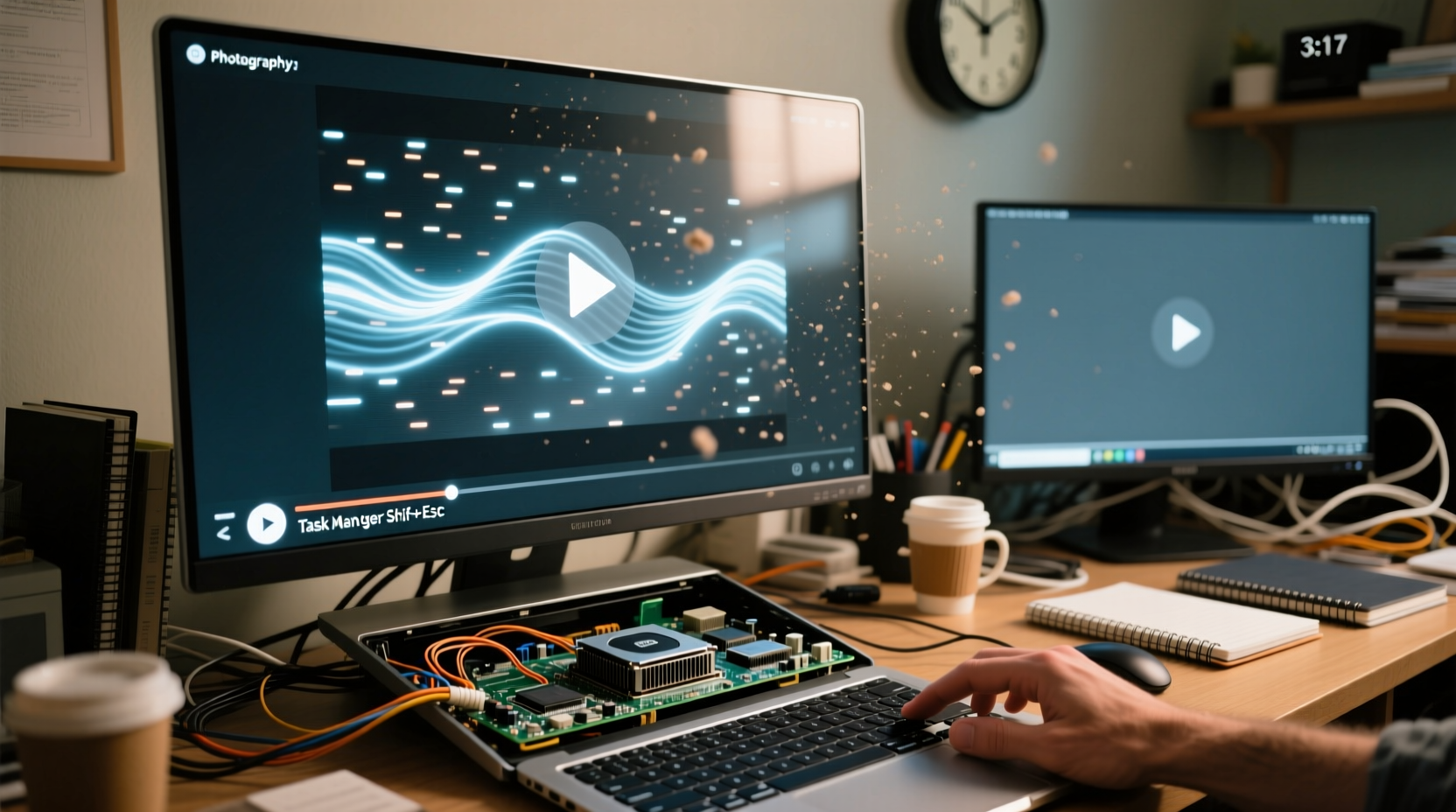
Flickering manifests as rapid brightness changes, shimmering visuals, or intermittent blackouts on screen, typically more noticeable during motion-heavy scenes in videos. Unlike screen tearing—which involves misaligned image frames—flickering is usually caused by inconsistencies in signal delivery between the graphics processor and the display. Modern screens use either LCD, LED, or OLED technology, each with different response mechanisms to input signals. When the timing or power delivery fluctuates, visual artifacts like flickering occur.
The phenomenon becomes most apparent during video playback because high frame rates (e.g., 30fps, 60fps) demand consistent data transmission. Any disruption—be it from driver conflicts, cable issues, or incompatible refresh rates—can interrupt this flow, resulting in visible flicker. Additionally, adaptive brightness features or energy-saving modes may unintentionally modulate backlight intensity, creating a pulsating effect mistaken for hardware failure.
“Flickering during video playback is rarely random. It’s a symptom of mismatched expectations between your GPU output and display capabilities.” — Dr. Alan Zhou, Display Systems Engineer at Veridian Tech Labs
Common Causes of Video Playback Flickering
Several factors can trigger screen flickering specifically when watching videos. Identifying which one applies to your system is key to resolving the issue efficiently.
1. Outdated or Corrupted Graphics Drivers
Graphics drivers act as translators between your operating system and GPU. If outdated, incompatible, or corrupted, they may fail to render video content correctly, especially under load. High-resolution videos require efficient decoding, and faulty drivers can cause dropped frames or erratic refresh behavior.
2. Mismatched Refresh Rate Settings
Your monitor’s refresh rate (measured in Hz) defines how many times per second the image updates. If your video’s frame rate doesn’t align with the display’s refresh rate—for example, playing a 24fps movie on a 60Hz screen without proper synchronization—flickering or judder can occur. This is particularly common with cinematic content on standard monitors.
3. Faulty or Low-Quality Cables
Video signals travel through cables such as HDMI, DisplayPort, or VGA. Damaged, loosely connected, or low-bandwidth cables can degrade signal integrity, leading to flickering, especially during high-data transfers like 4K video playback. Older HDMI versions (e.g., 1.4) may struggle with higher resolutions and refresh rates required by modern codecs.
4. Power Management and Adaptive Brightness
Many laptops and even some desktop monitors come with adaptive brightness features that adjust screen luminance based on ambient light. These sensors can misinterpret video content—especially dark scenes transitioning to bright ones—as environmental changes, causing the backlight to pulse unnaturally.
5. Hardware Acceleration Conflicts
Hardware acceleration offloads video decoding from the CPU to the GPU, improving performance. However, if misconfigured or conflicting with browser or app settings, it can lead to rendering glitches, including flickering. This is frequently reported in browsers like Chrome or Firefox while streaming YouTube or Netflix.
Step-by-Step Troubleshooting Guide
Follow this structured approach to isolate and resolve the flickering issue:
- Check Physical Connections: Unplug and reconnect your video cable at both ends (GPU and monitor). Try a different port or replace the cable with a certified high-speed version (e.g., HDMI 2.0 or higher).
- Test on Another Monitor or Device: Connect your computer to a different display. If flickering persists, the issue is likely internal. If not, the original monitor or cable may be faulty.
- Update Graphics Drivers: Visit your GPU manufacturer’s website (NVIDIA, AMD, Intel) and download the latest driver. Avoid generic Windows updates, which may not include optimal versions.
- Adjust Refresh Rate: Right-click desktop → Display Settings → Advanced Display → choose the highest supported refresh rate (e.g., 60Hz, 75Hz, 120Hz). For 24fps content, enable “Match Content Frame Rate” if available.
- Disable Adaptive Brightness: On Windows, go to Settings > System > Display > disable “Change brightness automatically.” On macOS, disable True Tone and Auto-Brightness in Display settings.
- Turn Off Hardware Acceleration: In your browser (Chrome: Settings > System > toggle off “Use hardware acceleration”), or media player (VLC: Tools > Preferences > Input/Codecs > uncheck “Use hardware YUV–to–RGB conversions”).
- Boot into Safe Mode: Restart in Safe Mode with minimal drivers. Play a video. If no flickering occurs, a third-party application or driver is interfering.
Do’s and Don’ts: Quick Reference Table
| Do | Don’t |
|---|---|
| Use high-quality, shielded HDMI or DisplayPort cables | Use damaged or unshielded cables |
| Keep graphics drivers updated from official sources | Rely solely on Windows Update for GPU drivers |
| Set monitor refresh rate to match typical video content | Run display at default settings without verification |
| Disable adaptive brightness during video playback | Ignore flickering as “normal” behavior |
| Test with multiple video formats and players | Assume the issue is only with one app or site |
Real-World Example: Resolving Flicker on a Home Office Setup
Consider Sarah, a remote worker who noticed her screen flickering every time she watched training videos on her dual-monitor setup. The flicker was subtle but caused headaches after prolonged sessions. She first assumed it was her aging HDMI cable, so she replaced it—no change. Next, she checked her NVIDIA driver version and found it was two releases behind. After updating via GeForce Experience, the flickering reduced but didn’t disappear.
She then accessed her display settings and discovered her secondary monitor was running at 59Hz instead of 60Hz due to a previous calibration test. Resetting it to 60Hz eliminated the flicker entirely. Further investigation revealed that her video conferencing app had enabled adaptive brightness. Disabling it across both displays ensured consistent performance. This case highlights how multiple minor mismatches can combine into a noticeable problem—and how systematic troubleshooting leads to resolution.
When to Suspect Hardware Failure
If all software and configuration fixes fail, consider hardware issues. Common signs include:
- Flickering worsens over time or spreads to other applications
- Lines, color distortion, or backlight bleeding accompany flicker
- Flickering occurs on multiple devices when using the same monitor
- The monitor emits buzzing sounds during flicker episodes
In such cases, the issue may lie in the monitor’s inverter board (for older CCFL-backlit LCDs), failing capacitors, or defective backlight assembly. OLED panels can suffer from pixel degradation that mimics flicker. Replacing the monitor or seeking professional repair may be necessary. For laptops, integrated displays are harder to replace, making cost-benefit analysis essential.
Frequently Asked Questions
Does screen flickering damage my eyes?
Prolonged exposure to flickering screens can contribute to eye strain, headaches, and fatigue, especially in low-light environments. While it doesn’t cause permanent eye damage, it disrupts visual comfort and focus. Addressing flicker improves long-term viewing safety.
Why does flickering only happen in full-screen mode?
Full-screen playback often triggers exclusive fullscreen optimization or changes the display’s scaling and refresh behavior. Some apps switch to a different rendering path or bypass compositor layers, exposing driver or timing issues not present in windowed mode.
Can browser extensions cause video flickering?
Yes. Extensions that modify page contrast, inject scripts, or force dark mode can interfere with video rendering, especially when hardware acceleration is active. Try disabling extensions one by one to identify the culprit.
Action Plan Checklist
To quickly resolve screen flickering when watching videos, follow this checklist:
- ✅ Inspect and replace video cables if worn or low-quality
- ✅ Update graphics drivers from manufacturer’s website
- ✅ Set display refresh rate to native maximum (e.g., 60Hz)
- ✅ Disable adaptive brightness and automatic dimming
- ✅ Turn off hardware acceleration in browser and media players
- ✅ Test with different video files and platforms (local vs. streaming)
- ✅ Check for BIOS/UEFI or firmware updates for integrated GPUs
- ✅ Consult a technician if flickering persists across devices
Final Thoughts: Take Control of Your Viewing Experience
Screen flickering during video playback isn’t something you should have to tolerate. With a methodical approach, most cases can be resolved without costly replacements. Start with the simplest fixes—cables and settings—before diving into drivers and deeper configurations. Pay attention to patterns: does flickering occur only on certain websites? At specific resolutions? After system updates? These clues guide effective diagnosis.
Technology should enhance, not hinder, your digital experience. By understanding the interplay between hardware, software, and user settings, you gain control over your display environment. Whether you're streaming movies, attending virtual meetings, or editing video content, a stable, flicker-free screen makes all the difference.




 浙公网安备
33010002000092号
浙公网安备
33010002000092号 浙B2-20120091-4
Comments
No comments yet. Why don't you start the discussion?