
There’s nothing more frustrating than clicking a game icon only for it to close instantly or freeze before reaching the main menu. Game crashes on startup are among the most frequent technical complaints from players across PC and console platforms. While they may seem random, these issues typically stem from predictable root causes — many of which can be resolved with targeted troubleshooting.
Modern games demand high system resources and rely on complex interactions between hardware, software, drivers, and digital rights management systems. A single misstep in this chain can cause immediate failure. The good news? Most startup crashes are fixable without requiring professional help. Understanding the underlying mechanisms allows users to diagnose and resolve problems efficiently.
Outdated or Incompatible Graphics Drivers
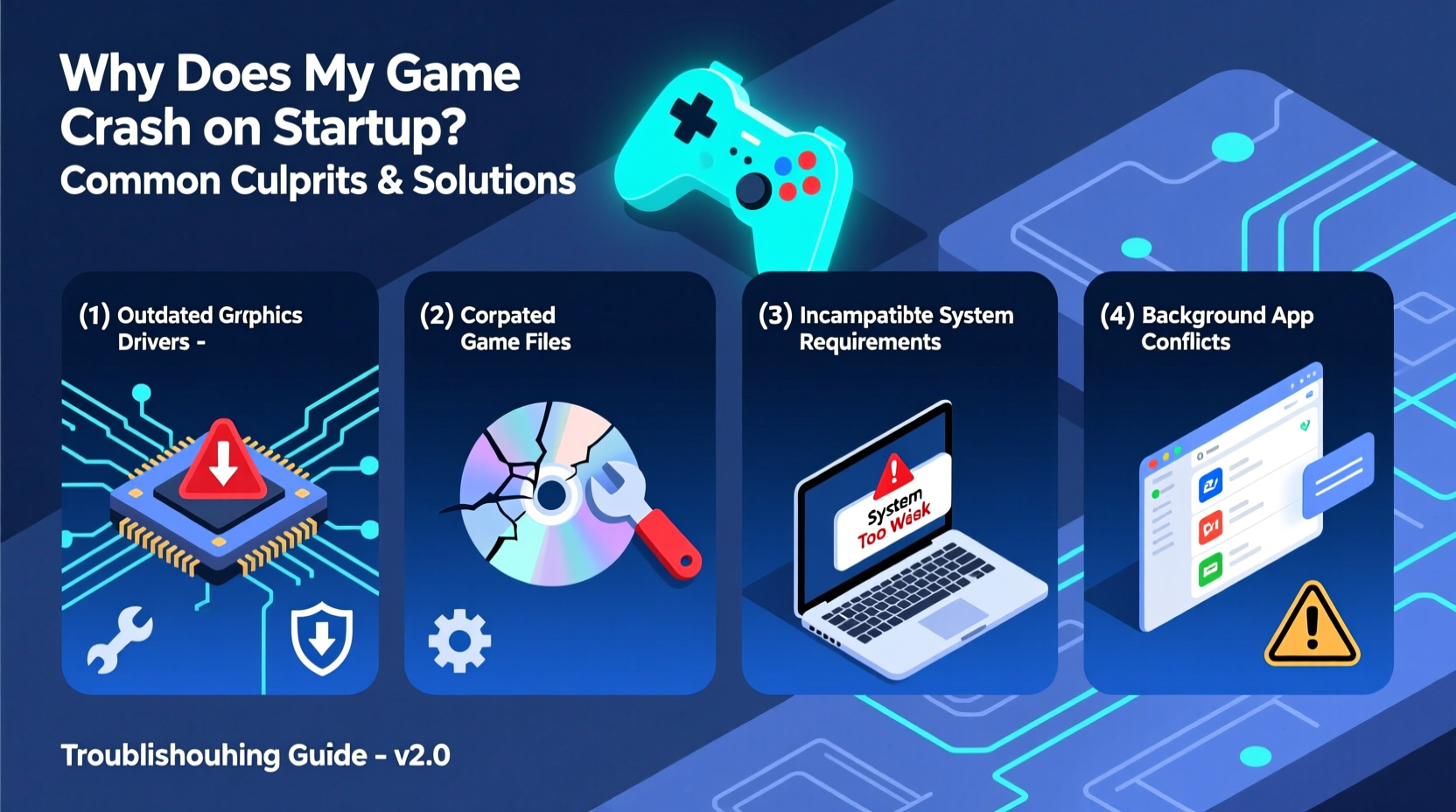
Graphics drivers act as the communication bridge between your operating system and GPU. When outdated, corrupted, or mismatched with your hardware, they can prevent games from initializing properly. This is especially true for newer titles that leverage advanced rendering techniques like DirectX 12 or Vulkan APIs.
Manufacturers such as NVIDIA, AMD, and Intel regularly release driver updates that improve compatibility, performance, and stability. Failing to install these updates leaves your system vulnerable to crashes, particularly after major game patches or OS updates.
To update your GPU driver:
- Identify your graphics card (via Task Manager > Performance tab).
- Visit the manufacturer’s support site (e.g., NVIDIA, AMD, or Intel).
- Download and install the latest recommended driver.
- Restart your computer before relaunching the game.
In some cases, rolling back to a previous stable driver version resolves conflicts introduced by recent updates — especially if the crash began immediately after a driver installation.
Insufficient System Resources or Hardware Limitations
Even if your machine meets the minimum requirements listed on a game’s store page, real-world performance often depends on more nuanced factors such as background processes, thermal throttling, and memory allocation.
A common scenario involves launching a resource-intensive title while multiple applications run in the background — web browsers with dozens of tabs, cloud sync tools, antivirus scanners, or streaming software. These consume RAM and CPU cycles, leaving insufficient headroom for the game to initialize.
| Resource | Symptom of Shortage | Solution |
|---|---|---|
| CPU | Game freezes during loading screen | Close background apps; check for overheating |
| RAM | Immediate crash or error message about memory | Upgrade RAM; disable startup programs |
| GPU Memory (VRAM) | Crash after splash screens or texture-heavy intro | Lower in-game resolution or texture settings |
| Disk Space | Failure to launch or missing file errors | Free up space; verify game files |
Additionally, integrated graphics processors (such as Intel UHD series) often struggle with modern AAA titles, even when specifications appear borderline sufficient. If you're using integrated graphics, consider lowering expectations or upgrading to a dedicated GPU.
Corrupted Game Files or Installation Errors
Games consist of thousands of interdependent files. A single corrupted or missing file — due to an interrupted download, disk error, or faulty extraction — can halt execution at startup.
Digital distribution platforms like Steam, Epic Games Store, and Xbox App include built-in tools to detect and repair damaged installations. For example, Steam’s “Verify Integrity of Game Files” feature scans all local game data against the server version and replaces discrepancies automatically.
“We see a significant drop in startup crashes once users verify their game files. It's one of the fastest fixes available.” — Jordan Lee, Senior Support Engineer at Valve Corporation
Here’s how to use verification tools:
- Steam: Right-click game > Properties > Local Files > Verify Integrity of Game Files
- Epic Games Launcher: Library > Click three dots next to game > Manage > Repair
- Xbox App (Windows): Settings > Installed Games > Select game > Repair
This process may take several minutes depending on game size but frequently resolves silent corruption issues that don’t generate explicit error messages.
Software Conflicts and Overlays
Third-party software running in the background is a leading but often overlooked cause of game instability. Programs like Discord, GeForce Experience, MSI Afterburner, and even certain antivirus suites inject code into running applications through overlays or real-time scanning.
While useful for monitoring or communication, these overlays can interfere with game initialization routines, especially if they attempt to hook into DirectX or Vulkan processes prematurely. Antivirus software might also flag legitimate game executables as suspicious during startup, halting execution.
A clean boot environment helps isolate software conflicts:
- Press Win + R, type
msconfig, and press Enter. - Go to the Services tab, check “Hide all Microsoft services,” then click “Disable all.”
- Navigate to the Startup tab and open Task Manager to disable all startup items.
- Restart the computer and try launching the game.
If the game works in this state, re-enable services incrementally to identify the culprit. Once found, either configure exceptions or avoid running that software simultaneously with gameplay.
Operating System and Runtime Dependencies
Games depend on various runtime libraries such as Microsoft Visual C++ Redistributables, .NET Framework, DirectX, and sometimes legacy components like PhysX. Missing or outdated versions of these can lead to immediate crashes.
For instance, a missing MSVCP140.dll error indicates that the Visual C++ 2015–2019 redistributable package isn’t installed. Similarly, DirectX issues often manifest as black screens or abrupt closures shortly after launch.
To ensure dependencies are up to date:
- Run the DirectX End-User Runtime installer from Microsoft’s website.
- Install the latest Visual C++ Redistributable packages (both x86 and x64).
- Keep Windows updated via Settings > Update & Security.
Some games bundle these installers in their installation directory under a folder named “_CommonRedist.” Running those setup files manually can resolve dependency-related crashes.
Mini Case Study: Fixing a Persistent Crash in Cyberpunk 2077
Mark, a PC gamer from Toronto, purchased Cyberpunk 2077 at launch. Every time he launched the game, it crashed within five seconds — no error message, just a return to desktop. He checked his specs: RTX 2060, 16GB RAM, i5-9400F — all above minimum requirements.
After trying multiple solutions, he discovered that his Norton Antivirus was blocking the game’s renderer module. By adding the entire CD Projekt Red folder to Norton’s exclusion list and updating his GPU drivers, the game launched successfully. Later, he learned that a background MSI Afterburner session had been causing instability even when not actively used.
This case illustrates how layered issues — both security software interference and overlay tools — can combine to create seemingly unsolvable crashes.
Troubleshooting Checklist: Step-by-Step Guide
Follow this structured approach when dealing with startup crashes:
- Check system requirements: Confirm your PC meets or exceeds the game’s recommended specs.
- Update graphics drivers: Download the latest version from your GPU manufacturer.
- Verify game files: Use your platform’s repair tool to scan for corruption.
- Close background applications: Especially overlays (Discord, Steam, etc.) and monitoring tools.
- Temporarily disable antivirus: Test launch without real-time protection active.
- Run as administrator: Right-click the executable and select “Run as administrator.”
- Install missing runtimes: Ensure Visual C++, DirectX, and .NET are current.
- Perform a clean boot: Isolate conflicting third-party software.
- Update Windows: Install pending OS updates that may include critical patches.
- Reinstall the game: As a last resort, uninstall completely and reinstall fresh.
This sequence addresses the most common causes in order of likelihood and ease of implementation.
Frequently Asked Questions
Why does my game crash only on startup but work fine later?
This usually points to issues during the initialization phase — such as driver loading, memory allocation, or dependency resolution. Once past startup, the game may stabilize if the problematic component isn’t used again. However, the root cause should still be addressed to prevent future instability.
Can overclocking cause game crashes on startup?
Yes. Unstable CPU or GPU overclocks can fail under load, which occurs immediately when a game starts. Even mild overclocks may become unstable over time due to heat degradation or power fluctuations. Returning to default clock speeds can confirm whether overclocking is the issue.
Do I need to reinstall Windows if games keep crashing?
Reinstalling Windows should be a last resort. Most startup crashes are resolvable through driver updates, file verification, or software conflict resolution. Only consider a full OS reinstall if you’ve ruled out all other possibilities and experience widespread system instability beyond gaming.
Conclusion
Game crashes on startup are rarely random. They stem from identifiable technical mismatches — whether in drivers, system resources, software conflicts, or missing dependencies. By methodically addressing each potential culprit, most users can restore functionality without losing progress or repurchasing titles.
The key is patience and precision. Jumping between random fixes without understanding the underlying cause often leads to wasted time. Instead, follow a logical diagnostic path, starting with the most common issues like outdated drivers and corrupted files.




 浙公网安备
33010002000092号
浙公网安备
33010002000092号 浙B2-20120091-4
Comments
No comments yet. Why don't you start the discussion?