
If your iPad suddenly freezes mid-FaceTime or stutters during a Zoom meeting, you're not alone. Video calls have become essential for work, school, and staying connected with loved ones—but when your device freezes, the experience turns from seamless to frustrating in seconds. The good news: most freezing issues are fixable without technical expertise. Whether it’s an older model struggling with bandwidth or a newer iPad caught in a software loop, understanding the root causes is the first step toward smooth, uninterrupted calls.
This guide walks through the most common reasons behind iPad freezing during video calls, backed by practical fixes, real-world examples, and expert insights. You’ll learn how to diagnose performance bottlenecks, optimize settings, and prevent future disruptions—so your next virtual meeting goes off without a hitch.
Understanding Why iPads Freeze During Video Calls
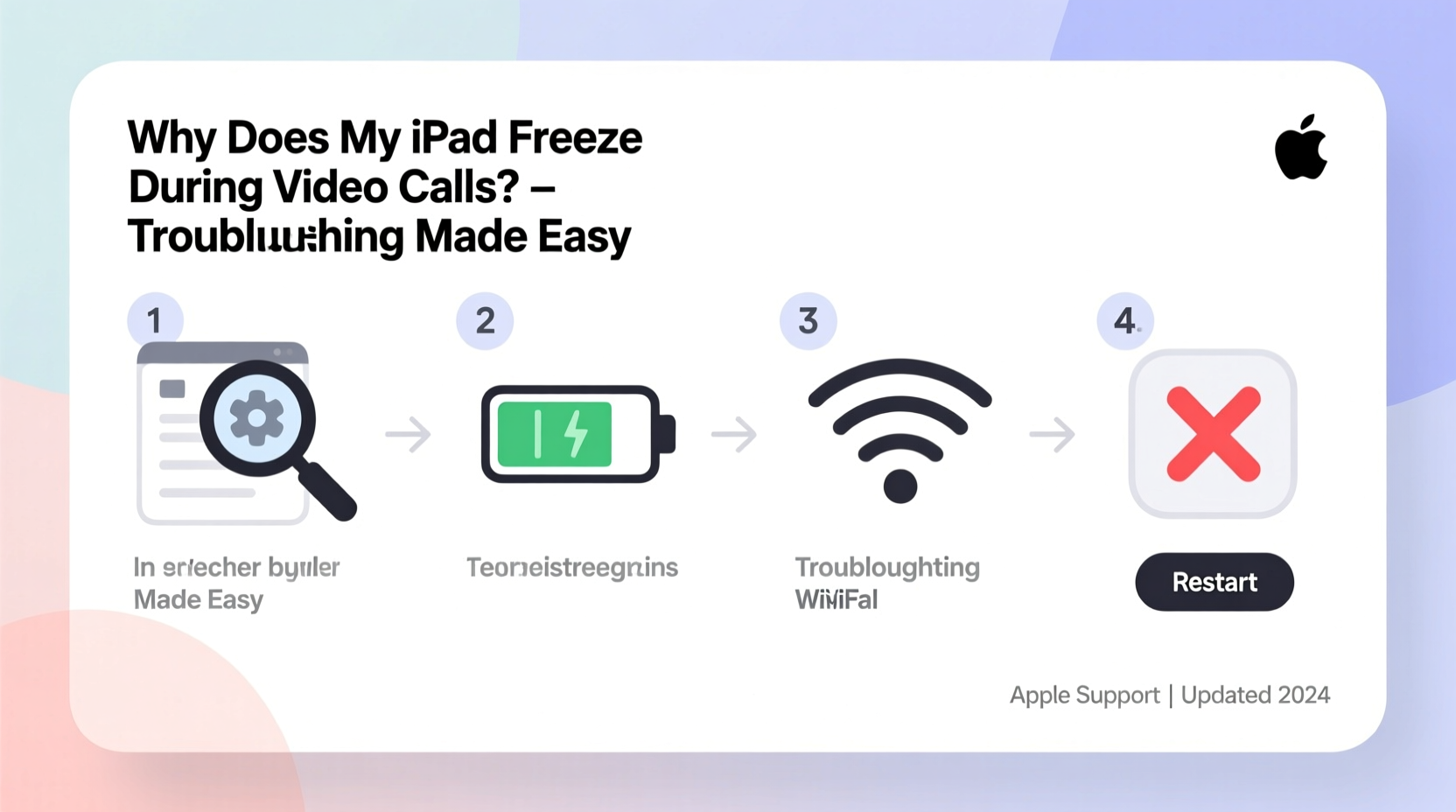
Video calling demands significant resources from your iPad: real-time camera processing, microphone input, screen rendering, network data transfer, and background app management. When one or more of these systems falter, the result is often a frozen screen, audio dropouts, or a complete app crash.
The primary culprits fall into four categories:
- Insufficient Processing Power: Older iPads (like the 6th generation or earlier) may struggle with modern apps like Zoom or Google Meet, especially if multiple apps are running.
- Network Instability: Weak Wi-Fi or cellular signals cause buffering, which can trigger system delays and eventual freezing.
- Software Glitches: Outdated operating systems, corrupted app caches, or conflicting background processes disrupt performance.
- Storage Limitations: When internal storage drops below 1 GB, iOS slows down significantly, affecting real-time tasks like video encoding.
Apple designs its ecosystem to be user-friendly, but even well-maintained devices can encounter hiccups under stress. Recognizing the signs early—such as delayed responses, overheating, or frequent app restarts—can help prevent full freezes.
Step-by-Step Troubleshooting Guide
Follow this logical sequence to identify and resolve the issue efficiently. Start with the simplest fixes before moving to advanced solutions.
- Restart Your iPad
Hold the top button (or top + volume buttons on older models) until the power-off slider appears. Slide to power off, wait 30 seconds, then turn it back on. This clears temporary memory and stops rogue processes. - Check Wi-Fi Signal Strength
Tap Settings > Wi-Fi and ensure you’re connected to a strong network. If signal bars are low, move closer to the router or switch to a less congested band (e.g., 5 GHz instead of 2.4 GHz). - Close All Background Apps
Double-click the Home button (or swipe up and pause on Face ID models) to open the App Switcher. Swipe up on each app preview to close them. - Update iOS and the Video App
Go to Settings > General > Software Update. Install any available updates. Then visit the App Store and update your video calling app (Zoom, Teams, etc.). - Reset Network Settings
In Settings > General > Transfer or Reset iPad > Reset > Reset Network Settings. Note: You’ll need to re-enter Wi-Fi passwords afterward. - Test with Another App
If FaceTime works fine but Zoom freezes, the issue is likely app-specific. Reinstall the problematic app to clear corrupted data. - Free Up Storage Space
Navigate to Settings > General > iPad Storage. Delete unused apps, old messages, or large videos taking up space.
Most users find relief after steps 1–4. If problems persist, continue to deeper diagnostics.
Do’s and Don’ts: Best Practices for Stable Video Calls
Prevention is better than repair. Use this table to align your habits with optimal iPad performance during calls.
| Do’s | Don’ts |
|---|---|
| Use a stable Wi-Fi connection with at least 5 Mbps upload speed | Run multiple video apps simultaneously (e.g., Zoom + YouTube) |
| Keep iOS and apps updated monthly | Ignore storage warnings or operate below 1 GB free space |
| Turn off automatic brightness and background app refresh during calls | Place iPad near heat sources or in direct sunlight (causes thermal throttling) |
| Use headphones with a mic to reduce processing load on the iPad | Leave downloads or cloud backups running during meetings |
| Restart your iPad weekly to clear system clutter | Assume freezing is always due to internet issues—check device health too |
Real Example: How Sarah Fixed Her Weekly Team Calls
Sarah, a project manager using an iPad Air 2 for daily Zoom check-ins, noticed her screen would freeze every 10–15 minutes. Initially, she blamed her home Wi-Fi. After rebooting the router multiple times with no improvement, she decided to dig deeper.
She followed the troubleshooting steps above and discovered two key issues: her iPad had only 800 MB of free storage, and the Zoom app hadn’t updated in over six months. After deleting old files and reinstalling Zoom, her calls became stable. She also began closing all other apps before meetings and now schedules a monthly “iPad tune-up” to avoid recurrence.
“I assumed it was just an old device giving up,” Sarah said. “But cleaning up storage and updating the app made a night-and-day difference.”
“Many iPad performance issues stem from overlooked maintenance, not hardware failure. A few proactive habits can extend usability by years.” — Jordan Lee, Apple-Certified Support Technician
Tips to Optimize iPad Performance Long-Term
Beyond immediate fixes, long-term optimization ensures your iPad remains reliable for video calls and other demanding tasks.
- Manage Background App Refresh: Disable it for non-essential apps via Settings > General > Background App Refresh. This prevents unnecessary CPU usage.
- Use Auto-Lock: Set Auto-Lock to 30 seconds or 1 minute (Settings > Display & Brightness > Auto-Lock). This reduces overheating risks during long calls.
- Monitor Battery Health: While iPads don’t show battery percentage health like iPhones, severely degraded batteries can impact performance. If your iPad shuts down unexpectedly, consider a battery replacement.
- Leverage External Accessories: Connect a Bluetooth keyboard and external microphone to offload processing and improve audio clarity, reducing strain on the device.
- Limit Widgets and Animations: Reduce motion effects in Settings > Accessibility > Motion > Reduce Motion. Also, minimize live widgets on the Home Screen.
When Hardware Might Be the Issue
While software fixes resolve most cases, aging hardware can reach its limits. iPads older than five years—especially those not upgraded to the latest compatible iOS version—may lack the RAM or processor speed to handle HD video encoding smoothly.
Signs your iPad may be nearing end-of-life for video calling include:
- Frequent crashes across multiple apps, not just video callers
- Extended app launch times (over 5 seconds)
- Inability to install the latest OS updates
- Overheating within minutes of use
If your iPad shows three or more of these symptoms, upgrading to a newer model—such as the iPad (10th gen) or iPad Air (5th gen)—will provide a noticeably smoother experience. These models feature faster processors, improved thermal management, and better camera systems designed for modern conferencing needs.
FAQ: Common Questions About iPad Freezing
Can a virus make my iPad freeze during calls?
iOS is highly secure, and true viruses are extremely rare. However, malicious websites or compromised profiles can cause instability. Stick to trusted apps from the App Store and avoid installing configuration profiles from unknown sources.
Does closing apps really help prevent freezing?
Yes. While iOS manages memory efficiently, having too many apps open—especially media-heavy ones—can exhaust available RAM. Closing unused apps before a video call frees up resources and reduces the chance of slowdowns.
Why does my iPad freeze only on certain video apps?
Different apps have varying levels of optimization. For example, FaceTime is deeply integrated with iOS and tends to run more smoothly than third-party apps like Skype or Microsoft Teams, especially on older devices. Try switching apps temporarily to test performance. If one works reliably, the issue is likely app-specific rather than device-wide.
Final Checklist: Ensure Smooth Video Calls Every Time
Before your next important call, run through this quick checklist to minimize risk of freezing:
- ✅ Restart the iPad
- ✅ Confirm Wi-Fi signal strength (at least 3 bars)
- ✅ Close all background apps
- ✅ Check for iOS and app updates
- ✅ Ensure at least 2 GB of free storage
- ✅ Disable heavy visual effects (Reduce Motion, Dark Mode optional)
- ✅ Position iPad in a cool, shaded area to prevent overheating
Conclusion: Take Control of Your iPad’s Performance
Your iPad should empower your connections, not interrupt them. Freezing during video calls is rarely a permanent flaw—it’s usually a solvable mismatch between demand and device readiness. By applying regular maintenance, optimizing settings, and knowing when to upgrade, you can enjoy reliable, high-quality virtual interactions without frustration.
Start today: spend 10 minutes clearing storage, updating apps, and testing a call. Small actions lead to big improvements in performance and peace of mind.




 浙公网安备
33010002000092号
浙公网安备
33010002000092号 浙B2-20120091-4
Comments
No comments yet. Why don't you start the discussion?