
Laptop fans are designed to cool internal components, especially during heavy workloads. But when the fan spins nonstop—even while the system appears idle—it’s more than just an annoyance. Constant fan noise often signals underlying inefficiencies, hidden processes consuming resources, or hardware issues that, if ignored, can shorten your device's lifespan. Understanding the root causes and how to address them is essential for maintaining both performance and comfort.
The problem typically isn't a single culprit but a combination of software behaviors, background services, and sometimes poor thermal management. While modern laptops are built for efficiency, they’re also packed with pre-installed applications, automatic updates, and cloud sync tools that quietly eat up CPU cycles. This article breaks down the most common reasons behind persistent fan activity and provides practical, step-by-step solutions to regain control over your machine’s cooling behavior.
Common Causes of Constant Fan Activity
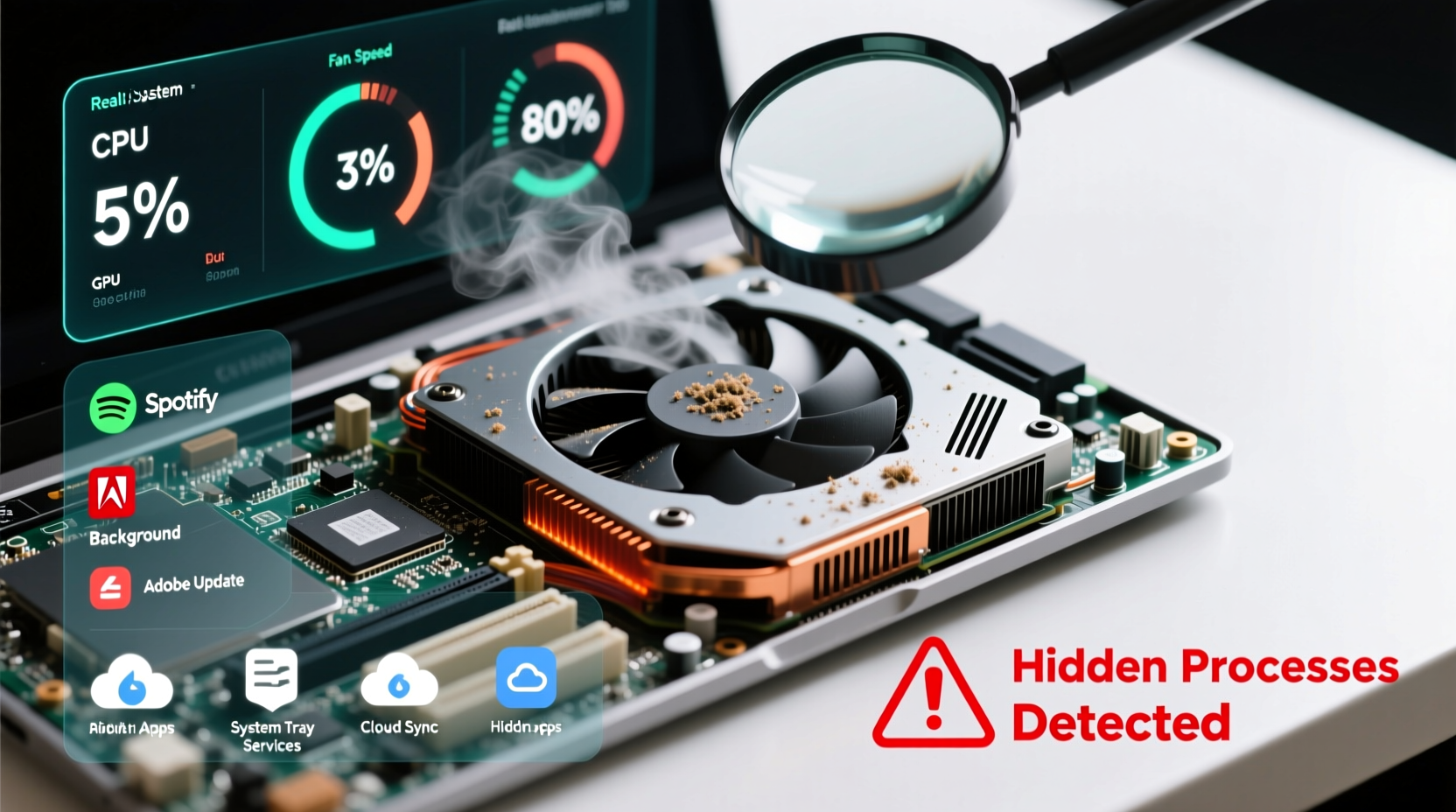
Before diving into fixes, it’s important to recognize what drives excessive heat and fan use. Most users assume their laptop is \"idle\" when the screen shows no open programs, but the operating system may still be running dozens of background tasks. Here are the primary contributors:
- Background applications: Programs like OneDrive, Dropbox, antivirus scanners, and updaters run silently but consume CPU and disk resources.
- Malware or crypto-mining scripts: Malicious software can hijack system resources without visible signs, leading to sustained high CPU usage.
- Poor ventilation: Dust buildup in vents or using the laptop on soft surfaces (like beds or couches) blocks airflow.
- Outdated drivers or BIOS: Firmware issues can cause incorrect thermal readings, prompting unnecessary fan activation.
- High GPU utilization: Integrated graphics may remain active due to display scaling, multiple monitors, or background rendering tasks.
- Power plan misconfiguration: A high-performance power setting keeps the CPU clocked at maximum, generating more heat even during low activity.
Identifying Hidden Apps Draining Resources
Many resource-hogging processes aren’t immediately visible. They often appear as generic system entries like “Runtime Broker,” “Antimalware Service Executable,” or “svchost.exe.” While some are legitimate, others may be indicators of deeper inefficiencies or unwanted software.
Step-by-Step: Diagnose Background Processes
- Press Ctrl + Shift + Esc to open Task Manager.
- Click “More details” if necessary, then sort by the “CPU” column.
- Observe which processes consistently use more than 5–10% CPU while the system is otherwise idle.
- Right-click any suspicious process and select “Search online” to verify its legitimacy.
- Check the “Startup” tab to disable unnecessary programs that launch at boot.
Pay special attention to entries related to third-party software such as Adobe Creative Cloud, Spotify, Zoom, or printer utilities. These often auto-start and maintain background services even when not actively used.
“Over 60% of constant fan issues I see in field diagnostics trace back to unmanaged startup apps or outdated drivers.” — David Lin, Senior Hardware Technician at TechCare Solutions
Real Example: The Case of SilentSync
A user reported their Dell XPS 13 fan running constantly despite having only a browser open. Initial checks showed low CPU usage, but further investigation revealed a hidden process named “SilentSync.exe” using 18% CPU continuously. After research, it was identified as part of a pre-installed support utility meant to monitor system health. However, a bug in version 2.1 caused infinite looping. Uninstalling the app via Add/Remove Programs resolved the issue instantly, reducing average CPU load from 22% to 4% at idle and silencing the fan.
Proven Fixes to Stop the Fan from Running Constantly
Once you’ve identified the sources, apply targeted fixes. The following methods are effective across Windows laptops (similar principles apply to macOS).
1. Optimize Power Settings
The default power plan may prioritize performance over efficiency. Switching to a balanced or power-saving mode reduces CPU throttling and heat generation.
- Go to Control Panel > Hardware and Sound > Power Options.
- Select “Balanced” or “Power Saver.”
- Click “Change plan settings,” then “Change advanced power settings.”
- Expand “Processor power management” and set “Maximum processor state” to 90% on battery and 95% when plugged in.
- Set “System cooling policy” to “Passive” under “On battery.”
2. Clean Up Startup Programs
Too many apps launching at startup create immediate background load. Trim them aggressively.
- In Task Manager, go to the “Startup” tab.
- Sort by “Impact” and disable anything labeled “High” or “Medium” that isn’t essential.
- Common candidates: Skype, iTunes Helper, Google Update, Slack, Steam.
3. Update or Roll Back Drivers
Faulty graphics or chipset drivers can cause abnormal power draw. Check for updates through Device Manager or your manufacturer’s support site. If the fan issue started after a recent update, consider rolling back the driver:
- Open Device Manager.
- Expand “Display adapters,” right-click your GPU, and select “Properties.”
- Go to the “Driver” tab and click “Roll Back Driver” if available.
4. Perform a Thermal Inspection
Dust accumulation inside the heatsink or fan blades restricts airflow. For most users, external cleaning is safe:
- Shut down the laptop and unplug it.
- Use compressed air to blow out vents (hold fans steady to prevent overspinning).
- Repeat for all intake and exhaust ports.
If comfortable, open the back panel (if accessible) to clean internal components. Otherwise, schedule professional servicing every 12–18 months.
Do’s and Don’ts: Managing Laptop Cooling
| Do | Don’t |
|---|---|
| Use your laptop on hard, flat surfaces to allow proper airflow. | Place it on beds, pillows, or laps where vents get blocked. |
| Install a lightweight monitoring tool like HWMonitor or Core Temp. | Rely solely on fan noise as a temperature indicator. |
| Regularly reboot your laptop to clear stuck processes. | Leave it in sleep mode for days without restarts. |
| Uninstall bloatware and unused preloaded software. | Keep every factory-installed app just because it came with the device. |
| Keep OS and firmware updated for optimal power management. | Ignore BIOS update notifications—they often include thermal fixes. |
Comprehensive Maintenance Checklist
Follow this checklist monthly to prevent recurring fan issues:
- ✅ Reboot the system at least once a week.
- ✅ Review Task Manager for abnormally high idle CPU usage.
- ✅ Disable unnecessary startup programs.
- ✅ Run a full antivirus scan using Windows Defender or a trusted third-party tool.
- ✅ Check for pending Windows and driver updates.
- ✅ Clean exterior vents with compressed air.
- ✅ Verify battery health and power settings.
- ✅ Monitor idle temperatures (should be below 50°C / 122°F).
Frequently Asked Questions
Is it harmful if my laptop fan runs all the time?
Constant fan operation isn’t inherently damaging, but it indicates inefficient cooling or excessive heat. Over time, dust buildup and sustained high RPMs can wear out the fan motor. More importantly, consistently high internal temperatures degrade battery life and reduce the longevity of sensitive components like the CPU and SSD.
Why is my fan loud even when nothing is open?
Even with no visible apps running, background processes such as Windows Update, indexing services (SearchIndexer.exe), or cloud sync tools (Google Drive, Dropbox) can spike CPU usage. Additionally, malware or poorly optimized software may run hidden loops. Use Task Manager to identify the actual workload source.
Can I turn off the fan manually?
No—and you shouldn’t. The fan is controlled by firmware based on sensor data. Manually disabling it risks critical overheating and permanent hardware damage. Instead, address the root cause of the heat, not the symptom.
Conclusion: Regain Control and Silence the Noise
A constantly running laptop fan is rarely random. It’s a signal from your system asking for attention—whether due to hidden software, dust buildup, or misconfigured settings. By systematically identifying resource hogs, optimizing power plans, and maintaining physical cleanliness, you can restore quiet operation and extend your device’s usable life.
Most fixes require no technical expertise and take less than 30 minutes. Start today by opening Task Manager and checking what’s truly running in the background. Small adjustments compound into significant improvements in both performance and user experience. Your laptop doesn’t need to sound like a jet engine to function well.




 浙公网安备
33010002000092号
浙公网安备
33010002000092号 浙B2-20120091-4
Comments
No comments yet. Why don't you start the discussion?