
Many smartphone users assume that using Wi-Fi instead of cellular data should save battery life. After all, Wi-Fi is often faster, more stable, and less power-intensive than 4G or 5G under ideal conditions. Yet, a growing number of people report their phones losing charge rapidly—even when connected solely to Wi-Fi. This paradox leaves many puzzled: Why does my phone battery drain so fast on Wi-Fi only mode? The answer lies in how modern smartphones manage wireless connections, background processes, and network behavior. Understanding the underlying causes can help you take control of your device’s power consumption and optimize performance.
How Wi-Fi Affects Battery Life: The Hidden Truth
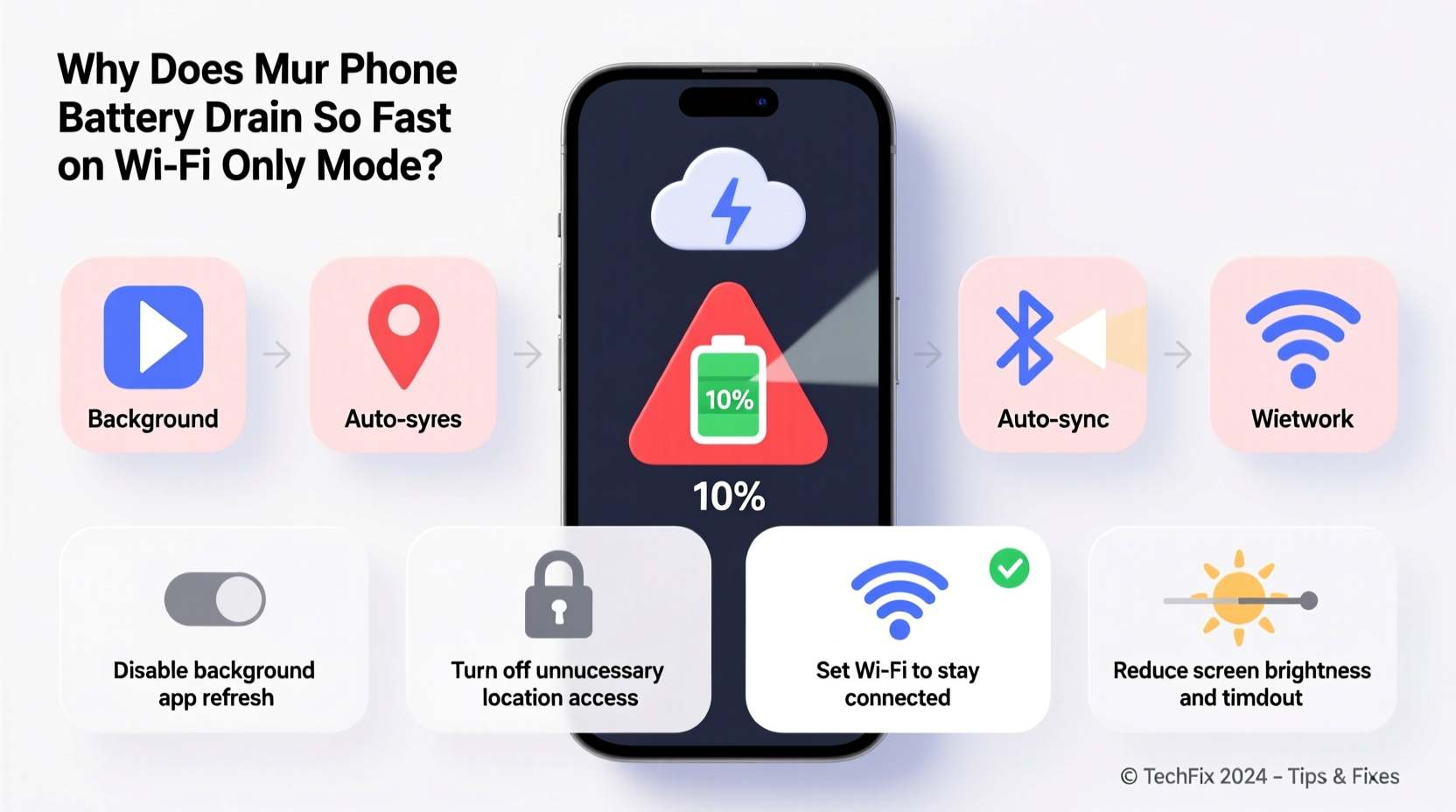
While Wi-Fi typically uses less power than cellular networks during active data transfer, it isn’t inherently “battery-friendly” by default. Several factors influence how much energy your phone expends while connected to Wi-Fi. One common misconception is that Wi-Fi signals themselves consume significant power. In reality, the radio used for Wi-Fi communication is efficient—but what happens behind the scenes can be far more taxing.
When your phone connects to a Wi-Fi network, it doesn't just passively receive data. It constantly communicates with the router to maintain connection stability, checks for new messages, syncs apps, and scans for nearby networks—even when locked. These background activities add up over time, especially if multiple apps are running updates, pushing notifications, or streaming content in the background.
Additionally, weak signal strength forces your phone to work harder to stay connected. If your router is far from your current location or there are physical obstructions like walls or appliances interfering with the signal, your phone boosts its transmission power to compensate. This increased effort directly impacts battery longevity.
Common Causes of Fast Battery Drain on Wi-Fi Only Mode
Battery drain on Wi-Fi isn’t always obvious. Often, the culprit isn’t one single issue but a combination of interrelated factors. Below are the most frequent causes behind rapid battery depletion when using Wi-Fi exclusively.
1. Background App Refresh and Auto-Sync
Apps like email clients, social media platforms, cloud storage services, and messaging tools frequently sync data in the background. Even when you're not actively using them, they pull updates, download attachments, and check for new activity. On Wi-Fi, this syncing may happen more aggressively because the network is perceived as “unlimited,” prompting apps to update more frequently.
2. Poor Wi-Fi Signal Quality
A weak or unstable Wi-Fi signal forces your phone’s wireless chip to increase transmission power to maintain connectivity. Over time, this extra workload drains the battery significantly—sometimes even more than switching to cellular data would.
3. Network Scanning and Auto-Join Features
Smartphones automatically scan for known networks in the background, even when already connected to one. This constant scanning consumes power, especially in areas with many overlapping networks (e.g., apartments, offices). Additionally, features like auto-joining saved networks or suggesting new ones contribute to unnecessary radio usage.
4. High Data Usage Activities
Streaming HD video, downloading large files, playing online games, or using video conferencing apps heavily utilize both processing power and network resources. While these tasks benefit from Wi-Fi speed, they also accelerate battery drain due to sustained CPU, screen, and radio activity.
5. Outdated Firmware or Software Bugs
Occasionally, software bugs introduced through OS updates or firmware glitches cause abnormal battery behavior. Some users have reported sudden spikes in Wi-Fi-related battery usage after system updates, which were later resolved via patches.
6. Router Settings and DHCP Leases
Your router's configuration can indirectly affect battery life. For example, short DHCP lease times force devices to renegotiate IP addresses frequently, leading to repeated handshakes between the phone and router. Each handshake requires energy, and doing it every few minutes adds up over hours.
“Wi-Fi efficiency depends not just on signal strength but on network stability and device behavior. A poorly configured router can make any phone work harder than necessary.” — Dr. Alan Reyes, Wireless Systems Engineer at NetSignal Labs
Step-by-Step Guide to Fix Wi-Fi Battery Drain Issues
Resolving excessive battery consumption on Wi-Fi requires a systematic approach. Follow these steps to identify and eliminate the root causes affecting your device.
- Check Battery Usage Statistics
Go to Settings > Battery (or Battery & Device Care) and review which apps are consuming the most power. Pay attention to whether Wi-Fi usage correlates with high app activity. - Limit Background App Refresh
Disable automatic refresh for non-essential apps. On iOS: Settings > General > Background App Refresh. On Android: Settings > Apps > Special Access > Background Restrictions. Select apps individually and restrict background data. - Turn Off Wi-Fi When Not in Use
If you won’t be near a trusted network for several hours, disable Wi-Fi manually or set it to turn off automatically after disconnection (available on newer Android models). - Forget Unused Networks
Remove old or unreliable saved networks from your device. Phones waste energy trying to reconnect to networks they remember, even if those networks are out of range. - Update Your Phone and Router Firmware
Ensure your smartphone’s operating system is up-to-date. Also, check your router manufacturer’s website for firmware updates that may improve compatibility and reduce handshake frequency. - Adjust Router DHCP Lease Time
Log into your router settings (usually via 192.168.1.1 or similar) and increase the DHCP lease duration from the default 1–2 hours to 12 or 24 hours. This reduces reconnection cycles. - Enable Battery Saver Mode During Idle Periods
Activate battery saver when you don’t need full performance. It limits background sync, reduces screen brightness, and disables animations—all helping conserve power even on Wi-Fi.
Do’s and Don’ts: Managing Wi-Fi and Battery Life
| Do’s | Don’ts |
|---|---|
| ✅ Keep your phone within strong Wi-Fi range | ❌ Leave Wi-Fi enabled in low-signal zones for long periods |
| ✅ Use Wi-Fi scheduler apps (on Android) to automate on/off times | ❌ Allow all apps unrestricted background data access |
| ✅ Regularly reboot your router to clear connection logs | ❌ Ignore recurring battery drain patterns after software updates |
| ✅ Disable auto-join for public or unstable networks | ❌ Stream 4K video for hours without charging |
| ✅ Monitor battery health monthly | ❌ Assume Wi-Fi is always more efficient than cellular data |
Real-World Example: Sarah’s Unexpected Battery Drain
Sarah, a freelance graphic designer, noticed her iPhone was dying by mid-afternoon despite being plugged in overnight and spending most of her day at home on Wi-Fi. She wasn’t making calls or using mobile data, yet her battery dropped from 100% to 27% in five hours of light browsing and email checking.
After reviewing her battery usage, she discovered that Slack, Dropbox, and Instagram were responsible for nearly 60% of her battery consumption—even though she hadn’t opened them. Further investigation revealed that all three apps had background refresh enabled and were syncing large design files and photo libraries every few minutes.
By disabling background app refresh for non-critical apps and setting Dropbox to sync only over charging, Sarah extended her daytime battery life by over four hours. She also changed her router’s DHCP lease time from 1 hour to 24 hours, reducing reconnection events. Her phone now lasts comfortably through the workday on Wi-Fi alone.
Expert Tips to Optimize Wi-Fi Power Efficiency
- Use Scheduled Wi-Fi: On Android devices with digital wellbeing features, schedule Wi-Fi to turn off during sleep hours or when you’re typically away from home.
- Switch to 5 GHz Band: If your router supports dual-band, connect to the 5 GHz network when close to the router. It’s faster and often more stable than 2.4 GHz, allowing quicker data transfers and shorter radio-on time.
- Disable Wi-Fi Assist / Adaptive Connectivity: These features switch to cellular data when Wi-Fi is weak. While helpful, they can cause confusion and prevent you from realizing poor Wi-Fi performance is draining your battery. Turn them off to assess true Wi-Fi impact.
- Reset Network Settings: If problems persist, reset network settings (Settings > General > Reset > Reset Network Settings). This clears corrupted profiles and forces a clean reconnection.
Frequently Asked Questions
Does keeping Wi-Fi on drain battery if I'm not using the internet?
Yes. Even when idle, your phone maintains an active connection, performs periodic pings, and listens for push notifications. While minimal per cycle, these actions accumulate over time and do consume battery, especially with weak signals or outdated hardware.
Is Wi-Fi safer for battery than 5G?
Generally yes—but not always. Under strong signal conditions, Wi-Fi uses less power than 5G. However, in cases of poor Wi-Fi reception or congested networks, 5G might provide a more stable and efficient connection, depending on carrier optimization and device modem efficiency.
Can a bad router damage my phone’s battery?
No, a router cannot physically damage your phone’s battery. However, a poorly performing or misconfigured router can cause your phone to work harder to maintain a connection, accelerating battery wear over time and contributing to higher heat generation, which indirectly affects long-term battery health.
Conclusion: Take Control of Your Phone’s Battery Life
The assumption that Wi-Fi automatically saves battery is outdated in today’s always-connected world. Modern smartphones juggle dozens of background processes, many of which intensify on Wi-Fi due to perceived unlimited bandwidth. By understanding the real reasons behind fast battery drain—such as background syncing, weak signals, and inefficient router settings—you gain the power to make informed adjustments.
Start small: audit your battery usage, disable unnecessary background activity, and optimize your Wi-Fi environment. These changes require minimal effort but deliver noticeable improvements in daily usability. Over time, consistent habits like managing app permissions, updating firmware, and positioning your phone strategically will compound into longer-lasting performance.




 浙公网安备
33010002000092号
浙公网安备
33010002000092号 浙B2-20120091-4
Comments
No comments yet. Why don't you start the discussion?