
It’s a common experience: you’re navigating through an unfamiliar city, relying on your phone’s GPS for turn-by-turn directions, when suddenly the device grows uncomfortably warm—sometimes even too hot to hold. You might see a warning like “Temperature: Phone may shut down” or notice the app slowing down. This isn’t just inconvenient; sustained overheating can degrade battery life, reduce processing efficiency, and in extreme cases, cause permanent hardware damage.
The root of the problem lies in how modern smartphones manage location services. GPS is one of the most power-intensive functions on any mobile device. When it runs continuously, especially under poor signal conditions, multiple components work at full capacity, generating significant heat. But understanding *why* this happens—and knowing what to do about it—can help you stay cool, literally and figuratively.
Why GPS Use Generates So Much Heat
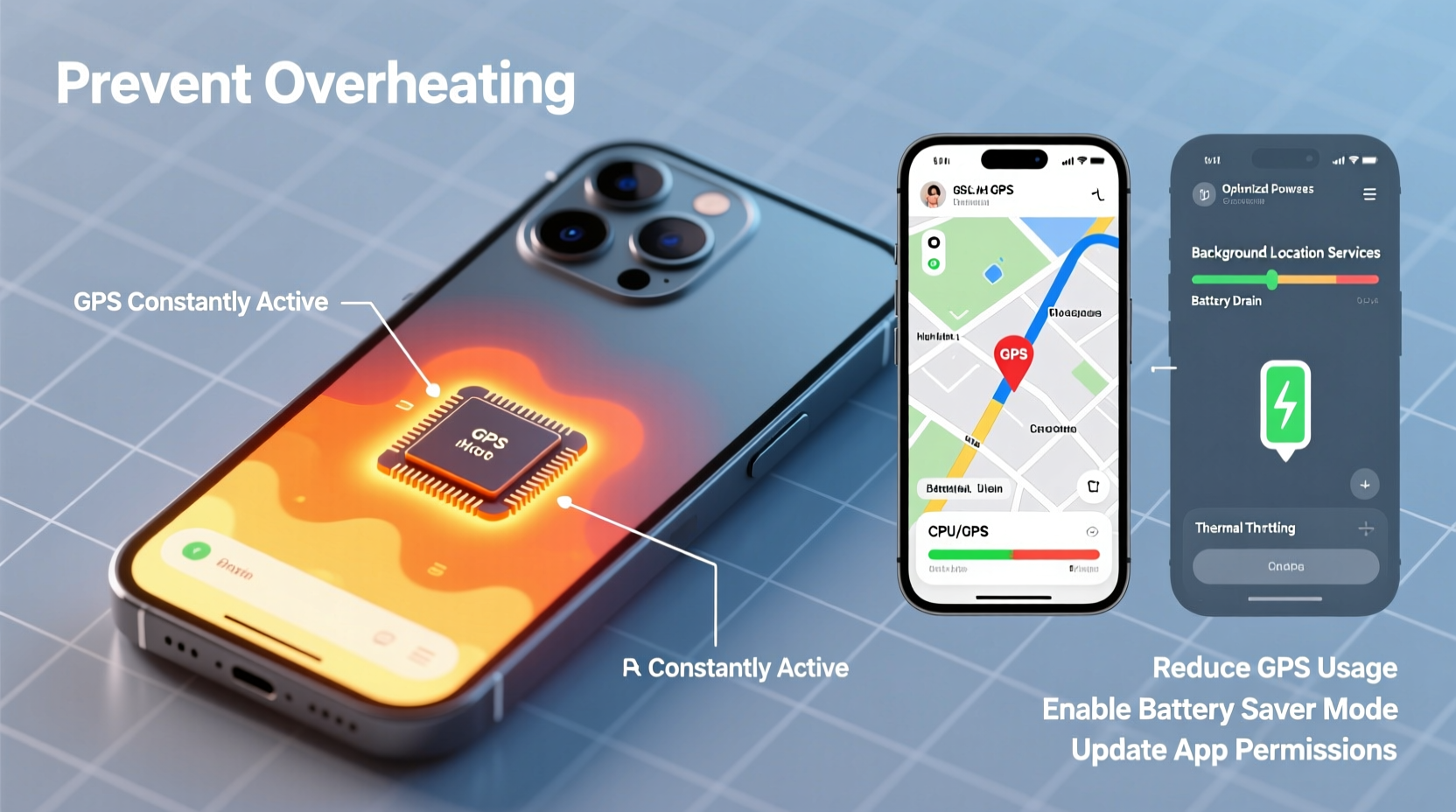
GPS (Global Positioning System) relies on signals from a network of satellites orbiting Earth. Your phone receives these signals and calculates your position based on timing differences between them. While this process sounds passive, it’s actually highly demanding on your device’s resources.
Several key systems activate simultaneously:
- GPS receiver chip: Constantly scanning for satellite signals, which requires high-frequency radio operations.
- Processor (CPU/GPU): Interpreting raw GPS data, updating maps in real time, and rendering complex visuals—all intensive tasks.
- Display: Bright screens consume more power and generate heat, especially during long navigation sessions.
- Cellular and Wi-Fi radios: Used alongside GPS for Assisted GPS (A-GPS), which speeds up location fixes by pulling data from cell towers and nearby networks.
When all these components run together—especially in apps like Google Maps, Waze, or fitness trackers—they create a thermal load that exceeds the phone’s ability to dissipate heat efficiently.
“Smartphones are designed with tight thermal envelopes. When multiple radios and processors run at peak for extended periods, heat builds faster than it can escape.” — Dr. Rajiv Mehta, Mobile Hardware Engineer at TechInsight Labs
This is particularly true in enclosed spaces like car dashboards or pockets, where airflow is limited. The aluminum or glass bodies common in modern phones also conduct heat well, making the warmth more noticeable to touch—even if internal temperatures remain within safety limits.
Common Scenarios That Worsen Overheating
Not all GPS usage is equal. Some situations dramatically increase the risk of overheating:
Navigating in Rural or Urban Canyons
In remote areas with weak satellite visibility, your phone struggles to maintain a lock, forcing the GPS chip to work harder and longer. Similarly, in dense urban environments with tall buildings (“urban canyons”), signals bounce and weaken, leading to constant recalculations.
Using Third-Party Navigation Apps
While apps like Waze offer real-time traffic alerts, they often refresh data more frequently than standard map apps, increasing CPU and network activity. Poorly optimized apps may not throttle background processes efficiently, compounding heat generation.
Charging While Using GPS
Using GPS while charging—especially with fast chargers—adds another layer of thermal stress. The battery generates heat during charging, and combining that with heavy app usage pushes temperatures higher. Many users report overheating warnings specifically during road trips when they plug in to avoid running out of battery.
Step-by-Step Guide to Prevent GPS-Related Overheating
You don’t need to stop using GPS altogether. Instead, adopt smarter habits to keep your phone operating safely:
- Close unnecessary apps before starting navigation. Background apps consume RAM and CPU, reducing efficiency and increasing heat output. Swipe them away or restart your phone before a long trip.
- Lower screen brightness manually. Auto-brightness often maxes out in daylight. Set it to 50–60% instead of 100%. You’ll save power and reduce display heat.
- Use airplane mode with Wi-Fi (if possible). Turn on airplane mode, then re-enable Wi-Fi only. This disables cellular radios but keeps internet access if connected to a hotspot. Less radio activity = less heat.
- Download offline maps in advance. Offline maps reduce reliance on constant data fetching. In Google Maps, go to Settings > Offline Maps > Select Your Area.
- Mount your phone in a shaded, ventilated spot. Use a vent mount instead of a dashboard holder. Airflow helps cooling, and direct sun adds unnecessary thermal load.
- Pause live location sharing when not needed. Apps like Find My, Life360, or fitness trackers constantly update your position. Disable them during non-critical times.
- Enable battery saver mode. This throttles CPU speed, reduces background sync, and dims the screen slightly—small changes that add up to cooler operation.
Do’s and Don’ts: Managing Heat During GPS Use
| Do | Don’t |
|---|---|
| Use a well-ventilated phone mount | Leave your phone on a sun-facing dashboard |
| Download offline maps before travel | Rely solely on live data streaming |
| Turn off Bluetooth if not using car audio | Keep all wireless connections active |
| Take breaks during long drives to let the phone cool | Ignore repeated overheating warnings |
| Use a case with heat-dissipating materials (e.g., polycarbonate) | Use thick silicone or leather cases during heavy use |
Real-World Example: A Commuter’s Experience
Consider Sarah, a delivery driver in Chicago who logs over three hours daily using GPS navigation. After two months, her phone began shutting down mid-route despite being plugged in. Diagnostics showed no hardware failure, but temperature logs revealed consistent peaks above 45°C (113°F) during rush hour.
She adjusted her routine: she started downloading neighborhood maps each morning, switched to a vent-mounted holder, lowered screen brightness, and disabled social media notifications during shifts. Within a week, shutdowns stopped, and her phone rarely exceeded 38°C (100°F). Her battery also lasted 25% longer per charge.
Sarah’s case illustrates how small behavioral changes—not expensive upgrades—can resolve overheating issues caused by prolonged GPS use.
When to Suspect a Deeper Problem
Occasional warmth during GPS use is normal. But persistent overheating—even after applying preventive measures—may indicate underlying issues:
- Faulty battery: Swollen or aged batteries generate excess heat and lose thermal regulation efficiency.
- Background malware or rogue apps: Some malicious apps run hidden location tracking, draining resources without user knowledge.
- Damaged casing or blocked vents: Dirt, dust, or physical damage can impair heat dissipation, especially around the charging port or frame edges.
- Outdated software: Older OS versions may lack power management optimizations present in updates.
If your phone overheats during light usage or when idle, consider a professional diagnostic. Most manufacturers offer free thermal testing at service centers.
Checklist: Keep Your Phone Cool During GPS Use
- ☑ Download offline maps before departure
- ☑ Use a ventilated phone mount (not dashboard)
- ☑ Lower screen brightness to 50–60%
- ☑ Close unused background apps
- ☑ Enable battery saver mode
- ☑ Avoid charging with fast charger during navigation
- ☑ Remove thick case during extended use
- ☑ Reboot phone weekly to clear memory leaks
Frequently Asked Questions
Can GPS overheating damage my phone permanently?
Yes, chronic exposure to high temperatures can degrade the lithium-ion battery, reduce its maximum capacity, and shorten overall lifespan. Prolonged heat may also affect adhesive integrity (e.g., screen lifting) and sensor accuracy. Occasional warming is safe, but repeated thermal stress should be avoided.
Does using GPS drain the battery faster than other apps?
Absolutely. GPS combined with screen-on time and data usage is among the top battery drainers. Studies show continuous GPS use can deplete 20–30% of battery per hour, depending on signal strength and app efficiency. Offline maps and reduced refresh rates help conserve power.
Is it safe to continue using my phone after an overheating warning?
No. When your phone displays a temperature warning, it has already entered a protective state. Continuing to use it risks temporary shutdown, app crashes, or long-term component wear. Let it cool in a shaded area for 10–15 minutes before resuming use.
Conclusion: Stay Cool, Stay Navigated
Your phone’s GPS is a powerful tool, but it demands careful handling to avoid thermal strain. By understanding the technical causes of overheating and adopting simple, effective habits, you can maintain reliable navigation without compromising device health.
Heat isn’t just uncomfortable—it’s a sign your phone is working too hard. Respect those warnings. Optimize your settings, choose smart mounting locations, and monitor usage patterns. Small adjustments today can extend your phone’s functional life by years.




 浙公网安备
33010002000092号
浙公网安备
33010002000092号 浙B2-20120091-4
Comments
No comments yet. Why don't you start the discussion?