
Your phone’s screen dimming unexpectedly can be more than just annoying—it disrupts reading, affects video viewing, and may even strain your eyes. While automatic brightness is designed to enhance usability by adjusting to ambient light, many users find it inconsistent or overly sensitive. If your screen keeps dimming without warning, you’re not alone. This behavior often stems from system settings, battery-saving features, or hardware sensors misbehaving. The good news: you can take control. Understanding the root causes and learning how to disable auto brightness permanently gives you full command over your display experience.
What Causes Your Phone Screen to Dim Randomly?
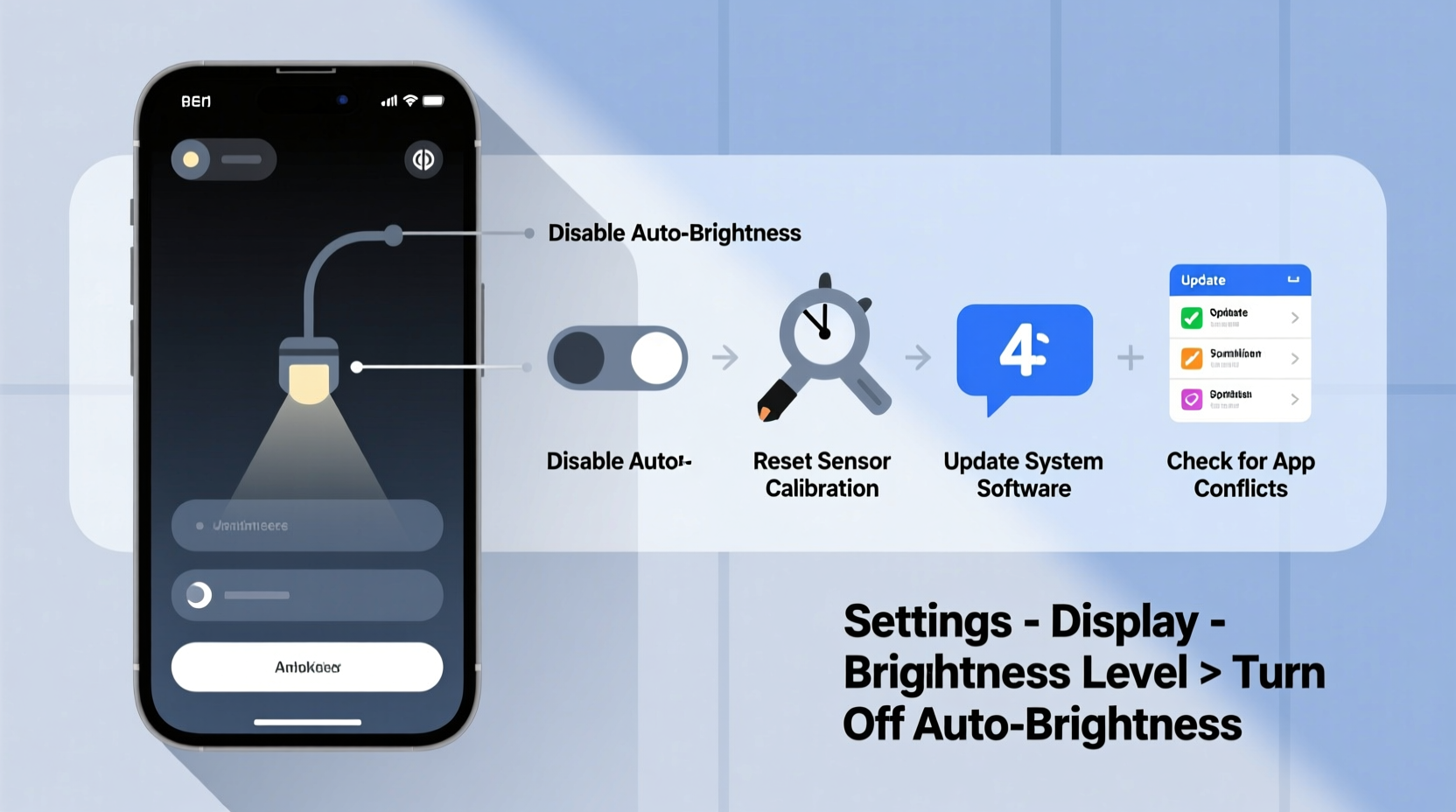
Random screen dimming is rarely a hardware defect in modern smartphones. Instead, it's typically driven by software logic tied to power efficiency and user comfort. The most common cause is the adaptive brightness feature, which uses your phone’s ambient light sensor to adjust screen luminance based on surroundings. However, other factors can amplify or trigger unwanted dimming:
- Adaptive Brightness Settings: Enabled by default on most devices, this feature constantly monitors light levels and adjusts brightness accordingly—even if you’ve manually set it.
- Battery Saver Mode: When activated (automatically at low battery or manually), it reduces screen brightness to conserve energy.
- Screen Timeout and Sleep Settings: After inactivity, the screen dims before turning off completely, sometimes perceived as random dimming.
- Third-Party Apps: Some apps override system brightness settings for their own interface (e.g., e-readers, night mode tools).
- Faulty Light Sensor: Dust, screen protectors, or case obstructions can interfere with the sensor’s readings, causing erratic adjustments.
- Dark Mode or Night Shift: These features may reduce perceived brightness or alter color temperature, giving the impression of dimming.
How Auto Brightness Works: A Closer Look
Auto brightness relies on a small ambient light sensor—usually located near the front-facing camera—that detects how much light is present in your environment. Based on this input, the operating system dynamically scales the backlight intensity of your display. On newer phones, machine learning models may also factor in usage patterns, time of day, and app context to predict optimal brightness levels.
While this sounds efficient, real-world performance varies. Inconsistent lighting—like moving between shaded and sunny areas—or rapidly changing environments (e.g., walking through a store with mixed lighting) can confuse the algorithm. As a result, the screen may dim too quickly or brighten abruptly, creating a jarring experience.
“Auto-brightness systems aim to balance visibility and battery life, but they often prioritize efficiency over user preference.” — Dr. Lena Park, Mobile UX Researcher at TechInsight Labs
Step-by-Step Guide to Disable Auto Brightness Permanently
If you prefer consistent screen brightness regardless of lighting conditions, disabling auto brightness is straightforward. Below are detailed instructions for both major platforms.
For Android Devices
- Open the Settings app.
- Tap Display (may appear as “Screen” or “Brightness & wallpaper” depending on brand).
- Look for Brightness level or Adaptive brightness.
- Toggle off the switch next to “Adaptive brightness” or “Auto-adjust brightness.”
- Manually slide the brightness bar to your preferred level.
- To prevent accidental changes, consider locking the setting using a third-party app like Secure Settings or enabling Digital Wellbeing restrictions.
Note: On Samsung Galaxy devices, the option may be labeled “Adaptive brightness” under Display > Brightness slider. On Pixel phones, it’s clearly marked under Display > Adaptive brightness.
For iPhones (iOS)
- Go to Settings.
- Tap Accessibility.
- Select Display & Text Size.
- Find the toggle for Auto-Brightness and turn it off.
- Return to the main Settings menu, go to Display & Brightness, and set your desired brightness manually.
Unlike older iOS versions, newer ones (iOS 14+) no longer hide this setting within general display options—it’s now centralized under Accessibility for better user control.
Additional Fixes If Dimming Persists
Even after disabling auto brightness, some users report continued dimming. This usually points to deeper system-level behaviors. Try these advanced solutions:
Disable Battery Saver Features
Battery Saver modes often force brightness reduction. To stop this:
- Android: Go to Settings > Battery > Battery Saver. Turn it off and ensure it doesn’t activate automatically below a certain percentage.
- iOS: Settings > Battery > Low Power Mode → Disable.
Check for App-Specific Brightness Overrides
Some apps, such as Kindle, Moon Reader, or blue light filters, apply their own brightness controls. These can override system settings while active.
Solution: Review app permissions and settings. In Android, go to Settings > Apps > [App Name] > Permissions and check for \"Modify system settings\" access. Revoke if unnecessary.
Reset Display Calibration (Android Only)
If the ambient sensor seems faulty or overly sensitive:
- Install a trusted sensor calibration app like Sensor Kinetics or Device Info HW.
- Run an ambient light sensor test.
- If readings are erratic, clean the top edge of your phone and restart the device.
- Some manufacturers offer built-in diagnostics (e.g., Samsung’s Device Care > Diagnostics).
Update Your Operating System
Software bugs in outdated OS versions can cause unintended brightness fluctuations. Ensure your phone is running the latest firmware:
- Android: Settings > Software Update.
- iOS: Settings > General > Software Update.
| Issue | Possible Cause | Solution |
|---|---|---|
| Screen dims when unlocking | Auto-brightness reactivating after reboot | Double-check that adaptive brightness is fully disabled |
| Dimming only in specific apps | App-level brightness control | Adjust settings within the app or revoke system modification rights |
| Screen darkens in quick bursts | Faulty light sensor or dirt blockage | Clean the front panel and recalibrate sensor |
| Dimming occurs during calls | Proximity sensor activating | This is normal; sensor prevents accidental touches |
Mini Case Study: Solving Persistent Dimming on a Samsung Galaxy S22
Jamal, a freelance photographer, noticed his Galaxy S22 screen would dim unpredictably while reviewing photos outdoors. He had already turned off adaptive brightness, yet the issue persisted. Initially suspecting a hardware flaw, he contacted Samsung support. After troubleshooting, the agent revealed that Motion & Gestures was enabled with “Palm detection” active—a feature meant to prevent pocket dials but occasionally misread hand shadows as intentional dimming commands.
The fix? Disabling palm swipe to capture and ensuring no gesture settings interfered with display behavior. Additionally, Jamal discovered that his rugged case partially covered the light sensor. Trimming a small section restored accurate readings. His screen now maintains consistent brightness, critical for evaluating image exposure in natural light.
Expert Tips for Maintaining Optimal Screen Performance
Disabling auto brightness is just the first step. For long-term reliability and visual comfort, follow these best practices:
- Set a comfortable baseline brightness: Aim for 50–70% in daylight and 20–40% at night to avoid eye strain.
- Avoid maximum brightness prolonged use: It accelerates OLED burn-in and drains the battery faster.
- Clean the sensor regularly: Use a soft, dry cloth to wipe the top bezel weekly, especially if you use cases or screen protectors.
- Use scheduled brightness (optional): Some Android launchers allow time-based brightness profiles without relying on sensors.
“User-controlled brightness leads to higher satisfaction in usability studies. People know their visual needs better than algorithms.” — Dr. Raj Mehta, Human-Computer Interaction Specialist
FAQ
Will disabling auto brightness drain my battery faster?
Not necessarily. While auto brightness can save power in low-light environments, keeping brightness moderately set (e.g., 60%) often results in similar battery consumption. You gain consistency without significant trade-offs.
Can I disable auto brightness without rooting or jailbreaking?
Yes. Both Android and iOS allow disabling auto brightness through standard settings menus. No special permissions or modifications are required.
Why does my screen still dim slightly even after turning off auto brightness?
This could be due to adaptive tone (on iPhones) or cooling throttling (on high-performance Android devices). When the phone heats up during gaming or video editing, it may temporarily dim the screen to reduce thermal load. This is a safety mechanism and cannot be disabled—but it resets once the device cools.
Conclusion
Random screen dimming is usually a solvable software behavior, not a defect. By understanding how auto brightness functions and taking deliberate steps to disable it, you reclaim control over your phone’s display. Whether you're reading in bed, editing photos, or navigating in sunlight, consistent brightness improves both usability and comfort. The process is simple, reversible, and available on all modern smartphones. Now that you know the causes and fixes, take a few minutes to adjust your settings and enjoy a more predictable screen experience.




 浙公网安备
33010002000092号
浙公网安备
33010002000092号 浙B2-20120091-4
Comments
No comments yet. Why don't you start the discussion?