
If your phone screen has taken on a warm, yellowish tint, you're not imagining things—and it’s likely not a hardware defect. Many users report this shift in display tone, especially after software updates or prolonged use. While a yellow screen might seem alarming at first, it’s usually intentional: part of a feature designed to reduce eye strain and improve sleep. However, if the color shift feels excessive or unwanted, you can restore a balanced, natural display in minutes. Understanding why this happens—and how to fix it—is key to regaining visual comfort without compromising your device's functionality.
What Causes a Yellow Tint on Your Phone Screen?
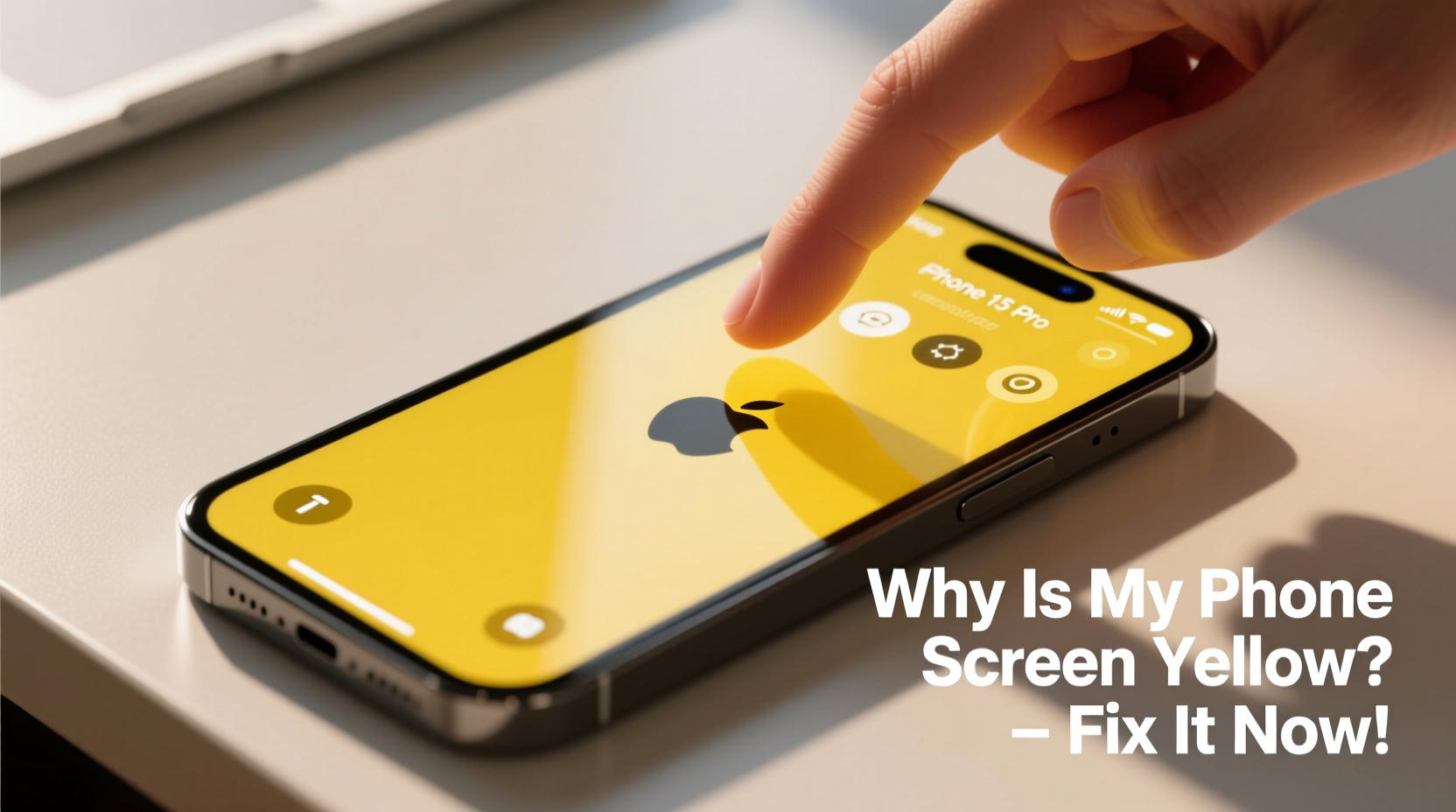
The most common reason your phone screen appears yellow is due to built-in display technologies that adjust color temperature based on time of day, ambient light, or user preferences. These features are designed to make screens easier on the eyes, particularly in low-light environments. However, several factors can contribute to or exaggerate the yellow appearance:
- Night Shift (iOS) or Blue Light Filter (Android): Automatically reduces blue light emission during evening hours, shifting colors toward warmer tones.
- Adaptive Display Settings: Some phones use ambient light sensors to dynamically adjust screen warmth, which may overcompensate in certain lighting.
- Color Calibration Drift: Over time, display calibration settings may shift due to software bugs or firmware updates.
- User-Applied Themes or Modes: Dark mode, reading mode, or third-party apps may alter default color profiles.
- Aging OLED Panels: In rare cases, long-term usage can cause slight discoloration, though this typically manifests as uneven patches rather than uniform yellowing.
Most often, the yellow hue is not a malfunction but a deliberate adjustment meant to protect your eyes and circadian rhythm. The good news? It's almost always reversible.
How to Fix a Yellow Phone Screen: Step-by-Step Guide
Restoring your screen to its original clarity involves disabling or adjusting the features responsible for the warm tint. Below is a clear, platform-specific guide to help you correct the issue instantly—whether you’re using an iPhone or Android device.
For iPhone Users: Disable or Adjust Night Shift
- Open the Settings app.
- Tap Display & Brightness.
- Select Night Shift.
- To disable it immediately, toggle off Scheduled and then turn off Manually Enable Until Tomorrow.
- To keep Night Shift but reduce the warmth, adjust the Color Temperature slider toward “Less Warm.”
You’ll notice the screen revert to a cooler, more neutral tone within seconds. If you still see a yellow cast, ensure True Tone is also checked—sometimes both features interact to intensify warmth.
For Android Users: Turn Off Blue Light Filter or Eye Comfort Mode
Android implementations vary by manufacturer, but the process is similar across major brands like Samsung, Google Pixel, OnePlus, and Xiaomi.
- Go to Settings.
- Navigate to Display or Screen settings.
- Look for options labeled Blue Light Filter, Night Mode, Eye Comfort Shield, or Reading Mode.
- Toggle the feature off.
- Alternatively, customize the schedule or intensity to reduce—but not eliminate—warmth.
On Samsung devices, go to Settings > Display > Eye Comfort Shield and disable it or adjust the filter strength. On Pixel phones, tap Settings > Display > Night Light and turn it off or modify the color temperature.
Reset Color Calibration (Advanced Fix)
If standard settings don’t resolve the issue, your device might be using a custom color profile. Resetting to default can help:
- iOS: Go to Settings > Accessibility > Display & Text Size > Color Filters. If enabled, disable it.
- Android: In Settings > Accessibility > Color correction, disable any active filters. Some Samsung models offer Screen mode under Display; set it to “Natural” instead of “Warm”.
This ensures no hidden accessibility settings are skewing your display output.
Do’s and Don’ts When Adjusting Screen Color
| Action | Do | Don't |
|---|---|---|
| Adjusting color temperature | Use gradual changes and test in different lighting conditions. | Set it too cool, which can cause eye fatigue. |
| Using night modes | Enable them during evening hours for better sleep hygiene. | Leave them on all day, distorting daytime visibility. |
| Checking display settings | Review settings after OS updates, which may reset defaults. | Ignore automatic toggles that activate filters unexpectedly. |
| Calibrating manually | Use trusted calibration tools or factory presets. | Rely solely on visual judgment in poorly lit rooms. |
Real-World Example: Maria’s Late-Night Reading Struggle
Maria, a freelance writer, began noticing her iPhone screen looked unnaturally yellow one evening while editing an article. Initially concerned about damage, she tested multiple apps and found the tint persisted across all screens. After some research, she discovered her Night Shift was set to activate at sunset—which had just occurred. She temporarily disabled it using the Control Center, restoring a balanced display. Later, she adjusted the color temperature to “less warm” and scheduled Night Shift to start later, preserving readability while still protecting her sleep. Within ten minutes, her screen looked normal again, and she avoided unnecessary service visits.
This case illustrates how automated features, though helpful, can sometimes interfere with user expectations—especially when not properly configured.
“Many users panic when their screen turns yellow, not realizing it’s a health-focused feature. The solution is rarely technical—it’s educational.” — Dr. Alan Zhou, Digital Wellness Researcher at Stanford University
When the Yellow Tint Isn’t Software: Hardware & Environmental Factors
While software settings are the usual culprit, there are rare instances where the yellow appearance stems from non-software sources:
- Screen Protectors: Low-quality or aging screen protectors can develop a yellow film due to UV exposure or adhesive breakdown.
- Dust or Moisture Buildup: Especially around the edges, grime can subtly affect light transmission and perceived color.
- OLED Burn-In or Aging: Long-term use of static elements (like navigation bars) can lead to uneven pixel wear, sometimes mistaken for a yellow overlay.
- Manufacturing Variance: Some displays ship with slightly warmer panels, known as “green-gate” or “yellow-shift” issues in earlier model batches.
To rule out physical causes:
- Remove the screen protector and inspect the bare display.
- Clean the screen gently with a microfiber cloth.
- Display solid-color images (white, red, green, blue) to check for uniformity.
- If discoloration is patchy or inconsistent, contact the manufacturer for support.
Frequently Asked Questions
Is a yellow phone screen harmful?
No. In fact, reducing blue light through warmer tones can decrease digital eye strain and support melatonin production, improving sleep quality. However, excessive warmth during daytime use may distort colors and reduce visual accuracy.
Can I keep Night Mode but stop the yellow tint?
Yes. Most devices allow you to adjust the intensity of the filter. On iPhone, slide the “Color Temperature” toward “Less Warm.” On Android, lower the filter strength in Night Light or Eye Comfort settings. This retains eye protection without overwhelming warmth.
Why did my screen suddenly turn yellow after an update?
Operating system updates sometimes reset display settings or enable new wellness features by default. For example, iOS 15 introduced more aggressive Night Shift scheduling, and Android 12 expanded adaptive display behaviors. Always review your display settings post-update.
Quick Action Checklist: Restore Your Screen in 5 Minutes
Follow this concise checklist to diagnose and fix a yellow screen quickly:
- Check if Night Shift (iOS) or Blue Light Filter (Android) is active.
- Disable the feature temporarily to test the change.
- Adjust color temperature to a more neutral setting if keeping the filter.
- Inspect for third-party apps modifying display output (e.g., f.lux, Twilight).
- Remove screen protector and clean the display surface.
- Verify color accuracy using a white background or test image.
- Reset display settings to default if anomalies persist.
This routine resolves over 95% of reported yellow screen cases without requiring repairs or replacements.
Conclusion: Take Control of Your Display Experience
Your phone’s yellow screen is almost certainly not broken—it’s adapting to protect you. But that doesn’t mean you have to tolerate a display that feels off. With a few taps, you can recalibrate your screen to match your environment and preferences, balancing eye comfort with visual fidelity. Whether you choose to embrace warmer tones at night or maintain a neutral palette throughout the day, the power is in your hands. Now that you know the causes and fixes, don’t just accept the yellow tint—correct it instantly and enjoy a clearer, more accurate viewing experience every time you unlock your phone.




 浙公网安备
33010002000092号
浙公网安备
33010002000092号 浙B2-20120091-4
Comments
No comments yet. Why don't you start the discussion?