
It’s a familiar frustration: you press shuffle on your favorite playlist, expecting a fresh mix of tracks, only to hear the same few songs over and over again. Whether you're using Spotify, Apple Music, YouTube Music, or another platform, this issue can make even the best-curated playlists feel stale. But before you assume the algorithm has it out for you, understand that shuffle behavior isn’t truly random in most modern music apps—and sometimes, the repetition is by design.
The illusion of randomness is carefully managed by streaming services to improve user experience, but when it goes wrong, it undermines trust in the system. This article breaks down why your shuffled playlist keeps cycling through the same songs, explains the technical and psychological factors at play, and gives you practical, platform-specific fixes to restore variety and surprise.
How Modern Shuffle Algorithms Work (And Why They’re Not Truly Random)
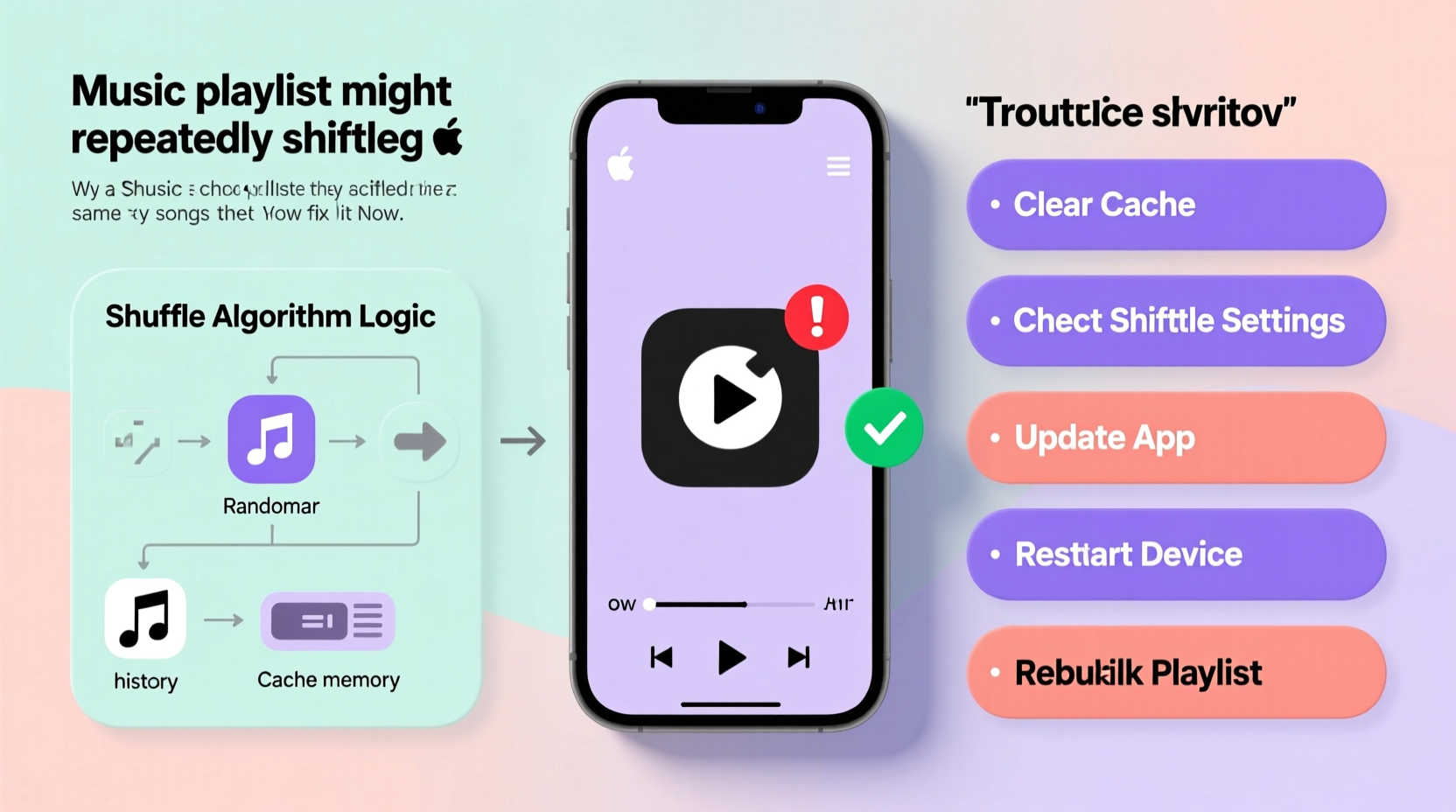
In the early days of digital music players like the iPod, “shuffle” meant exactly that—each song had an equal chance of playing next, with no memory of what came before. But users quickly complained that true randomness felt unfair. Hearing the same artist twice in a row or going 20 songs without hearing a favorite track didn’t feel right—even though mathematically, it was perfectly possible.
Streaming platforms responded by replacing pure randomness with algorithmic curation. Spotify, for example, uses a technique called “shuffling with constraints.” Instead of picking each song independently, the app pre-orders the entire playlist in a randomized sequence that avoids clustering similar artists, genres, or frequently played tracks too close together.
“We found that people thought shuffle wasn’t working when they heard the same artist twice in a row—even if it was statistically normal. So we adjusted the algorithm to feel more random.” — Gustav Söderström, Former Chief R&D Officer, Spotify
This means your playlist isn’t being selected one song at a time—it’s been rearranged behind the scenes into a fixed order before playback begins. Once that order is set, hitting “next” just moves you down the list. If you restart the app or reload the playlist, the shuffle order may regenerate—but not always immediately.
Why This Leads to Repetition
- Limited playlist size: Smaller playlists have fewer combinations, increasing the odds of repeated patterns.
- Algorithmic bias toward favorites: Some platforms subtly favor songs you listen to more often, assuming you want to hear them again.
- Device or app caching: Old shuffle orders may be cached, especially after poor connectivity or app crashes.
- Repeat mode enabled: Accidentally leaving repeat on (especially “repeat one”) causes individual songs to loop.
Platform-Specific Causes and Fixes
Not all music apps handle shuffle the same way. Below is a breakdown of common issues and solutions for major platforms.
Spotify: The “Smart Shuffle” Dilemma
Spotify redesigned its shuffle logic in 2022 to reduce repetition and improve listening flow. However, many users noticed that popular tracks still appeared too frequently, especially in shorter playlists.
Common Issues:
- Shuffle seems to favor top-played songs.
- Same order repeats across sessions.
- “Enhance” feature adds similar songs, which may skew variety.
Solutions:
- Force-refresh the shuffle: Exit the app completely, turn off Wi-Fi/data, reopen Spotify, then re-enable internet and reload the playlist.
- Disable “Enhance”: Tap the three dots on the playlist > “Remove Enhance” to prevent AI-added tracks from influencing playback.
- Clear app cache: In Spotify settings > Storage > Delete Cache.
- Re-save the playlist: Duplicate the playlist under a new name to reset its internal shuffle seed.
Apple Music: iCloud Sync and Device Conflicts
Apple Music’s shuffle behavior can vary between devices due to syncing delays or local vs. cloud library differences.
Common Issues:
- Shuffle order differs between iPhone and Mac.
- iCloud Music Library glitches cause duplicate entries, increasing repetition chances.
- Auto-repeat triggers after reaching the end of a short playlist.
Solutions:
- Ensure iCloud Music Library is synced: Go to Settings > Music and toggle “Sync Library” off and back on.
- Check for duplicates: Search your playlist for repeated entries and remove them.
- Use “Play Next” instead of shuffle: Manually reorder songs temporarily to test if the issue is algorithmic or systemic.
- Restart the device: A full reboot clears temporary playback states that may lock shuffle patterns.
YouTube Music: Personalization Over Randomness
YouTube Music integrates recommendation algorithms deeply into shuffle, often inserting songs from your listening history even in private playlists.
Common Issues:
- Non-playlist songs appear during shuffle.
- Frequent repetition of high-engagement tracks (e.g., liked videos).
- No option to disable algorithmic influence.
Solutions:
- Double-check playlist contents: Ensure no auto-generated mixes are being played instead.
- Disable “Autoplay”: Turn it off in the Now Playing screen to prevent off-listenings.
- Use desktop app for better control: The web version offers clearer UI cues about active playback sources.
- Create a new playlist with the same songs: This often resets the shuffle behavior more effectively than refreshing.
Troubleshooting Checklist: Fix Shuffle Repetition in 5 Steps
If you're tired of hearing the same songs on repeat, follow this actionable checklist to regain control over your listening experience.
- ✅ Verify that “Repeat” is turned off (check for highlighted icon).
- ✅ Close and reopen the music app to clear cached shuffle order.
- ✅ Disable any “enhance,” “radio,” or “autoplay” features adding external tracks.
- ✅ Remove duplicate songs from your playlist (common in manually curated lists).
- ✅ Recreate the playlist under a new name to reset algorithmic memory.
Real Example: Sarah’s Workout Playlist Problem
Sarah, a fitness instructor, created a 12-song high-energy playlist for her classes. Every time she hit shuffle, three songs—“Can’t Stop the Feeling,” “Uptown Funk,” and “Eye of the Tiger”—played within the first five tracks. At first, she thought it was coincidence. After the fifth class in a row with the same pattern, she grew frustrated.
She tried restarting her phone, switching from Bluetooth to wired audio, and even deleting and reinstalling Spotify. Nothing changed—until she checked her playlist settings and discovered “Enhance” was enabled. Spotify had added similar upbeat tracks and was prioritizing her most-streamed songs.
After disabling Enhance and duplicating the playlist, the shuffle behavior normalized. Now, her students enjoy a much more varied mix, and Sarah rotates through her entire catalog evenly.
“It wasn’t broken—it was just optimized for me in a way I didn’t expect. Once I understood the settings, I took back control.” — Sarah M., Fitness Trainer & Music Curator
Do’s and Don’ts of Managing Shuffle Behavior
| Do | Don’t |
|---|---|
| Do use larger playlists (30+ songs) for better shuffle diversity. | Don’t rely on shuffle for small playlists (under 10 songs)—repetition is statistically likely. |
| Do periodically refresh playlists by re-saving them under new names. | Don’t leave “Autoplay” or “Enhance” on if you want pure playlist playback. |
| Do check for duplicate tracks, especially after merging playlists. | Don’t assume the app is broken—first verify settings and connectivity. |
| Do clear app cache monthly to prevent outdated data from affecting playback. | Don’t enable repeat mode unless intentionally looping a single song or album. |
Frequently Asked Questions
Does shuffle really randomize my playlist?
No—not in the mathematical sense. Most streaming services use pseudo-random ordering with rules to prevent clustering of similar songs or artists. This creates a more enjoyable experience but reduces true randomness. You won’t get a fresh roll-the-dice selection every time; instead, the entire playlist is reordered once per session.
Why do I keep hearing the same artist on shuffle?
If multiple songs by the same artist are in your playlist, algorithms may intentionally separate them to avoid monotony. However, if the playlist is small or the artist is heavily favored by your listening history, their songs may still appear frequently. Also, some apps prioritize your most-played artists unless told otherwise.
Can I make shuffle truly random?
Not directly through most apps’ interfaces. However, you can simulate true randomness by exporting your playlist, shuffling the list externally (e.g., using a spreadsheet or randomizer tool), and re-importing it as a new playlist. Alternatively, use third-party tools like Soundiiz or Tune My Music to manage advanced shuffle workflows.
Take Control of Your Listening Experience
The promise of shuffle is freedom—the thrill of not knowing what comes next. When that freedom is compromised by repetition, it dulls the joy of discovery. While modern algorithms aim to please, they sometimes overcorrect, mistaking predictability for satisfaction.
The good news is that you’re not powerless. By understanding how shuffle really works, auditing your settings, and applying simple fixes like clearing caches or recreating playlists, you can restore genuine variety to your music experience. It’s not magic—it’s mechanics. And once you know the levers, you can pull them with confidence.




 浙公网安备
33010002000092号
浙公网安备
33010002000092号 浙B2-20120091-4
Comments
No comments yet. Why don't you start the discussion?