
Smart bulbs promise convenience, ambiance, and energy efficiency—until they start flickering unexpectedly or disconnecting from your network. Frustration sets in when lights dim without command, change color mid-conversation, or fail to respond during voice control. Behind these issues often lies unstable Wi-Fi connectivity or hardware misalignment. Understanding the root causes and implementing targeted solutions can restore reliability to your smart lighting system. This guide explores the technical and environmental factors behind flickering smart bulbs and provides actionable strategies to strengthen your Wi-Fi for consistent performance.
Understanding Smart Bulb Flickering: Common Causes
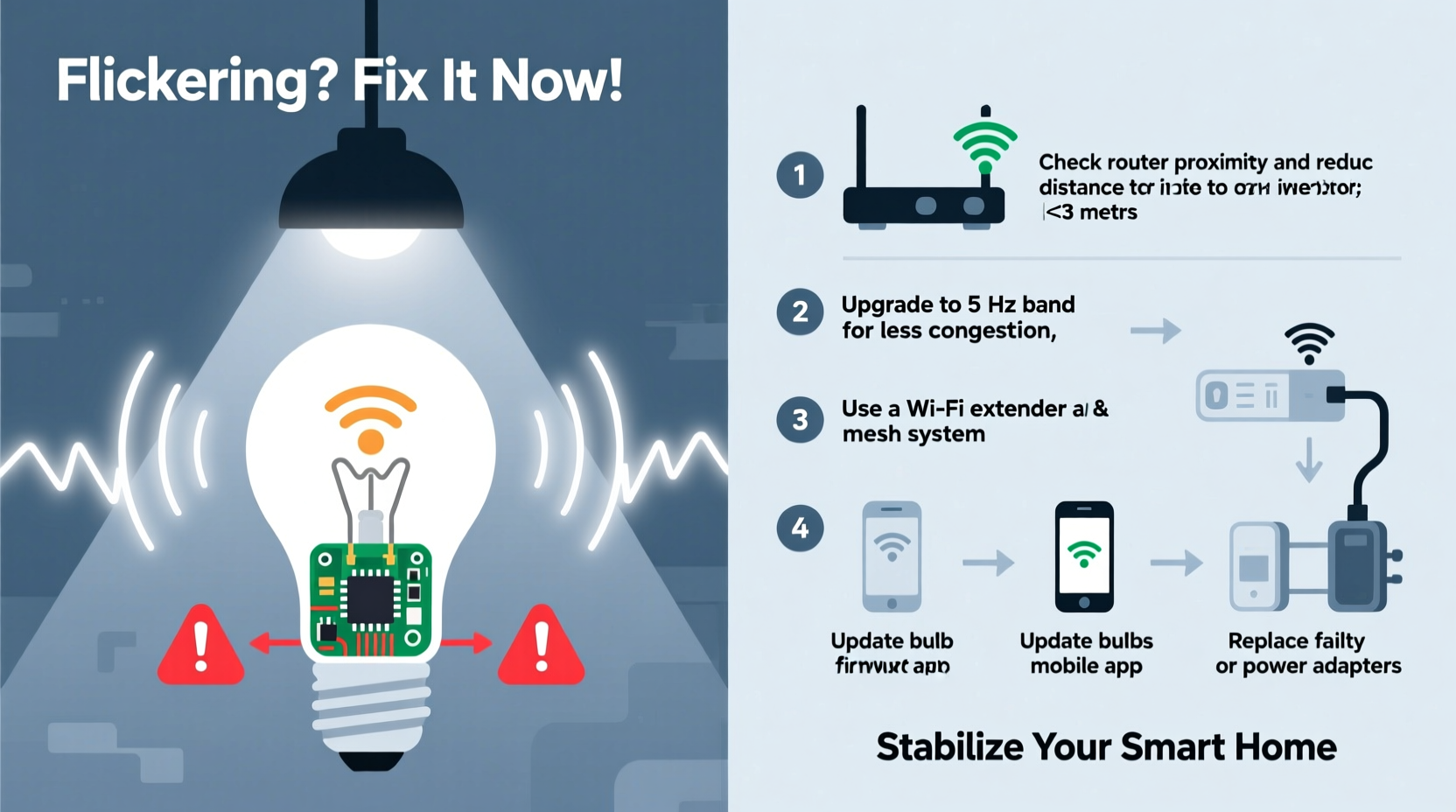
Flickering in smart bulbs is rarely due to a single cause. Instead, it typically results from an interplay between electrical supply, firmware behavior, and wireless signal integrity. Unlike traditional incandescent bulbs, smart bulbs contain microprocessors, radios, and power regulation circuits that make them sensitive to voltage fluctuations and communication delays.
- Voltage fluctuations: Minor changes in household voltage—especially in older wiring systems—can disrupt the internal power supply of smart bulbs, leading to momentary resets or erratic LED behavior.
- Incompatible dimmer switches: Many homes use trailing-edge (ELV) or leading-edge dimmers designed for incandescent loads. Smart LEDs draw far less power, which can confuse dimmer circuits and cause flickering even when the switch is set to \"on.\"
- Firmware bugs: Outdated or corrupted firmware may trigger unintended light patterns or response lags, particularly after updates or power cycles.
- Overheating: Enclosed fixtures restrict airflow, causing internal components to overheat. Thermal throttling or automatic shutdowns can manifest as flickering.
- Signal interference: Nearby microwave ovens, cordless phones, or neighboring Wi-Fi networks on overlapping channels can degrade 2.4 GHz signals used by most smart bulbs.
The Role of Wi-Fi Stability in Smart Lighting Performance
Wi-Fi is the nervous system of your smart lighting ecosystem. Each command—from turning on a lamp to scheduling sunset scenes—relies on stable two-way communication between your bulb, router, and app server. When packets drop or latency spikes, bulbs may respond slowly, disconnect entirely, or exhibit ghost flickers triggered by partial commands.
The 2.4 GHz band, commonly used by smart bulbs due to its longer range, is also crowded and prone to congestion. Devices like baby monitors, Bluetooth speakers, and even poorly shielded USB 3.0 hubs emit electromagnetic noise that overlaps with Wi-Fi channels 1–11. As more IoT devices join your network, bandwidth contention increases, especially if your router lacks Quality of Service (QoS) features.
“More than 70% of smart home malfunctions reported to support teams stem from network instability rather than device failure.” — David Lin, Senior Network Engineer at HomeTech Labs
Key Indicators of Poor Wi-Fi Health Affecting Smart Bulbs
- Lights respond inconsistently to app or voice commands
- Bulbs appear offline despite being powered
- Scheduled routines fail intermittently
- Multiple bulbs flicker simultaneously during high-bandwidth activities (e.g., video streaming)
Step-by-Step Guide to Stabilize Your Smart Bulb Network
Resolving flickering and connectivity issues requires both diagnostic precision and systematic improvements. Follow this sequence to identify and eliminate root causes.
- Verify physical installation: Ensure the bulb is securely screwed into the socket. Loose connections create intermittent power delivery, mimicking software glitches.
- Remove incompatible dimmers: Replace legacy dimmer switches with smart-compatible models or bypass them temporarily using a smart wall switch that works natively with your bulbs.
- Update firmware: Open your smart lighting app (e.g., Philips Hue, LIFX, or Kasa) and check for pending updates. Firmware patches often resolve known flicker bugs and improve radio efficiency.
- Reboot the entire network: Power down your router, modem, and all smart bulbs. Wait 60 seconds, then restart in order: modem → router → bulbs. This clears stale IP assignments and re-establishes clean DHCP leases.
- Optimize router placement: Position your router centrally, elevated, and away from metal objects, mirrors, and large appliances. Avoid placing it inside cabinets or behind TVs.
- Switch to a less congested Wi-Fi channel: Use a tool like Wi-Fi Analyzer (Android) or NetSpot (Mac/PC) to scan nearby networks. Choose a 2.4 GHz channel with minimal overlap—ideally channel 1, 6, or 11.
- Assign static IPs or use MAC filtering: Prevent IP conflicts by reserving specific addresses for each smart bulb via your router’s admin panel.
- Limit connected devices: Disconnect unused IoT gadgets. Too many active clients strain router memory and processing capacity.
Do’s and Don’ts for Long-Term Smart Bulb Reliability
| Do’s | Don’ts |
|---|---|
| Use bulbs rated for enclosed fixtures if installed in covered lamps | Install smart bulbs behind glass shades without ventilation |
| Keep firmware updated monthly | Ignore manufacturer update notifications |
| Separate IoT devices onto a guest network | Mix high-bandwidth devices (gaming consoles, 4K streams) on the same subnet as smart lights |
| Use a mesh Wi-Fi system for homes over 1,500 sq ft | Rely solely on a single router located at one end of a large house |
| Test new bulbs individually before full deployment | Replace all bulbs at once without verifying compatibility |
Mini Case Study: Resolving Chronic Flickering in a Two-Story Home
Mark, a homeowner in Portland, installed ten smart bulbs across his two-story residence. Within days, he noticed frequent flickering in upstairs bedrooms, especially at night. The downstairs lights remained stable. Initial troubleshooting focused on the bulbs themselves—replacements were tried, but the problem persisted.
Upon inspection, it was discovered that the upstairs circuit shared a neutral wire with a kitchen appliance line, introducing minor harmonic distortion. Additionally, the main router was located in the basement, resulting in weak 2.4 GHz signal strength on the second floor (measured at -78 dBm).
The solution involved three steps: installing a Wi-Fi mesh node on the first floor, replacing the master bedroom’s dimmer switch with a Cync smart switch, and enabling QoS settings to prioritize IoT traffic. After implementation, flickering ceased completely, and bulb responsiveness improved from 1.8 seconds average delay to under 400 milliseconds.
Advanced Solutions for Persistent Connectivity Issues
When basic fixes fall short, consider upgrading infrastructure to meet modern smart home demands.
Deploy a Dedicated IoT VLAN
Segmenting smart devices onto their own virtual network isolates them from bandwidth-heavy activities. Most modern routers (e.g., ASUS RT-AX86U, TP-Link Deco XE200) support VLAN creation through their management interface. This reduces latency and enhances security by limiting lateral access between device classes.
Upgrade to Wi-Fi 6 with OFDMA Support
Wi-Fi 6 (802.11ax) introduces Orthogonal Frequency Division Multiple Access (OFDMA), allowing routers to serve multiple devices in a single transmission cycle. For environments with 15+ smart bulbs, this dramatically improves efficiency and reduces packet collisions.
Use Zigbee or Z-Wave Hubs as Alternatives
If Wi-Fi proves unreliable, transition to protocols designed for low-power, mesh-based control. Philips Hue, for example, uses Zigbee, where bulbs relay signals to each other, forming a resilient web. A central bridge connects to Wi-Fi, but individual nodes communicate peer-to-peer, reducing dependency on constant router contact.
“Zigbee networks self-heal and adapt routing paths, making them inherently more stable than direct Wi-Fi-connected bulbs.” — Dr. Lena Patel, IoT Systems Architect
Troubleshooting Checklist: Eliminate Flicker & Boost Signal
Use this checklist to methodically address both flickering and connectivity concerns:
- ✅ Confirm bulb is properly seated in socket
- ✅ Eliminate incompatible dimmer switches
- ✅ Update bulb firmware via manufacturer app
- ✅ Reboot router and modem
- ✅ Run Wi-Fi scan to select least congested channel
- ✅ Move router to central, unobstructed location
- ✅ Install mesh extender or repeater if signal is weak
- ✅ Separate smart bulbs onto a guest or IoT network
- ✅ Check for overheating; ensure adequate fixture ventilation
- ✅ Consider switching to Zigbee/Z-Wave with a dedicated hub
Frequently Asked Questions
Can a poor internet connection cause smart bulbs to flicker?
No—flickering is not directly caused by slow broadband speeds. However, local Wi-Fi instability (packet loss, high latency, or disconnections) can lead to incomplete command execution, which may result in unintended brightness changes or temporary flickering as the bulb attempts to reconnect.
Why do my smart bulbs flicker only at night?
This often occurs due to increased electrical load during evening hours. Appliances like HVAC systems, refrigerators, or space heaters cycling on can induce minor voltage sags detectable by sensitive smart bulb drivers. It may also coincide with higher Wi-Fi congestion from streaming devices, worsening command delivery.
Is it safe to leave flickering smart bulbs installed?
Prolonged flickering can indicate underlying electrical issues or component stress. While occasional flicker due to signal loss is generally harmless, persistent flashing—especially accompanied by buzzing or heat—should be investigated. Continued operation under such conditions may shorten bulb lifespan or pose fire risk in extreme cases.
Conclusion: Build a Reliable Smart Lighting Foundation
Smart bulbs enhance comfort and functionality, but their performance hinges on attention to detail beyond simple plug-and-play setup. Flickering is rarely random—it's a symptom of mismatched components, environmental interference, or network fragility. By addressing electrical compatibility, optimizing Wi-Fi architecture, and applying disciplined maintenance, you can achieve seamless, flicker-free illumination that responds instantly and reliably.
Start today by auditing your current setup: test one bulb at a time, measure signal strength, and verify firmware status. Small adjustments compound into significant gains in stability. A well-tuned smart lighting system shouldn’t require daily troubleshooting—it should work silently and consistently, just as intended.




 浙公网安备
33010002000092号
浙公网安备
33010002000092号 浙B2-20120091-4
Comments
No comments yet. Why don't you start the discussion?