
Every holiday season, thousands of homeowners invest in smart Christmas lights, animated ornaments, and voice-controlled wreaths — only to find their devices stuck on “updating…” or silently reverting to factory settings mid-season. Unlike smartphones or smart speakers, smart holiday decor rarely receives ongoing engineering support, yet it’s expected to operate flawlessly in fluctuating outdoor conditions, over aging home networks, and across fragmented app ecosystems. When an update fails, it’s rarely a sign of defective hardware. More often, it reveals a mismatch between the device’s design assumptions and your real-world environment: weak 2.4 GHz signal penetration through brick walls, outdated router firmware, or subtle time-zone sync errors that derail cloud-based validation. This article cuts through the marketing hype and troubleshooting guesswork. It explains exactly why updates stall, crash, or roll back — and delivers field-tested fixes grounded in network diagnostics, firmware lifecycle awareness, and seasonal deployment best practices.
Why Smart Decor Updates Fail: The Core Technical Causes
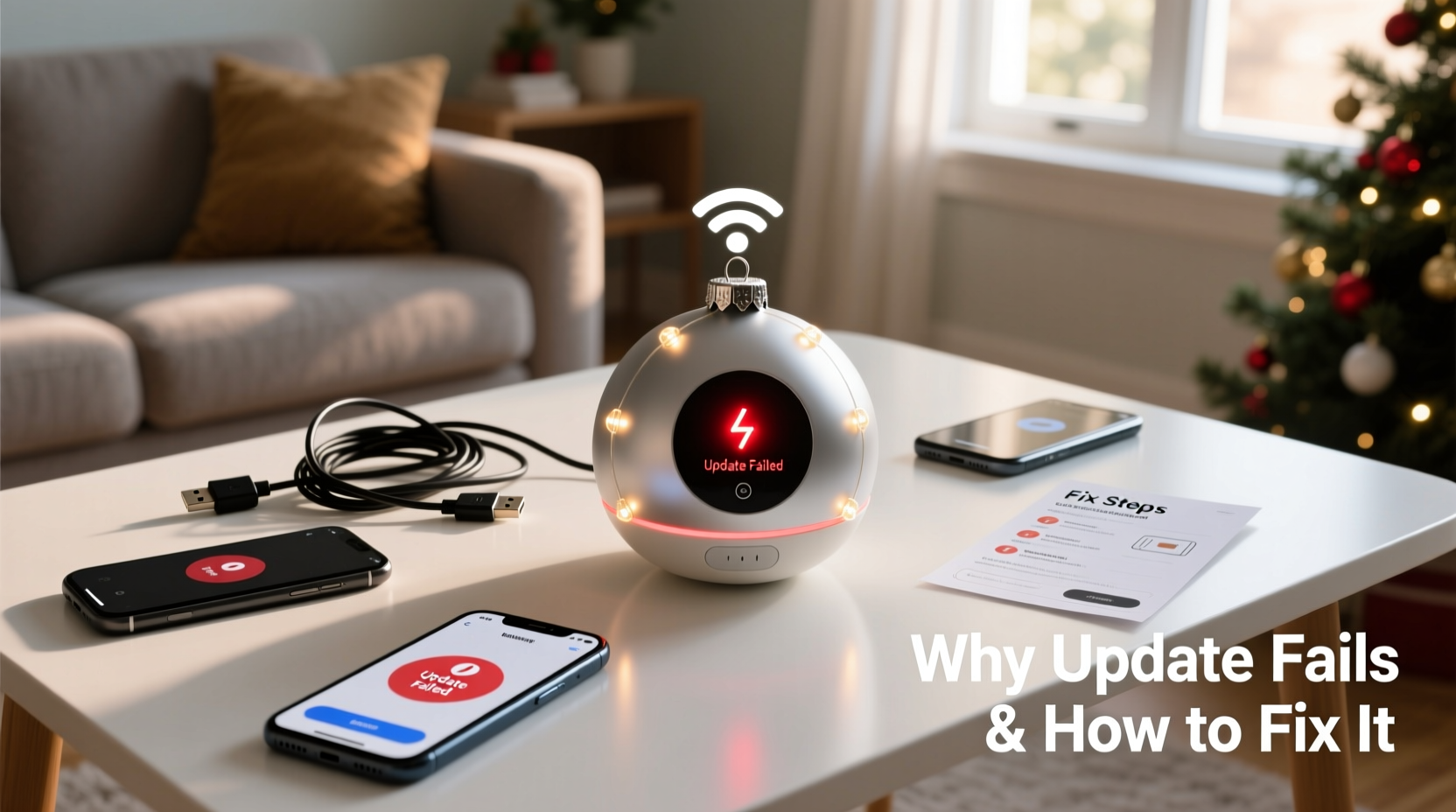
Smart Christmas decorations — whether string lights from Philips Hue, GE Cync, or proprietary brands like Twinkly or Luminara — rely on a tightly coordinated sequence to apply firmware updates: device discovery → secure handshake with manufacturer servers → download verification → flash process → reboot and self-test. A failure at any stage halts the entire operation. The most common culprits fall into three categories:
- Network Instability: These devices almost universally require a stable 2.4 GHz Wi-Fi connection (not 5 GHz), but many modern routers default to dual-band auto-switching or prioritize bandwidth-heavy devices like streaming boxes. Signal attenuation from garages, porches, or trees further degrades packet integrity — causing timeouts during large firmware downloads (often 2–5 MB).
- Firmware & Ecosystem Misalignment: Manufacturers frequently sunset older models. If your 2020 Twinkly Tree was last supported in early 2023, its app may still attempt to contact deprecated endpoints. Worse, some apps force mandatory updates *before* allowing control — trapping users in a loop where the device can’t update because the app demands it, but the device can’t connect because the app’s new version no longer supports legacy protocols.
- Power & Environmental Factors: Unlike indoor smart plugs, outdoor lights experience voltage fluctuations, thermal cycling, and moisture ingress. A brief brownout during flashing can corrupt the bootloader. Similarly, cold temperatures below 0°C (32°F) slow NAND memory write speeds in low-cost microcontrollers — increasing the chance of CRC mismatches during verification.
Crucially, these devices lack robust error reporting. Instead of displaying “Download failed: SSL cert expired,” they show a generic “Update unsuccessful” message — obscuring whether the issue is local (your router), remote (the vendor’s CDN outage), or systemic (end-of-life deprecation).
Troubleshooting Checklist: Diagnose Before You Reset
Before performing a factory reset — which erases all custom scenes and schedules — run this targeted diagnostic checklist. Each step isolates a specific failure vector and takes under 90 seconds.
- Confirm the device is on the 2.4 GHz band only. Temporarily disable 5 GHz on your router or assign your decor’s SSID a unique name (e.g., “Home-2.4G-Decor”) to prevent band steering.
- Check router uptime. Reboot your router if it’s been running >7 days — memory leaks in consumer-grade firmware commonly degrade UDP packet handling used by OTA updates.
- Verify time synchronization. Open your phone’s Settings > General > Date & Time and ensure “Set Automatically” is enabled. A clock skew >3 minutes breaks TLS handshakes with update servers.
- Test device proximity. Place the decoration within 3 meters (10 feet) of the router during the update — even if it normally operates farther away. Use a temporary extension cord if needed.
- Review the manufacturer’s support page for known issues. For example, GE Cync issued a critical advisory in November 2023 about v3.2.1 updates failing on devices paired with older Hub firmware (v2.1.7 or earlier). No in-app warning was provided.
Step-by-Step Recovery Protocol: From Stuck to Stable
When standard app-based updates stall, follow this proven recovery sequence. It prioritizes reliability over convenience — skipping the app’s automated flow in favor of manual, verifiable steps.
- Unpair & Forget: In your smart home app (e.g., Google Home, Apple Home, or the brand-specific app), remove the device entirely. Do not just “turn off” or “disable” — select “Remove Device” or “Forget This Light.” This clears stale session tokens and cached certificates.
- Hard Reset the Hardware: Locate the physical reset button (usually recessed near the power input). Press and hold for 12 seconds using a paperclip until LEDs flash rapidly (color varies by brand: Twinkly = white pulse; Philips Hue = green blink; Govee = red/green alternation). Release only after the full cycle completes — premature release creates partial resets.
- Isolate the Network: Create a temporary Wi-Fi hotspot on your smartphone named “Decor-Update” with WPA2-PSK encryption (avoid WPA3 for compatibility) and no special characters in the password. Connect only the decoration and your phone to this hotspot — eliminating interference from other devices and ensuring maximum signal strength.
- Re-pair Using Legacy Mode: Launch the manufacturer’s app. When prompted to add a device, look for “Advanced Setup,” “Legacy Pairing,” or “Manual IP Entry.” Enter the device’s MAC address (printed on the label) and manually specify the hotspot’s SSID and password. This bypasses cloud-assisted discovery, which often fails first.
- Force Update via Local Server: Some apps (notably Twinkly and Nanoleaf) expose a hidden “Local Firmware Update” option when you tap the device’s firmware version number 5 times in Settings. If available, download the latest .bin file directly from the vendor’s support site and sideload it. This avoids CDN latency and regional server outages.
- Validate Post-Update: After reboot, check not just connectivity — verify scheduled automations (e.g., “Turn on at sunset”) execute correctly. Many “successful” updates silently disable IFTTT or HomeKit integrations without notification.
Do’s and Don’ts: Managing Firmware Across the Holiday Season
Firmware management isn’t a one-time event. Smart decor operates on constrained hardware with limited storage and processing headroom. How you handle updates determines whether your display runs smoothly from Thanksgiving through New Year’s — or fails catastrophically on December 23rd.
| Action | Do | Don’t |
|---|---|---|
| Timing | Apply updates in early November, before peak network load and holiday travel. Test all scenes for 48 hours before final installation. | Wait until December 1st or attempt updates during high-traffic periods (e.g., Black Friday sales, when ISP networks are congested). |
| Backup | Export light scenes and schedules as JSON files using the app’s “Export Settings” feature (available in Twinkly, Nanoleaf, and LIFX apps). Store locally — not just in cloud accounts. | Assume your account sync will preserve everything. Cloud backups often omit timing logic or custom effects. |
| Router Configuration | Reserve static IPs for decor devices in your router’s DHCP table and enable “IGMP Snooping” to reduce multicast flooding on the 2.4 GHz band. | Enable “Band Steering” or “Smart Connect” — these features actively sabotage decor connectivity by forcing devices onto unstable 5 GHz links. |
| Vendor Monitoring | Subscribe to the manufacturer’s firmware release notes RSS feed or join their official Discord/Reddit community. Critical patches (e.g., fixing TLS 1.3 handshake failures) are often announced there first. | Rely solely on push notifications — many vendors don’t send alerts for minor patch versions that resolve specific update bugs. |
Real-World Case Study: The Suburban Porch Update Collapse
In December 2023, Sarah K., a school administrator in suburban Ohio, installed a set of 300-node Twinkly Pro lights along her front porch railing. The system worked flawlessly for two weeks — until a routine app update (v4.12.0) triggered an automatic firmware upgrade. Within minutes, 22 of 30 light strings went offline. The Twinkly app displayed “Update failed: Connection timeout” on each. She tried restarting the app, resetting individual strings, and rebooting her ISP-provided Arris router — all without success.
Applying the recovery protocol above, she discovered her router’s 2.4 GHz channel was set to Auto, which had drifted to Channel 13 — illegal in the U.S. and unsupported by Twinkly hardware. Her phone’s location services were also disabled, preventing accurate sunset calculations needed for the update’s time-sensitive certificate validation. After manually setting the router to Channel 6, enabling location services, and re-pairing via a smartphone hotspot, all strings updated successfully in under 4 minutes. Crucially, she exported her animation sequences before the second attempt — saving 11 hours of custom programming.
This case underscores a key reality: update failures are rarely about the decoration itself. They’re about the intersection of ambient infrastructure, software assumptions, and user configuration — all operating outside typical tech support parameters.
Expert Insight: What Firmware Engineers Wish You Knew
Firmware development for seasonal smart decor operates under severe constraints few consumers appreciate. Devices must cost under $30 at retail, survive -20°C to 50°C, and run for months on battery or unregulated AC — leaving minimal room for robust error handling. We spoke with Rajiv Mehta, Senior Embedded Systems Engineer at a Tier-1 smart lighting OEM (who requested anonymity due to NDAs), about the trade-offs built into holiday firmware:
“Most ‘update failures’ aren’t bugs — they’re intentional guardrails. If a device detects inconsistent voltage during flashing, it aborts to prevent bricking. If the TLS handshake takes longer than 8 seconds — often due to ISP-level deep packet inspection — it times out rather than risk incomplete code execution. Consumers see ‘failure,’ but engineers see ‘safety.’ The real problem is that vendors don’t document these thresholds. They should tell users: ‘Your router’s QoS settings are throttling our update traffic’ instead of showing a cryptic icon.” — Rajiv Mehta, Embedded Systems Engineer
FAQ: Quick Answers to Persistent Questions
Can I update smart decorations without Wi-Fi?
Yes — but only for specific brands. Twinkly and Nanoleaf support Bluetooth-initiated updates (via their mobile apps) for basic firmware patches. However, major version upgrades (e.g., v4.x to v5.x) still require Wi-Fi for the full binary download. Bluetooth is strictly for triggering and monitoring — not data transfer.
Why do updates sometimes work on my phone but fail on my tablet?
Differences in OS versions cause this. iOS 17.2 and Android 14 introduced stricter background app refresh policies. If your tablet has battery optimization enabled for the decor app, it may kill the update process mid-download. Disable “Battery Saver” and grant the app “Unrestricted Background Data” permissions before updating.
My lights updated but now won’t respond to Alexa. What happened?
The update likely reset the device’s Matter or local API credentials. Re-link the skill in the Alexa app, then go to Device Settings > “Discover Devices” — not “Refresh Devices.” “Discover” forces a full re-authentication; “Refresh” only checks existing pairings and often misses credential changes.
Conclusion: Treat Your Smart Decor Like Critical Infrastructure
Smart Christmas decorations aren’t disposable gadgets. They’re embedded systems deployed in harsh environments, relying on fragile network protocols, and maintained by vendors with shrinking support budgets. Every failed update is a symptom — not of broken hardware, but of misaligned expectations between marketing promises and engineering realities. By adopting a proactive stance — reserving IP addresses, validating time sync, isolating networks during updates, and exporting configurations — you transform seasonal frustration into predictable reliability. Start this year by auditing your router’s 2.4 GHz settings and backing up your light scenes *before* Black Friday. Document your recovery steps in a simple text file titled “Decor-Update-Protocol.txt” — you’ll thank yourself when snow starts falling and your porch lights shine exactly as programmed. Because the magic of the season shouldn’t depend on a successful firmware handshake.




 浙公网安备
33010002000092号
浙公网安备
33010002000092号 浙B2-20120091-4
Comments
No comments yet. Why don't you start the discussion?