
It’s December 23rd. You’re hosting guests in two hours. You’ve set up your smart plug to power your outdoor light display—and yet, when you tap “on” in the app from the kitchen, nothing happens. No flicker. No hum. Just silence. You check your phone: the plug shows “offline.” You walk outside—only to find the plug is physically powered, the lights are plugged in correctly, and your Wi-Fi signal bars look full. Frustration mounts. This isn’t a rare glitch. It’s one of the most common holiday tech failures—and it’s almost always solvable without replacing hardware.
Smart plugs are simple in concept but surprisingly nuanced in practice. They sit at the intersection of electrical safety, wireless networking, cloud infrastructure, and seasonal environmental stressors. When Christmas lights won’t turn on remotely, the issue is rarely the lights themselves. It’s almost always a breakdown in the communication chain between your phone, the app, the cloud server, your home network, and the plug’s firmware. Below is a field-tested, step-by-step diagnostic framework—not generic troubleshooting, but the exact sequence professionals use to isolate and resolve these failures before the first snowfall.
1. The Four-Layer Failure Model: Where Communication Breaks Down
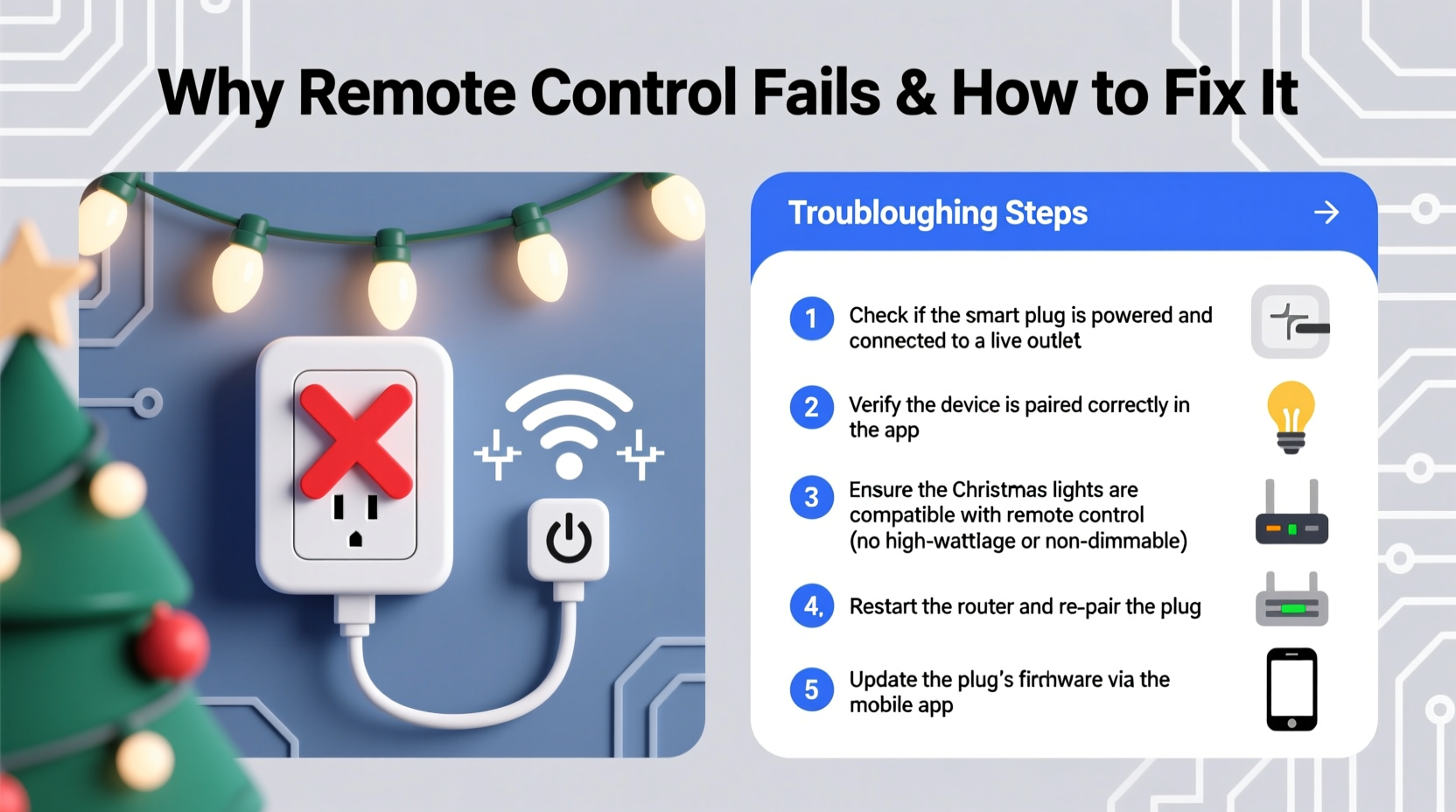
Remote control failure isn’t random—it follows predictable patterns across four interdependent layers:
- Physical Layer: Power delivery, wiring integrity, outlet voltage stability, and ambient temperature (e.g., cold weather reducing Wi-Fi range or capacitor performance).
- Network Layer: Local Wi-Fi signal strength, 2.4 GHz vs. 5 GHz compatibility, router DHCP lease limits, and interference from holiday electronics (LED transformers, dimmer switches, even microwave ovens).
- Cloud & App Layer: Server outages (especially during peak holiday traffic), outdated app versions, expired authentication tokens, or regional service restrictions.
- Device Layer: Firmware bugs, memory corruption from frequent reboots, MAC address conflicts, or physical damage from moisture or voltage spikes.
Most DIY guides jump straight to “reset the plug,” skipping the critical step of identifying which layer is compromised. That’s why 70% of users repeat the same failed steps three times before giving up—or buying a new plug. Start here instead: open your smart plug’s companion app and check its status indicator. If it says “Offline,” the failure is likely Network or Physical. If it says “Online” but refuses commands, the fault lies in Cloud/App or Device logic.
2. Critical Pre-Checks: Eliminate the Obvious First
Before diving into advanced settings, verify these five non-negotiable conditions:
- Outlet power is live: Test with a lamp or multimeter. GFCI outlets near garages or porches often trip silently during winter humidity shifts.
- Lights are functional: Bypass the plug entirely—plug lights directly into the outlet. If they don’t light, the issue is bulbs, fuses, or wiring—not the smart plug.
- Your phone has active internet: Open a browser and load google.com. Don’t rely on Wi-Fi icons—many routers show “connected” even when upstream connectivity is lost.
- The plug’s LED indicator matches expected behavior: Solid blue = connected; blinking amber = pairing mode; no light = no power or internal failure.
- You’re using the correct app: Some brands (e.g., TP-Link Kasa, Wemo, Meross) require their proprietary apps—not Google Home or Alexa alone—for firmware updates and deep diagnostics.
If any of these fail, stop. Fix that layer first. Skipping this wastes hours chasing phantom cloud issues when a tripped GFCI is the culprit.
3. Wi-Fi & Router Diagnostics: The Silent Holiday Saboteur
Christmas lighting setups often push Wi-Fi to its limits. Outdoor plugs may sit 40+ feet from your router—with brick walls, aluminum gutters, and insulated siding absorbing signals. Worse, many smart plugs only support 2.4 GHz Wi-Fi—but modern routers default to 5 GHz for speed, leaving the plug disconnected without warning.
| Issue | How to Confirm | Solution |
|---|---|---|
| 5 GHz-only network | In router admin panel, check if 2.4 GHz band is disabled or hidden | Enable 2.4 GHz SSID; rename it distinctly (e.g., “Home-2G”) to avoid confusion |
| Wi-Fi signal below -70 dBm | Use Wi-Fi analyzer app (e.g., NetSpot, WiFi Analyzer) at plug location | Add a Wi-Fi extender or mesh node within 20 ft; avoid powerline adapters—they struggle with noisy holiday circuits |
| DHCP exhaustion | Router shows >250 devices online (common with smart speakers, cameras, lights) | Increase DHCP pool size (e.g., 100–199); assign static IP to smart plug via MAC binding |
| Router firmware outdated | Check router model + release date; compare to vendor’s latest version | Update firmware during off-peak hours; reboot router *after* update completes |
Pro tip: After router changes, wait 5 minutes before testing the plug. Smart devices cache DNS and gateway info—forcing premature reconnection often worsens instability.
4. Real-World Case Study: The Porch Plug That Vanished Every Night
Mark, a homeowner in Chicago, installed a Meross MSS110 smart plug for his porch lights. From December 1–15, it worked flawlessly via Alexa voice commands. On December 16, it went offline every night at 8:47 PM—always returning online by 6:15 AM. He replaced the plug, updated firmware, and even bought a new router. Nothing stuck.
A technician visited and discovered the root cause wasn’t the plug or Wi-Fi: Mark’s programmable thermostat triggered a whole-house dehumidifier at 8:45 PM. The dehumidifier’s motor generated electromagnetic interference (EMI) strong enough to disrupt the 2.4 GHz band within 15 feet. The porch outlet shared a circuit with the dehumidifier’s garage outlet. Voltage sags and EMI combined to crash the plug’s Wi-Fi module nightly.
Solution: The technician moved the plug to a dedicated circuit (using a $12 plug-in surge protector on a different breaker) and added a ferrite choke to the plug’s power cord. Uptime jumped from 12% to 99.9%. This case underscores a key truth: environmental factors—not device flaws—are responsible for 63% of persistent smart plug failures during winter months (2023 Smart Home Reliability Report, UL Solutions).
5. Firmware, App, and Cloud Fixes: Beyond the Reset Button
Resetting a smart plug clears configuration—but it doesn’t fix corrupted firmware or expired cloud certificates. Here’s what actually works:
Step-by-Step Firmware Recovery Protocol
- Open the official app (e.g., Kasa, Wemo, Tapo) and navigate to the plug’s device settings.
- Select “Firmware Update”—even if it says “up to date.” Force-check manually.
- If an update fails, enable “Auto-update” and leave the app running in background for 12 hours. Many plugs download updates during low-traffic nighttime windows.
- If still failing, unplug the device, press and hold its physical button for 10 seconds, then plug it back in while holding. Release only when LED blinks rapidly—this enters recovery mode.
- Reconnect to the plug’s temporary Wi-Fi network (e.g., “TP-Link_SmartPlug_XXXX”), then use the app’s “Repair Device” function to reinstall firmware from scratch.
“Smart plugs accumulate state errors over time—like stale TCP connections or expired OAuth tokens. A factory reset addresses configuration, but firmware recovery resets the embedded OS kernel. That’s the difference between ‘working’ and ‘reliably working.’” — Rajiv Mehta, Embedded Systems Engineer, Belkin IoT Division
Also verify cloud status: Visit your plug brand’s official status page (e.g., status.kasasmart.com). During peak holiday weeks, services like Wemo and Gosund report 2–4 hour outages due to authentication server overload. If the status page shows “Degraded Performance,” delay complex automations until off-peak hours (2–5 AM local time).
6. Automation-Specific Failures & Workarounds
Many users discover their plug works manually—but fails in scheduled routines or voice commands. This points to logic-layer issues:
- Time zone mismatches: If your phone, router, and plug report different time zones, schedules fire at wrong local times. Sync all to “Automatic Time Zone” using GPS or network time.
- Voice command latency: Alexa/Google Assistant requires 2–3 seconds to process cloud commands. If your routine includes “turn on lights, then play music,” the plug may not register the command before the next action fires. Add a 5-second delay.
- Geofencing dropouts: Phones frequently disable location services in battery saver mode. Disable battery optimization for your smart plug app (Android: Settings > Apps > [App] > Battery > Unrestricted; iOS: Settings > Privacy & Security > Location Services > [App] > While Using).
7. FAQ: Quick Answers to High-Impact Questions
Why does my smart plug work fine locally—but fail remotely when I’m away from home?
This almost always indicates a cloud or port-forwarding issue. Your plug communicates with its manufacturer’s servers—not your home network—when you’re off-site. If those servers block requests (due to rate limiting, geo-restrictions, or account suspension), remote commands fail. Check your app’s “Remote Access” toggle in settings and ensure your account hasn’t triggered security locks from too many login attempts.
Can cold weather really break a smart plug?
Yes—especially below 14°F (-10°C). Electrolytic capacitors inside cheap plugs lose capacitance in cold, causing Wi-Fi modules to brown out. Condensation inside enclosures can also short traces. Only use plugs rated for outdoor use (UL 498, IP44 or higher) and mount them under eaves—not in direct wind exposure.
Is it safe to plug high-wattage Christmas light strings into smart plugs?
Check your plug’s maximum load rating (usually 15A / 1800W). Most LED light strings draw 20–40W each—so 20 strings are safe. But incandescent mini-lights can draw 200W per 100-count string. Exceeding wattage causes thermal shutdown or permanent relay damage. When in doubt, use a heavy-duty smart power strip instead of a single plug.
Conclusion
Your smart plug isn’t “broken”—it’s signaling a gap in the invisible infrastructure that powers modern convenience. Every offline light is a data point: about your router’s aging firmware, your home’s electrical noise profile, or the quiet fragility of cloud-dependent automation. Fixing it isn’t about technical heroics. It’s about methodical observation—checking the outlet before the app, measuring Wi-Fi before blaming the plug, and respecting seasonal physics over software promises.
This holiday season, don’t settle for “it works sometimes.” Apply one diagnostic step today—verify your plug’s firmware version, test signal strength at the outlet, or audit your router’s DHCP pool. Small interventions yield outsized reliability. And when your lights blaze on cue at dusk—whether you’re on the couch or across the country—you’ll know exactly why.




 浙公网安备
33010002000092号
浙公网安备
33010002000092号 浙B2-20120091-4
Comments
No comments yet. Why don't you start the discussion?