
Smart speakers have become central to modern homes, offering hands-free control over music, lighting, calendars, and more. But nothing disrupts the seamless experience like hearing your smart speaker repeat or echo its own responses. Whether it's a robotic loop of “OK Google” or Alexa repeating itself in stereo from multiple devices, audio echo can be frustrating and confusing. The good news is that most echo issues stem from predictable causes—and they’re usually easy to fix.
This guide dives into the technical and environmental factors behind smart speaker echo, outlines practical troubleshooting steps, and provides real-world solutions to restore clear, reliable voice interactions.
Understanding Why Smart Speakers Echo
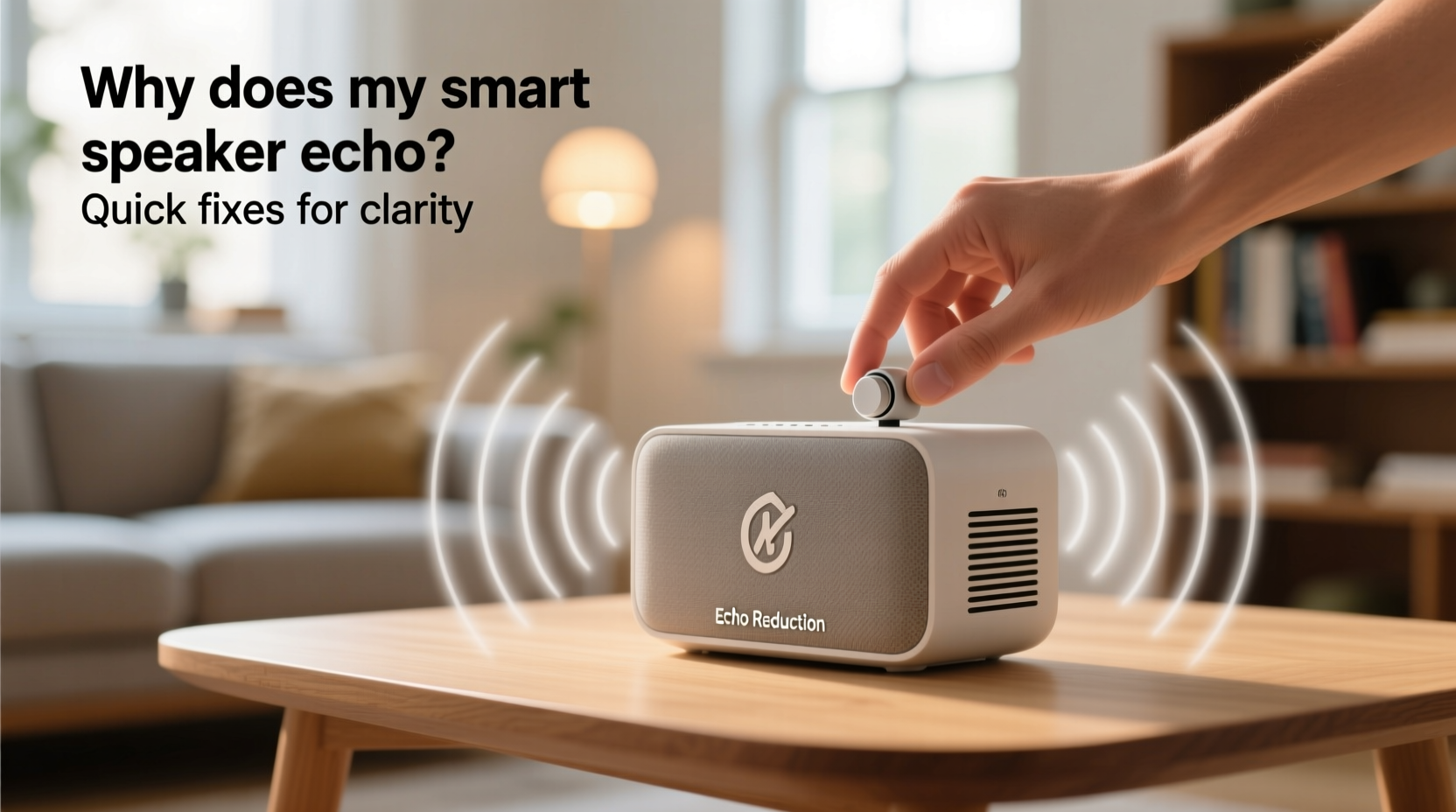
An echo occurs when a smart speaker’s response is picked up by another microphone—either its own or a nearby device—and triggers a secondary activation. This creates a feedback loop where the assistant hears its own output as a new command. While this might sound like a flaw in the device, it’s often the result of overlapping settings, poor placement, or network conditions.
Common contributing factors include:
- Multiple activated devices: More than one smart speaker responding to the same wake word.
- Poor acoustic environment: Hard surfaces like glass, tile, or bare walls reflect sound, increasing the chance of self-triggering.
- High speaker volume: Loud playback can cause the microphone to misinterpret audio output as a new voice command.
- Firmware or software bugs: Outdated or glitchy updates may impair noise cancellation algorithms.
- Incorrect room calibration: Devices not optimized for their physical location may struggle with echo cancellation.
“Echo issues are rarely about hardware failure. Most cases are environmental or configuration-related.” — Dr. Lena Park, Senior Audio Engineer at HomeTech Labs
Step-by-Step Guide to Eliminate Smart Speaker Echo
Follow this systematic approach to identify and resolve the root cause of echo across your smart home ecosystem.
- Identify all active devices in range
Check which smart speakers or displays are within earshot. Use your voice assistant app (Google Home, Amazon Alexa, Apple Home) to view all connected devices on your network. - Disable redundant wake-word detection
If you have multiple speakers in one room, disable wake-word listening on all but one. For example, in the Alexa app, go to Settings > Your Device > Microphone & Camera Controls and toggle off the microphone when not needed. - Adjust speaker volume
Lower the volume slightly. A level between 40–60% often provides sufficient clarity without overwhelming the built-in echo cancellation. - Reposition your speaker
Move the device away from walls, mirrors, or other reflective surfaces. Place it at ear level and avoid corners, which amplify sound reflection. - Enable built-in echo cancellation
Ensure features like “Far-Field Voice Recognition” (Google) or “Adaptive Listening” (Amazon) are turned on. These use advanced signal processing to distinguish commands from playback. - Run a room setup or calibration
Both Google Nest and Amazon Echo offer room calibration tools. Initiate a sound test through the app to help the device adjust to ambient acoustics. - Update firmware and apps
Check for pending updates. Manufacturers frequently release patches that improve audio processing and reduce false triggers.
Do’s and Don’ts: Managing Multi-Speaker Setups
If you use several smart speakers throughout your home, coordination is key. The following table outlines best practices for maintaining clarity across devices.
| Do | Don't |
|---|---|
| Group devices by room in your app (e.g., “Kitchen Group”) | Allow every speaker to respond individually in the same space |
| Use routines to activate only necessary devices | Place two speakers directly opposite each other |
| Turn off microphones on secondary devices in high-echo zones | Ignore firmware update notifications |
| Test voice pickup after rearranging furniture | Mount speakers flush against hard walls without padding |
| Use speakerphone mode selectively during calls | Assume all devices must always be listening |
Real Example: Fixing an Echo Loop in a Modern Kitchen
Sarah installed an Echo Dot above her kitchen counter and later added a second one near the dining area for better coverage. Soon after, she noticed Alexa would sometimes respond twice—once from each device. Worse, during music playback, the first speaker’s audio would trigger the second, creating a delayed echo.
She resolved it in three steps:
- Opened the Alexa app and created a “Kitchen” speaker group, setting only the counter unit as the primary responder.
- Disabled the wake word on the dining-area Dot while keeping Bluetooth and music streaming active.
- Placed a small fabric placemat behind the counter speaker to dampen wall reflections.
The echo stopped immediately. Sarah now uses the second speaker as a passive audio zone, eliminating redundancy without sacrificing functionality.
Advanced Fixes for Persistent Echo Problems
When basic troubleshooting doesn’t work, deeper adjustments may be required. These strategies address less obvious causes of echo.
Check Network Latency and Bandwidth
High latency or packet loss can delay audio processing, causing timing mismatches in echo cancellation. Run a speed test near your speaker. Look for:
- Latency under 50ms
- Jitter below 30ms
- Stable connection (no frequent drops)
If your Wi-Fi is weak, consider using a mesh system or relocating your router closer to high-use areas.
Reset and Reconfigure the Device
A factory reset clears corrupted settings that may interfere with audio logic. To reset:
- Amazon Echo: Press and hold the Action button (dot icon) for 25 seconds until the light ring turns orange.
- Google Nest: Press and hold the microphone mute button for 12 seconds.
- Apple HomePod: Unplug, wait 10 seconds, plug back in, then hold the top until the white light swirls.
After resetting, re-register the device via the app and reapply settings carefully.
Use External Acoustic Treatments
In rooms with hardwood floors, large windows, or minimal furnishings, sound bounces freely. Simple additions can absorb excess audio:
- Rugs or floor mats
- Curtains or blinds
- Bookshelves with varied objects
- Acoustic foam panels (discreetly placed behind devices)
Troubleshooting Checklist
Use this checklist to methodically eliminate echo sources:
- ✅ Confirm only one device per room responds to wake words
- ✅ Lower speaker volume to test if echo disappears
- ✅ Reposition speaker away from walls and reflective surfaces
- ✅ Run room calibration in the companion app
- ✅ Update all device firmware and mobile apps
- ✅ Disable microphones on secondary speakers in shared spaces
- ✅ Test Wi-Fi signal strength near the speaker
- ✅ Add soft materials to the room to absorb sound
- ✅ Perform a factory reset if issues persist
- ✅ Contact manufacturer support if hardware defect is suspected
Frequently Asked Questions
Can two Alexa devices respond at the same time?
Yes, if they’re both enabled for wake-word detection and within range. However, this often leads to echo or duplicated responses. To prevent this, group devices in the Alexa app and designate only one as the primary responder for voice queries.
Why does my Google Nest repeat answers after I ask a question?
This typically happens when the speaker’s output is picked up by its own microphone or a nearby device. Try reducing volume, enabling “Voice Match,” and running the “Sound Calibration” tool in the Google Home app to improve recognition accuracy.
Is speaker echo a sign of a broken microphone?
Not usually. Most echo issues are environmental or software-related. However, if no settings changes help and the problem appears suddenly on a previously working device, contact customer support to rule out hardware faults.
Final Thoughts: Clarity Starts with Awareness
Smart speaker echo isn’t inevitable—it’s manageable. By understanding how voice assistants process sound and interact with their surroundings, you gain control over your home’s audio experience. The solution often lies not in replacing hardware, but in refining placement, adjusting settings, and being mindful of room dynamics.
Start with simple changes: mute extra microphones, lower the volume, and reposition your device. Then move to advanced steps like calibration and network checks if needed. Most users resolve echo issues within minutes using these methods.




 浙公网安备
33010002000092号
浙公网安备
33010002000092号 浙B2-20120091-4
Comments
No comments yet. Why don't you start the discussion?