
Smart thermostats are designed to make life easier—automating heating and cooling, learning your schedule, and saving energy. But when your thermostat starts adjusting the temperature without your input, it can feel more like a nuisance than a convenience. If you've found yourself asking, “Why does my smart thermostat keep changing temps on its own?” you're not alone. Thousands of homeowners experience this issue, often due to misunderstood settings, software quirks, or environmental factors. The good news? Most causes are fixable with the right knowledge.
This guide breaks down the most common reasons behind unexplained temperature shifts and provides actionable solutions to restore stability and predictability to your HVAC system.
Common Causes of Unwanted Temperature Changes
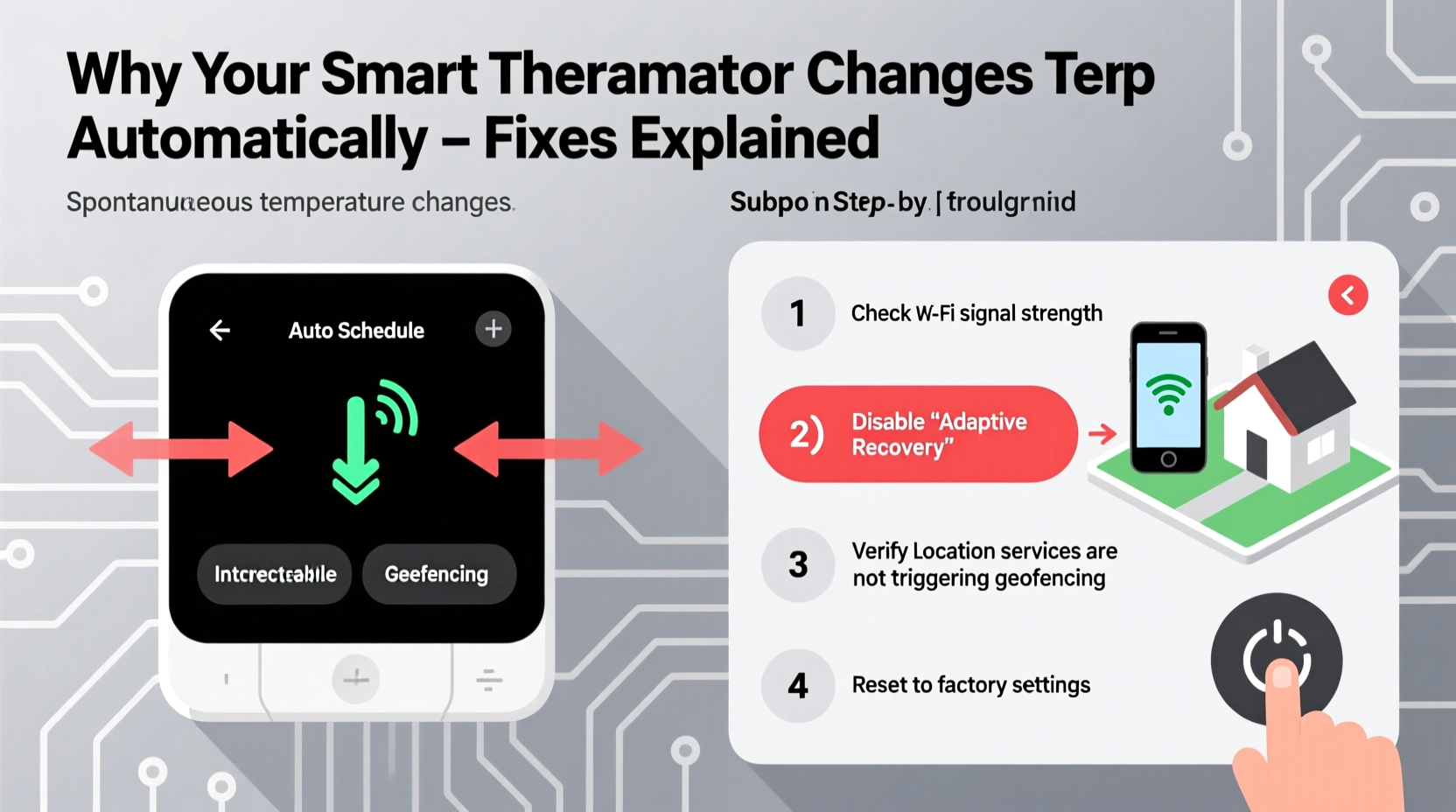
Before jumping into fixes, it’s essential to understand what might be triggering the behavior. Smart thermostats don’t act randomly—they respond to inputs, schedules, and algorithms. Here are the top reasons your thermostat may seem to change temperatures on its own:
- Scheduled programming: Your thermostat may be following a pre-set schedule you forgot about or didn’t fully configure.
- Auto-schedule or learning mode: Devices like the Nest or Ecobee learn your habits and adjust temperatures automatically based on occupancy patterns.
- Geofencing features: When enabled, these use your smartphone’s location to determine if you’re home or away, triggering “Away” or “Home” modes.
- Energy-saving modes (e.g., Eco, Sleep, or Away): These activate during specific times or inactivity periods to reduce energy use.
- Remote access via app: Family members or roommates might be adjusting the temperature from their phones.
- Faulty sensors or inaccurate readings: Poor placement near heat sources or drafts can cause false temperature detection.
- Software glitches or updates: Firmware updates can reset settings or introduce bugs that affect behavior.
Understanding which factor applies to your situation is the first step toward regaining control.
Step-by-Step Guide to Diagnose and Fix the Issue
Follow this structured approach to identify and resolve the root cause of your thermostat’s erratic behavior.
- Review your current schedule
Check your thermostat’s app or interface for active time-based temperature settings. Look for any “Heat,” “Cool,” or “Auto” periods that might explain changes. Disable or modify any unwanted entries. - Disable auto-schedule or learning mode (if desired)
Navigate to settings and turn off adaptive features. For example, on a Nest, go to Settings > Learning & Alerts > Turn off Auto-Schedule. This gives you full manual control. - Check geofencing and occupancy settings
Ensure no connected devices are triggering “Away” mode unintentionally. In the app, review which phones are linked and whether location services are accurate. You can disable geofencing entirely if it’s causing issues. - Inspect remote access permissions
Verify who has access to your thermostat app. Remove any unnecessary users and consider changing your account password if unauthorized changes are suspected. - Test sensor accuracy
Compare your thermostat’s reading with a standalone thermometer placed nearby. A difference of more than 1–2 degrees indicates a calibration issue. Relocate the thermostat if it’s near sunlight, appliances, or vents. - Restart the thermostat and router
Power cycle both the thermostat and your Wi-Fi router. This resolves temporary connectivity glitches that may disrupt normal operation. - Check for firmware updates
Ensure your device is running the latest software version. Outdated firmware can cause instability, while new updates often include bug fixes.
Do’s and Don’ts: Managing Smart Thermostat Behavior
| Action | Do | Don’t |
|---|---|---|
| Setting schedules | Create consistent daily routines with clear wake, leave, return, and sleep times. | Overload with too many schedule changes or conflicting rules. |
| Using geofencing | Enable it only if all household members have reliable GPS and battery settings. | Assume it works perfectly; test it during different times of day. |
| Placing the thermostat | Install in a central, interior wall away from direct light, vents, or electronics. | Mount near kitchens, bathrooms, windows, or exterior doors. |
| Maintenance | Reboot monthly and check for updates quarterly. | Ignore error messages or connectivity alerts. |
| User access | Limited access to trusted individuals with strong passwords. | Share login details over text or email. |
Real-World Example: The Case of the Midnight Chill
Consider Sarah, a homeowner in Denver who installed a Nest Thermostat two years ago. She programmed her ideal schedule: 70°F during the day, 65°F at night. But over several weeks, she noticed the house cooled to 60°F around midnight—waking her up shivering.
After checking her schedule and finding no anomalies, she reviewed the activity log in the Nest app. It revealed repeated “Away” mode triggers between 11 PM and 1 AM. Confused, she realized her teenage son was leaving his phone charger in the living room and going to bed upstairs. Since the Nest used his phone for geofencing, it interpreted the motionless phone as “no one home.”
The fix? Sarah disabled geofencing for her son’s device and set a fixed bedtime schedule. The midnight drops stopped immediately.
This case illustrates how subtle, overlooked features—especially those involving multiple users and devices—can create confusing outcomes.
Expert Insight: What HVAC Professionals Say
“Most ‘rogue’ thermostat behavior stems from misconfigured automation, not hardware failure. Homeowners often enable smart features without fully understanding how they interact. A 10-minute settings review can prevent months of frustration.” — Mark Reynolds, Certified HVAC Technician with 18 years of experience
“The biggest mistake people make is treating a smart thermostat like a traditional one. It’s a mini-computer. It needs maintenance, updates, and thoughtful configuration—just like your phone.” — Lisa Tran, Smart Home Integration Specialist
Troubleshooting Checklist
Use this checklist to systematically address and eliminate unwanted temperature fluctuations:
- ☐ Review and confirm all temperature schedules in the app
- ☐ Disable Auto-Schedule or Learning Mode if not needed
- ☐ Turn off geofencing or verify all linked devices are accurate
- ☐ Check recent activity logs for unexpected changes or triggers
- ☐ Confirm no other users are adjusting the temperature remotely
- ☐ Test thermostat temperature against a reliable thermometer
- ☐ Ensure the thermostat is not exposed to heat sources or cold drafts
- ☐ Reboot the thermostat and your Wi-Fi router
- ☐ Update firmware to the latest version
- ☐ Reset to factory settings (as a last resort) and reconfigure manually
Frequently Asked Questions
Can a power outage cause my smart thermostat to reset its schedule?
Yes. While most modern thermostats have backup batteries or capacitors to retain settings during short outages, prolonged power loss can erase custom programs. After an outage, always double-check your schedule and Wi-Fi connection. Some models automatically restore settings from the cloud once reconnected.
Why does my thermostat switch to ‘Eco’ mode unexpectedly?
Eco mode typically activates when the system detects no one is home—either through geofencing, lack of motion, or manual scheduling. If it turns on too aggressively, adjust the “Away” sensitivity settings or extend the delay before activation (e.g., wait 60 minutes instead of 15). You can also disable Eco mode entirely in the app under “Settings > Modes.”
Is it possible for my thermostat to malfunction due to age?
Absolutely. While smart thermostats can last 5–10 years, older units may suffer from degraded internal sensors, slower processors, or outdated software support. If your device is over five years old and frequently behaves erratically despite troubleshooting, consider upgrading to a newer model with better reliability and security updates.
Final Thoughts: Regain Control with Confidence
Your smart thermostat should simplify your life—not complicate it. Unwanted temperature swings are rarely random; they’re signals pointing to configuration gaps, environmental interference, or user behavior. By methodically reviewing settings, testing performance, and applying targeted fixes, you can transform your thermostat from a source of frustration into a reliable tool for comfort and efficiency.
Start by auditing your current setup using the checklist provided. Pay special attention to geofencing, user access, and sensor placement—these are the most common culprits. Once stabilized, maintain consistency with routine checks and updates. Remember: technology serves you, not the other way around.




 浙公网安备
33010002000092号
浙公网安备
33010002000092号 浙B2-20120091-4
Comments
No comments yet. Why don't you start the discussion?