
A smart thermostat is designed to simplify life—automating heating and cooling, learning your habits, and saving energy. But when it keeps dropping its Wi-Fi connection, that convenience turns into frustration. You lose remote access, scheduling fails, and energy efficiency takes a hit. The good news? Most disconnection issues stem from common, fixable causes. This guide breaks down the real reasons behind smart thermostat disconnects and delivers practical, tested solutions you can apply immediately.
Understanding Why Smart Thermostats Disconnect
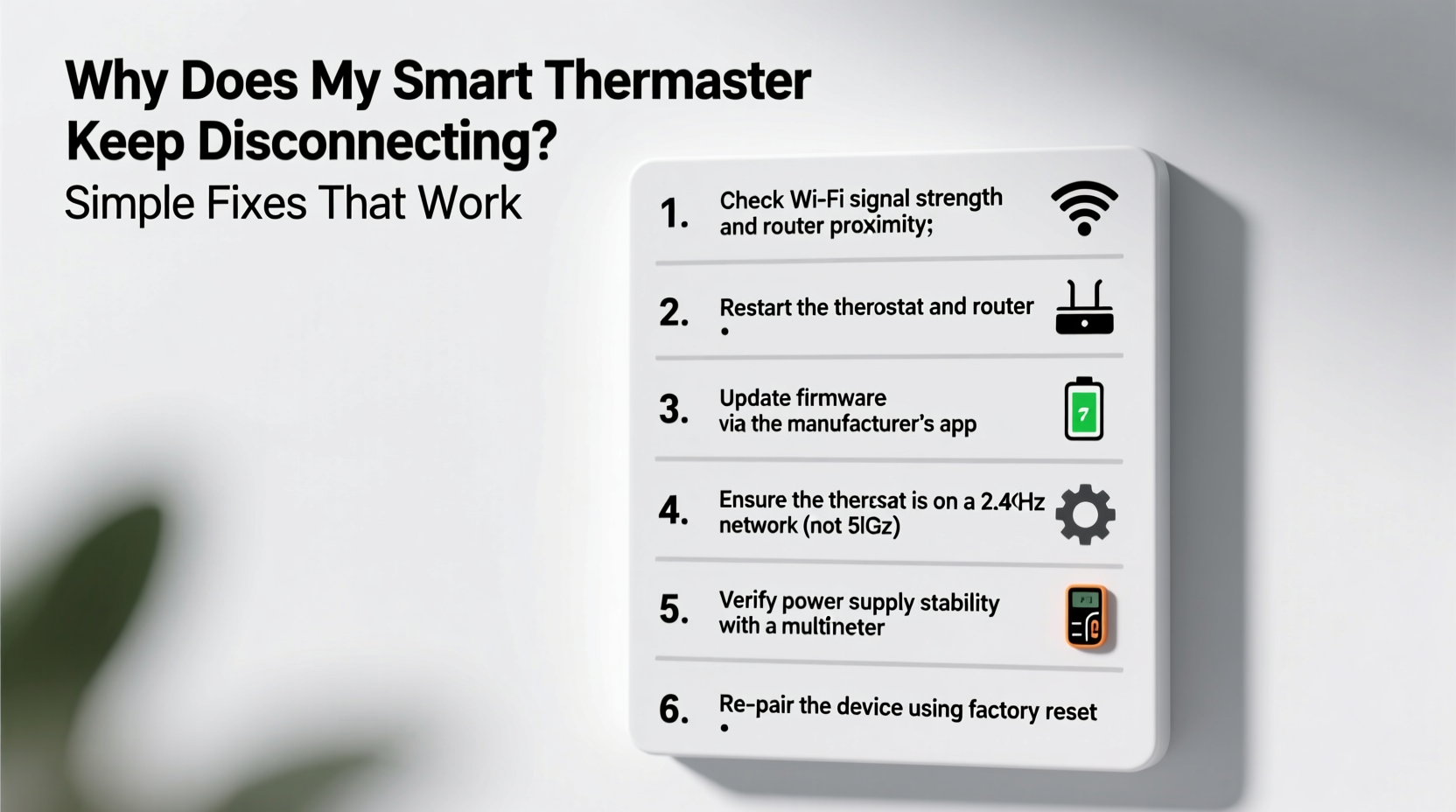
Smart thermostats rely on a stable Wi-Fi connection to function fully. While they can still control your HVAC system locally without internet, losing connectivity disables key features like remote control via smartphone apps, geofencing, software updates, and usage reports. Disconnections aren’t always due to the thermostat itself—often, the issue lies in your network setup, power supply, or physical environment.
Common root causes include:
- Weak Wi-Fi signal at the thermostat’s location
- Router or modem problems
- Inconsistent power supply (especially with older HVAC systems)
- Network congestion or interference
- Firmware bugs or outdated software
- Incorrect installation or wiring
Before assuming your thermostat is faulty, rule out these preventable factors. Most users find success by addressing one or two overlooked details in their setup.
Step-by-Step Troubleshooting Guide
Follow this systematic approach to identify and resolve the disconnection issue. Each step targets a specific potential cause and builds toward a stable, lasting connection.
- Verify the thermostat display status: Check if the device shows Wi-Fi connected, offline, or rebooting. A blank screen or frequent restarts suggest a power issue.
- Restart your router and thermostat: Power cycle both devices. Unplug your router for 30 seconds, then plug it back in. Once it’s online, restart the thermostat through its menu or by turning off the HVAC breaker for 10 seconds.
- Check Wi-Fi signal strength: Use a Wi-Fi analyzer app on your phone near the thermostat to measure signal strength. Anything below -70 dBm indicates a weak signal.
- Ensure correct network selection: Confirm the thermostat is connected to the 2.4 GHz band, not 5 GHz. Most smart thermostats don’t support 5 GHz networks.
- Update firmware: Open the manufacturer’s app and check for pending updates. Outdated firmware can cause instability.
- Inspect C-wire installation: Many disconnections occur due to lack of a common wire (C-wire), which provides continuous power. If your system lacks one, consider installing a power extender kit.
- Test with a different network: Temporarily connect the thermostat to a mobile hotspot to see if the problem persists. If it stays connected, the issue is likely your home network.
This sequence isolates variables efficiently. In most cases, steps 2–5 resolve the issue without requiring hardware changes.
Wi-Fi Optimization: Boosting Signal Where It Matters
The thermostat’s location often works against strong Wi-Fi. Placed on an interior wall, possibly far from the router, it may struggle to maintain a consistent link. Unlike phones or laptops, thermostats can’t roam between access points or boost reception dynamically.
| Solution | Effectiveness | Cost & Effort |
|---|---|---|
| Move router closer to thermostat | High | Medium effort, no cost |
| Add a Wi-Fi extender | Moderate to High | $30–$100, easy setup |
| Install a mesh network system | Very High | $150+, moderate setup |
| Use Ethernet with Wi-Fi bridge | Very High | $$, requires cabling |
| Switch to 2.4 GHz network | Essential baseline | No cost |
For best results, use a dual-band router and label your networks clearly (e.g., “Home-2.4G” and “Home-5G”). This prevents confusion during setup. Place Wi-Fi extenders halfway between the router and thermostat, avoiding large metal objects or appliances that cause interference.
“Many thermostat disconnects are actually Wi-Fi coverage issues masked as device failures. A simple signal test can save homeowners hundreds in unnecessary replacements.” — David Lin, Network Engineer & Home Automation Consultant
Power Supply Issues: The Hidden Culprit
Unlike battery-powered devices, smart thermostats draw power directly from your HVAC system. Most require a constant 24V AC supply, typically provided by a C-wire (common wire). Without it, the thermostat “steals” power from the heating or cooling circuit—a method called power stealing—which can lead to voltage drops and intermittent shutdowns.
If your thermostat disconnects when the HVAC kicks on, power instability is likely the cause. Symptoms include:
- Screen goes black during furnace or AC cycles
- Device reboots after 10–15 minutes of operation
- Battery drains quickly (on models with backup batteries)
The solution is either installing a C-wire or using a power adapter kit. Major brands like Nest and Ecobee offer free power extender kits to eligible customers. These kits add a small transformer that provides steady power without rewiring your entire system.
Real-World Example: Fixing a Persistent Ecobee Disconnect
Mark in Denver installed an Ecobee smart thermostat three years ago. For months, it worked flawlessly—until winter brought frequent disconnections. He’d wake up to a cold house because the thermostat had gone offline overnight and missed the morning schedule.
After trying router resets and Wi-Fi boosts, he used a Wi-Fi analyzer app and found his basement-mounted thermostat was receiving only -78 dBm signal. His router was upstairs near the front door. He added a $50 mesh node in the hallway, improving the signal to -56 dBm. The disconnections stopped immediately.
Later, during summer, the AC cycling caused brief reboots. A technician discovered no C-wire was present. Mark installed Ecobee’s free Power Extender Kit, which stabilized voltage. Since then, the thermostat hasn’t disconnected once—even during storms or heavy usage.
His experience reflects a common pattern: multiple contributing factors, each solvable with targeted action.
Preventative Maintenance Checklist
Keep your smart thermostat running smoothly with regular checks. Use this checklist quarterly:
- ✅ Reboot the thermostat and router monthly
- ✅ Verify Wi-Fi signal strength near the unit
- ✅ Confirm firmware is up to date in the app
- ✅ Inspect HVAC filter—dirty filters increase system runtime, stressing power supply
- ✅ Ensure thermostat isn’t covered or obstructed
- ✅ Test emergency heat or cooling mode to confirm communication with HVAC
- ✅ Review recent disconnection logs in the app (available in Nest, Ecobee, Honeywell Home)
Many manufacturers log offline events and reconnect attempts. Accessing these logs helps identify patterns—such as disconnections occurring only at certain times of day or during specific HVAC operations.
When to Contact Support or an HVAC Pro
Most disconnection issues can be resolved at home. However, some situations require expert help:
- No C-wire and incompatible system: Some older HVAC units lack the terminals needed for a C-wire or power kit. An HVAC technician can assess compatibility and install necessary components.
- Intermittent power even with C-wire: Voltage fluctuations may indicate a failing transformer or wiring fault in the HVAC control board.
- Thermostat overheating: If the device feels hot to the touch, it could be drawing too much current or experiencing internal failure.
- Repeated factory resets: If the thermostat resets itself without user input, it may have a hardware defect.
Contact the manufacturer first—they often provide remote diagnostics and may send replacement parts at no cost. If hardware or HVAC integration is in question, hire a licensed HVAC professional familiar with smart thermostats.
Frequently Asked Questions
Can a smart thermostat work without Wi-Fi?
Yes, but with limitations. It will still control heating and cooling based on its local schedule, but you’ll lose remote access, software updates, voice control, and energy reports. Reconnecting to Wi-Fi restores full functionality.
Why does my thermostat disconnect only when the AC runs?
This usually points to a power issue. When the compressor starts, it draws a surge of current that can cause voltage drops in systems without a C-wire. Installing a power extender kit or adding a C-wire typically resolves this.
Will a mesh Wi-Fi system fix my thermostat’s connection?
In most cases, yes. Mesh networks eliminate dead zones and provide seamless coverage. Place a node within two rooms of the thermostat for best results. Avoid placing nodes behind thick walls or near microwaves and cordless phones.
Final Thoughts: Stability Starts with Awareness
Smart thermostats enhance comfort and efficiency, but their performance depends on more than just advanced programming. A stable Wi-Fi signal, consistent power supply, and proper installation form the foundation of reliable operation. Most disconnection problems aren’t signs of failure—they’re signals that one part of the ecosystem needs attention.
By understanding the interplay between your HVAC system, home network, and thermostat design, you gain control over your indoor climate without surprises. Simple actions—like checking signal strength, updating firmware, or installing a $0 power kit—can restore seamless connectivity.




 浙公网安备
33010002000092号
浙公网安备
33010002000092号 浙B2-20120091-4
Comments
No comments yet. Why don't you start the discussion?