
Streaming entertainment should be seamless—crisp visuals, immersive sound, and uninterrupted playback. Yet, if you've found yourself staring at a spinning wheel instead of your favorite show, you're not alone. Buffering on a smart TV is one of the most frustrating digital hiccups, often disrupting movie nights or live sports. The good news: most causes are fixable with simple, targeted steps. Whether it's your internet connection, outdated firmware, or network congestion, understanding the root cause is the first step toward smooth streaming.
Buffering occurs when your smart TV can't download data fast enough to maintain continuous playback. This article breaks down the most common reasons behind this issue and provides practical, expert-backed solutions to restore your viewing experience.
Understanding How Streaming Works on Smart TVs
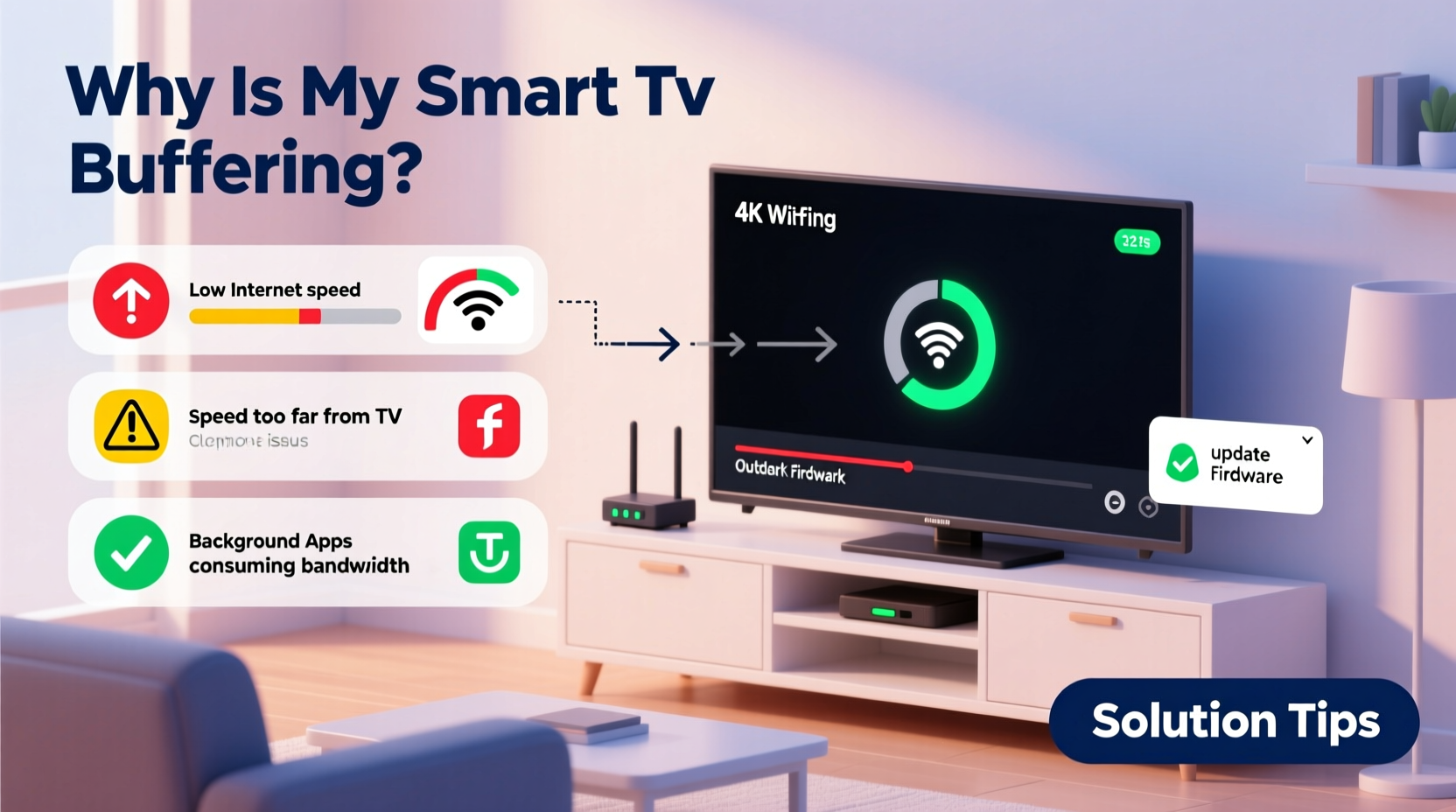
Smart TVs rely on an internet connection to stream content from platforms like Netflix, Hulu, Disney+, or YouTube. When you press play, the service begins sending video data in small segments called \"packets\" over your home network. Your TV temporarily stores (or \"buffers\") a few seconds of content ahead of what’s playing to account for minor fluctuations in speed.
If the incoming data rate drops below what’s needed for the current video quality—say, 5 Mbps for HD or 25 Mbps for 4K—the buffer depletes, and playback pauses to refill. This is buffering. It’s not inherently a flaw in your TV but rather a symptom of underlying connectivity or device issues.
“Buffering isn’t random—it’s your TV’s way of telling you the stream can’t keep up. Diagnose the network first.” — David Lin, Home Networking Engineer at NetSignal Labs
Common Causes of Smart TV Buffering and How to Fix Them
1. Insufficient Internet Speed
The most frequent culprit is inadequate bandwidth. High-definition (HD) streaming typically requires 5 Mbps, while 4K Ultra HD demands 25 Mbps or more. If your internet plan doesn’t meet these thresholds—or if multiple devices are using the network simultaneously—you’ll likely experience interruptions.
To verify your actual speeds:
- Connect a laptop or phone to the same Wi-Fi network as your TV.
- Visit a reputable speed test site like speedtest.net.
- Check both download speed and ping (latency).
- Compare results to your ISP’s advertised speeds.
If speeds fall significantly below expectations, contact your internet provider or consider upgrading your plan.
2. Weak Wi-Fi Signal
Even with a fast internet plan, poor signal strength between your router and TV can cripple performance. Walls, large appliances, and distance all weaken Wi-Fi signals, especially on the 2.4 GHz band, which travels farther but offers slower speeds than 5 GHz.
Smart TVs located far from the router or behind thick walls often struggle to maintain a stable connection. Symptoms include fluctuating speeds, intermittent disconnections, and persistent buffering.
Solutions:
- Move your router closer to the TV if possible.
- Switch your TV to the 5 GHz band for faster throughput (if within range).
- Avoid placing the router near microwaves, cordless phones, or metal furniture that cause interference.
- Use a Wi-Fi extender or mesh network system to boost coverage.
3. Network Congestion
Multiple devices streaming, gaming, or downloading simultaneously can saturate your bandwidth. A household where someone is gaming on a console, another is on a video call, and a third is watching YouTube on a tablet will strain even a 100 Mbps connection.
Many routers lack advanced Quality of Service (QoS) settings that prioritize traffic. Without them, no single device gets preferential treatment, leading to inconsistent performance across all.
4. Outdated TV Software or App Versions
Smart TV operating systems and streaming apps receive regular updates that improve stability, security, and performance. An outdated app might contain bugs that disrupt streaming or fail to optimize video delivery.
For example, older versions of the Netflix app may not support adaptive bitrate streaming efficiently, causing unnecessary buffering even when sufficient bandwidth is available.
How to update:
- Go to your TV’s Settings menu.
- Navigate to “System” or “Support,” then select “Software Update.”
- Check for and install any pending updates.
- Open each streaming app and look for updates in the app store (e.g., Samsung Galaxy Store, LG Content Store).
5. Router Firmware Is Out of Date
Just like your TV, your router runs on firmware that needs periodic updates. Manufacturers release patches to fix bugs, improve compatibility, and enhance network efficiency. An outdated router may struggle with modern encryption standards or fail to manage multiple high-bandwidth devices effectively.
Access your router’s admin page (usually via 192.168.1.1 or 192.168.0.1) and check the firmware version under “Administration” or “Firmware Update.” Consult your ISP or manufacturer’s website for instructions specific to your model.
Step-by-Step Troubleshooting Guide
Follow this logical sequence to identify and resolve buffering issues:
- Restart your equipment: Power cycle your smart TV, router, and modem. Unplug them for 30 seconds, then plug back in. This clears temporary glitches and resets network connections.
- Test internet speed: Use a wired or nearby wireless device to run a speed test. Ensure download speeds meet your streaming needs.
- Check Wi-Fi signal strength: In your TV’s network settings, view the current signal level. Below -70 dBm indicates a weak signal.
- Switch to Ethernet: Connect your TV directly to the router via an Ethernet cable. If buffering stops, Wi-Fi was the issue.
- Update software: Confirm your TV’s OS and all streaming apps are current.
- Reduce network load: Pause other downloads, disconnect unused devices, or limit background updates.
- Change DNS settings: Try switching to Google DNS (8.8.8.8 and 8.8.4.4) or Cloudflare (1.1.1.1) for potentially faster domain resolution.
- Factory reset (last resort): If problems persist, reset your TV to factory settings after backing up login credentials.
When to Use Wired vs. Wireless Connections
While Wi-Fi offers convenience, a wired Ethernet connection delivers superior stability and speed. Here’s a comparison to help decide:
| Factor | Wired (Ethernet) | Wireless (Wi-Fi) |
|---|---|---|
| Speed Consistency | High – dedicated connection | Variable – subject to interference |
| Latency | Low – ideal for real-time streaming | Higher – prone to spikes |
| Setup Flexibility | Requires cable routing | Plug-and-play, no cables |
| Best For | 4K/HDR streaming, live events | HD streaming in close proximity to router |
If your router is far from the TV, consider powerline adapters or MoCA (Multimedia over Coax) kits that use existing electrical or coaxial wiring to extend a wired-like connection.
Real-World Example: Fixing a Persistent Buffering Issue
Consider Mark, a homeowner in Austin who recently upgraded to a 4K smart TV. Despite having a 100 Mbps internet plan, he experienced constant buffering during evening shows. He followed basic restarts and app updates, but the problem persisted.
After testing, he discovered his Wi-Fi signal in the living room was only -75 dBm due to two brick walls between the router and TV. His phone showed full bars, but signal quality metrics told a different story. He switched his TV to the 5 GHz band, but range was too limited.
The solution? He installed a mesh Wi-Fi system with a node placed halfway between the router and TV. Signal improved to -55 dBm, and buffering ceased entirely. Additionally, he enabled QoS on his router to prioritize the TV during peak hours.
This case illustrates that visible signal bars can be misleading—actual signal quality and network management matter just as much as raw speed.
Troubleshooting Checklist
Use this checklist to systematically eliminate buffering causes:
- ✅ Restart TV, router, and modem
- ✅ Run a speed test on the same network
- ✅ Check Wi-Fi signal strength in TV settings
- ✅ Connect via Ethernet to test improvement
- ✅ Update smart TV operating system
- ✅ Update all streaming apps
- ✅ Update router firmware
- ✅ Close background apps on the TV
- ✅ Limit active devices during streaming
- ✅ Change DNS to 8.8.8.8 / 8.8.4.4
- ✅ Contact ISP if speeds are consistently low
- ✅ Consider hardware upgrades (mesh Wi-Fi, Ethernet adapter)
Frequently Asked Questions
Why does my TV buffer even with fast internet?
Your overall internet speed might be sufficient, but Wi-Fi signal degradation, network congestion from other devices, or outdated firmware can still disrupt streaming. Also, some ISPs throttle bandwidth during peak hours or for specific services, which can impact performance even with a high-speed plan.
Does closing apps on my smart TV help reduce buffering?
Yes. Many smart TVs run apps in the background, consuming memory and network resources. Force-stopping unused apps frees up system performance and reduces unnecessary data usage, which can stabilize streaming.
Can my smart TV be too old to stream properly?
Possibly. Older models (pre-2018) may have limited processing power, insufficient RAM, or outdated chipsets that struggle with modern streaming protocols. They might also no longer receive software updates, leaving them vulnerable to performance issues. If your TV is over five years old and frequently buffers despite optimal network conditions, hardware limitations could be the cause.
Expert Tips for Long-Term Streaming Stability
Preventing buffering isn’t just about fixing problems—it’s about creating a resilient home network. Experts recommend the following long-term strategies:
- Invest in a dual-band or tri-band router: These support more devices and reduce congestion by separating traffic across frequencies.
- Enable Quality of Service (QoS): Prioritize your smart TV or media devices in router settings to ensure they get adequate bandwidth.
- Use static IP addresses for key devices: Assign a fixed IP to your TV so it’s easier to manage in QoS rules and avoid connection drops.
- Monitor network usage: Use tools like NetSpot, Wireshark, or built-in router dashboards to spot bandwidth hogs.
- Limit auto-updates: Schedule app and system updates for off-peak times to avoid competing with streaming.
“A well-tuned home network is like a highway system—lanes must be clear, signs must be accurate, and maintenance must be regular.” — Lena Patel, Senior Network Architect at Broadband Insights
Conclusion: Take Control of Your Streaming Experience
Buffering doesn’t have to be a permanent part of your smart TV experience. Most issues stem from correctable factors—weak signals, outdated software, or overloaded networks—that you can diagnose and fix with the right approach. By understanding how streaming works and applying targeted solutions, you regain control over your entertainment.
Start with the basics: restart your devices, test your speed, and upgrade your software. Then move to advanced fixes like optimizing Wi-Fi placement or switching to Ethernet. Small changes often yield dramatic improvements.




 浙公网安备
33010002000092号
浙公网安备
33010002000092号 浙B2-20120091-4
Comments
No comments yet. Why don't you start the discussion?