
Smartwatches have become essential companions for tracking fitness, receiving notifications, and managing daily tasks. But nothing disrupts the experience faster than a battery that dies by midday. If you're charging your watch multiple times a day or find yourself leaving it behind during workouts because it's out of power, you're not alone. The compact size and high functionality of smartwatches place immense strain on their small batteries. Understanding what’s draining your device—and how to counteract it—can dramatically improve your usage experience.
Battery longevity isn’t just about hardware limitations; user habits, settings, and software behavior play equally critical roles. This guide breaks down the real reasons behind rapid battery drain and provides actionable, proven strategies to help your smartwatch last longer between charges—without sacrificing core functionality.
Why Smartwatch Batteries Drain So Quickly
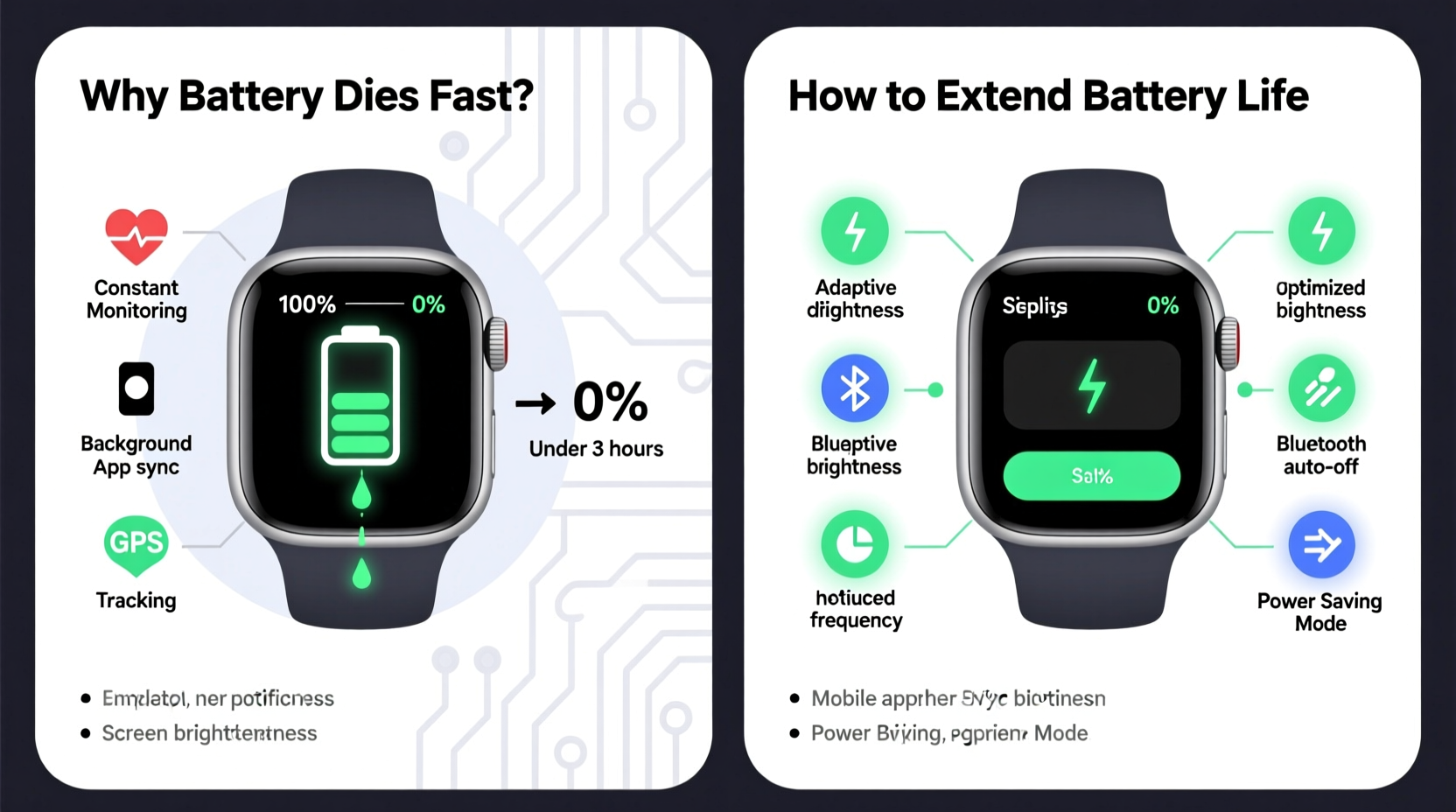
Unlike smartphones, smartwatches operate under extreme physical constraints. Their batteries are typically between 200–450 mAh—less than 10% of an average phone’s capacity—yet they run complex operating systems, sensors, and bright displays. Several factors contribute to accelerated discharge:
- Bright displays: OLED screens consume more power at higher brightness levels, especially when always-on features are enabled.
- Continuous sensor use: Heart rate monitors, GPS, SpO₂, and accelerometers run frequently, drawing steady power.
- Background apps and notifications: Third-party apps syncing data in the background can silently deplete battery.
- Software inefficiencies: Outdated firmware or buggy updates may cause processes to run unnecessarily.
- Wireless connectivity: Bluetooth, Wi-Fi, and cellular radios (on LTE models) constantly communicate with your phone or network.
A study by Battery University found that wearable devices lose up to 30% more battery per hour when GPS and heart rate monitoring are active simultaneously during outdoor activities. This kind of multi-sensor load is common but often overlooked.
Key Settings That Drastically Affect Battery Life
Many users never adjust default settings, which are often optimized for experience—not efficiency. Tweaking these can yield significant improvements:
Display Brightness & Timeout
The screen is one of the largest power consumers. Reducing brightness from maximum to 50–60% and shortening screen timeout from 30 seconds to 10 can save substantial energy. Some watches allow adaptive brightness, which adjusts based on ambient light—enable this if available.
Notification Frequency
Every alert triggers haptic feedback, screen wake-up, and sometimes sound—all taxing the battery. Limit non-essential app notifications through your paired smartphone’s companion app (e.g., Wear OS, Galaxy Wearable, or Apple Watch app).
Heart Rate Monitoring Mode
Most watches default to continuous heart rate tracking. Switching to “on-demand” or “workout-only” mode reduces sensor activity significantly. For general health monitoring, periodic checks are sufficient.
Location Services
GPS should be reserved for workouts. Keeping it enabled all day allows apps to request location data repeatedly. Turn off automatic GPS activation unless needed.
“Battery optimization starts with awareness. Most users don’t realize how much passive sensor use impacts longevity.” — Dr. Lena Patel, Senior Engineer at WearTech Labs
Optimization Checklist: 7 Steps to Extend Battery Life
Follow this actionable checklist to maximize your smartwatch’s battery performance:
- Turn off Always-On Display or set it to minimal brightness.
- Lower screen brightness and reduce auto-sleep time to 10 seconds.
- Disable continuous heart rate monitoring; use only during workouts.
- Limit notifications to priority apps (messages, calls, calendar).
- Turn off GPS unless actively recording outdoor activity.
- Update watch firmware and apps regularly for efficiency fixes.
- Close unused background apps via the app switcher or restart weekly.
Usage Patterns That Accelerate Drain
Your habits shape battery performance as much as settings do. Consider these common behaviors:
- Frequent screen taps: Waking the screen dozens of times a day adds up. Use gesture controls (like raising your wrist) selectively.
- Streaming music directly from the watch: Using Bluetooth headphones with standalone playback consumes both processor and radio power.
- Running third-party fitness apps: Many track metrics more aggressively than built-in apps and sync continuously.
- Charging overnight regularly: While modern batteries manage overcharging, heat buildup from prolonged charging can degrade long-term health.
A real-world example illustrates this well: Sarah, a nurse in Chicago, found her Samsung Galaxy Watch draining by 3 PM daily. After reviewing her usage, she discovered she had fitness apps running 24/7, received every email notification, and kept brightness at max due to hospital lighting. By adjusting just three settings—disabling always-on display, reducing notification load, and switching heart rate to manual mode—she extended her battery life to nearly two full days.
Comparison: Battery-Saving Settings Across Major Brands
| Brand/Model | Default Screen Timeout | Always-On Default? | Heart Rate Mode | Estimated Gain from Optimization |
|---|---|---|---|---|
| Apple Watch Series 9 | 70 seconds | Yes | Continuous | Up to 12 hours |
| Samsung Galaxy Watch 6 | 5 seconds (adaptive) | Yes | Continuous | Up to 18 hours |
| FITBIT Sense 2 | Variable (gesture-based) | No | Interval (every 5 min) | Up to 24 hours |
| Garmin Venu 3 | 15 seconds | Optional | User-selectable | Up to 36 hours |
| Wear OS (Fossil, Mobvoi) | 30 seconds | Configurable | Continuous (by some apps) | Up to 15 hours |
Note: Estimated gains assume disabling always-on display, reducing brightness, limiting notifications, and using heart rate on demand. Actual results vary by usage intensity.
Long-Term Battery Health: Beyond Daily Settings
Preserving your smartwatch’s battery lifespan over months and years requires more than daily tweaks. Lithium-ion batteries degrade naturally, but poor charging habits accelerate this process.
Keep the charge level between 20% and 80% whenever possible. Frequent full discharges or keeping it plugged in at 100% creates stress. If you’re not using the watch for a few days, store it at around 50% charge in a cool, dry place.
Avoid exposing the device to extreme temperatures. Leaving your watch in a hot car or wearing it in a sauna increases internal resistance and reduces cycle life. According to research from the Journal of Power Sources, lithium-ion batteries stored at 60°C lose 40% capacity in just three months.
Some manufacturers offer built-in battery protection modes. For instance, Apple Watch has an Optimized Battery Charging feature that learns your routine and delays charging past 80% until you need it. Enable such features if available.
When to Replace the Battery
After 2–3 years of regular use, most smartwatch batteries retain only 70–80% of their original capacity. Signs include sudden shutdowns at 20–30%, inability to hold charge overnight, or swelling (rare but dangerous). Replacement is usually possible through authorized service centers, though costs can range from $50 to $100 depending on model.
Frequently Asked Questions
Can I use my smartwatch while charging?
Yes, but heavy usage (like GPS workouts or streaming) while charging generates heat, which harms long-term battery health. Light use is fine, but avoid intensive tasks during charging.
Does turning off Bluetooth save battery?
Only marginally. Bluetooth Low Energy (BLE) uses very little power when idle. However, if your phone is far away and the connection struggles, power consumption increases. Keep your phone nearby for optimal efficiency.
Is airplane mode worth using?
Absolutely. Airplane mode disables all wireless radios—Bluetooth, Wi-Fi, GPS, and cellular. Use it during flights, meetings, or workouts where connectivity isn’t needed. It can extend battery life by 30–50% over several hours.
Conclusion: Take Control of Your Smartwatch Battery
Your smartwatch doesn’t have to be tethered to a charger every night. With informed adjustments to settings, awareness of usage patterns, and attention to long-term battery care, you can reclaim hours—or even days—of additional runtime. The key is consistency: small changes compound into meaningful improvements.
Start today by auditing your current settings. Disable what you don’t truly need, update outdated software, and monitor your battery usage through the companion app. Over time, you’ll develop a personalized balance between functionality and endurance.




 浙公网安备
33010002000092号
浙公网安备
33010002000092号 浙B2-20120091-4
Comments
No comments yet. Why don't you start the discussion?