
Smartwatches have become essential companions—tracking workouts, delivering notifications, monitoring health metrics, and even making calls. But nothing disrupts the experience faster than a dying battery by midday. If you're plugging in your device more than once a day, you're not alone. While modern smartwatches boast impressive features, their compact size limits battery capacity. The real issue often lies in how we use them. Understanding what drains your smartwatch battery—and how to fix it—can dramatically extend its daily usability.
Common Causes of Rapid Battery Drain
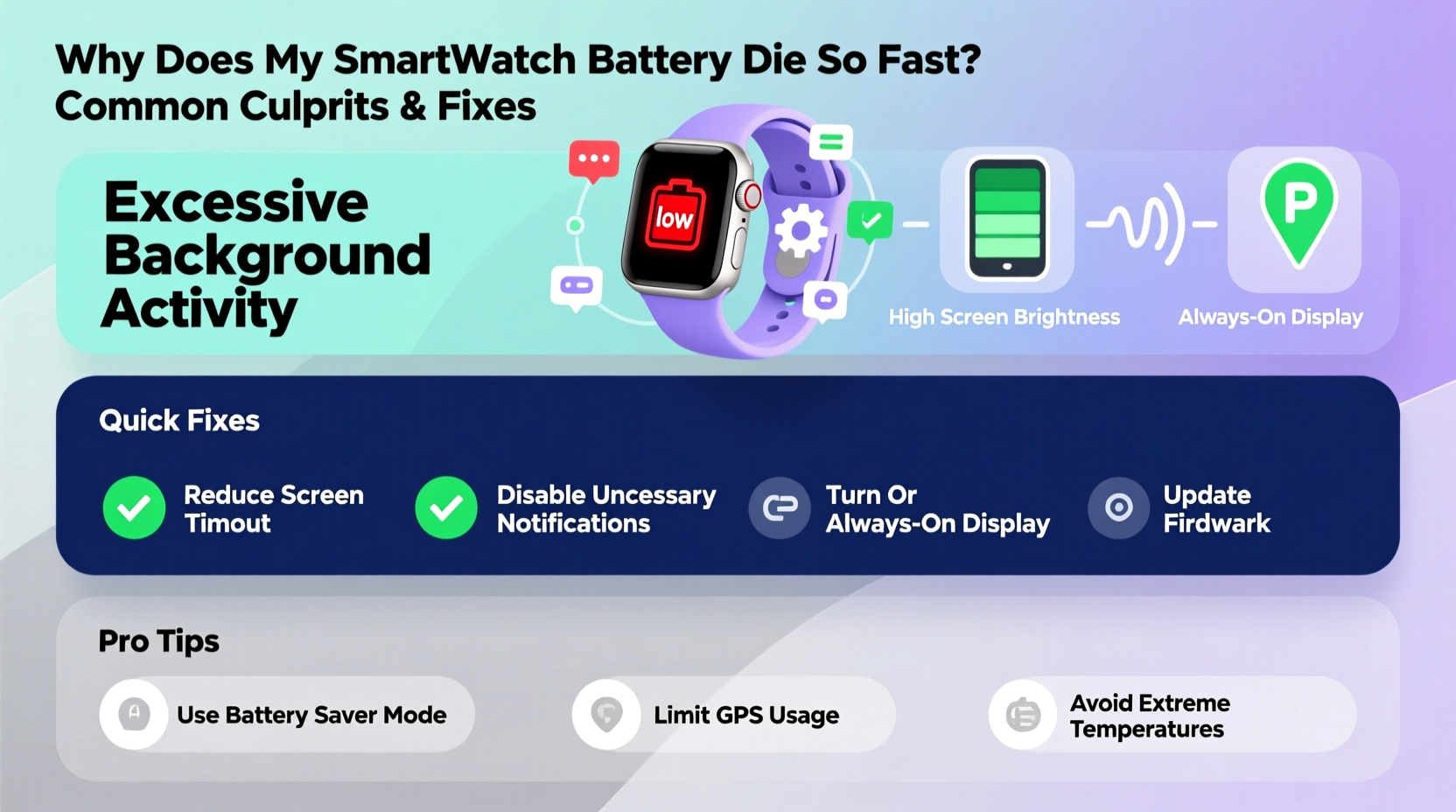
Unlike smartphones, smartwatches operate under tight power constraints. Their batteries are typically between 200–450 mAh, which is significantly smaller than even budget phones. Despite this, they run complex operating systems, sensors, and displays that demand constant energy. When combined with poor usage habits, these factors accelerate discharge.
Here are the most frequent culprits behind short battery life:
- Bright display settings: Always-on screens and high brightness consume substantial power.
- Background apps and widgets: Third-party apps running in the background can silently drain energy.
- Frequent notifications: Every alert vibrates, lights up the screen, and uses Bluetooth or Wi-Fi.
- Continuous heart rate and GPS tracking: These sensors require persistent processing and signal transmission.
- Poor Bluetooth connection: A weak or unstable link to your phone forces the watch to work harder.
- Outdated software: Bugs in older firmware versions may cause inefficient resource use.
Optimize Display and Brightness Settings
The display is one of the largest power consumers on any smartwatch. OLED screens, while efficient for dark themes, light up every pixel when showing white or bright colors. Keeping the screen active longer increases energy draw exponentially.
To preserve battery life:
- Turn off “Always-On” mode unless absolutely necessary.
- Lower screen brightness manually instead of relying on auto-brightness.
- Set a shorter screen timeout (e.g., 5–10 seconds).
- Use darker watch faces—black pixels on OLED screens use no power.
- Avoid animated or live watch faces that refresh frequently.
Many users overlook how much an overly bright screen impacts longevity. For instance, setting brightness to 100% versus 50% can cut usable time by nearly half over a 24-hour period.
Manage Notifications and App Activity
Every notification triggers multiple systems: the processor wakes up, the haptic motor buzzes, the screen illuminates, and data transfers via Bluetooth. Receiving dozens of alerts per hour adds up quickly—even if each uses minimal power individually.
Consider this realistic scenario:
A marketing professional receives email, Slack, calendar, social media, and SMS alerts across her Apple Watch. During a typical workday, she gets over 70 notifications. Each alert lasts 5 seconds, vibrates once, and lights the screen at full brightness. Over time, this routine consumes roughly 18% of her total battery—equivalent to losing three hours of charge just from alerts.
To minimize unnecessary drain:
- Selectively enable notifications only for critical apps (e.g., phone calls, messages).
- Disable vibration or switch to subtle taps where available.
- Review third-party app permissions—some apps sync data hourly without user awareness.
- Delete unused apps that continue to run background processes.
| Notification Type | Estimated Battery Impact (per 10 alerts) | Recommended Action |
|---|---|---|
| 3–5% | Sync every 30 mins or manually | |
| Social Media | 6–8% | Disable entirely or limit to key accounts |
| Calendar Alerts | 1–2% | Keep enabled but reduce sound/vibration |
| Text Messages | 2–3% | Essential—leave on with silent feedback |
Control Sensor Usage and Background Monitoring
Health and fitness tracking are among the most valued features of smartwatches—but also the most taxing on battery life. Continuous monitoring of heart rate, blood oxygen (SpO2), sleep patterns, and GPS location runs sensors nonstop, requiring constant CPU activity.
For example, enabling 24/7 SpO2 measurement on devices like the Samsung Galaxy Watch or Fitbit can reduce battery life by as much as 25%. Similarly, using GPS during outdoor runs or hikes draws significant power due to satellite signal acquisition and sustained radio transmission.
“Users often forget that passive health tracking isn’t free. Every second of continuous sensor operation has a direct cost in battery longevity.” — Dr. Lena Patel, Wearable Technology Researcher at MIT Media Lab
Here’s how to balance functionality and efficiency:
- Switch heart rate monitoring to “on-demand” or “workout-only” mode.
- Turn off SpO2 scanning unless medically required.
- Use GPS only when needed—disable automatic activation before workouts.
- Limit sleep tracking to nights when detailed analysis is useful, not every night.
Step-by-Step Guide to Extend Smartwatch Battery Life
Follow this practical, seven-step plan to maximize your smartwatch’s battery performance starting today:
- Reboot Weekly: Restart your smartwatch at least once a week to clear cached processes and memory leaks.
- Update Firmware: Check for OS updates monthly. Manufacturers often release patches that improve power management.
- Reset Connection: Unpair and re-pair your watch with your phone to fix Bluetooth inefficiencies.
- Enable Power-Saving Mode: Activate built-in low-power modes during travel or long days away from chargers.
- Review Battery Usage Stats: Navigate to Settings > Battery > Usage to identify top-draining apps.
- Reduce Animation Effects: Disable transition animations and parallax effects in watch settings.
- Charge Correctly: Avoid letting the battery drop below 20% regularly; aim to keep it between 20–80% for optimal cell health.
This sequence addresses both immediate fixes and long-term maintenance. Implementing all steps can extend usable time from less than a day to two full days—even on heavily used models like the Apple Watch Series 8 or Pixel Watch 2.
Checklist: Daily Habits for Better Battery Performance
Use this quick-reference checklist each morning or after charging:
- ✅ Turn off Always-On Display
- ✅ Set screen timeout to 5 seconds
- ✅ Ensure brightness is below 60%
- ✅ Disable non-essential notifications
- ✅ Confirm heart rate and SpO2 are set to manual
- ✅ Close unused apps running in background
- ✅ Verify Bluetooth connection strength
- ✅ Enable Theater Mode or Sleep Mode when appropriate
Consistently following this list helps prevent avoidable energy waste and keeps your device functional throughout the day.
When Hardware Might Be the Issue
Sometimes, no amount of optimization will restore normal battery life—and the problem may be physical. Lithium-ion batteries degrade over time, especially after 1.5 to 2 years of regular use. Capacity diminishes due to charge cycles, heat exposure, and deep discharges.
Signs your smartwatch battery may need replacement:
- Battery drops 20% in under 30 minutes with minimal use.
- Device shuts down unexpectedly at 10–15% charge.
- Charging takes significantly longer than before.
- The watch feels warm during idle periods.
If software tweaks fail and your device is over a year old, consider professional service. Some brands, like Garmin and Apple, offer battery replacement programs for $50–$80. Third-party repair shops may provide lower-cost options, though quality varies.
Frequently Asked Questions
How long should a smartwatch battery last in a day?
Most modern smartwatches should last 18–36 hours on a single charge under typical usage. Heavy GPS, streaming, or constant notifications may reduce this to 8–12 hours. Devices marketed as “multi-day” (e.g., Garmin Venu, Amazfit GTS) can last 5–7 days with moderate use.
Does turning off Wi-Fi save battery?
Yes, but only slightly. Most smartwatches rely primarily on Bluetooth to connect to phones. Wi-Fi is used mainly for standalone app downloads or music streaming. If you’re not using offline features, disabling Wi-Fi can help conserve small amounts of power.
Can I replace my smartwatch battery myself?
Not recommended. Smartwatches have tightly sealed designs, and improper handling can damage internal components or water seals. Always seek authorized repair centers to maintain warranty and safety standards.
Conclusion: Take Control of Your Smartwatch Battery Life
Your smartwatch doesn’t have to die before dinner. With mindful configuration and consistent habits, you can reclaim hours of daily usage. Start by auditing your current settings—how many notifications do you really need? Is the screen always blazing at full brightness? Small changes compound into meaningful improvements. Whether you’re training for a marathon or managing a busy schedule, a reliable wearable enhances your life instead of interrupting it. Apply these fixes today and enjoy uninterrupted connectivity, tracking, and convenience—all on a single charge.




 浙公网安备
33010002000092号
浙公网安备
33010002000092号 浙B2-20120091-4
Comments
No comments yet. Why don't you start the discussion?