
Smartwatches have become essential companions, delivering notifications, tracking fitness, and keeping us connected without constantly checking our phones. But nothing disrupts that seamless experience like sudden disconnections. One moment you're receiving a text alert on your wrist; the next, your watch shows “Phone Not Connected.” This intermittent behavior isn’t just annoying—it can undermine trust in your device. The good news is that most disconnection issues are fixable. Understanding the root causes and applying targeted solutions can restore stability and ensure your smartwatch performs as intended.
Common Causes of Smartwatch Disconnections
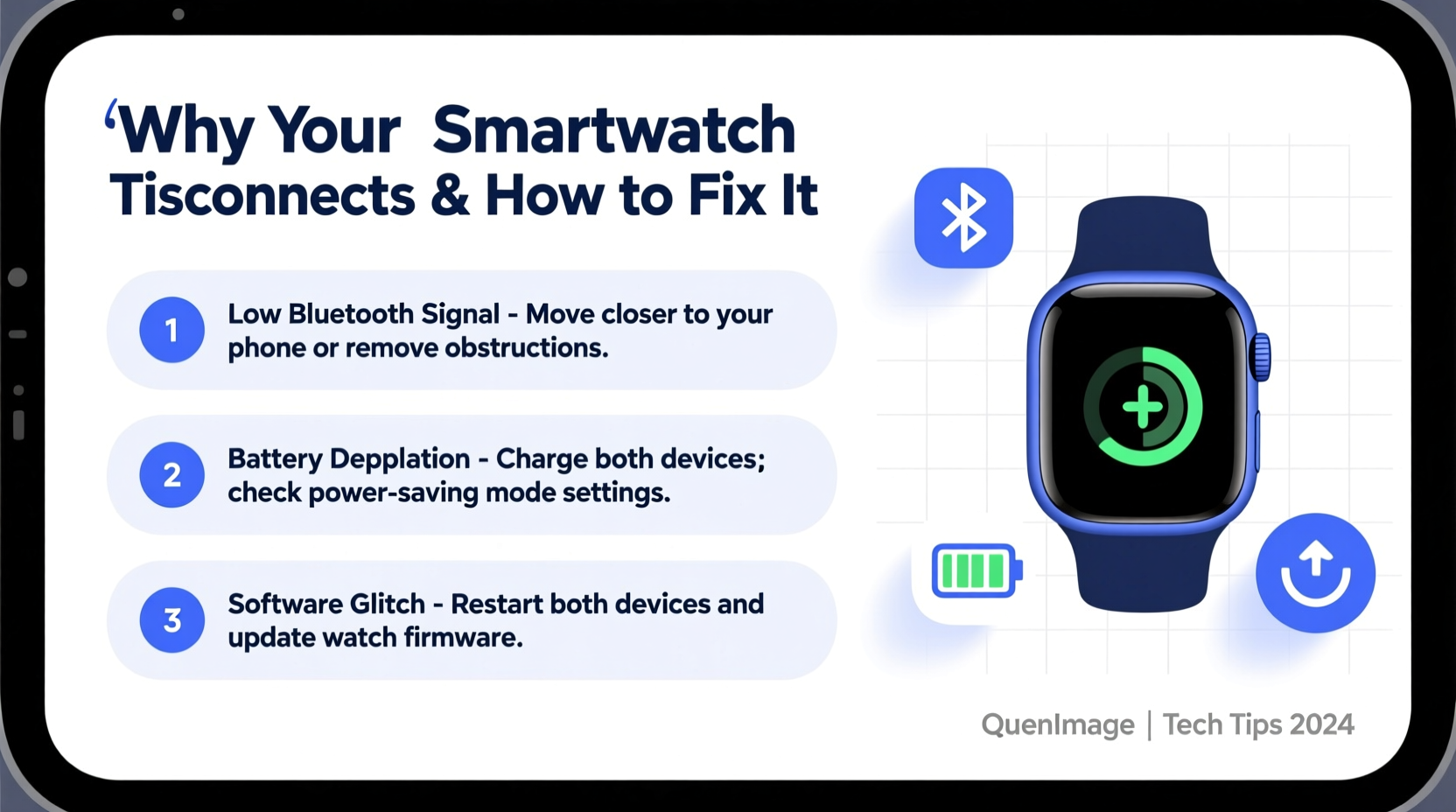
Bluetooth connectivity forms the backbone of communication between your smartwatch and smartphone. When this link breaks, functions like call alerts, app syncing, and music control fail. Several factors contribute to unstable connections, ranging from technical limitations to user habits.
- Bluetooth interference: Other wireless devices (Wi-Fi routers, microwaves, cordless phones) emit signals in the 2.4 GHz band, which overlaps with Bluetooth frequencies. High levels of electromagnetic noise can degrade signal quality.
- Distance and physical obstructions: Walls, furniture, or even your body can block Bluetooth signals. Most watches use Bluetooth Low Energy (BLE), which has limited range—typically up to 30 feet in open space.
- Software bugs: Outdated operating systems on either device may contain unresolved bugs affecting Bluetooth stack performance.
- Battery-saving settings: Aggressive power management features on phones (especially Android) can suspend background processes, including Bluetooth services.
- Pairing conflicts: Multiple paired devices or corrupted pairing data can cause the connection to drop unexpectedly.
Step-by-Step Guide to Restore and Maintain Connection
If your smartwatch keeps disconnecting, follow this structured troubleshooting process. Start with basic checks before moving to advanced resets.
- Restart both devices: A simple reboot clears temporary glitches. Turn off your phone and smartwatch, wait 30 seconds, then power them back on.
- Check Bluetooth status: Ensure Bluetooth is enabled and not in airplane mode. On iOS, pull down Control Center; on Android, go to Quick Settings.
- Forget and re-pair the device: Go to your phone’s Bluetooth settings, find your watch, and select “Forget This Device.” Then, initiate pairing again through your watch’s settings menu.
- Update software: Check for OS updates on both devices. Manufacturers regularly release patches addressing connectivity bugs.
- Disable battery optimization for the companion app: On Android, go to Settings > Apps > [Watch App] > Battery > Unrestricted. This prevents the system from killing background sync tasks.
- Reset network settings: As a last resort, reset network settings on your phone. This clears all saved Wi-Fi networks and Bluetooth pairings but often resolves deep-seated connection issues.
Do’s and Don’ts for Stable Smartwatch Connectivity
| Do’s | Don’ts |
|---|---|
| Maintain close proximity between devices | Carry your phone in a metal-lined bag or case that blocks signals |
| Keep both devices charged above 20% | Ignore software update notifications |
| Use official charging cables and docks | Install third-party apps that claim to boost Bluetooth (they often cause more harm) |
| Regularly restart your smartwatch weekly | Place your phone near microwave ovens or crowded USB hubs while using the watch |
| Ensure companion app runs in background | Enable aggressive battery saver modes during active use |
Real-World Example: Recovering a Persistent Disconnection Issue
Consider Sarah, a fitness instructor who uses her Samsung Galaxy Watch to track workouts and receive client messages. She noticed frequent disconnections during classes, missing important calls. Initially, she assumed interference from gym equipment was the culprit. After trying several fixes—restarting devices, updating firmware—she discovered the real issue: her phone’s battery optimization settings were suspending the Galaxy Wearable app after five minutes of inactivity. By adjusting the app’s battery permissions to “Unrestricted,” her watch remained connected throughout long sessions. This case highlights how seemingly minor software settings can have major impacts on functionality.
Expert Insight on Bluetooth Reliability
“Bluetooth reliability depends on more than just hardware. Modern smartphones aggressively manage resources to extend battery life, sometimes at the cost of peripheral connectivity. Users need to strike a balance between power savings and consistent performance.” — Dr. Alan Zhou, Wireless Systems Engineer at MIT Media Lab
This insight underscores a key truth: many disconnection problems stem not from faulty devices but from system-level trade-offs made by manufacturers. Recognizing this allows users to adjust settings accordingly rather than replacing hardware unnecessarily.
Preventive Maintenance Checklist
To minimize future disconnections, incorporate these practices into your routine:
- ✅ Reboot your smartwatch once per week
- ✅ Verify Bluetooth is enabled and functioning daily
- ✅ Install OS and app updates within one week of release
- ✅ Disable battery optimization for your watch’s companion app
- ✅ Avoid placing your phone in pockets lined with metallic fabric or foil
- ✅ Test connection stability after installing new apps
- ✅ Clear cache of the companion app monthly (Android: Settings > Apps > [App Name] > Storage > Clear Cache)
Frequently Asked Questions
Why does my Apple Watch disconnect when I leave the room?
Apple Watches rely on Bluetooth for direct communication and Wi-Fi only when both devices are on the same network. If you move beyond Bluetooth range (~30 feet) and your phone isn’t connected to a trusted Wi-Fi network, the connection drops. To mitigate this, ensure both devices share a reliable Wi-Fi network, and keep your iPhone charged and awake.
Can a low battery on my phone affect smartwatch connectivity?
Yes. When a phone’s battery drops below 10%, many models activate extreme power-saving modes that disable non-essential services, including persistent Bluetooth scanning. Even if Bluetooth appears on, background syncing may be suspended. Keeping your phone above 15% charge helps maintain stable communication.
Will resetting my smartwatch erase all my data?
A factory reset will erase health data, installed apps, and custom settings stored locally on the watch. However, most modern watches sync core data (like steps and heart rate) to the cloud via their companion app. Before resetting, ensure your data is backed up in the app (e.g., Google Fit, Apple Health). After re-pairing, much of your profile can be restored.
Optimizing Long-Term Performance
Sustaining a reliable connection requires ongoing attention. Treat your smartwatch and phone as a paired ecosystem, not isolated gadgets. Regular maintenance prevents small issues from escalating. For instance, accumulated cache files in the companion app can slow down synchronization over time. Periodically clearing app data (not account info) refreshes the communication channel.
Additionally, consider usage patterns. If you wear your watch while swimming or exercising heavily, moisture and sweat can temporarily affect internal sensors and antennas. While most devices are water-resistant, prolonged exposure may degrade performance. Dry your watch thoroughly after wet activities and avoid charging it while damp.
For travelers, time zone changes and rapid network switching (between Wi-Fi and cellular) can confuse sync logic. Enabling “Set Automatically” for date and time on both devices ensures consistency and reduces handshake errors during transitions.
“Think of Bluetooth like a conversation. If one person keeps walking away or covering their mouth, communication breaks down. Your phone and watch need uninterrupted ‘line of sight’ and consistent energy to stay in sync.” — Lena Patel, UX Designer at a leading wearable tech firm
Conclusion: Take Control of Your Connection
Smartwatch disconnections are frustrating but rarely inevitable. With a clear understanding of Bluetooth behavior, environmental influences, and device settings, you can diagnose and resolve most issues independently. The solution often lies not in replacing hardware but in fine-tuning software and habits. From disabling aggressive battery savers to managing interference zones, small adjustments yield significant improvements in reliability.
Your smartwatch is designed to enhance your life—not interrupt it. By applying the strategies outlined here, you’ll enjoy seamless notifications, accurate health tracking, and uninterrupted music control. Don’t let connectivity issues diminish your experience. Start today: check your app permissions, update your software, and test the connection in different environments. A stable, dependable link between your devices is within reach.




 浙公网安备
33010002000092号
浙公网安备
33010002000092号 浙B2-20120091-4
Comments
No comments yet. Why don't you start the discussion?