
Tablets have become essential tools for work, entertainment, and education. Yet one of the most common frustrations users face is rapid battery drain. One day your device lasts all day; the next, it’s dead by mid-afternoon. While modern lithium-ion batteries are designed to be efficient, their performance degrades over time—and certain habits can accelerate that decline. Understanding what causes excessive battery consumption and how to manage it isn’t just about convenience—it’s key to maximizing your tablet’s usability and longevity.
Battery life isn’t fixed. It fluctuates based on usage patterns, environmental conditions, software behavior, and hardware health. The good news? Most factors are within your control. With informed choices, you can significantly slow down battery degradation and maintain reliable performance for years.
What Causes Rapid Battery Drain?
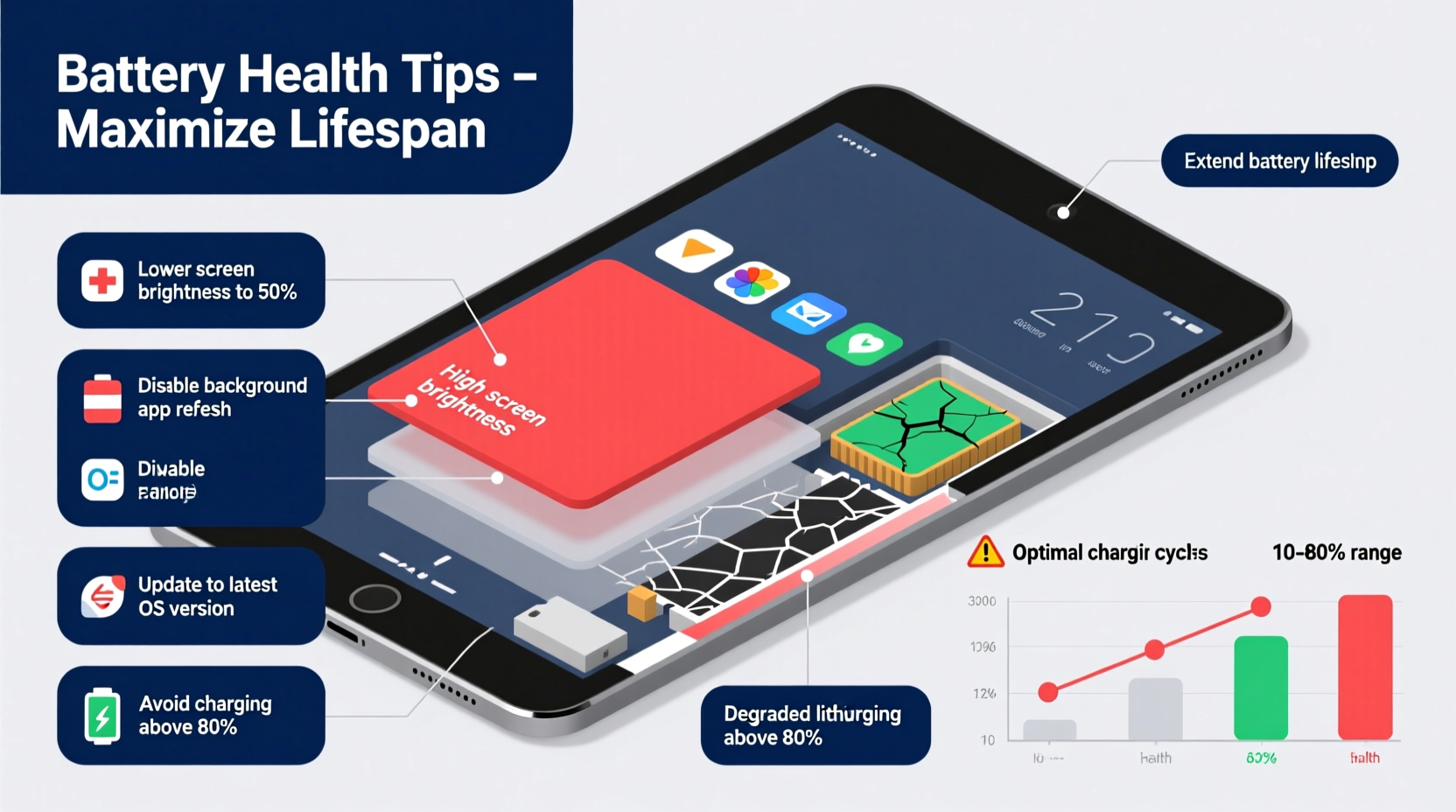
Lithium-ion batteries, used in nearly all tablets today, are sensitive to both physical and digital stressors. Several interrelated factors contribute to faster-than-expected discharge:
- Screen brightness: The display is often the largest power consumer. High brightness settings, especially outdoors, can deplete a charge rapidly.
- Background apps: Apps running in the background—like social media refreshers, location trackers, or email sync services—continuously use CPU and network resources.
- Wi-Fi, Bluetooth, and GPS: Constant connectivity signals require energy even when not actively transferring data.
- Aging battery chemistry: After 300–500 full charge cycles, lithium-ion cells lose capacity. A two-year-old tablet may only hold 70–80% of its original charge.
- Extreme temperatures: Heat above 95°F (35°C) accelerates chemical aging. Cold below freezing reduces temporary efficiency.
- Software inefficiency: Poorly optimized apps, outdated operating systems, or bloatware can create unnecessary overhead.
How to Identify Power-Hungry Apps
Your tablet likely includes built-in battery monitoring tools. On Android, go to Settings > Battery; on iPadOS, navigate to Settings > Battery. These screens show app-specific energy usage over the last 24 hours or 10 days.
Look for apps with disproportionately high \"background activity\" or screen-on time. Common culprits include:
- Social media platforms (e.g., Instagram, TikTok)
- Streaming services (Netflix, YouTube)
- Navigation and fitness apps using GPS
- Cloud backup tools syncing large files
If an app consumes significant power while rarely used, consider uninstalling it or disabling background refresh.
“Battery drain isn’t always about active use—it’s often silent background processes that sap energy unnoticed.” — Dr. Lena Patel, Mobile Device Energy Researcher at MIT Media Lab
Proven Strategies to Extend Battery Lifespan
Extending battery lifespan goes beyond daily usage tweaks. True longevity comes from consistent care that protects the electrochemical integrity of the cell. Lithium-ion batteries degrade fastest under three conditions: full charge, deep discharge, and heat exposure.
1. Avoid Full Charge Cycles
Contrary to older battery types, lithium-ion doesn’t need to be drained completely before recharging. In fact, keeping your tablet between 20% and 80% charge most of the time reduces strain on the battery.
Charging to 100% increases internal voltage stress, especially if left plugged in for hours. Similarly, letting the battery drop to 0% occasionally can trigger protective shutdowns and wear down capacity.
2. Use Adaptive Charging Features
iPadOS and Android 12+ offer adaptive or optimized charging modes. These features learn your routine and delay charging past 80% until just before you typically unplug—reducing time spent at full charge.
Enable this in:
- iPad: Settings > Battery > Battery Health > Optimized Battery Charging
- Android: Settings > Battery > Battery Care > Adaptive Charging
3. Minimize Exposure to Heat
Heat is the number one enemy of battery longevity. Leaving your tablet in direct sunlight, inside a hot car, or on a poorly ventilated surface during charging accelerates permanent capacity loss.
Avoid using resource-heavy apps (like games or video editors) while charging, as this generates additional heat. If the device feels warm, pause intensive tasks and let it cool.
4. Adjust Display and Connectivity Settings
The screen and wireless radios are major energy consumers. Small adjustments yield big savings:
| Setting | Action | Estimated Power Saved |
|---|---|---|
| Brightness | Reduce to 50% or enable auto-brightness | Up to 30% |
| Auto-Lock | Set to 1–2 minutes instead of “Never” | 10–15% |
| Wi-Fi/Bluetooth | Turn off when not in use | 5–10% |
| Location Services | Limit to “While Using” or disable for non-essential apps | 8–12% |
| Refresh Rate | Disable 120Hz mode if available | 15–20% |
Daily Maintenance Checklist
To keep your tablet battery healthy and efficient, follow this weekly maintenance checklist:
- Check battery usage stats and close or restrict power-hungry apps.
- Update the operating system and apps to ensure optimal performance and security patches.
- Restart the tablet to clear memory leaks and background processes.
- Lower screen brightness and set auto-lock to 1 minute.
- Disable unused connectivity (GPS, Bluetooth, Wi-Fi).
- Ensure ambient temperature stays between 62°F and 72°F (16–22°C).
- Charge only when below 30%, and unplug around 80% if possible.
Real-World Example: Recovering Lost Battery Life
Sarah, a freelance graphic designer, noticed her iPad Pro battery lasting only four hours despite minimal use. She primarily used design apps and took calls via FaceTime. After checking her battery usage, she discovered that Adobe Fresco was consuming 40% of power—even when closed.
She disabled background app refresh for Fresco and several other creative tools. She also turned off Location Services for apps that didn’t need it and reduced screen brightness from 100% to 60%. Within two days, her battery lasted nearly eight hours during similar use.
Additionally, Sarah began charging her tablet only overnight when necessary and unplugged it once it reached 80% in the morning. Over three months, she reported not only improved daily battery life but also less warmth during use—indicating reduced strain on the battery.
When to Consider Battery Replacement
All batteries degrade. Apple defines a healthy iPad battery as retaining up to 80% of its original capacity after 1,000 full charge cycles. Android manufacturers generally cite 500 cycles. Once capacity drops below 80%, you’ll notice shorter runtime and potential instability.
Signs it’s time for a replacement:
- Battery drops from 60% to 20% suddenly without heavy use
- Device shuts down unexpectedly even at 10–15% charge
- Swelling or warping of the case (immediate safety concern)
- Excessive heat during normal operation
Replacing a degraded battery can restore near-original performance. Official service centers use calibrated parts and proper tools to avoid damage. Third-party replacements vary in quality—choose reputable providers with positive reviews.
Frequently Asked Questions
Is it bad to leave my tablet charging overnight?
Modern tablets stop charging at 100%, so overcharging isn’t a risk. However, staying at 100% for extended periods increases voltage stress. Using optimized charging or unplugging at 80% is better for long-term health.
Does closing apps save battery?
Not significantly. iOS and Android efficiently suspend inactive apps. Force-closing apps frequently can actually use more power, as relaunching requires reloading data. Instead, restrict background activity for specific apps in settings.
Can I use my tablet while charging?
You can, but avoid intensive tasks like gaming or video editing while plugged in. These activities generate heat, which harms the battery. Light browsing or reading is generally safe.
Conclusion: Take Control of Your Tablet’s Battery Future
Rapid battery drain isn’t inevitable. It’s usually the result of overlooked settings, inefficient apps, or poor charging habits. By understanding how lithium-ion batteries behave and making small, consistent changes, you can dramatically improve both daily performance and long-term lifespan.
Start today: review your battery usage, adjust brightness and connectivity, and avoid extreme temperatures. Enable adaptive charging and aim to keep your charge between 20% and 80%. These actions won’t just give you more screen time—they’ll help your tablet remain reliable for years.




 浙公网安备
33010002000092号
浙公网安备
33010002000092号 浙B2-20120091-4
Comments
No comments yet. Why don't you start the discussion?