
Tablets have become essential tools for work, education, and entertainment. Whether you're downloading a high-definition movie, a software update, or a large document, performance issues can arise—especially when handling substantial data transfers. One of the most frustrating problems users report is their tablet freezing mid-download. This not only interrupts productivity but may also lead to corrupted files or system instability. Understanding the root causes and knowing how to respond can save time, reduce stress, and extend your device’s lifespan.
Freezing during large downloads isn't random—it's typically a symptom of underlying hardware limitations, software conflicts, or environmental factors. Addressing it requires more than just restarting the device; it demands a systematic approach that targets memory usage, storage health, network stability, and background processes. This guide breaks down the technical reasons behind freezing, provides actionable solutions, and offers long-term prevention strategies to keep your tablet running smoothly.
Understanding Why Tablets Freeze During Large Downloads
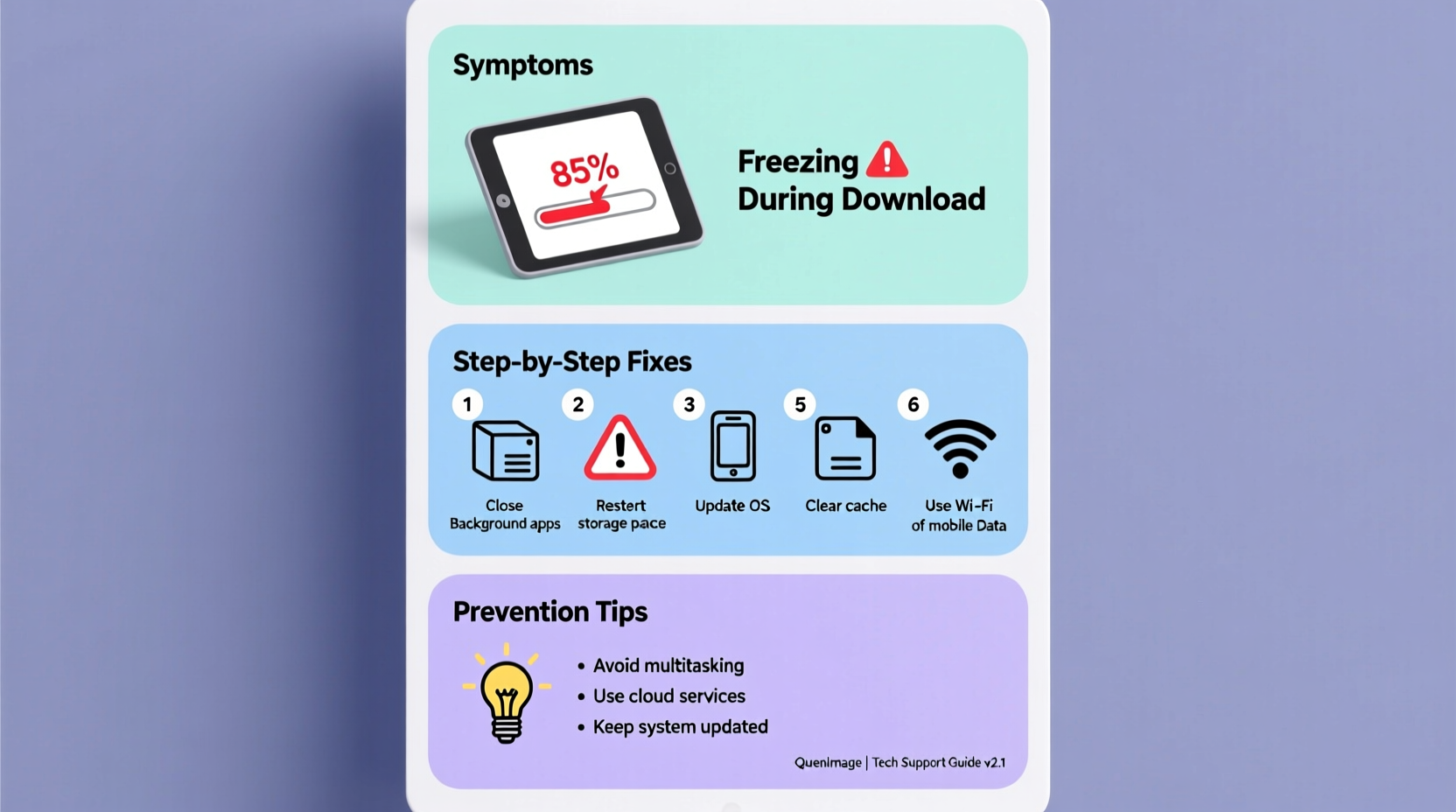
When a tablet freezes while downloading a large file, it’s usually overwhelmed by resource demands. The process of downloading involves multiple systems working simultaneously: the processor managing data flow, RAM handling active tasks, storage writing incoming data, and the network interface maintaining a stable connection. Any bottleneck in these components can trigger a system freeze.
One primary cause is insufficient RAM. When your tablet runs several apps in the background—like social media, email sync, or music streaming—available memory shrinks. A large download increases this load, especially if the app managing the download isn’t optimized. Once RAM capacity is exceeded, the operating system struggles to manage tasks, leading to unresponsiveness.
Storage limitations are another common culprit. If your tablet has less than 10% free space, the system may fail to create temporary files needed for downloads. This forces the OS into constant read/write cycles on an already crowded disk, slowing performance and increasing the chance of a crash. Additionally, older tablets with eMMC storage (common in budget models) suffer from slower write speeds, making them prone to lag during sustained data transfer.
Step-by-Step Troubleshooting Guide
Resolving freezing issues requires a methodical approach. Follow these steps in order to identify and eliminate the root cause:
- Restart the tablet – A simple reboot clears cached data and stops rogue processes. Hold the power button, select “Restart,” and wait 30 seconds before powering back on.
- Check available storage – Navigate to Settings > Storage and verify at least 15–20% free space. Delete unused apps, photos, or cached files if necessary.
- Disable background apps – Go to Settings > Apps > [App Name] > Battery & Performance and restrict background activity for non-critical apps.
- Use a stable Wi-Fi connection – Avoid public or congested networks. Connect directly to your router and ensure signal strength is strong (at least 3 bars).
- Download one file at a time – Concurrent downloads multiply system load. Wait for one transfer to complete before starting another.
- Clear the download manager cache – In Settings > Apps > Download Manager > Storage, tap “Clear Cache” to remove corrupted temporary files.
- Update the operating system – Install the latest firmware updates, which often include performance improvements and bug fixes.
- Try a different browser or download manager – Some stock browsers struggle with large files. Use trusted alternatives like Firefox or dedicated download apps with pause/resume support.
If the problem persists after these steps, consider testing the download on a different network to rule out internet-related throttling or packet loss.
Common Causes and Their Solutions
Not all freezes stem from the same source. Below is a breakdown of frequent triggers and targeted remedies:
| Issue | Symptoms | Solution |
|---|---|---|
| Low RAM | Device lags, apps close unexpectedly, screen freezes during download | Close background apps, avoid multitasking, consider factory reset if chronic |
| Near-full storage | “Storage full” warnings, slow response, failed downloads | Delete unnecessary files, move media to cloud, uninstall unused apps |
| Poor Wi-Fi signal | Download stalls, reconnects repeatedly, freezes occur intermittently | Move closer to router, restart modem, switch to Ethernet via hotspot if possible |
| Outdated software | Crashes with specific file types, compatibility errors | Install OS and app updates immediately |
| Overheating | Device feels hot, screen dims, automatic shutdowns | Stop download, let device cool, avoid direct sunlight, remove case temporarily |
It’s important to recognize patterns. For instance, if freezing only occurs during video downloads but not documents, the issue might be related to media decoding rather than storage or memory.
Real-World Example: A Student’s Tablet Struggles with Lecture Videos
Jamal, a university student, relied on his Android tablet to download recorded lectures each week. At 720p resolution, each video was approximately 1.2GB. Initially, downloads completed without issue. But over time, his tablet began freezing halfway through transfers, requiring forced reboots and resulting in corrupted files.
After consulting IT support, he discovered his tablet had only 2GB of RAM and 8% free storage. Multiple educational apps ran in the background, syncing notes and quizzes. The combination created a perfect storm: limited memory, fragmented storage, and high CPU usage.
The solution involved clearing over 3GB of cached data, uninstalling redundant study apps, and switching to Wi-Fi calling to reduce background network traffic. He also began downloading videos overnight using a Wi-Fi scheduler app that ensured optimal bandwidth. Within a week, download success rates improved from 40% to 100%, and no further freezes occurred.
This case highlights how cumulative inefficiencies—not a single flaw—can degrade performance. Proactive maintenance prevented the need for costly hardware upgrades.
“Many tablet freezes during downloads are preventable. Users often overlook background processes and storage health until it’s too late. Regular digital hygiene is as important as physical care.” — Dr. Lena Patel, Mobile Systems Analyst at TechInsight Labs
Preventive Checklist for Smooth Downloads
To minimize future disruptions, follow this routine before initiating any large download:
- ✅ Ensure at least 20% free storage space
- ✅ Connect to a strong, secure Wi-Fi network (avoid public hotspots)
- ✅ Close all unused apps from recent apps menu
- ✅ Disable auto-sync for email, photos, and cloud services temporarily
- ✅ Charge the tablet to at least 50% or plug it in during download
- ✅ Verify the download source is reliable (avoid suspicious links)
- ✅ Confirm OS and app versions are up to date
- ✅ Monitor device temperature; stop if it becomes uncomfortably warm
For users who frequently handle large files, consider enabling “Battery Saver” mode, which limits background activity and reduces processor strain—counterintuitively improving download stability.
Frequently Asked Questions
Can a virus cause my tablet to freeze during downloads?
Yes, although rare on mobile platforms. Malware disguised as legitimate apps can hijack system resources, monitor downloads, or inject ads—all increasing CPU and memory load. Stick to official app stores, review permissions carefully, and install a reputable mobile security app if concerned.
Is it safe to force-restart a tablet during a frozen download?
While not ideal, a forced restart (holding power + volume down for 10–15 seconds) is generally safe and won’t damage hardware. However, the incomplete download may become corrupted and require restarting. Always allow a few minutes for natural recovery before forcing a shutdown.
Will resetting my tablet fix the freezing issue?
A factory reset can resolve persistent freezing caused by software clutter, corrupted settings, or conflicting apps. However, it erases all data. Back up photos, documents, and accounts first. After resetting, reinstall only essential apps and test downloads before restoring everything.
Optimizing Long-Term Tablet Performance
Preventing freezes isn’t just about fixing immediate issues—it’s about cultivating habits that sustain performance over time. Start by auditing your tablet’s usage monthly. Remove apps you haven’t used in 30 days, clear caches regularly, and offload photos to cloud storage. Treat your tablet like a computer: it needs maintenance to function optimally.
Consider your usage patterns. If you routinely download files larger than 1GB, your current device may be underpowered. Tablets with at least 3GB RAM, 32GB+ storage, and modern processors (such as Qualcomm Snapdragon 6-series or higher) handle heavy tasks more reliably. Investing in a newer model may be more cost-effective than repeated troubleshooting.
Finally, leverage built-in features. Many tablets offer “Download Booster” or “Smart Stay” functions that optimize connectivity and prevent sleep during transfers. Explore your settings menu under “Network,” “Battery,” or “Device Care” to enable these tools.
Conclusion
A tablet freezing during large downloads is a solvable problem rooted in resource management, connectivity, and device health. By understanding the interplay between memory, storage, and network stability, you can take control of your device’s performance. Simple actions—like closing background apps, ensuring adequate free space, and using reliable networks—can dramatically improve reliability.
Don’t wait for a freeze to disrupt your workflow. Apply the checklist, monitor your device’s condition, and adopt preventive habits. Your tablet is capable of much more than you think—when treated with care and attention.




 浙公网安备
33010002000092号
浙公网安备
33010002000092号 浙B2-20120091-4
Comments
No comments yet. Why don't you start the discussion?