
If your Wi-Fi drops at the worst possible moments—during a video call, mid-download, or while streaming your favorite show—you're not alone. Millions of households face intermittent connectivity issues that seem random but often stem from overlooked router behaviors and environmental factors. While many users jump straight to calling their ISP or buying new hardware, the real fix is usually simpler, cheaper, and already within reach. The problem isn't always signal strength or bandwidth—it's how your router manages connections, where it's placed, and whether it's receiving proper maintenance.
This guide dives into the root causes of frequent disconnections and reveals practical, underused fixes that restore stability without technical jargon or expensive upgrades. From firmware updates to interference management, these solutions are backed by network engineers and real-world testing.
Understanding Common Causes of Wi-Fi Disconnections
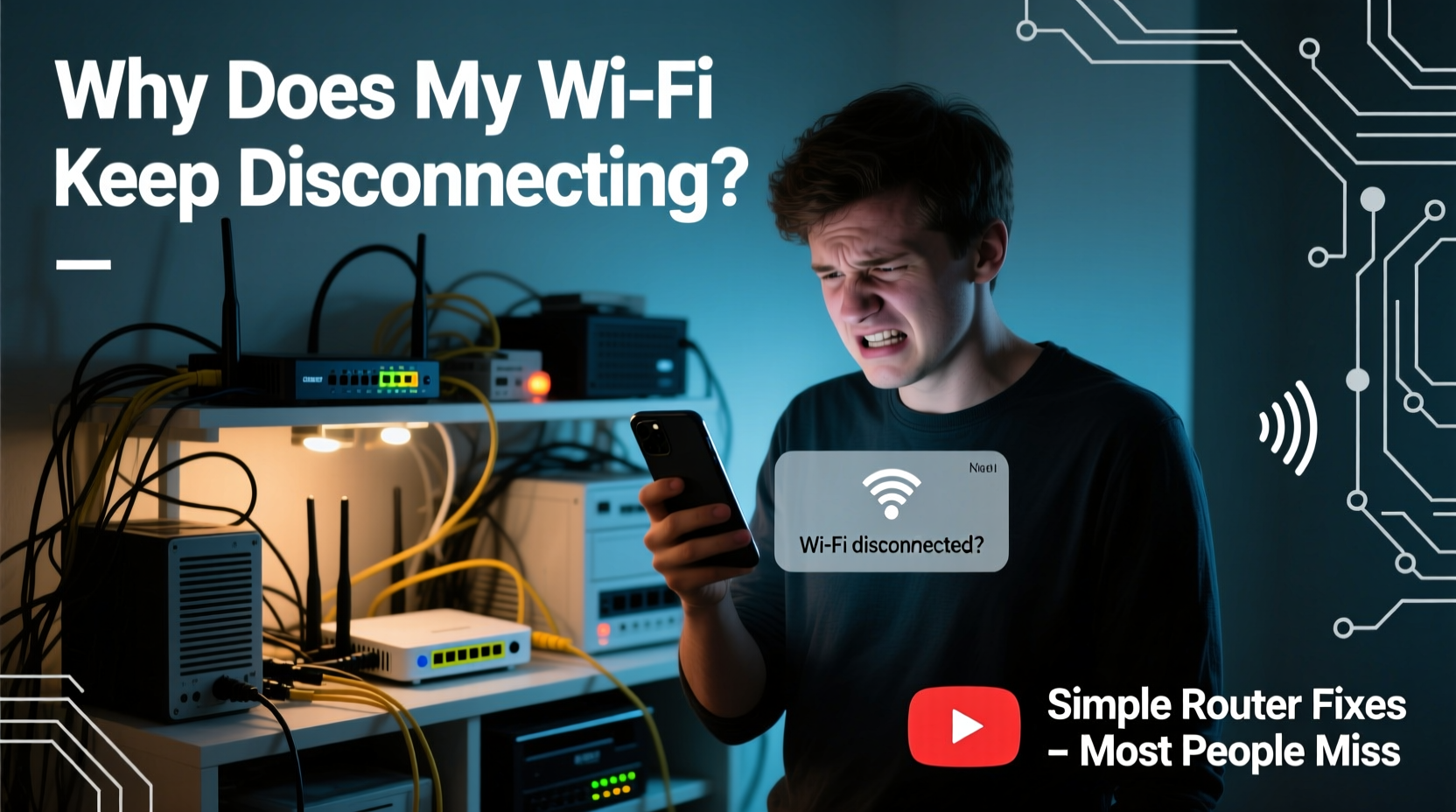
Before troubleshooting, it helps to know what you're up against. Wi-Fi instability rarely has a single cause. Instead, it’s typically a combination of hardware limitations, environmental interference, and configuration oversights.
- Router Overheating: Routers generate heat during prolonged use. When ventilation is poor, internal components can throttle performance or reboot automatically.
- Channel Congestion: In dense neighborhoods, multiple nearby networks compete on the same Wi-Fi channels, causing interference and packet loss.
- Outdated Firmware: Manufacturers release updates to patch bugs, improve security, and enhance connection handling. Ignoring these leaves routers vulnerable to crashes.
- Poor Placement: Physical barriers like walls, metal appliances, and mirrors weaken signals. Placing the router in a closet or basement amplifies dead zones.
- IP Address Conflicts: When two devices receive the same IP address from the router, one gets kicked offline.
- Device-Specific Issues: Some older or poorly configured devices struggle to maintain handshake protocols with modern routers.
Step-by-Step Guide to Diagnose and Fix Disconnections
Follow this structured approach to identify and resolve the core issue. This process takes under 30 minutes and avoids unnecessary hardware replacements.
- Reboot Your Router and Modem
Unplug both devices. Wait 60 seconds. Plug the modem back in first, wait until all lights stabilize, then power on the router. This clears temporary glitches and resets DHCP leases. - Check for Overheating Signs
Feel the router’s casing. If it’s hot to the touch, turn it off for 30 minutes. Clean dust from vents using compressed air. Consider adding rubber feet for airflow or relocating it to a cooler area. - Verify Firmware Version
Log into your router’s admin panel (usually via 192.168.1.1 or 192.168.0.1). Navigate to “Administration” or “Firmware Update.” If an update is available, install it immediately. - Change Wi-Fi Channel Manually
Use a free app like Wi-Fi Analyzer (Android) or NetSpot (Windows/Mac) to scan nearby networks. Switch your router to the least crowded 2.4GHz or 5GHz channel—typically 1, 6, or 11 on 2.4GHz; select non-DFS channels like 36, 40, 44, 48 on 5GHz. - Test Devices Individually
Disconnect all devices except one. Monitor for disconnections over 15 minutes. Repeat per device to isolate faulty clients. - Reduce Signal Interference
Move the router away from microwaves, cordless phones, baby monitors, and Bluetooth speakers. These operate on similar frequencies and can disrupt Wi-Fi.
Commonly Missed Router Settings That Cause Drops
Most users never adjust default settings after initial setup. Yet several hidden configurations significantly impact stability.
| Setting | Recommended Value | Why It Matters |
|---|---|---|
| MTU Size | 1492 (PPPoE) or 1500 (DHCP) | Incorrect MTU causes packet fragmentation and timeouts, especially on DSL or VPN connections. |
| DHCP Lease Time | 24 hours | Too short: devices lose IPs quickly. Too long: IP pool exhaustion and conflicts. |
| Wireless Mode | 802.11ax/n/g mixed (or 802.11ac/n/a for older dual-band) | Disabling backward compatibility can drop older devices unexpectedly. |
| Beacon Interval | 100 ms | Higher values save power but reduce responsiveness; lower values increase overhead. |
| DTIM Interval | 1–3 | Affects battery-powered device wake cycles. Mismatched values cause missed data bursts. |
“Over 60% of ‘unstable Wi-Fi’ cases I see are due to outdated firmware or misconfigured MTU settings. These aren’t user-facing issues, so they go unnoticed for months.” — David Lin, Network Engineer at ConnectWell Systems
Mini Case Study: The Home Office That Couldn’t Stay Connected
Sarah, a freelance graphic designer in Austin, experienced daily Wi-Fi drops between 10 AM and 2 PM. Her video calls froze, cloud saves failed, and deadlines slipped. She replaced her router twice, upgraded her internet plan, and even consulted her ISP—all to no avail.
After a site visit, a technician discovered her router was tucked behind a filing cabinet next to a cordless phone base station. The metal cabinet blocked signals, and the phone emitted constant 2.4GHz noise. Additionally, her router’s firmware hadn’t been updated in three years, and the DHCP lease time was set to just 2 hours—too short for her office printer and secondary laptop.
The fix? Relocate the router to an open desk, switch to channel 11, update firmware, and extend the lease time to 24 hours. Total cost: $0. Downtime eliminated immediately.
Essential Checklist: Prevent Wi-Fi Disconnections Before They Happen
Use this checklist monthly to maintain consistent performance:
- ✅ Reboot the router and modem at least once every 30 days
- ✅ Check for firmware updates quarterly
- ✅ Confirm optimal router placement (central, elevated, unobstructed)
- ✅ Scan for channel congestion and adjust if needed
- ✅ Clean dust from router vents
- ✅ Verify all connected devices have unique IP addresses
- ✅ Disable unused features like WPS or guest networks if not needed
- ✅ Monitor uptime via your router’s admin dashboard
Frequently Asked Questions
Why does my Wi-Fi disconnect when I use certain apps?
Some apps—especially video conferencing or cloud backup tools—generate heavy traffic that can overwhelm older routers. Check your router’s QoS (Quality of Service) settings to prioritize critical devices. Also, ensure your internet plan provides enough upstream bandwidth for uploads.
Can too many devices crash my Wi-Fi?
Yes. Most consumer routers support 20–30 simultaneous connections. Beyond that, memory and processing limits degrade performance. If you have smart lights, cameras, phones, tablets, and TVs all active, consider upgrading to a mesh system or tri-band router designed for high-density environments.
Is auto-channel selection reliable?
Not always. While convenient, auto-channel features often fail to detect non-Wi-Fi interference (like microwaves) and may switch channels unnecessarily, causing brief disconnections. Manually selecting a stable, low-congestion channel is more effective for consistent performance.
When to Upgrade vs. When to Fix
Not every issue requires a new router. Here’s how to decide:
If your router is more than five years old, lacks 5GHz support, or doesn’t allow firmware updates, replacement makes sense. Modern Wi-Fi 6 (802.11ax) routers offer better multi-device handling, improved beamforming, and enhanced power efficiency.
But if your hardware is relatively recent and still supports updates, focus on optimization. A well-maintained router—even a mid-tier model—can outperform a new one left in a closet with default settings.
Before purchasing anything, run through the diagnostic steps above. You’ll likely resolve the issue without spending a dime.
Final Thoughts: Stability Starts with Awareness
Wi-Fi disconnections frustrate users because they feel unpredictable. But in most cases, they’re symptoms of avoidable conditions: neglected maintenance, suboptimal placement, or outdated software. The fixes aren’t flashy, but they’re effective. By understanding how routers function under everyday stress, you gain control over your network’s reliability.
Start with the basics: reboot, reposition, and update. Then fine-tune settings based on your environment. Small adjustments compound into significant improvements in speed, range, and uptime.




 浙公网安备
33010002000092号
浙公网安备
33010002000092号 浙B2-20120091-4
Comments
No comments yet. Why don't you start the discussion?