
Video conferencing has become a cornerstone of modern work, education, and social interaction. Among the most widely used platforms, Zoom offers reliable performance—when the connection holds. Yet, nothing is more frustrating than being in the middle of an important meeting when your call suddenly freezes, audio cuts out, or you’re kicked off entirely. While it’s easy to blame Zoom, the real culprit is often your Wi-Fi network.
Wi-Fi dropouts during Zoom calls are rarely random. They stem from identifiable issues ranging from signal interference to outdated hardware. The good news? Most can be diagnosed and resolved with systematic troubleshooting. This guide walks through the technical and environmental factors behind unstable connections and provides actionable solutions to ensure your Zoom experience remains smooth and uninterrupted.
Understanding the Root Causes of Wi-Fi Dropouts on Zoom
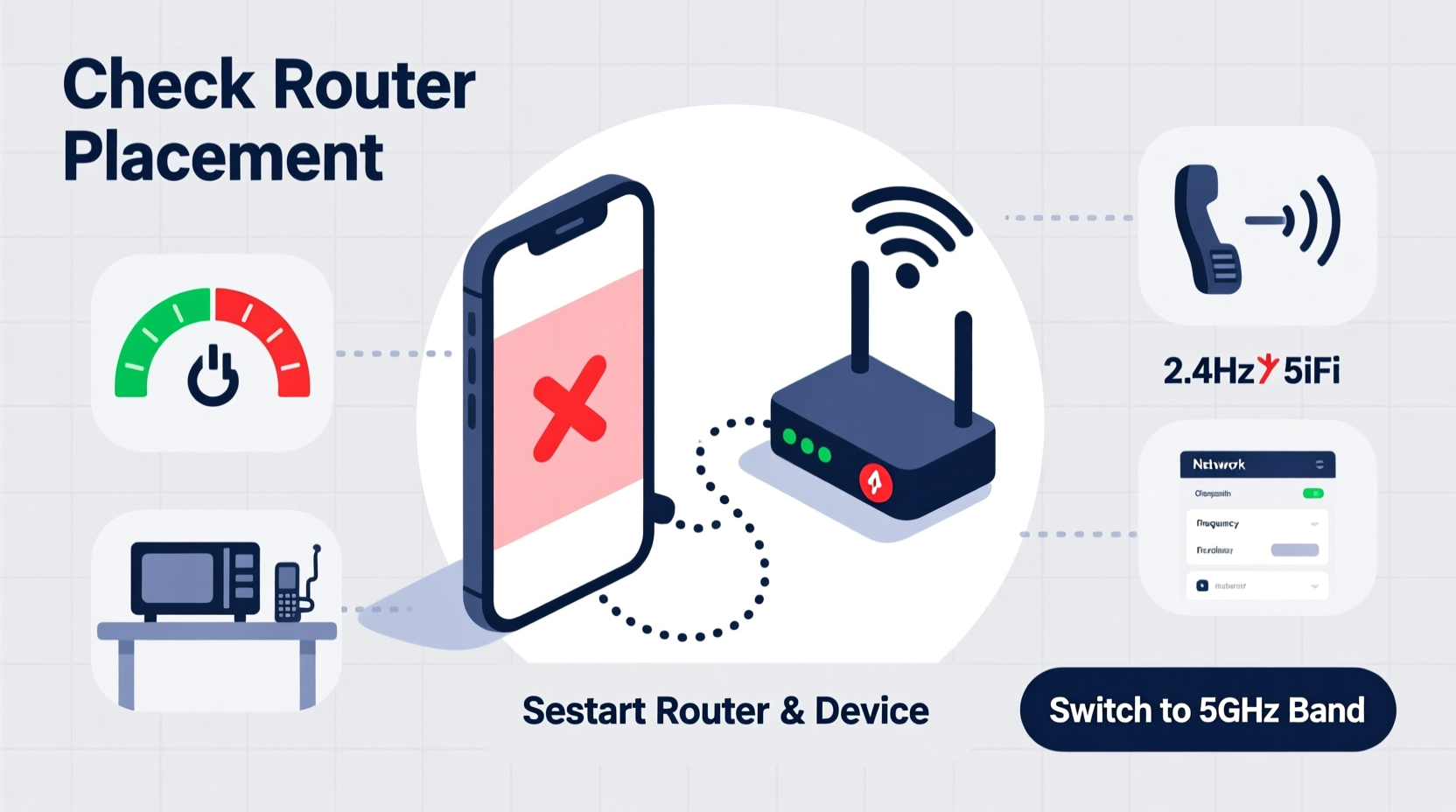
Zoom requires a stable internet connection with consistent upload and download speeds. Unlike browsing or streaming, video conferencing demands low latency (delay), minimal packet loss, and sufficient bandwidth for real-time two-way communication. When any of these elements falter, Zoom calls degrade or disconnect entirely.
Common underlying causes include:
- Bandwidth saturation: Too many devices using the network simultaneously.
- Signal interference: Physical obstructions or competing wireless signals (e.g., microwaves, Bluetooth devices).
- Router placement: Distance or walls between your device and the router weaken signal strength.
- Outdated firmware: Routers and network adapters require regular updates to maintain compatibility and security.
- Network congestion: Peak usage times in your household or neighborhood can slow performance.
- ISP throttling: Some internet service providers limit bandwidth during high-usage periods.
Identifying which factor affects your setup is the first step toward resolution.
Step-by-Step Troubleshooting Guide to Stabilize Your Connection
Follow this structured approach to isolate and fix the issue causing your Zoom disconnections. Start at the top and work down—each step builds on the last.
- Test your internet speed. Use a trusted tool like Speedtest.net or Fast.com to check your current download, upload, and ping. For Zoom, aim for at least 3 Mbps download and 1.5 Mbps upload. Ping should be under 100 ms.
- Restart your router and modem. Power cycle both devices by unplugging them for 30 seconds, then reconnecting. This clears temporary glitches and resets IP assignments.
- Move closer to your router. If possible, position yourself within one room of the router. Avoid thick walls, metal objects, or large appliances that block signals.
- Switch to 5 GHz Wi-Fi band. If your router supports dual-band, connect to the 5 GHz network. It’s faster and less congested than 2.4 GHz, though with shorter range.
- Reduce connected devices. Temporarily disconnect smart TVs, phones, tablets, or gaming consoles not in use. Each device consumes bandwidth, even in idle mode.
- Close background applications. Streaming services, cloud backups, or automatic updates consume bandwidth. Shut down non-essential programs on your computer.
- Update your router firmware. Log into your router’s admin panel (usually via 192.168.1.1 or 192.168.0.1) and check for firmware updates under “Administration” or “Advanced Settings.”
- Update network drivers. On Windows, go to Device Manager > Network Adapters and update your Wi-Fi driver. On Mac, ensure your system is up to date via System Preferences > Software Update.
- Change your DNS settings. Switch to public DNS servers like Google (8.8.8.8 and 8.8.4.4) or Cloudflare (1.1.1.1). These often resolve domains faster and more reliably than ISP defaults.
- Use Quality of Service (QoS) settings. In your router’s admin interface, enable QoS and prioritize traffic for your device or application (e.g., Zoom). This ensures video calls get bandwidth priority over downloads or streaming.
When Wi-Fi Isn’t Enough: Upgrading Your Setup
Sometimes, no amount of tweaking can overcome hardware limitations. If you’ve followed all troubleshooting steps and still experience dropouts, consider upgrading your infrastructure.
Modern routers support Wi-Fi 6 (802.11ax), which improves efficiency, reduces latency, and handles multiple devices better than older standards. Mesh networks are ideal for larger homes, eliminating dead zones with satellite nodes.
| Router Type | Best For | Lifespan | Upgrade Recommended? |
|---|---|---|---|
| Single-band (2.4 GHz) | Small spaces, basic browsing | 2–3 years | Yes — replace immediately |
| Dual-band (2.4 + 5 GHz) | Average homes, moderate usage | 3–5 years | If over 4 years old |
| Wi-Fi 6 / Mesh Systems | Large homes, multiple users | 5+ years | Ideal for stability |
Additionally, consider using a wired Ethernet connection. A direct cable from your computer to the router eliminates wireless interference entirely and provides the most stable link for critical Zoom meetings.
Real-World Example: Resolving Chronic Dropouts in a Home Office
Sarah, a project manager working remotely, experienced frequent Zoom disconnections every afternoon. Her calls would freeze, then drop completely, disrupting client presentations. Initial tests showed strong signal bars, but speed tests revealed upload speeds below 1 Mbps during peak hours.
After restarting her router with no change, she discovered her teenage son was downloading large game files during lunch breaks. She accessed her router settings and enabled QoS, prioritizing her laptop’s MAC address. She also switched her PC to a 5 GHz network and turned off automatic updates on other devices during work hours.
The next day, her Zoom calls remained stable throughout the day. Upload speeds stabilized at 2.8 Mbps, and latency dropped from 180 ms to 45 ms. By identifying the source of congestion and applying targeted fixes, Sarah eliminated the issue without upgrading her equipment.
“Most Wi-Fi problems aren’t about raw speed—they’re about consistency and prioritization. A well-managed network with modest bandwidth often outperforms a fast but chaotic one.” — David Lin, Network Infrastructure Engineer at NetSecure Solutions
Essential Checklist for Stable Zoom Calls
Keep this checklist handy before joining any critical meeting:
- ✅ Run a speed test (minimum 3 Mbps down / 1.5 Mbps up)
- ✅ Restart router and modem if performance is poor
- ✅ Connect to 5 GHz Wi-Fi or use Ethernet
- ✅ Close bandwidth-heavy apps (Netflix, Dropbox, Steam)
- ✅ Disable HD video in Zoom if connection is weak (Settings > Video > Turn off HD)
- ✅ Ask others in the household to pause large downloads
- ✅ Enable QoS on your router for video conferencing
- ✅ Position your device closer to the router
- ✅ Update Zoom app and operating system regularly
- ✅ Have a mobile hotspot ready as backup
Frequently Asked Questions
Why does my Zoom call keep dropping even with good Wi-Fi?
Even with strong signal bars, your connection may suffer from high latency or packet loss—issues not reflected in signal strength. Background processes, outdated drivers, or ISP throttling can disrupt real-time data flow. Test for jitter and packet loss using tools like PingPlotter or M-Lab.
Can Zoom itself cause disconnections?
Rarely. Zoom’s servers are highly resilient and distributed globally. Outages are infrequent and usually announced on their status page. More often, local network issues mimic platform failure. Always rule out your connection before blaming the service.
Should I use a VPN during Zoom calls?
VPNs add encryption and routing overhead, which increases latency and can destabilize real-time video. Unless required for security, disable your VPN during Zoom meetings. If you must use one, choose a provider with nearby servers to minimize delay.
Final Steps: Building a Reliable Meeting Environment
Consistent Zoom performance isn’t just about fixing problems—it’s about designing a network environment that supports reliability. Treat your home office network like a professional workspace. Invest in quality hardware, establish usage rules with household members, and perform monthly maintenance checks.
Consider scheduling critical meetings during off-peak hours if your neighborhood experiences evening congestion. Use Zoom’s built-in diagnostics (accessible during a call via \"Test Speaker and Microphone\") to monitor connection health in real time.
And remember: prevention beats reaction. A five-minute router reboot or weekly driver update can save you from a dropped presentation or missed interview.




 浙公网安备
33010002000092号
浙公网安备
33010002000092号 浙B2-20120091-4
Comments
No comments yet. Why don't you start the discussion?